
1. Introduction
This manual provides comprehensive instructions for the UGREEN USB C to DisplayPort cable bundle. This bundle includes two distinct cables: a USB C to DisplayPort 2.1 cable and a USB C to DisplayPort 1.4 cable. These cables enable you to connect devices with a USB Type-C or Thunderbolt 3/4 port to a monitor or display with a DisplayPort input, facilitating high-resolution video and audio transmission. The DisplayPort 1.4 cable also supports bidirectional transmission, allowing connection from a DisplayPort source to a USB-C monitor.
2. Product Features
- High Resolution Support:
- USB C to DisplayPort 2.1 Cable: Supports up to 16K@30Hz, 8K@120Hz, and 4K@240Hz resolutions.
- USB C to DisplayPort 1.4 Cable: Supports up to 8K@60Hz, 4K@240Hz, and 2K@240Hz resolutions.
- High Bandwidth: The DisplayPort 2.1 cable offers a maximum bandwidth of 40 Gbps for superior performance.
- Bidirectional Transmission (DP 1.4 Cable Only): The USB C to DisplayPort 1.4 cable supports signal transmission from USB-C to DisplayPort, or from DisplayPort to USB-C. The DP 2.1 cable is unidirectional (USB-C to DisplayPort).
- Advanced Visual Technologies: Supports HDR, HDCP2.3, VRR (Variable Refresh Rate), ALLM (Auto Low Latency Mode), eARC, DTS, and Dolby for an immersive visual and audio experience.
- Multi-Display Modes: Facilitates Mirror Mode, Extend Mode, Multi-Stream Transport (MST) for daisy-chaining multiple monitors, and Clamshell Mode for expanded workspace.
- Durable Construction: Features a braided nylon cable for enhanced durability, an aluminum alloy case for heat dissipation, and high-quality copper wire for stable signal transmission.

Image: Close-up view of the UGREEN USB C to DisplayPort cable, showing the USB-C and DisplayPort connectors.

Image: Diagram showing the bidirectional transmission capability of the UGREEN USB C to DisplayPort 1.4 cable, supporting both USB-C to DP and DP to USB-C connections.
3. Setup Instructions
- Identify Your Cable: Determine which cable (DisplayPort 2.1 or DisplayPort 1.4) best suits your resolution and refresh rate requirements. The DisplayPort 2.1 cable offers higher maximum resolutions (up to 16K@30Hz) but is unidirectional. The DisplayPort 1.4 cable supports up to 8K@60Hz and is bidirectional.
- Connect to Source Device: Plug the USB-C connector of the cable into a compatible USB Type-C or Thunderbolt 3/4 port on your laptop, desktop, tablet, or smartphone. Ensure the USB-C port supports DisplayPort Alternate Mode (DP Alt Mode) for video output.
- Connect to Display: Plug the DisplayPort connector of the cable into the DisplayPort input on your monitor or display.
- Bidirectional Connection (DP 1.4 Cable Only): If using the DisplayPort 1.4 cable for a DP source to USB-C monitor connection, plug the DisplayPort end into your PC's DisplayPort output and the USB-C end into your USB-C monitor's input.
- Power Supply (if applicable): For certain portable monitors or VR headsets, an external power supply (12-15W) may be required for stable operation. Consult your monitor's manual for power requirements.
- Apple Studio Display Connection: When connecting to an Apple Studio Display, ensure you use a Thunderbolt full-function port on your source device for proper functionality.

Image: Illustration demonstrating the correct connection to an Apple Studio Display, emphasizing the use of a Thunderbolt full-function port.
4. Operating Instructions
Once the cables are connected, your operating system should automatically detect the external display. You may need to adjust display settings to configure your preferred display mode.
4.1 Display Modes
- Mirror Mode: Duplicates your primary screen onto the external display. This is useful for presentations or sharing content.
- Extend Mode: Expands your desktop across the external display, providing more screen real estate for multitasking.
- Multi-Stream Transport (MST) Daisy Chain: Allows you to connect multiple DisplayPort monitors in a series from a single DisplayPort output on your source device. Both your source device and monitors must support MST.
- Clamshell Mode: Use your laptop with its lid closed while connected to an external monitor, keyboard, and mouse. Your laptop must be connected to power for this mode to function.

Image: Visual representation of Mirror Mode, Expanded Mode, MST Daisy Chain Mode, and Clamshell Mode for multi-monitor setups.
4.2 Adjusting Display Settings
To configure your display settings:
- Windows: Right-click on the desktop, select 'Display settings'. Here you can arrange displays, change resolution, refresh rate, and choose display mode.
- macOS: Go to 'System Settings' (or 'System Preferences'), then 'Displays'. You can arrange displays, adjust resolution, and select mirroring or extending options.
Ensure your graphics drivers are up to date for optimal performance and compatibility with high resolutions and refresh rates.
5. Maintenance
Proper care will extend the lifespan of your UGREEN USB C to DisplayPort cables:
- Cleaning: Use a soft, dry cloth to clean the cable and connectors. Avoid liquid cleaners.
- Handling: Always grasp the connector head when plugging or unplugging the cable. Avoid pulling directly on the cable itself.
- Storage: Store the cable in a cool, dry place, away from direct sunlight and extreme temperatures. Avoid sharp bends or kinks in the cable.
- Protection: Utilize the included Velcro tie for neat storage and to prevent tangling.
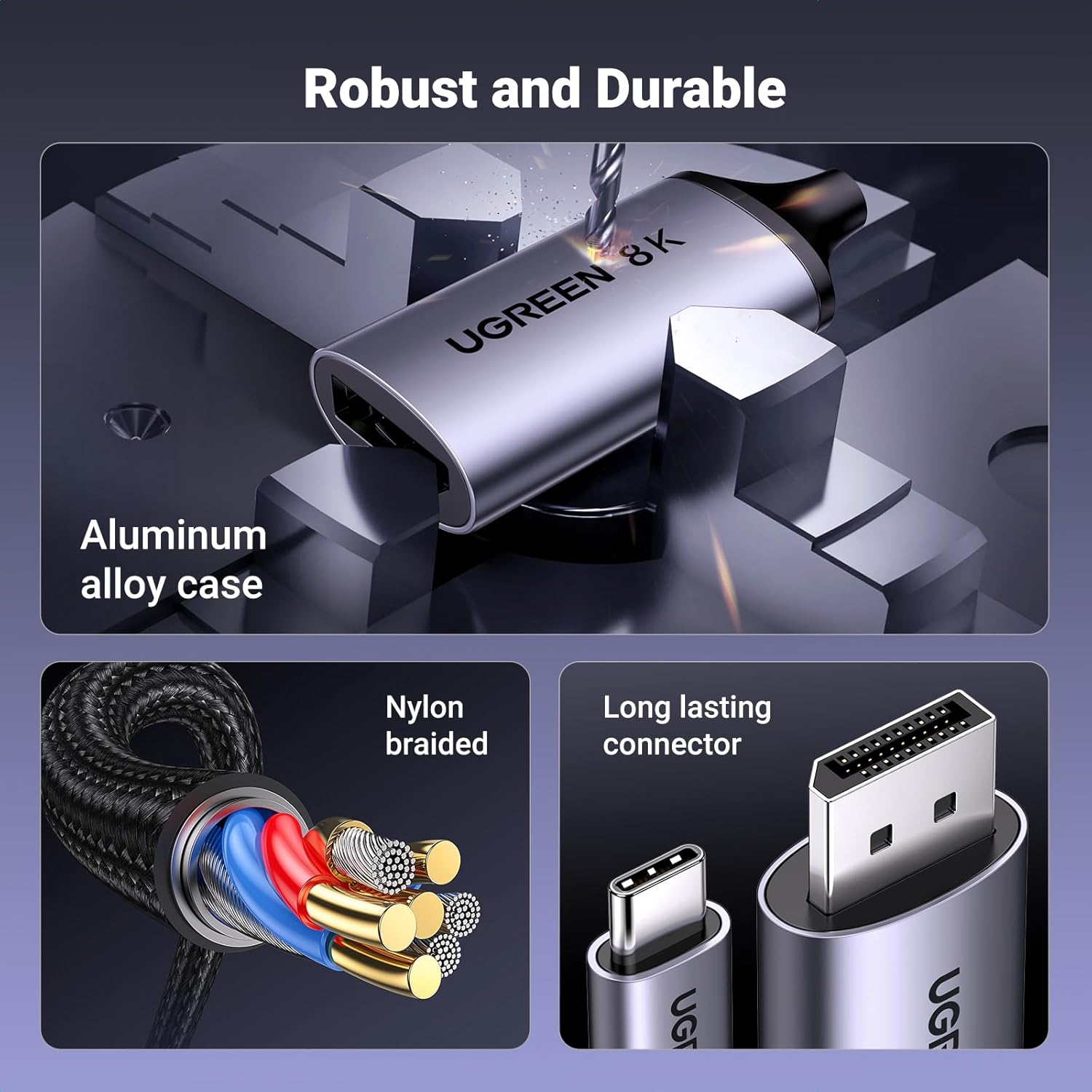
Image: Detailed view of the cable's robust construction, highlighting the aluminum alloy case, nylon braided exterior, and durable connectors.
6. Troubleshooting
If you encounter issues, refer to the following troubleshooting steps:
6.1 No Signal or Black Screen
- Check Connections: Ensure both the USB-C and DisplayPort connectors are securely plugged into their respective ports.
- Verify DP Alt Mode: Confirm that the USB-C port on your source device supports DisplayPort Alternate Mode for video output. Not all USB-C ports support video.
- Monitor Input: Select the correct DisplayPort input source on your monitor using its OSD (On-Screen Display) menu.
- Test with Another Device/Cable: If possible, test the cable with a different compatible device or try a different DisplayPort cable to isolate the issue.
6.2 Flickering or Unstable Image
- Reduce Resolution/Refresh Rate: Lower the display resolution or refresh rate in your operating system's display settings to see if stability improves.
- Check Cable Condition: Inspect the cable for any visible damage or kinks. A damaged cable can cause signal instability.
- Update Drivers: Ensure your graphics card drivers are updated to the latest version.
6.3 Resolution or Refresh Rate Not as Expected
- Compatibility Check: Verify that both your source device and your monitor support the desired resolution and refresh rate.
- Cable Type: Ensure you are using the correct cable for your desired performance. The DisplayPort 2.1 cable supports higher resolutions and refresh rates than the DisplayPort 1.4 cable.
- Display Settings: Manually adjust the resolution and refresh rate in your operating system's display settings.
6.4 Bidirectional Functionality Issues (DP 1.4 Cable Only)
- Source/Monitor Compatibility: Ensure your DisplayPort source (e.g., PC) and USB-C monitor are compatible with bidirectional video transmission.
- Unidirectional DP 2.1 Cable: Remember that the DisplayPort 2.1 cable is unidirectional (USB-C source to DisplayPort monitor only) and does not support DP to USB-C connections.
7. Specifications
| Feature | Specification |
|---|---|
| Brand | UGREEN |
| Model Number | a1a80ed7-a76d-49ba-b497-4b3f27d25c45 (Bundle) |
| Connector Type | USB Type C, DisplayPort |
| Compatible Devices | Monitors, Cell Phones, Laptops |
| Color | Black |
| DisplayPort 2.1 Cable Resolution | 16K@30Hz, 8K@120Hz, 4K@240Hz |
| DisplayPort 2.1 Cable Bandwidth | 40 Gbps |
| DisplayPort 1.4 Cable Resolution | 8K@60Hz, 4K@240Hz, 2K@240Hz |
| Transmission Direction (DP 1.4) | Bidirectional (USB-C to DP, DP to USB-C) |
| Transmission Direction (DP 2.1) | Unidirectional (USB-C to DP) |
| Supported Technologies | HDR, HDCP2.3, VRR, ALLM, eARC, DTS, Dolby, DSC 1.2a |
| Material | Nylon Braided, Aluminum Alloy Case, Copper Wire |
8. Warranty and Support
UGREEN products come with a limited warranty. For specific warranty details, please refer to the product packaging or the official UGREEN website.
If you require technical assistance, have questions about product functionality, or need to report an issue, please contact UGREEN customer support through their official channels. Contact information can typically be found on the UGREEN website or on the product packaging.