
1. Important Safety Information
Read all instructions carefully before installation and use. Failure to follow these instructions may result in product damage, vehicle damage, or personal injury. Keep this manual for future reference.
- Professional installation is recommended for optimal performance and safety.
- Ensure the vehicle's power is disconnected before beginning installation to prevent electrical shorts.
- Do not operate the device in a manner that distracts from driving.
- Avoid exposing the device to extreme temperatures, direct sunlight for prolonged periods, or excessive moisture.
2. Product Overview
The Roinvou 10.1-inch Android Car Stereo is designed to upgrade the infotainment system of Jeep Compass and Patriot models from 2010 to 2016. It features a high-definition capacitive touch screen and runs on a powerful Android system, offering a smooth user experience with various functionalities.
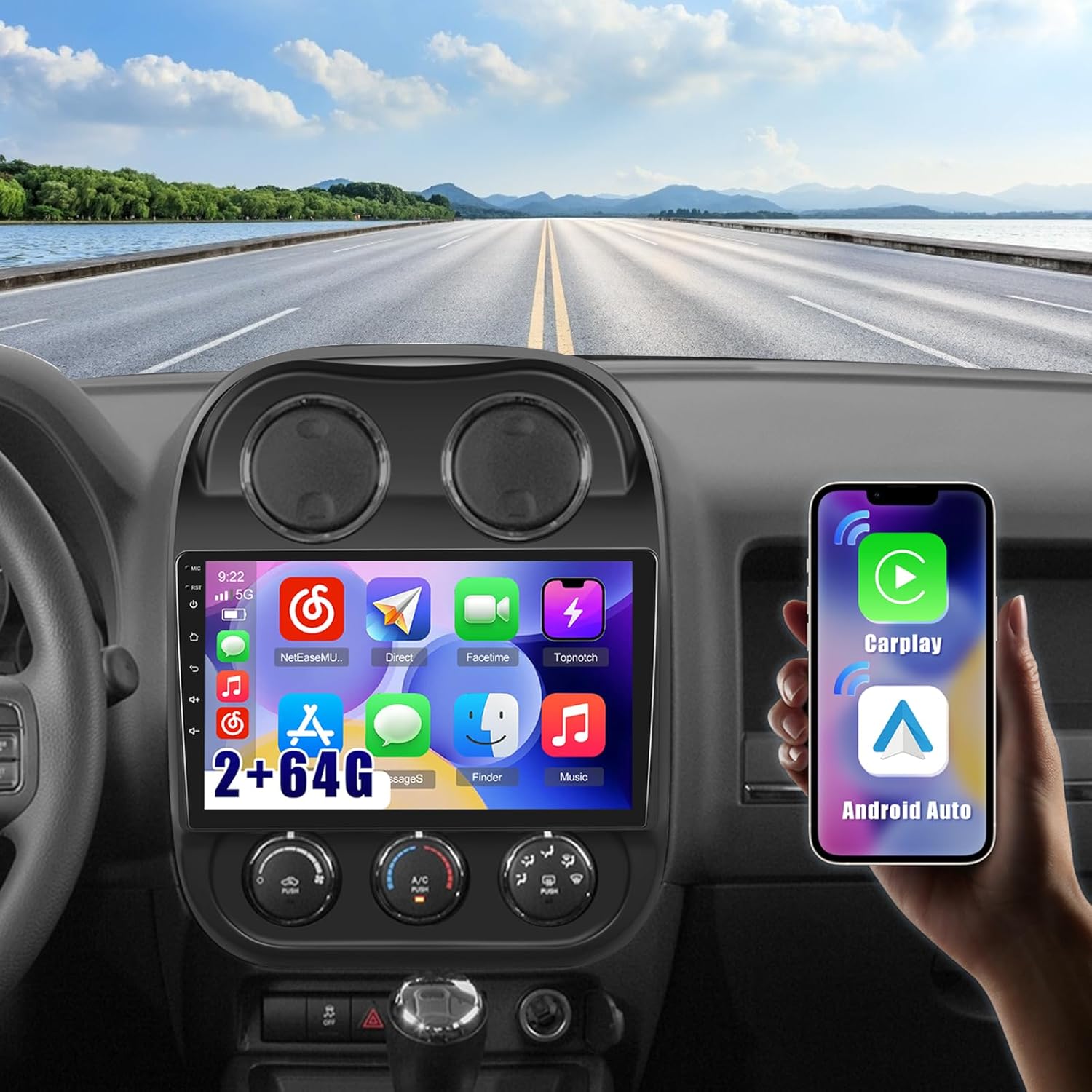
Figure 2.1: Roinvou 10.1-inch Android Car Stereo installed in a Jeep Compass Patriot dashboard, displaying various app icons including CarPlay and Android Auto.

Figure 2.2: Stereo interface highlighting key features.
3. Package Contents
Verify that all items are present in the package:
- Roinvou Car Stereo for Jeep Compass Patriot
- Power Cable
- CANBUS Decoder
- Radio Antenna
- RCA Cable
- GPS Antenna
- AHD Backup Camera
- External Microphone
- Rear Camera Input Cable
- Dual USB Cable
- Installation Tool
4. Installation Guide
This section provides general guidance for installing the Roinvou 10.1-inch Android Car Stereo. Due to variations in vehicle models and configurations, some steps may differ. Professional installation is highly recommended.
4.1. Preparation
- Ensure the vehicle is turned off and the battery is disconnected.
- Gather necessary tools, including trim removal tools, screwdrivers, and wire cutters/strippers.
4.2. Removing the Original Stereo
Carefully remove the original radio dash kit and stereo unit. Use a trim removal tool to pry off the dashboard panels without causing damage.
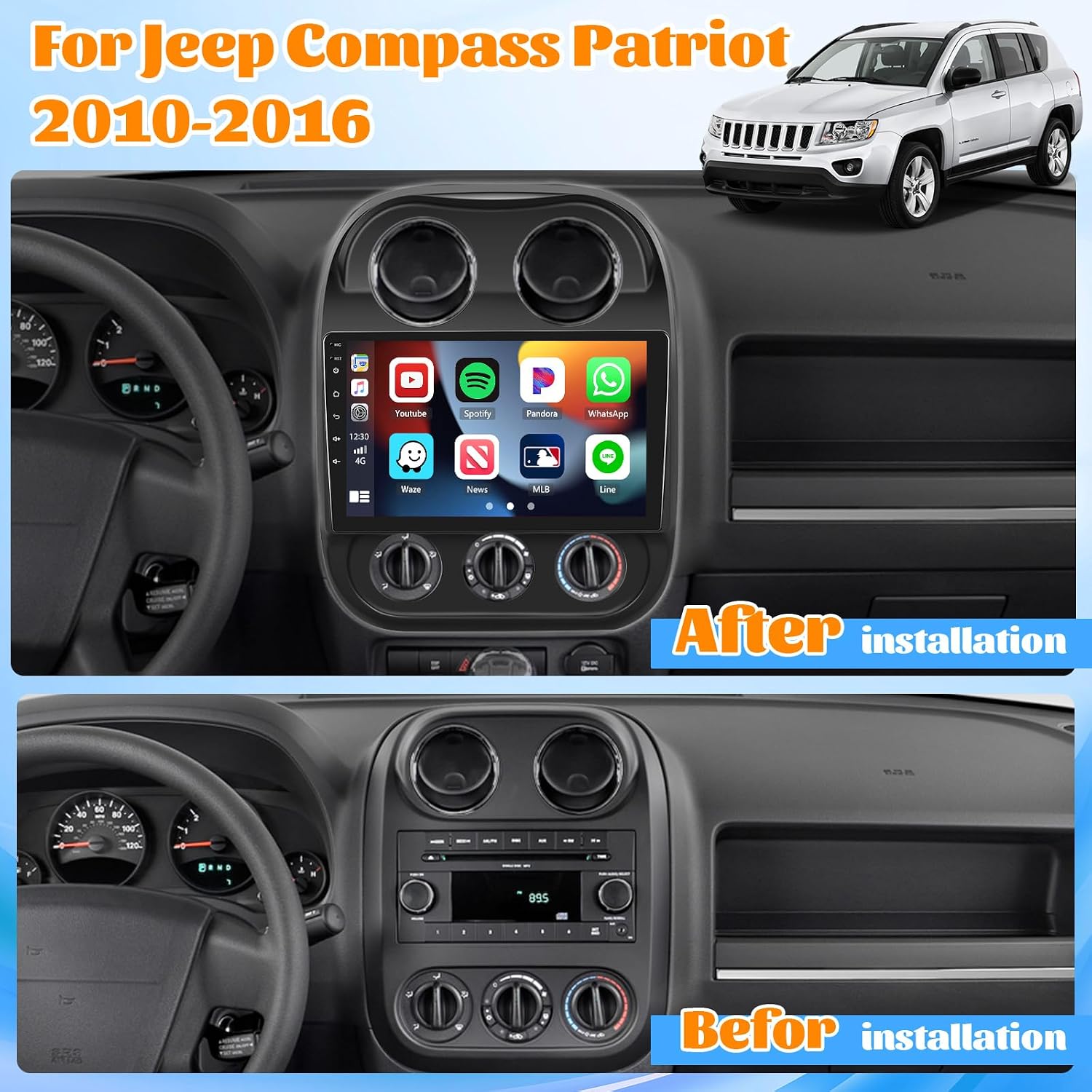
Figure 4.1: Comparison of the dashboard before and after installing the Roinvou stereo.
4.3. Wiring Connections
Connect the provided wiring harness cables, CANBUS decoder, and frame panel to the new head unit. Ensure all connections are secure.
- Power Cable Port: Verify that the power cable port on the new stereo matches your original car's port.
- CANBUS Decoder: If your vehicle has steering wheel controls, ensure the CANBUS decoder is correctly connected. You may need to go to the settings to match the CANBUS configuration.
- GPS Antenna: Connect the GPS antenna to the designated port on the stereo. Position the antenna in a location with a clear view of the sky, such as on the dashboard near the windshield, for optimal signal reception.
- Radio Antenna: Connect the radio antenna.
- Backup Camera: Connect the AHD backup camera and its input cable. The camera supports automatic switching to the reverse image when the vehicle is in reverse.
Video 4.1: This video demonstrates the center console disassembly and wiring method for the A7197 model, which is similar to the installation process for this Roinvou stereo. It provides visual guidance for connecting the various cables and components.
5. Operating Instructions
The Roinvou Android Car Stereo offers a wide range of features for an enhanced driving experience.
5.1. General Interface and Themes
The stereo runs on an Android system, providing a familiar and intuitive interface. It comes equipped with 28 UI themes, allowing for personalization of the display.

Figure 5.1: Various UI themes for customizing the stereo interface.
5.2. Wireless/Wired CarPlay & Android Auto
Connect your smartphone to the stereo via Bluetooth for wireless CarPlay or Android Auto, or use the original USB data cable for a wired connection. This allows for seamless integration of phone calls, music, and GPS navigation, with smart voice control via Siri and Google Assistant.
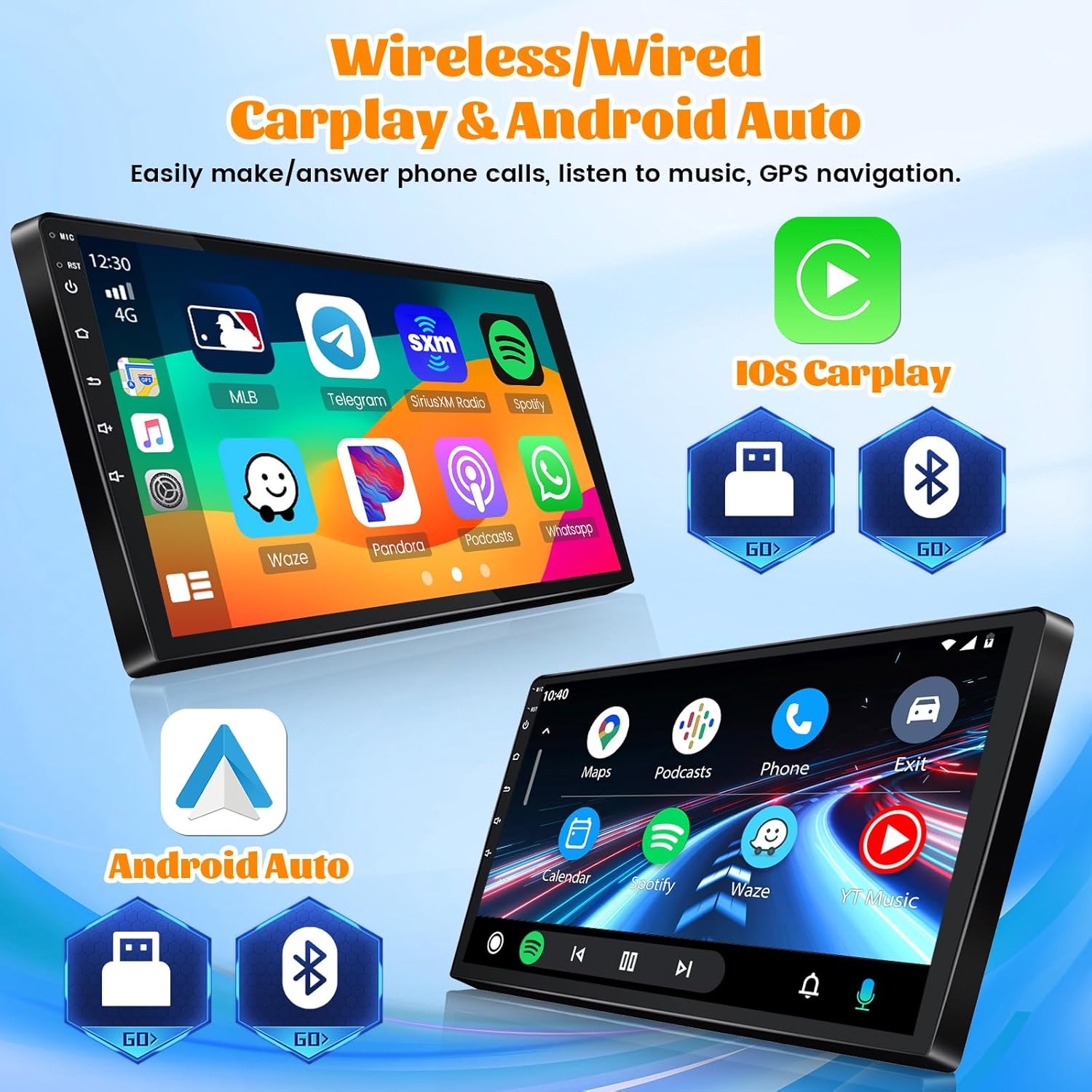
Figure 5.2: Wireless and wired connectivity options for CarPlay and Android Auto.
Video 5.1: This video demonstrates the user interface functions and the connection process for both CarPlay and Android Auto on the Roinvou stereo.
5.3. Bluetooth & Mirror Link
The built-in Bluetooth module supports hands-free calling, phone book synchronization, and music streaming. The Mirror Link function allows you to synchronize your Android or iOS smartphone screen to the stereo display for multimedia content viewing.

Figure 5.3: Mirror Link functionality for Android and iOS devices.
5.4. GPS Navigation & WiFi Connection
The stereo includes built-in GPS navigation. You can download offline navigation apps directly from the Play Store. Connect to WiFi to access online maps, stream music, and download various applications like YouTube.

Figure 5.4: GPS navigation and WiFi connectivity features.
5.5. FM/RDS Radio
Enjoy high-quality audio with the integrated FM/RDS radio, offering various music modes and sound effects adjustable via the EQ settings.
5.6. Steering Wheel Control (SWC)
The stereo supports steering wheel controls, allowing you to manage functions without removing your hands from the steering wheel. Ensure proper CANBUS settings are configured for this feature to work correctly.
6. Troubleshooting
If you encounter issues with your Roinvou car stereo, refer to the following common problems and solutions:
- No Power/Intermittent Power:
Check all power connections and ensure they are securely plugged in. Verify the vehicle's battery is charged and the fuse for the stereo is intact.
- Steering Wheel Controls Not Working:
Ensure the CANBUS decoder is correctly installed and configured. Navigate to the stereo's settings menu to match the CANBUS settings to your vehicle's model and year.
- Poor Radio Reception or Bluetooth Skipping:
Ensure all unnecessary harnesses are unplugged if not in use, as they can interfere with radio and Bluetooth signals. Check the radio antenna connection.
- Device Reboots Frequently:
Ensure stable power supply. If the issue persists, check for firmware updates or contact customer support.
- CarPlay/Android Auto Connection Issues:
For wireless connections, ensure Bluetooth is enabled on both the stereo and your phone. For wired connections, use the original USB data cable and ensure USB debugging is enabled on Android phones if prompted.
7. Specifications
| Feature | Detail |
|---|---|
| Package Dimensions | 14.17 x 11.02 x 6.1 inches |
| Item Weight | 6.86 pounds |
| ASIN | B0D6YS8RDM |
| Manufacturer | Roinvou |
| Brand | Roinvou |
| Vehicle Service Type | Car |
| Screen Size | 10.1 Inches |
| Special Features | Bluetooth, Touchscreen, Wireless CarPlay, Wireless Android Auto, Mirror Link, GPS Navigation, WiFi Connection, FM RDS Radio, Support Reverse Input, DSP Sound, 28 Desktop Themes, SWC |
| Connectivity Technology | Bluetooth, USB, Wi-Fi |
| Map Type | North America |
| Audio Output Mode | Stereo |
| Mounting Type | Dashboard Mount |
| Resolution | 1024 x 600 |
8. Maintenance
To ensure the longevity and optimal performance of your Roinvou car stereo, follow these maintenance guidelines:
- Cleaning the Screen: Use a soft, lint-free cloth to gently wipe the touch screen. For stubborn smudges, slightly dampen the cloth with water or a screen-safe cleaner. Avoid harsh chemicals or abrasive materials.
- Software Updates: Periodically check for available software updates via the stereo's settings menu. Updates can improve performance, add new features, and fix bugs.
- Environmental Care: Avoid prolonged exposure to extreme heat or cold, which can affect the electronic components and screen.
- Cable Management: Ensure all cables are neatly routed and secured to prevent damage from pinching or snagging.
9. Warranty and Support
For warranty information and customer support, please refer to the documentation provided with your purchase or contact Roinvou directly. Protection plans are available for extended coverage.
- 2-Year Protection Plan: Available for purchase.
- 3-Year Protection Plan: Available for purchase.
- Complete Protect: A monthly plan covering eligible past and future purchases.
For direct inquiries, you can visit the Roinvou Store on Amazon or contact their customer service.


