
Introduction
This manual provides essential information for setting up, operating, maintaining, and troubleshooting your Lenovo ThinkCentre M90a Gen 5 All-in-One Computer. Designed for reliability and ease of use, this system integrates all necessary components into a single, compact unit.
Key features of your ThinkCentre M90a Gen 5 include:
- All-in-One design for simplified setup and reduced cable clutter.
- Intel Core i5 14th Gen i5-14500 processor for robust performance.
- Windows 11 Pro operating system for enhanced productivity.
- 23.8" Full HD Touchscreen display for intuitive interaction.
- 16 GB DDR5 RAM and 256 GB SSD for fast multitasking and storage.
- Integrated Intel UHD Graphics 770.
- Built-in Super multi-format DVD drive.
- Intel vPro Technology for advanced security and manageability.

Figure 1: Front view of the Lenovo ThinkCentre M90a Gen 5 All-in-One Computer, showing the display, integrated webcam, and speaker bar.
Setup Guide
1. Unpacking and Contents
Carefully unpack all components from the box. Verify that all items listed below are present:
- ThinkCentre M90a Gen 5 12SH001LUS All-in-One Computer
- USB Calliope Keyboard
- USB Calliope Mouse
- VESA mount (optional, for wall mounting)
- UltraFlex V Stand (pre-attached or separate)
- Power Adapter and Cable
2. Physical Setup
- Place the Computer: Position the All-in-One computer on a stable, flat surface with adequate ventilation. Ensure there is enough space around the unit for airflow.
- Connect Keyboard and Mouse: Plug the USB keyboard and mouse into any available USB ports on the back or side of the computer. Refer to Figure 2 and Figure 3 for port locations.
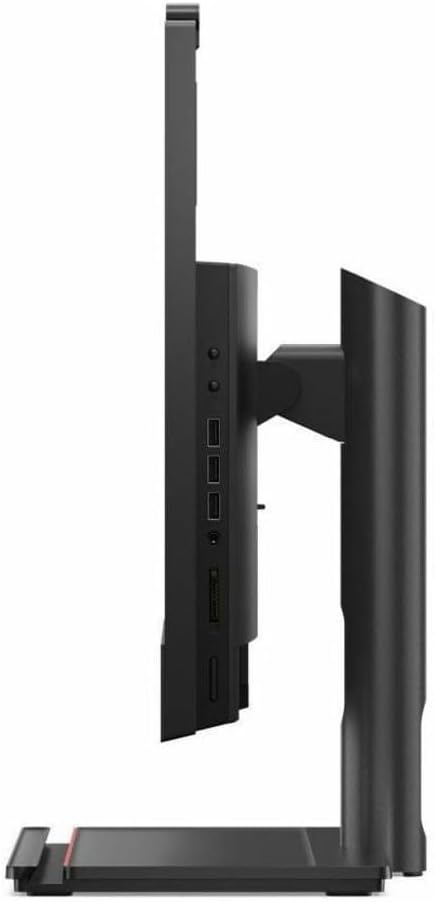
Figure 2: Left side view with USB ports and card reader.

Figure 3: Right side view with optical drive.
- Connect Power: Plug the power cable into the power adapter, then connect the adapter to the power input port on the back of the computer. Finally, plug the power cable into a grounded electrical outlet.

Figure 4: Rear view showing power input, display ports, and network port.
- Initial Boot: Press the power button, usually located on the side or bottom bezel of the display. The system will power on and begin the initial Windows 11 Pro setup process. Follow the on-screen instructions to complete the operating system configuration, including language, region, network connection, and user account setup.
Operating Instructions
Basic Interaction
- Touchscreen: Utilize the multi-touch display for navigation, gestures, and direct interaction with applications.
- Keyboard and Mouse: Use the provided USB keyboard and mouse for traditional input methods.
Optical Drive Usage
The integrated Super multi-format DVD drive supports reading and writing CDs and DVDs. To use, gently press the eject button on the drive (located on the right side, refer to Figure 3) to open the tray. Place your disc on the tray with the label side up and gently push the tray back in.
Connectivity
- Wi-Fi: Connect to wireless networks via the built-in 802.11ax Wi-Fi. Access network settings through the Windows 11 Pro taskbar or Settings app.
- Bluetooth: Pair Bluetooth-enabled devices such as headphones, speakers, or mobile phones. Manage Bluetooth devices through Windows Settings.
- USB Ports: Use the various USB ports for connecting external storage, printers, and other peripherals.
- Ethernet: For a wired network connection, plug an Ethernet cable into the RJ-45 port on the rear of the computer (refer to Figure 4).
Intel vPro Technology
Your ThinkCentre M90a Gen 5 is equipped with Intel vPro Technology, providing enhanced security features, remote management capabilities, and improved stability for business environments. For detailed configuration and usage of vPro features, consult your IT administrator or refer to Intel's official documentation.
Maintenance
Cleaning
- Screen: Use a soft, lint-free cloth specifically designed for electronics screens. For stubborn smudges, lightly dampen the cloth with water or a screen-cleaning solution. Avoid harsh chemicals.
- Chassis: Wipe the exterior surfaces with a soft, dry cloth. For dust accumulation in vents, use compressed air. Ensure the computer is powered off and unplugged before cleaning.
Software Updates
Regularly update your operating system and drivers to ensure optimal performance, security, and compatibility.
- Windows Updates: Go to Settings > Windows Update to check for and install the latest Windows 11 Pro updates.
- Driver Updates: Visit the official Lenovo support website for your model (12SH001LUS) to download the latest drivers for graphics, chipset, audio, and other components.
Data Backup
It is highly recommended to regularly back up your important data to an external drive or cloud storage service to prevent data loss in case of system failure.
Troubleshooting
This section addresses common issues you might encounter. For more complex problems, refer to the Lenovo support website or contact technical support.
No Power / System Not Starting
- Ensure the power cable is securely connected to the computer and the electrical outlet.
- Verify the electrical outlet is functional by plugging in another device.
- Check the power adapter for any damage.
Display Issues (No Image / Flickering)
- Restart the computer.
- Ensure display drivers are up to date.
- Check display settings in Windows to ensure correct resolution and refresh rate.
Keyboard or Mouse Not Responding
- Ensure the USB cables for the keyboard and mouse are firmly plugged into the computer's USB ports.
- Try plugging them into different USB ports.
- Restart the computer.
Slow Performance
- Close unnecessary applications running in the background.
- Check for and install any pending Windows or driver updates.
- Run a disk cleanup and defragmentation (for HDD, though this is SSD). For SSD, ensure TRIM is enabled (usually automatic).
- Scan for malware or viruses.
Specifications
| Feature | Detail |
|---|---|
| Model | Lenovo ThinkCentre M90a Gen 5 (12SH001LUS) |
| Processor | Intel Core i5-14500 (2.6 GHz, 14th Gen) |
| Operating System | Windows 11 Pro |
| Display | 23.8" Full HD (1920 x 1080) Touchscreen |
| RAM | 16 GB DDR5 (4800 MHz) |
| Storage | 256 GB SSD (Solid State Drive) |
| Graphics | Intel UHD Graphics 770 (Integrated) |
| Optical Drive | DVD-Writer |
| Wireless Connectivity | 802.11ax Wi-Fi, Bluetooth |
| Ports | USB, Ethernet (RJ-45), Display Ports (specific types not detailed in input, assuming standard) |
| Dimensions (LxWxH) | 9.9 x 21.2 x 18.6 inches |
| Weight | 17.26 pounds |
Warranty and Support
For detailed warranty information, please refer to the warranty card included with your product or visit the official Lenovo support website. Warranty terms and conditions may vary by region and product.
For technical support, driver downloads, and additional resources, please visit the Lenovo support portal:
When contacting support, please have your product model (12SH001LUS) and serial number ready. The serial number is typically located on a label on the back or bottom of the computer.