1. Introduction
This manual provides instructions for the installation, operation, and maintenance of the Dahua 4G LTE Wireless Outdoor IP Camera, model DH-IPC-HFW1239DTP-4G-IL. This device is designed for outdoor surveillance, offering remote monitoring capabilities through 4G LTE connectivity. It features 2MP resolution, night vision, two-way audio, and is built to withstand various weather conditions.
2. Product Overview
The Dahua 4G LTE Wireless Outdoor IP Camera is a robust surveillance solution. Key features include:
- 2MP Resolution: Captures clear video footage.
- 4G LTE Connectivity: Enables remote access and real-time monitoring without requiring a local Wi-Fi network.
- Night Vision: Provides visibility up to 50 meters in low-light conditions using IR LEDs.
- Weatherproof Design: IP67 rated for outdoor use, protecting against dust and water ingress.
- Two-Way Audio: Allows for real-time communication through the camera.
- Intruder Alert System: Sends notifications upon detection of unusual activity.
- Smart Home Compatibility: Integrates with Amazon Alexa and Google Assistant for voice control.
- Video Compression: Utilizes H.265 for efficient storage and transmission.
2.1 Included Components
- Dahua 4G LTE Wireless Outdoor IP Camera
- Power Adapter
- Mounting Hardware (screws, anchors)
- Quick Start Guide
2.2 Product Views
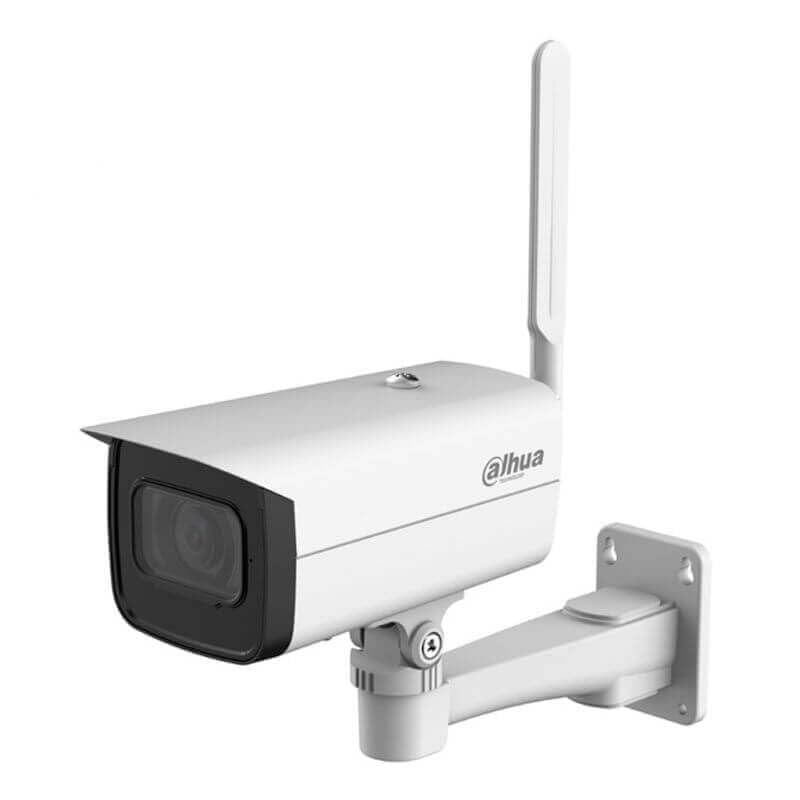
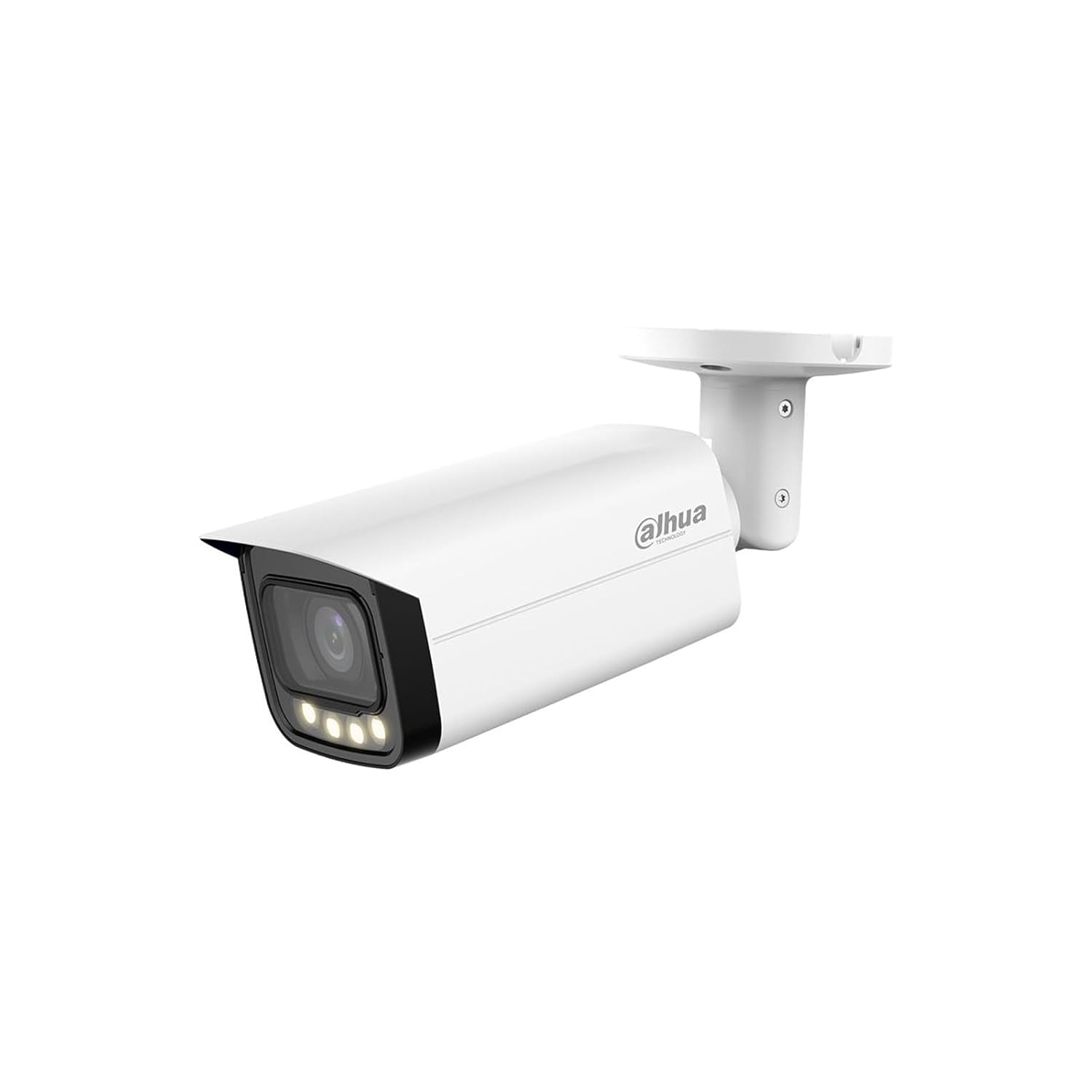

3. Setup Instructions
Follow these steps to set up your Dahua 4G LTE Wireless Outdoor IP Camera:
- Unpack the Camera: Carefully remove all components from the packaging. Verify that all included items are present.
- Insert SIM Card (for 4G LTE models): Locate the SIM card slot, typically protected by a cover. Insert a activated 4G LTE SIM card according to the diagram provided in the quick start guide. Ensure it is correctly seated.
- Power Connection: Connect the provided power adapter to the camera's power input port and then plug it into a suitable power outlet. The camera will power on and initiate its startup sequence.
- Download Mobile Application: Download the official Dahua mobile application (e.g., DMSS) from your smartphone's app store (iOS App Store or Google Play Store).
- Initial Device Pairing:
- Open the Dahua mobile application and create an account or log in.
- Tap the '+' icon to add a new device.
- Scan the QR code located on the camera or its packaging.
- Follow the on-screen prompts to complete the device pairing process. This may involve setting a device password.
- Mounting the Camera:
- Choose a suitable outdoor location that provides the desired viewing angle and has good 4G LTE signal strength.
- Use the provided mounting template (if available) to mark drill holes.
- Drill holes and insert wall anchors if necessary.
- Secure the mounting bracket to the surface using the provided screws.
- Attach the camera to the mounting bracket and adjust its angle for optimal coverage.
4. Operating Instructions
Once the camera is set up, you can begin monitoring and utilizing its features through the mobile application.
4.1 Remote Monitoring
Access live video feeds and recorded footage from anywhere using the Dahua mobile application. Ensure your smartphone has an active internet connection.
4.2 Two-Way Audio
To use the two-way audio feature:
- In the live view interface of the app, locate the microphone icon.
- Tap the microphone icon to speak through the camera's speaker.
- The camera's built-in microphone will capture audio from the camera's vicinity.
4.3 Night Vision
The camera automatically switches to night vision mode in low-light conditions. Infrared LEDs illuminate the area, providing clear black-and-white video. The camera can detect motion up to 50 meters in darkness.
4.4 Intruder Alerts
Configure motion detection zones and sensitivity settings within the mobile application. When motion is detected, the camera will send instant notifications to your smartphone, allowing you to view the event in real-time.
4.5 Smart Home Integration
To integrate with Amazon Alexa or Google Assistant:
- Open the Alexa or Google Home app on your smartphone.
- Search for the Dahua skill/service and enable it.
- Link your Dahua account with your smart home assistant account.
- Discover devices. You can then use voice commands to view camera feeds on compatible smart displays.
5. Maintenance
Regular maintenance ensures optimal performance and longevity of your camera.
5.1 Cleaning
- Periodically clean the camera lens and housing with a soft, damp cloth.
- Do not use harsh chemicals or abrasive cleaners, as these can damage the lens or finish.
- Ensure the camera is powered off before cleaning.
5.2 Firmware Updates
Check the Dahua mobile application regularly for available firmware updates. Keeping your camera's firmware up-to-date ensures you have the latest features, security patches, and performance improvements. Follow the in-app instructions for firmware updates.
6. Troubleshooting
If you encounter issues with your camera, refer to the following common troubleshooting steps:
- No Power: Ensure the power adapter is securely connected to both the camera and a working power outlet. Check the power indicator light on the camera.
- No 4G LTE Connection: Verify that the SIM card is correctly inserted and activated. Check the signal strength indicator in the mobile app. If signal is weak, try repositioning the camera or contacting your mobile service provider.
- Cannot Connect to App: Ensure your smartphone has an active internet connection. Restart the camera and your smartphone. Try re-pairing the device if the issue persists.
- Poor Video Quality: Check the camera lens for dirt or obstructions. Ensure there is adequate lighting in the monitored area. Adjust video resolution settings in the app if necessary.
- Motion Detection Not Working: Verify that motion detection is enabled in the app settings. Adjust sensitivity and detection zones. Ensure there are no constant movements (e.g., tree branches) triggering false alarms.
- Two-Way Audio Issues: Check the microphone and speaker settings in the app. Ensure there are no physical obstructions blocking the camera's microphone or speaker.
7. Specifications
Detailed technical specifications for the Dahua 4G LTE Wireless Outdoor IP Camera (DH-IPC-HFW1239DTP-4G-IL):
| Feature | Specification |
|---|---|
| Model Number | DH-IPC-HFW1239DTP-4G-IL |
| Image Sensor | 1/2.7" CMOS |
| Resolution | 2MP (1920 x 1080) |
| Frame Rate | 30 frames per second |
| Lens | Fixed-focal (specific focal length may vary by variant) |
| Night Vision | IR LEDs, up to 50 meters |
| Wireless Communication | 4G LTE, Wi-Fi, Bluetooth |
| Audio | Two-way audio (built-in microphone and speaker) |
| Video Compression | H.265 |
| Storage | Micro SD card slot (up to 256GB, card not included) |
| Weatherproof Rating | IP67 |
| Power Supply | 12V DC (Adapter included) |
| Control Method | Mobile App |
| Dimensions (L x W x H) | 12 x 5 x 10 Centimeters (approximate) |
| Weight | 500 g (approximate) |
| Operating Temperature | Refer to product datasheet for specific range |
7.1 Datasheet Reference
For more detailed technical specifications, please refer to the official product datasheets:
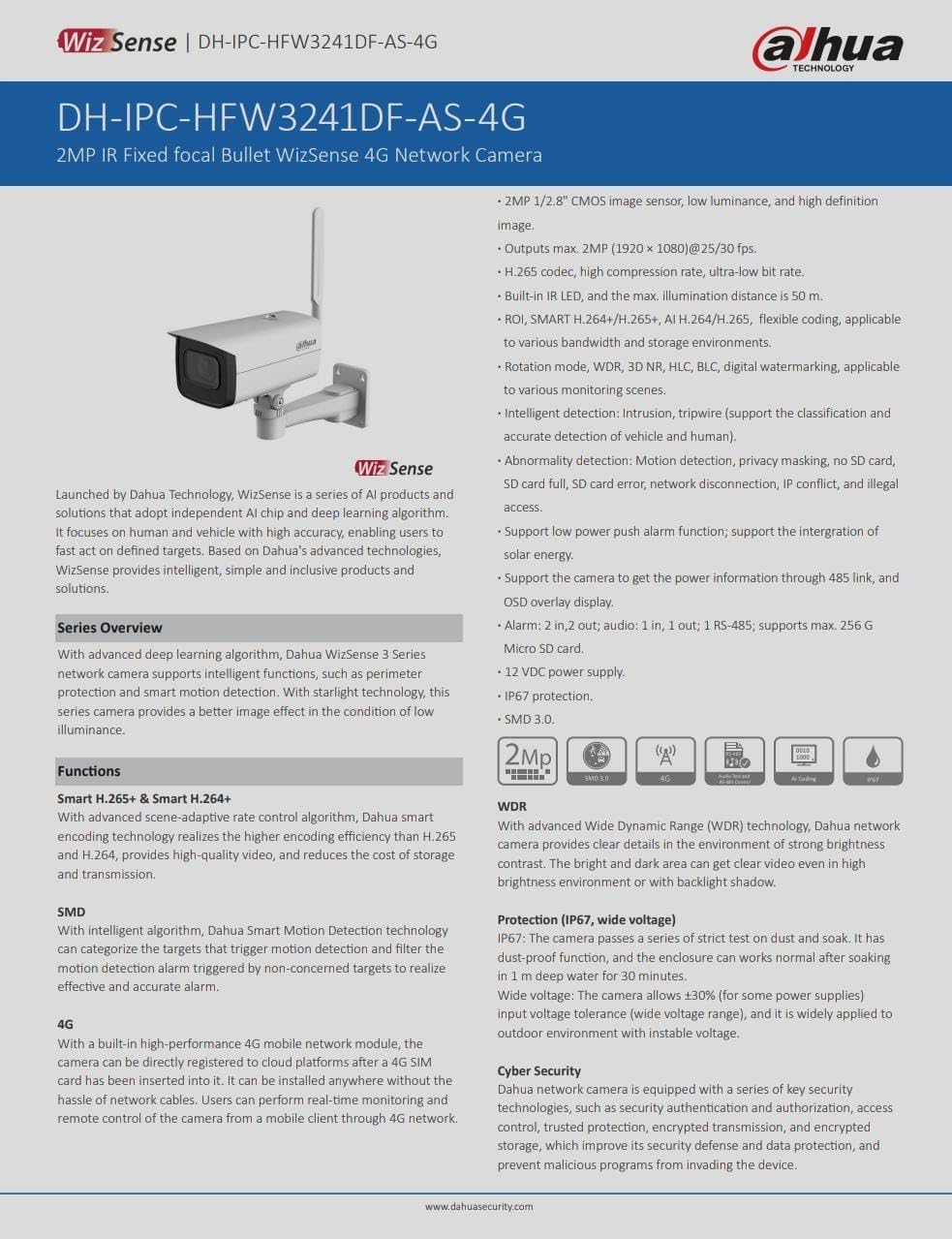

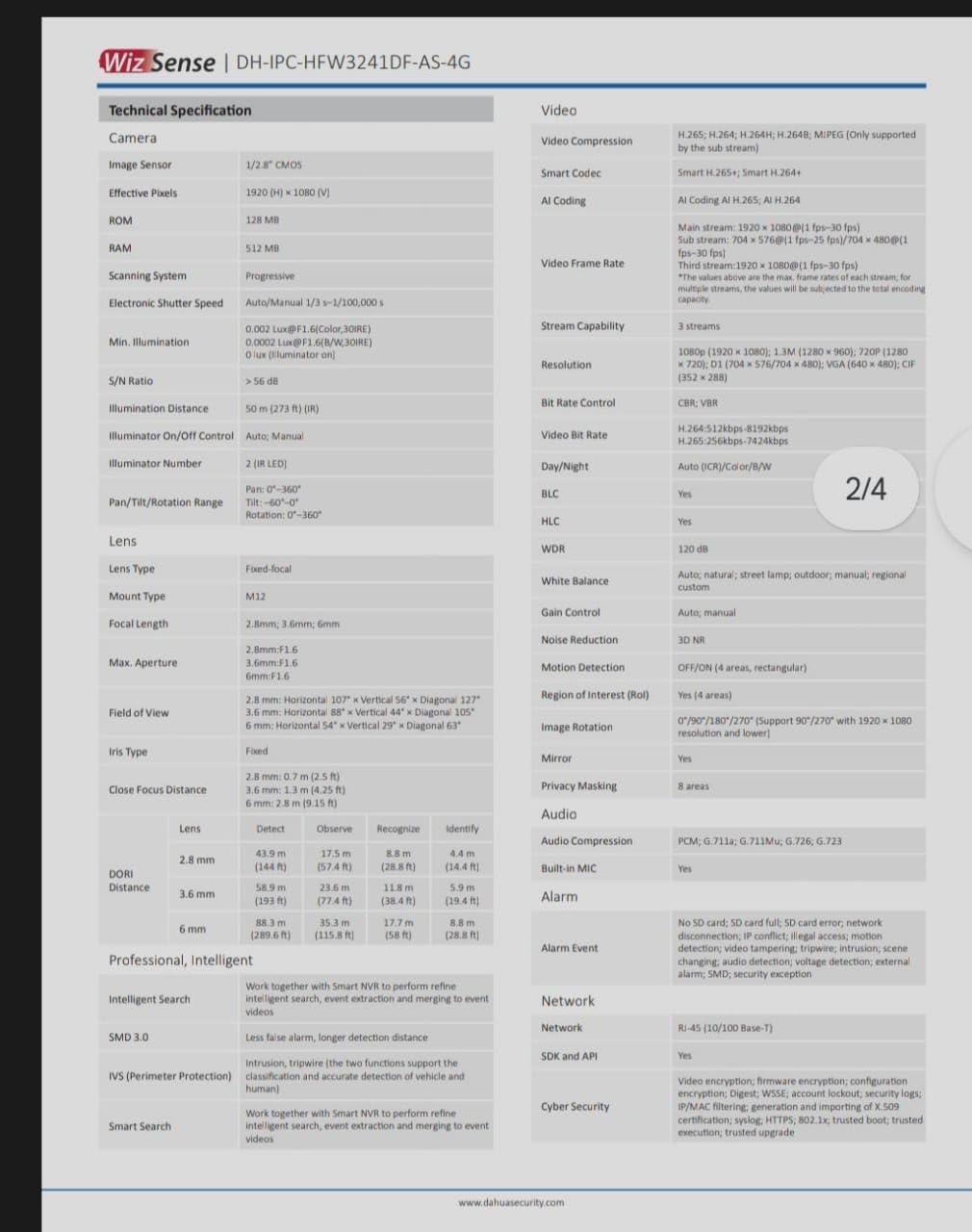

8. Warranty and Support
For warranty information, please refer to the warranty card included with your product or visit the official Dahua website. For technical support, contact Dahua customer service through their official channels. Keep your purchase receipt for warranty claims.


