
ORDRO M5
ORDRO M5 5K Handheld Video Camera User Manual
Model: M5
Introduction
This manual provides comprehensive instructions for the operation and maintenance of your ORDRO M5 5K Handheld Video Camera. The ORDRO M5 is a versatile vlogging camcorder designed for high-quality video capture, featuring advanced stabilization, intelligent shooting modes, and a user-friendly interface.

Figure 1: ORDRO M5 5K Handheld Video Camera overview, showcasing its 5K video capability, 3-axis gimbal, long battery life, IR night vision, 120-degree ultra-wide angle, horizontal/vertical shooting, compact design, and face follow feature.
Package Contents
Please verify that all items listed below are included in your package:
- ORDRO M5 Camera
- User Manual
- Charging Cable (USB)
- Camcorder Bag
- Lanyard
Setup
1. Charging the Battery
The ORDRO M5 comes with an included Lithium Ion battery. Before first use, fully charge the camera. Connect the provided USB cable to the camera's USB port and the other end to a compatible USB power adapter (not included) or a computer's USB port. The charging indicator will show the charging status.

Figure 2: Charging the ORDRO M5 camera. A full charge provides approximately 160 minutes of operation.
2. Inserting a Micro SD Card
The ORDRO M5 supports Micro SD cards up to 512GB. A Micro SD card is required to store videos and photos. Locate the Micro SD card slot on the side of the camera. Gently insert the Micro SD card with the gold contacts facing down until it clicks into place. To remove, press the card in again until it springs out.

Figure 3: Side view of the ORDRO M5, indicating the location of the Micro SD card slot and control buttons.
Operating the Camera
1. Power On/Off
Press and hold the Power button (usually marked with a power symbol) located on the side of the camera to turn it on or off. The 3.5-inch rotating touch screen will illuminate upon startup.

Figure 4: The ORDRO M5 with its rotating touch screen adjusted for optimal viewing during operation.
2. Basic Controls and Navigation
The camera features a 3.5-inch rotating touch screen for intuitive navigation. Additionally, physical buttons are provided for essential functions:
- OK Button: Confirms selections or starts/stops recording.
- Arrow Buttons: Navigate through menus and options.
- Record Button: Dedicated button for starting and stopping video recording.
- Zoom Lever: Adjusts digital zoom during recording or live view.

Figure 5: Front view of the ORDRO M5, highlighting the touch screen and the physical navigation and OK buttons.
3. Key Features
- 5K Resolution: The ORDRO M5 captures video in stunning 5K resolution, providing exceptional detail and clarity for your footage.

Figure 6: Visual representation of 5K resolution capability.
- 3-Axis Gimbal Stabilization: Integrated 3-axis gimbal stabilization ensures smooth, shake-free video, even when moving. This technology compensates for camera movements, resulting in professional-looking footage.
- IR Night Vision: For low-light or no-light conditions, activate the IR Night Vision feature to capture clear black-and-white video.

Figure 7: Demonstration of IR Night Vision, showing a scene with and without the feature activated.
- WDR (Wide Dynamic Range): WDR technology helps balance exposure in scenes with both very bright and very dark areas, preserving detail in highlights and shadows.

Figure 8: Effect of WDR (Wide Dynamic Range) on image quality, illustrating improved detail in both bright and dark areas.
- Face Follow: The camera can automatically detect and track faces, keeping your subject in focus and centered within the frame.

Figure 9: Face Follow feature in action, demonstrating how the camera tracks a subject's face.
- 120-Degree Wide Angle Lens: Capture more of the scene with the expansive 120-degree wide-angle lens, ideal for landscapes, group shots, and immersive vlogging.
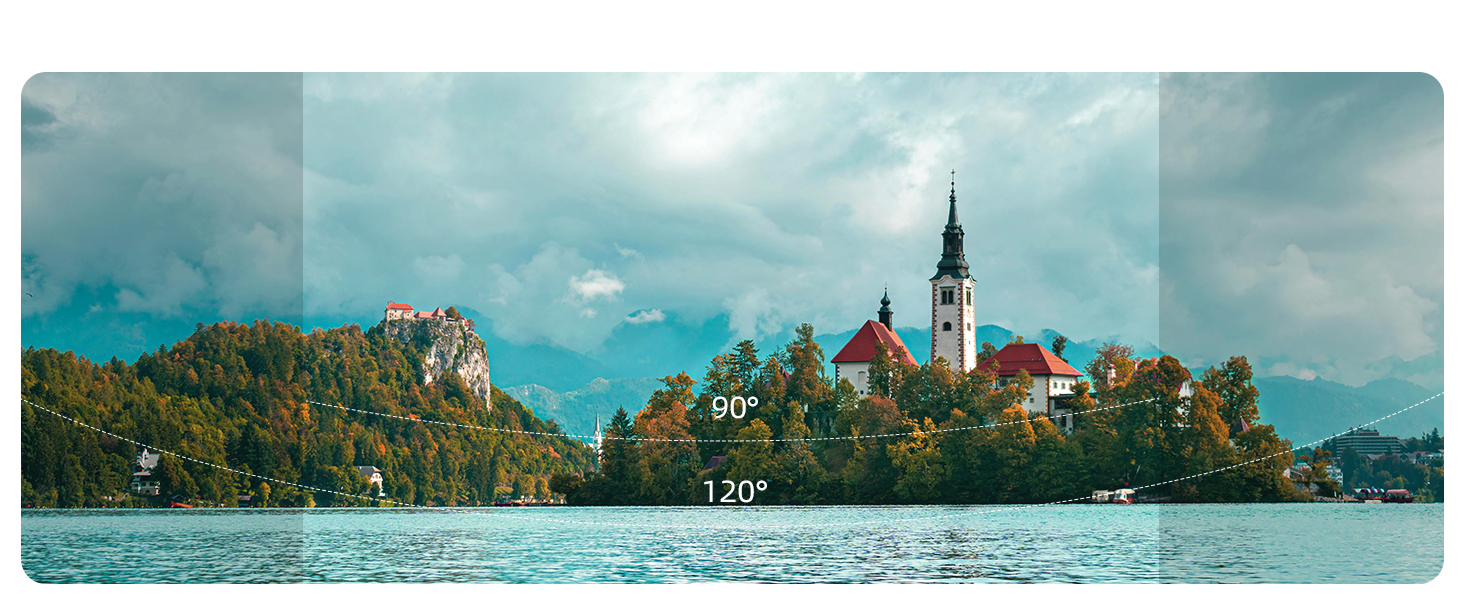
Figure 10: Comparison of 90-degree and 120-degree wide-angle views, illustrating the broader perspective captured by the ORDRO M5.
- Slow Motion: Record captivating slow-motion footage to highlight details or add dramatic effect to your videos.
- Distortion Correction: This feature helps to correct any barrel distortion that may occur with wide-angle lenses, ensuring a more natural image.
Maintenance
Proper maintenance will extend the life of your ORDRO M5 camera:
- Cleaning: Use a soft, dry cloth to clean the camera body. For the lens and screen, use a specialized lens cleaning cloth and solution. Avoid abrasive materials or harsh chemicals.
- Storage: Store the camera in a cool, dry place away from direct sunlight and extreme temperatures. Use the provided camcorder bag for protection during transport and storage.
- Battery Care: If storing for extended periods, charge the battery to about 50% every few months to maintain its health.
Troubleshooting
If you encounter issues with your ORDRO M5, please refer to the following common solutions:
| Problem | Possible Solution |
|---|---|
| Camera does not power on. | Ensure the battery is fully charged. Connect the camera to a power source and try again. |
| Cannot record video/take photos. | Check if a Micro SD card is inserted correctly and has sufficient free space. Ensure the card is formatted correctly (refer to camera settings). |
| Footage is shaky. | Verify that the 3-axis gimbal stabilization is enabled in the camera settings. Hold the camera steady during recording. |
| Poor image quality in low light. | Activate the IR Night Vision feature in the camera settings. Ensure sufficient ambient light if not using IR. |
| Touch screen unresponsive. | Restart the camera. If the issue persists, ensure the screen is clean and dry. |
Specifications
Detailed technical specifications for the ORDRO M5 5K Handheld Video Camera:
| Feature | Detail |
|---|---|
| Model Number | M5 |
| Video Capture Resolution | 5K |
| Photo Sensor Technology | CMOS |
| Screen Size | 3.5 Inches (Rotating Touch Screen) |
| Stabilization | 3-Axis Gimbal |
| Special Features | Night Vision, WDR, Face Follow, 120° Wide Angle, Digital Zoom, Slow Motion, Distortion Correction |
| Flash Memory Type | Micro SD (supports up to 512GB) |
| Battery Type | Lithium Ion (included) |
| Connectivity | USB, HDMI |
| Item Weight | 15.8 ounces |
| Package Dimensions | 7.48 x 3.94 x 2.56 inches |
| Country of Origin | China |
Warranty and Support
The ORDRO M5 camera comes with a one-year warranty from the date of purchase. For warranty claims, technical support, or any inquiries regarding your product, please contact ORDRO customer service. You can find more information and contact details on the official ORDRO Store page on Amazon: ORDRO Store.
Related documentsM5


Ask a question about this manual
Ask about setup, troubleshooting, compatibility, parts, safety, or missing instructions. Manuals+ will review the question and use this page’s manual context to help answer it.