
1. Overview
The Lenovo ThinkPad P14s Gen 5 is a mobile workstation designed for demanding professional tasks. It combines the portability of a laptop with the performance capabilities of a workstation, making it suitable for various applications. This device features a 14.5-inch WUXGA display, an Intel Core Ultra 7 155H processor, 32 GB of DDR5 SDRAM, and a 1 TB SSD.
Key features include:
- High Performance: Equipped with an Intel Core Ultra 7 155H processor and 32 GB DDR5 SDRAM for efficient multitasking and demanding applications.
- Ample Storage: A 1 TB SSD provides fast data access and sufficient storage for large files and projects.
- Vibrant Display: The 14.5-inch WUXGA (1920 x 1200) screen offers a clear visual experience.
- Professional Graphics: Features NVIDIA RTX 500 Ada Generation graphics for professional visual tasks.

Figure 1: Lenovo ThinkPad P14s Gen 5 with 3D rendering software open, showcasing its display capabilities for professional applications.
2. What's in the Box
Upon unpacking your Lenovo ThinkPad P14s Gen 5, ensure all the following items are present:
- Lenovo ThinkPad P14s Gen 5 (Intel) 21G2001VUS Mobile Workstation
- AC Adapter
3. Setup
3.1 Initial Power-On
- Connect the AC adapter to the workstation's power port and then to a power outlet.
- Open the display lid.
- Press the power button, typically located on the top right of the keyboard deck.
- Follow the on-screen instructions to complete the initial Windows 11 Pro setup, including language, region, network connection, and user account creation.
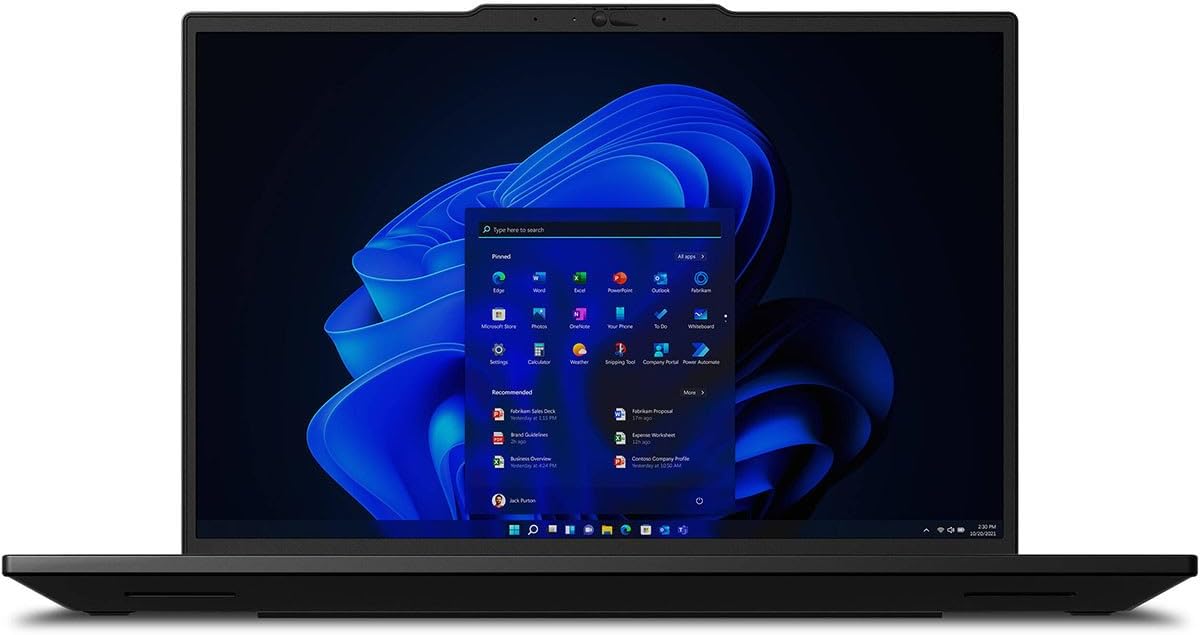
Figure 2: The Lenovo ThinkPad P14s Gen 5 displaying the Windows 11 desktop environment during initial setup or normal operation.
3.2 Connecting to a Network
- Wi-Fi: During initial setup, select your preferred Wi-Fi network and enter the password. To connect later, click the Wi-Fi icon in the taskbar, select your network, and click "Connect".
- Ethernet: Connect an Ethernet cable from your router or network switch to the Ethernet port on the workstation. The connection should be established automatically.
4. Operating the Workstation
4.1 Keyboard and Touchpad
The ThinkPad P14s Gen 5 features a standard QWERTY keyboard and a multi-touch touchpad. It also includes the iconic TrackPoint pointing device for precise cursor control.
- Function Keys: Use the Fn key in combination with F1-F12 for various functions like adjusting brightness, volume, or enabling/disabling Wi-Fi.
- Touchpad Gestures: Supports multi-finger gestures for scrolling, zooming, and switching applications. Refer to Windows settings for customization.
- TrackPoint: Use the red TrackPoint in the center of the keyboard for navigation, with the corresponding buttons below the spacebar for left, right, and middle clicks.

Figure 3: A top-down view of the Lenovo ThinkPad P14s Gen 5 keyboard, highlighting the TrackPoint and touchpad for user interaction.
4.2 Connecting External Devices
The workstation offers various ports for connecting peripherals:
- USB Ports: Connect USB devices such as external drives, mice, or keyboards.
- Thunderbolt Ports: Utilize the two Thunderbolt ports for high-speed data transfer, external displays, or charging.
- HDMI: Connect to external monitors or projectors using the HDMI port.
- Audio Jack: Connect headphones or external speakers.

Figure 4: The Lenovo ThinkPad P14s Gen 5 running video editing software, demonstrating its capability for multimedia production.
5. Maintenance
5.1 Cleaning the Workstation
- Screen: Use a soft, lint-free cloth lightly dampened with water or a screen cleaner. Do not spray liquid directly onto the screen.
- Keyboard and Chassis: Use a soft cloth, slightly dampened with a mild cleaning solution, to wipe surfaces. Avoid excessive moisture. Use compressed air to clear debris from between keys.
- Ports: Ensure ports are free of dust and debris. Use compressed air if necessary.
5.2 Battery Care
- Avoid fully discharging the battery frequently.
- Store the workstation in a cool, dry place if not used for extended periods.
- For optimal battery longevity, avoid prolonged exposure to high temperatures.
5.3 Software Updates
Regularly update your operating system and drivers to ensure optimal performance and security. Windows Update can be accessed via Settings > Update & Security > Windows Update.
6. Troubleshooting
6.1 Power Issues
- Workstation does not turn on: Ensure the AC adapter is securely connected to both the workstation and a working power outlet. Check if the power indicator light is on.
- Battery not charging: Verify the AC adapter is functioning correctly. Try a different power outlet. Check battery health in Windows settings.
6.2 Display Problems
- No display on screen: Connect an external monitor to check if the issue is with the workstation's internal display. Ensure the display brightness is not set to minimum.
- Flickering or distorted display: Update your graphics drivers. If using an external monitor, check the cable connection.
6.3 Performance Issues
- Slow performance: Close unnecessary applications. Check Task Manager for processes consuming high CPU or memory. Ensure sufficient free space on the SSD.
- Overheating: Ensure ventilation vents are not blocked. Use the workstation on a hard, flat surface. Consider cleaning internal components if comfortable, or seek professional assistance.
7. Specifications
| Feature | Detail |
|---|---|
| Brand | Lenovo |
| Model Name | ThinkPad P14s Gen 5 |
| Model Number | 21G2001VUS |
| Screen Size | 14.5 Inches |
| Resolution | 1920 x 1200 (WUXGA) |
| Display Type | LCD with Anti Glare Coating, Low Blue Light |
| Color | Black |
| CPU Model | Intel Core Ultra 7 155H |
| Processor Speed | 4.8 GHz (Max Turbo) |
| RAM Memory Installed Size | 32 GB DDR5 SDRAM |
| RAM Memory Maximum Size | 96 GB |
| Hard Disk Size | 1 TB SSD |
| Graphics Card Description | NVIDIA RTX 500 Ada Generation |
| Graphics Card RAM | 4 GB GDDR6 |
| Operating System | Windows 11 Pro |
| Webcam Capability | Yes (Front 5 MP) |
| Biometric Security | Fingerprint Recognition |
| Total USB Ports | 2 |
| Total Thunderbolt Ports | 2 |
| HDMI Output | Yes |
| Ethernet Port | 1 (Gigabit Ethernet) |
| Wireless Connectivity | Wi-Fi (802.11ac, 802.11ax, 802.11n), Bluetooth |
| Battery Cell Type | Lithium Polymer (4000 mAh) |
| Item Weight | 3.55 Pounds |
| Item Dimensions (L x W x Thickness) | 9"L x 12.8"W x 0.73"Th |
8. Warranty and Support
8.1 Manufacturer Warranty
The Lenovo ThinkPad P14s Gen 5 (21G2001VUS) comes with a 3-year manufacturer warranty. This warranty covers defects in materials and workmanship under normal use. For specific terms and conditions, please refer to the warranty documentation included with your product or visit the official Lenovo support website.
8.2 Technical Support
For technical assistance, driver downloads, or further information, please visit the official Lenovo Support website. You will typically need your product's serial number, which can be found on a label on the bottom of the workstation or within the system information in Windows.
- Lenovo Support Website: support.lenovo.com
- Product Registration: Register your product online to receive updates and streamline support requests.


