
1. Introduction
The Robocraze USB RFID Smart Card Reader (Model TIFCC0126) is designed to read RFID card serial numbers and transmit them to a connected computer. This device facilitates data input for various management software applications. It operates at a frequency of 125KHz and offers a reading distance of up to 8 meters.
2. Package Contents
Please verify that all items are present in your package:
- 1 x 125KHz Card Reader
- 1 x USB Cable
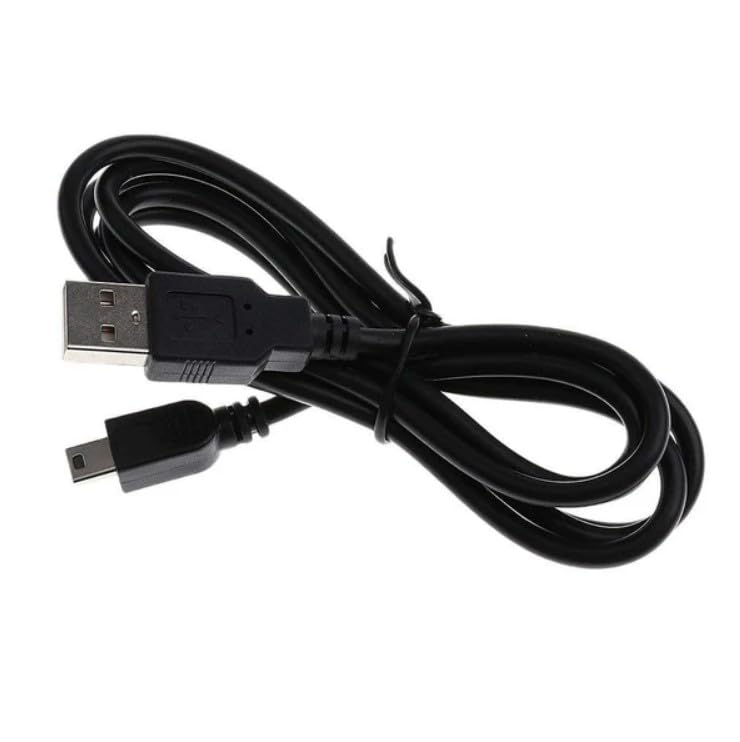
Image: The included USB cable for connecting the RFID reader to a computer.
3. Setup Instructions
- Connect the Reader: Insert the smaller end of the provided USB cable into the USB port on the RFID reader.
- Connect to Computer: Plug the standard USB-A end of the cable into an available USB port on your computer.
- Driver Installation: The device is typically plug-and-play and compatible with Windows, macOS, and Linux operating systems. Drivers should install automatically upon connection. If prompted, follow on-screen instructions for driver installation.
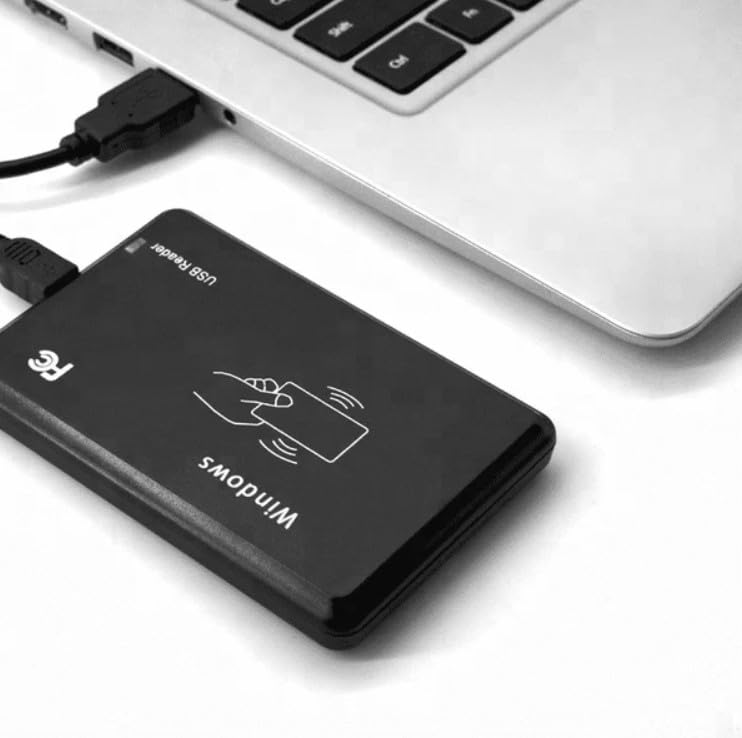
Image: The RFID reader connected to a laptop via its USB cable, ready for operation.
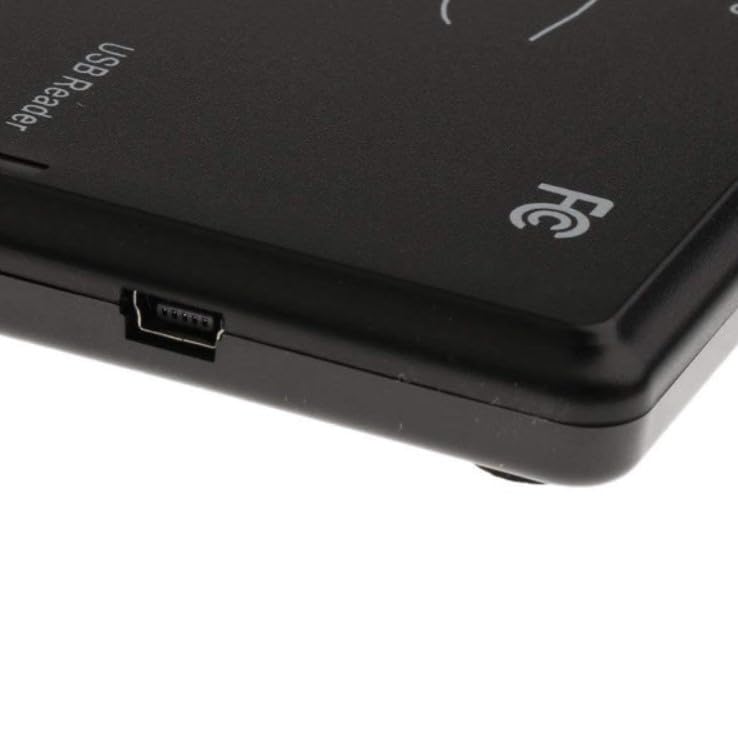
Image: A detailed view of the USB port on the side of the RFID reader.
4. Operating Instructions
Once connected and recognized by your computer, the RFID reader functions as a standard input device, similar to a keyboard.
- Open Application: Launch the management software or text editor where you intend to input the RFID card data.
- Position Cursor: Ensure the cursor is active in the desired input field within your application.
- Scan Card: Present an RFID card (125KHz compatible) within the reading distance of the device. The reader will automatically detect the card and output its serial number to the active input field on your computer.
The reading distance is approximately 8 meters, allowing for flexible card scanning.
5. Maintenance
- Cleaning: Use a soft, dry cloth to clean the exterior of the reader. Avoid using liquid cleaners or abrasive materials.
- Storage: Store the device in a dry environment. The recommended operating and storage temperature range is -30°C to +60°C. Maintain humidity levels between 5% and 95% Relative Humidity (non-condensing).
- Handling: Avoid dropping the device or subjecting it to strong impacts.
6. Troubleshooting
- Device Not Recognized:
- Ensure the USB cable is securely connected to both the reader and the computer.
- Try connecting the reader to a different USB port on your computer.
- Restart your computer and try again.
- No Data Output:
- Verify that an application (e.g., Notepad, Word, or your specific management software) is open and the cursor is active in an input field.
- Ensure the RFID card is 125KHz compatible.
- Confirm the card is within the effective reading distance (up to 8 meters).
- Test with a different RFID card if available.
- Intermittent Reading:
- Check for potential interference from other electronic devices.
- Ensure the reader is not obstructed.
7. Specifications
| Feature | Detail |
|---|---|
| Brand | Robocraze |
| Model Number | TIFCC0126 |
| Item Type Name | 125KHz USB RFID Reader |
| Connectivity Technology | USB |
| Hardware Interface | USB |
| Frequency | 125KHz |
| Reading Distance | Up to 8m |
| Compatible Devices | Personal Computer |
| Operating System | Windows, macOS, Linux |
| Color | Black |
| Item Weight | 50 Grams |
| Operating Temperature | -30°C to +60°C |
| Humidity | 5% - 95% Relative Humidity |
8. Warranty and Support
For technical assistance or warranty inquiries, please contact Robocraze customer support. Ensure you have your product model number (TIFCC0126) available when contacting support.
Manufacturer Contact Information:
Robocraze, Ground Floor, 912/10 Survey no. 104 4th G street, Chelekare, Kalyan Nagar, Bengaluru - 560043