
1. Introduction
Thank you for choosing the SOVMIKU 5MP Wireless Security Camera System. This system provides reliable surveillance with high-resolution cameras, a compact Network Video Recorder (NVR), and advanced features like two-way audio and AI motion detection. This manual will guide you through the setup, operation, and maintenance of your new security system.
2. Package Contents
Please verify that all items are present in your package:
- Small NVR Unit (with 1TB HDD pre-installed)
- 5MP Wireless PTZ Cameras (2 units)
- Power Adapters for NVR and Cameras
- Mounting Screws and Anchors
- Ethernet Cable
- USB Mouse
- User Manual (this document)
3. Product Features
- 5MP Ultra-High Resolution: Capture clear and detailed images and videos.
- PTZ Functionality: Pan 355° horizontally and tilt 90° vertically for comprehensive 360° coverage.
- Advanced Night Vision: Equipped with IR-CUT for clear night vision up to 20 meters, supporting Smart, Infrared, and Full Color modes.
- Two-Way Audio: Communicate in real-time through the camera using your smartphone.
- AI Motion Detection & PIR Human Detection: Accurately detect human movement, reduce false alarms, and trigger spotlights and alarms.
- IP66 Weatherproof: Designed for both indoor and outdoor use, resistant to rain, snow, and extreme temperatures.
- H.265+ Video Compression: Efficiently saves storage space by reducing video file sizes by approximately 50%.
- 1TB HDD & Continuous Recording: Supports 24/7 continuous recording for up to 30 days with automatic overwrite function.
- Easy Installation & Expansion: Simple setup with automatic wireless connection and support for up to 10 cameras.
- Multi-Device Access: Monitor from smartphones, tablets, and computers (Windows, Mac OS), with Alexa integration.
4. Setup Guide
Follow these steps to set up your SOVMIKU security camera system:
- Connect Power:
Connect the power adapters to the NVR and each camera. Ensure all devices power on correctly.

Image: Step 1 shows connecting power to both the camera and the NVR unit.
- Camera and NVR Connection:
The cameras and NVR are pre-paired and should connect automatically via 2.4GHz WiFi once powered on. No manual pairing is typically required.
Image: Step 2 illustrates the wireless connection between the camera and the NVR.
- NVR and Network Connection:
Connect the NVR to your router using the provided Ethernet cable for internet access. This enables remote viewing and notifications.
Image: Step 3 shows connecting the NVR to a network router via an Ethernet cable.
- App Download and Device Binding:
Download the 'EseeCloud' app on your smartphone. Scan the QR code displayed on the NVR monitor or found in the app to bind your device for remote access.
Download the EseeCloud app here: EseeCloud App Download
Image: Step 4 demonstrates downloading the app and scanning a QR code for device binding.
- System Expansion (Optional):
The system supports adding up to 10 cameras for expanded coverage. Additional cameras can be easily paired with the NVR.

Image: This diagram illustrates the easy installation process via 2.4GHz WiFi and the system's ability to expand with up to 10 cameras.
5. Operating Instructions
5.1. PTZ Control
Control the camera's pan (horizontal) and tilt (vertical) movements remotely via the EseeCloud app or NVR interface to adjust the viewing angle.

Image: The camera offers a wide field of view with 355 degrees horizontal and 90 degrees vertical rotation, providing comprehensive 360-degree coverage without blind spots.
5.2. Digital Zoom
Use the digital zoom feature in the app to magnify specific areas of the live feed or recorded footage for closer inspection.

Image: Utilize the 5x digital zoom to magnify specific areas of interest, allowing for detailed observation of distant objects or areas.
5.3. Night Vision Modes
The camera supports three night vision modes for optimal viewing in various lighting conditions:
- Smart Mode: Automatically adjusts between infrared and full-color night vision based on detected motion.
- Infrared Mode: Provides clear black and white images in complete darkness.
- Full Color Mode: Uses built-in spotlights to provide vivid color images even at night.

Image: This image compares the camera's night vision capabilities across Smart, Infrared, and Full Color modes, showcasing their respective visual outputs.
5.4. Two-Way Audio
Access the two-way audio function through the EseeCloud app to speak and listen through the camera. This is useful for communicating with visitors or deterring unwanted guests.
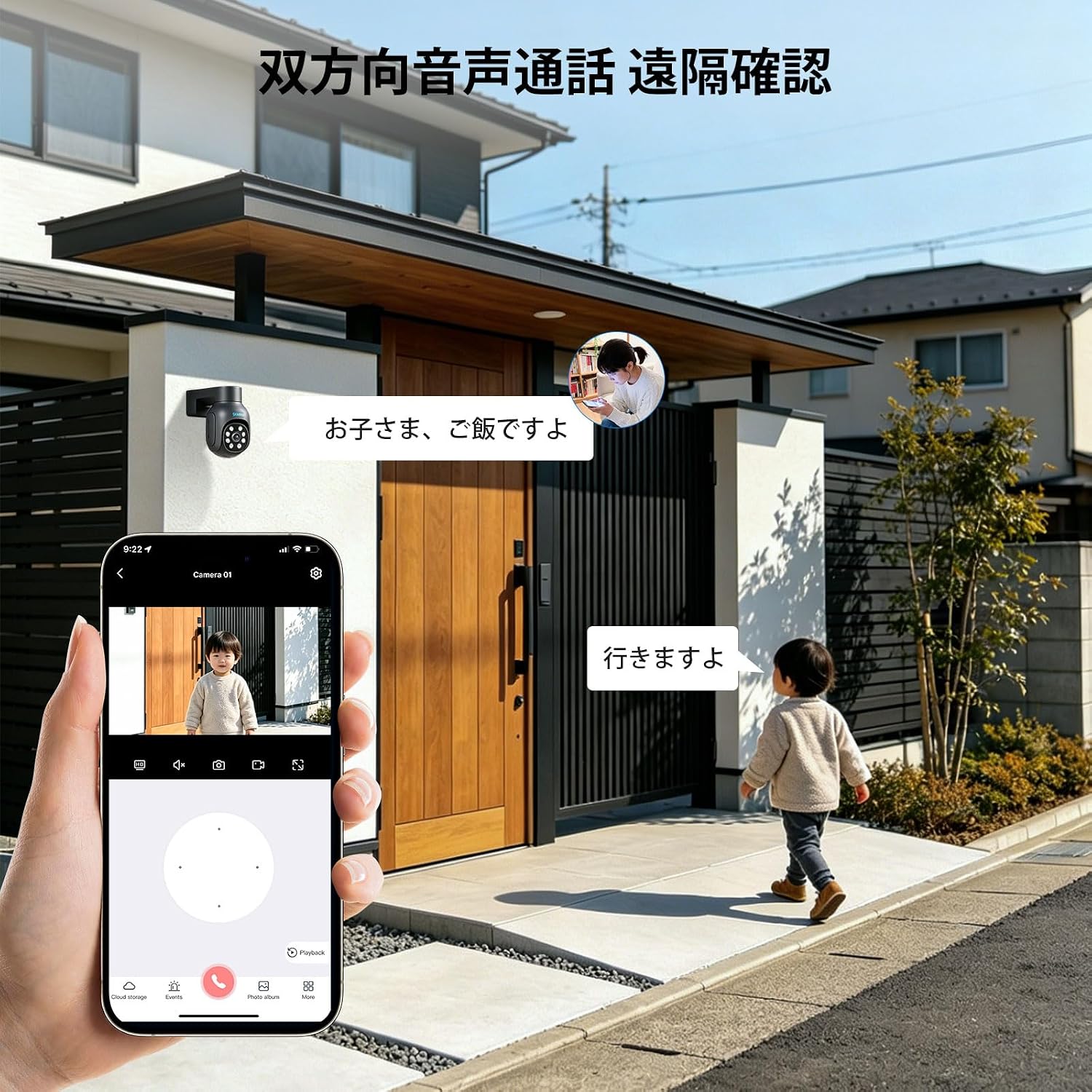
Image: A person is shown using a smartphone to engage in two-way audio communication with someone near the camera, demonstrating the remote interaction feature.
5.5. Motion Detection & Alerts
The system uses PIR human detection and smart motion detection to identify suspicious activity. When motion is detected, the camera can activate a spotlight, sound an alarm, and send instant notifications to your smartphone via the EseeCloud app.

Image: This image depicts the camera's motion detection in action, with a spotlight illuminating an intruder and a notification appearing on a smartphone.
5.6. Recording and Storage
The NVR comes with a pre-installed 1TB HDD, supporting 24/7 continuous recording. Thanks to H.265+ video compression, storage is optimized, allowing for approximately 30 days of continuous footage. When the HDD is full, the system automatically overwrites the oldest recordings.

Image: This graphic illustrates the efficiency of H.265 compression, showing it reduces data size by about 50% compared to H.264.

Image: This image highlights the NVR's 1TB HDD and H.265+ compression, enabling 30 days of 24-hour continuous recording.
5.7. Multi-Device Access
Monitor your security system from various devices. The EseeCloud app is available for smartphones and tablets, and client software is available for Windows and Mac OS. The system also supports integration with Alexa.

Image: This image displays the system's compatibility with various devices, including smartphones, tablets, and desktop computers, along with app store icons and Alexa integration.
6. Maintenance
- Regular Cleaning: Periodically clean the camera lenses with a soft, dry cloth to ensure clear image quality. Avoid abrasive cleaners.
- Firmware Updates: Check for and install firmware updates for the NVR and cameras through the EseeCloud app to ensure optimal performance and security.
- Power Supply Check: Ensure all power connections are secure and free from damage.
- Network Stability: Maintain a stable 2.4GHz WiFi connection for reliable wireless camera performance.
7. Troubleshooting
7.1. No Image Display
- Check if the camera and NVR are powered on.
- Ensure the cameras are within range of the NVR's wireless signal.
- Verify that the NVR is connected to a display monitor (if applicable) and the input source is correct.
7.2. Cannot Connect to App
- Ensure the NVR is connected to the internet via an Ethernet cable.
- Check your smartphone's internet connection.
- Re-scan the QR code in the EseeCloud app to re-bind the device.
- Restart the NVR and your router.
7.3. Motion Detection Not Working
- Verify that motion detection is enabled in the camera settings via the app or NVR.
- Adjust the sensitivity settings.
- Ensure there are no obstructions blocking the camera's view or PIR sensor.
7.4. Poor Night Vision
- Clean the camera lens.
- Ensure there are no reflective surfaces close to the camera that could interfere with infrared light.
- Check the selected night vision mode (Smart, Infrared, Full Color) in the settings.
8. Specifications
| Feature | Detail |
|---|---|
| Brand | SOVMIKU |
| Model Number | SFWK-10VY-2HD405Y-AT |
| Connectivity Technology | Wired, Wireless (2.4GHz WiFi) |
| Camera Resolution | 5 Megapixels |
| PTZ Rotation | Horizontal 355°, Vertical 90° |
| Night Vision Distance | Up to 20 meters |
| Waterproof Rating | IP66 |
| Video Compression | H.265+ |
| NVR Storage | 1TB HDD (pre-installed) |
| Max Camera Support | Up to 10 cameras |
| Product Dimensions (NVR) | 20 x 22 x 14 cm |
| Country of Origin | China |
9. Warranty & Support
SOVMIKU provides a 12-month warranty for this product from the date of purchase. Our dedicated customer support team is available to assist you with any questions or issues you may encounter.
For technical support or warranty claims, please contact us via email:
Email: sovmiku_JP@163.com
Please provide your model number and a detailed description of the issue when contacting support.

Image: This image provides SOVMIKU's customer service contact details, including the 12-month warranty and email address for support.


