
Introduction
This user manual provides detailed instructions for setting up, operating, and maintaining your Ninkear N15 Plus Laptop. Please read this manual thoroughly before using your device to ensure optimal performance and longevity. The Ninkear N15 Plus is a high-performance laptop featuring an Intel N100 processor, a 15.6-inch FHD IPS screen, 16GB DDR4 RAM, and a 1TB SSD, designed for efficient productivity and entertainment.
What's in the Box
Upon opening the package, verify that all the following items are included:
- Ninkear N15 PLUS Laptop
- Charger
- Instruction Manual (this document)

Image: The Ninkear N15 Plus Laptop, showcasing its sleek design and the included charger.
Setup Guide
1. Initial Charging and Power On
- Connect the provided charger to the Type-C charging port on the laptop and plug it into a power outlet. Ensure the charging indicator light illuminates.
- Allow the laptop to charge for at least 30 minutes before initial use, or until the battery is sufficiently charged.
- Press the power button located on the keyboard to turn on the laptop. The Ninkear logo will appear, followed by the Windows 11 setup screen.
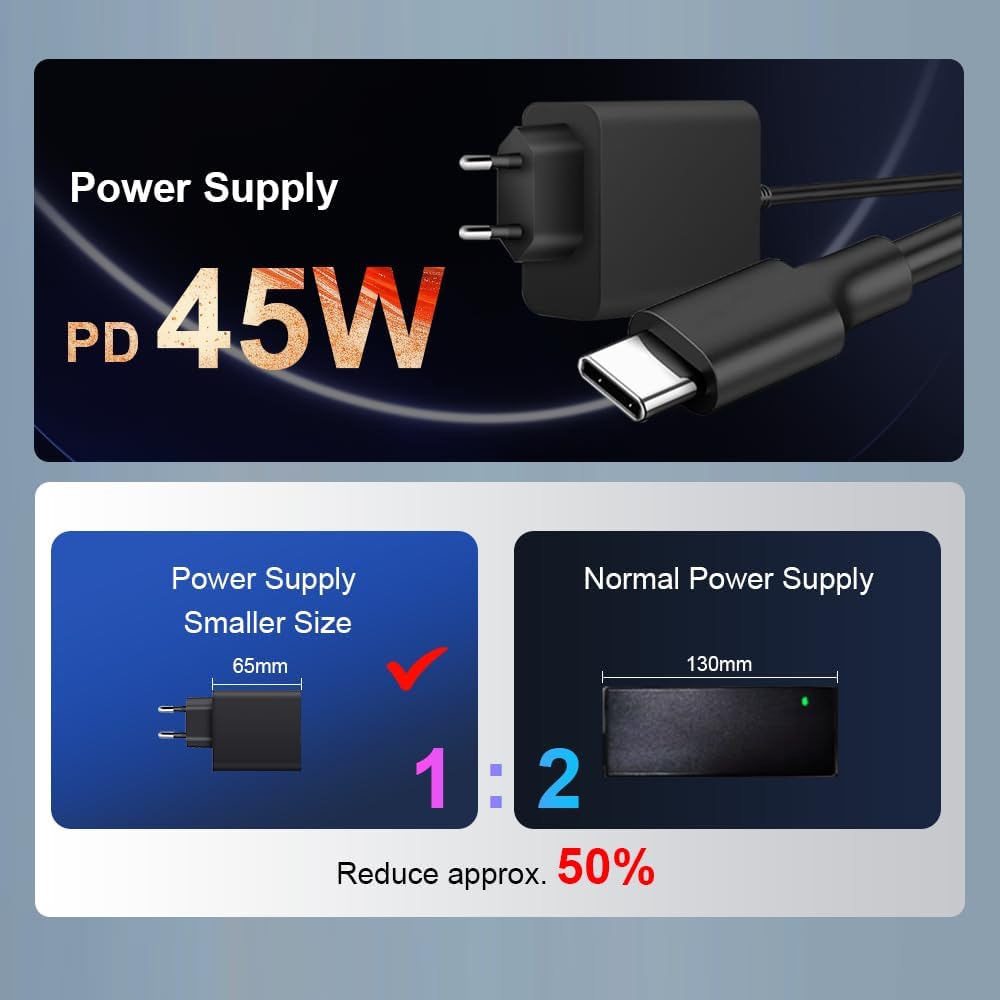
Image: A close-up view of the N15 Plus laptop connected to its Type-C power supply, highlighting the compact charger design.
2. Windows 11 Setup
Follow the on-screen prompts to complete the Windows 11 setup process. This typically includes:
- Selecting your region and keyboard layout.
- Connecting to a Wi-Fi network.
- Signing in with or creating a Microsoft account.
- Setting up a PIN or password.
- Configuring privacy settings.
Once setup is complete, your laptop is ready for use.
Operating Your Laptop
Keyboard and Touchpad
The N15 Plus features an ergonomic full-size keyboard with a numeric keypad for comfortable typing. The integrated touchpad supports multi-touch gestures for intuitive navigation.
- Backlit Keyboard: To turn the keyboard backlight on or off, press the Fn + F5 shortcut key. Three levels of backlight brightness can be adjusted as needed.

Image: An overview of the Ninkear N15 Plus laptop, highlighting its 15.6-inch IPS screen, Intel N100 processor, 16GB DDR4 RAM, 1TB SSD, 89WH battery, Wi-Fi 6, Bluetooth 5.2, Windows 11, and diamond pattern texture.
Fingerprint Unlock
For enhanced security and quick access, the N15 Plus is equipped with a fingerprint sensor. Set up your fingerprint through Windows Hello in the system settings.
- Fingerprint unlocking takes approximately 0.5 seconds.
Display
The laptop features a 15.6-inch Full HD (1920x1080) IPS screen, providing wide viewing angles, accurate color reproduction, and consistent image quality. This display is designed to protect eyesight during extended use.
Connectivity
The N15 Plus supports modern wireless standards and offers versatile ports:
- Wi-Fi 6: For fast and reliable wireless internet connection.
- Bluetooth 5.2: For connecting wireless peripherals such as headphones, mice, and keyboards.
- USB 3.0 Ports: Two ports for high-speed data transfer.
- HDMI Port: For connecting to external displays or projectors.
- Type-C Ports: Two Type-C interfaces. The left Type-C port supports PD charging and data transmission. The right Type-C interface supports reverse power supply, allowing you to charge other electronic devices like mobile phones.
- Audio Jack: For headphones or external speakers.
- TF Card Slot: For expanding storage or transferring data from memory cards.

Image: Detailed view of the N15 Plus laptop's side ports, including Audio, TF Card slot, USB 3.0, and Type-C ports with their functionalities (PD charging, data transmission, reverse charging).
Performance and Storage
The N15 Plus is powered by an Intel N100 processor with 4 cores and 4 threads, offering a maximum frequency of 3.4 GHz. This configuration ensures smooth operation for productivity software and supports 4K video decoding and multi-display setups.
- RAM: 16GB DDR4 RAM for efficient multitasking.
- Storage: 1TB PCIe SSD provides ample and fast storage for your files, applications, and media.

Image: A graph illustrating the performance of the Intel N100 processor compared to other Intel Jasper Lake series CPUs, showing its multi-core and single-core capabilities.

Image: Visual representation of the laptop's 16GB DDR4 RAM and 1TB M.2 SSD, emphasizing fast reading and writing speeds for smooth operation and ample storage.
Battery Life
The N15 Plus is equipped with a built-in 11600mAh (89WH) high-capacity lithium-ion battery, offering extended usage times.
- Up to 13 hours of working use on a full charge.
- Up to 72 hours of standby time.

Image: A graphic illustrating the impressive 11600mAh battery life of the N15 Plus, showing approximately 13 hours of working time and 72 hours of standby time.

Image: A visual demonstration of the Type-C reverse charging feature, showing the laptop charging a mobile phone.
Maintenance
Cleaning
- Use a soft, lint-free cloth to clean the screen and exterior.
- For stubborn smudges, slightly dampen the cloth with water or a screen-cleaning solution. Avoid harsh chemicals.
- Regularly clean the keyboard and touchpad to prevent dust and debris buildup.
Software Updates
- Keep your Windows 11 operating system updated to ensure optimal performance, security, and compatibility.
- Check for driver updates periodically from the Ninkear support website (if applicable) or through Windows Update.
Storage Management
- Regularly delete unnecessary files and applications to free up storage space on your 1TB SSD.
- Consider using cloud storage or external drives for large files to maintain optimal system speed.
Troubleshooting
This section addresses common issues you might encounter with your Ninkear N15 Plus Laptop.
Laptop Does Not Power On
- Ensure the charger is securely connected to both the laptop and a working power outlet.
- Verify the power outlet is functional by plugging in another device.
- Allow the laptop to charge for at least 30 minutes before attempting to power it on again.
- If the issue persists, try a different compatible Type-C charger if available.
Screen Remains Blank or Flickers
- Restart the laptop.
- Ensure the display brightness is not set to minimum. Use the function keys (e.g., Fn + F2/F3 or similar, check keyboard icons) to adjust brightness.
- If connected to an external monitor, try disconnecting it or pressing Fn + F10 (or similar, check keyboard icons) to cycle display modes.
Wi-Fi Connectivity Issues
- Ensure Wi-Fi is enabled in Windows settings.
- Restart your Wi-Fi router and the laptop.
- Forget the network and reconnect, re-entering the password.
- Update your Wi-Fi drivers through Windows Update or the Ninkear support website.
Slow Performance
- Close unnecessary applications running in the background.
- Check Task Manager (Ctrl+Shift+Esc) for processes consuming high CPU, RAM, or disk usage.
- Ensure your Windows 11 is up to date.
- Run a disk cleanup and defragmentation (for HDD, though SSDs don't need defragging, Windows handles TRIM automatically).
- Scan for malware or viruses.
Specifications
| Feature | Detail |
|---|---|
| Brand | Ninkear |
| Model Name | N15 PLUS |
| Screen Size | 15.6 Inches |
| Screen Resolution | 1920 x 1080 pixels (FHD IPS) |
| Processor | Intel Processor N100 (4 Cores, 4 Threads, up to 3.4 GHz) |
| RAM | 16GB DDR4 |
| Hard Drive | 1TB SSD (PCIe) |
| Graphics Coprocessor | Intel UHD Graphics (Integrated) |
| Operating System | Windows 11 |
| Wireless Type | Wi-Fi 6 (802.11ax), Bluetooth 5.2 |
| USB Ports | 2 x USB 3.0, 2 x Type-C (one with PD charging/data, one with reverse power supply) |
| Other Ports | HDMI, Audio Jack, TF Card Slot |
| Battery | 11600mAh (89WH Lithium Ion) |
| Item Weight | 4.4 pounds |
| Product Dimensions | 14 x 9 x 0.25 inches |
| Special Features | Backlit Keyboard, Fingerprint Reader, Numeric Keypad |
Warranty and Support
Your Ninkear N15 Plus Laptop comes with a manufacturer's warranty. For detailed warranty information, please refer to the warranty card included in your product packaging or visit the official Ninkear website.
For technical support, troubleshooting assistance beyond this manual, or service inquiries, please contact Ninkear customer support through their official channels. Keep your purchase receipt and product serial number handy when contacting support.
