
1. Introduction
Thank you for choosing the VGKE T28 4K Projector. This manual provides essential information for the safe and efficient operation of your device. Please read it thoroughly before use and retain it for future reference. The VGKE T28 is designed to deliver a high-quality home cinema experience with its advanced features and versatile connectivity.

Figure 1.1: The VGKE T28 Projector in a home cinema setting, showcasing its ability to display content from popular streaming platforms.
2. Safety Information
To ensure safe operation and prevent damage, please observe the following safety precautions:
- Do not block the ventilation openings. Ensure adequate airflow around the projector.
- Do not expose the projector to rain or moisture to avoid electric shock or fire.
- Avoid looking directly into the projector lens when the lamp is on, as the bright light can cause eye damage.
- Place the projector on a stable, level surface to prevent it from falling.
- Use only the power adapter supplied with the projector.
- Do not attempt to disassemble or repair the projector yourself. Refer all servicing to qualified personnel.
- Keep the projector away from heat sources and direct sunlight.
3. Product Features
The VGKE T28 Projector is equipped with advanced features for an immersive viewing experience:
- High Brightness & Resolution: 800 ANSI lumens brightness and native 1920x1080p resolution, supporting 4K video decoding for vivid and clear images.
- Smart Connectivity: Integrated 2.4G+5G WiFi for seamless screen mirroring from mobile devices and built-in Android OS for direct access to streaming apps like YouTube and Netflix.
- Advanced Image Adjustment: Electronic focus via remote control, ±50° 4D keystone correction for flexible placement, and digital zoom (100% to 50%) to adjust screen size.
- Superior Audio: Built-in Bluetooth 5.0 for connecting external audio devices (headphones, speakers) and a 5W HIFI stereo speaker for excellent sound quality.
- Multiple Interfaces: HDMI, USB, and RJ45 ports ensure compatibility with laptops, game consoles (PS3/PS4, Xbox), TV boxes, and direct playback of Office files and PowerPoint presentations.

Figure 3.1: The VGKE T28 Projector highlighting its native 1080P resolution capability.

Figure 3.2: Visual representation of the VGKE T28's superior brightness (800 ANSI) and native 1080P resolution compared to other projectors.
4. Setup
4.1 Placement
Choose a flat, stable surface for the projector. Ensure there is enough space around the projector for proper ventilation. The projection distance will determine the screen size.

Figure 4.1: The VGKE T28 Projector can produce screen sizes from 45 inches to 300 inches, depending on the projection distance.
4.2 Power Connection
- Connect the power cable to the projector's power input port.
- Plug the other end of the power cable into a power outlet.
- Press the power button on the projector or remote control to turn it on.
4.3 Focus Adjustment
Use the "F+" and "F-" buttons on the remote control to adjust the electronic focus until the image is clear and sharp.
4.4 Keystone Correction
If the projected image appears trapezoidal, use the 4D keystone correction feature. Navigate to the setup interface and manually adjust the image using the remote control to achieve a rectangular shape. The projector supports ±50° correction.

Figure 4.2: Digital Keystone Correction allows for precise adjustment of the image shape, including 4-point, horizontal, vertical, and rotational corrections.
4.5 Digital Zoom
To adjust the size of the projected image without moving the projector, use the digital zoom function. This allows you to scale the image from 100% down to 50%.
5. Operating Instructions
5.1 Navigating the Android OS
The VGKE T28 features an integrated Android operating system. Use the remote control to navigate through the user interface. You can access pre-installed applications such as YouTube, Netflix, and Hulu directly.
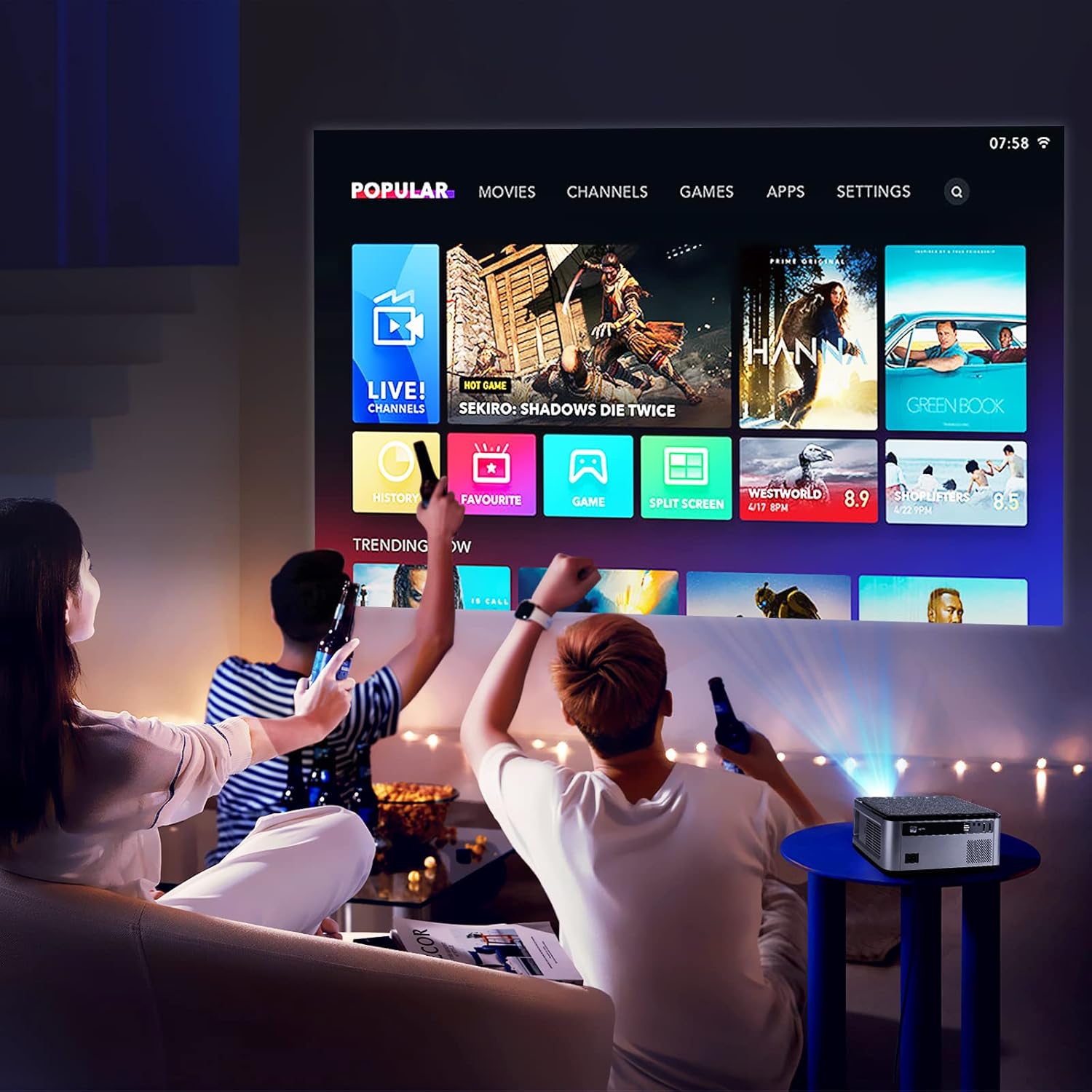
Figure 5.1: The VGKE T28 Projector displaying its smart interface with various content options, suitable for a home entertainment setup.
5.2 Screen Mirroring (WiFi)
To mirror your smartphone or tablet screen:
- Ensure both the projector and your mobile device are connected to the same 2.4G or 5G WiFi network.
- On the projector, select the screen mirroring function (often labeled 'Miracast', 'AirPlay', or 'Screen Mirroring').
- On your mobile device, enable screen mirroring/casting and select the projector from the list of available devices.

Figure 5.2: The VGKE T28 Projector supports wireless screen mirroring from both Android and iOS devices via WiFi.
5.3 Bluetooth Connectivity
To connect external Bluetooth audio devices:
- Go to the Bluetooth settings on the projector.
- Enable Bluetooth and put your audio device (headphones, speakers) into pairing mode.
- Select your device from the list of available devices on the projector to pair.
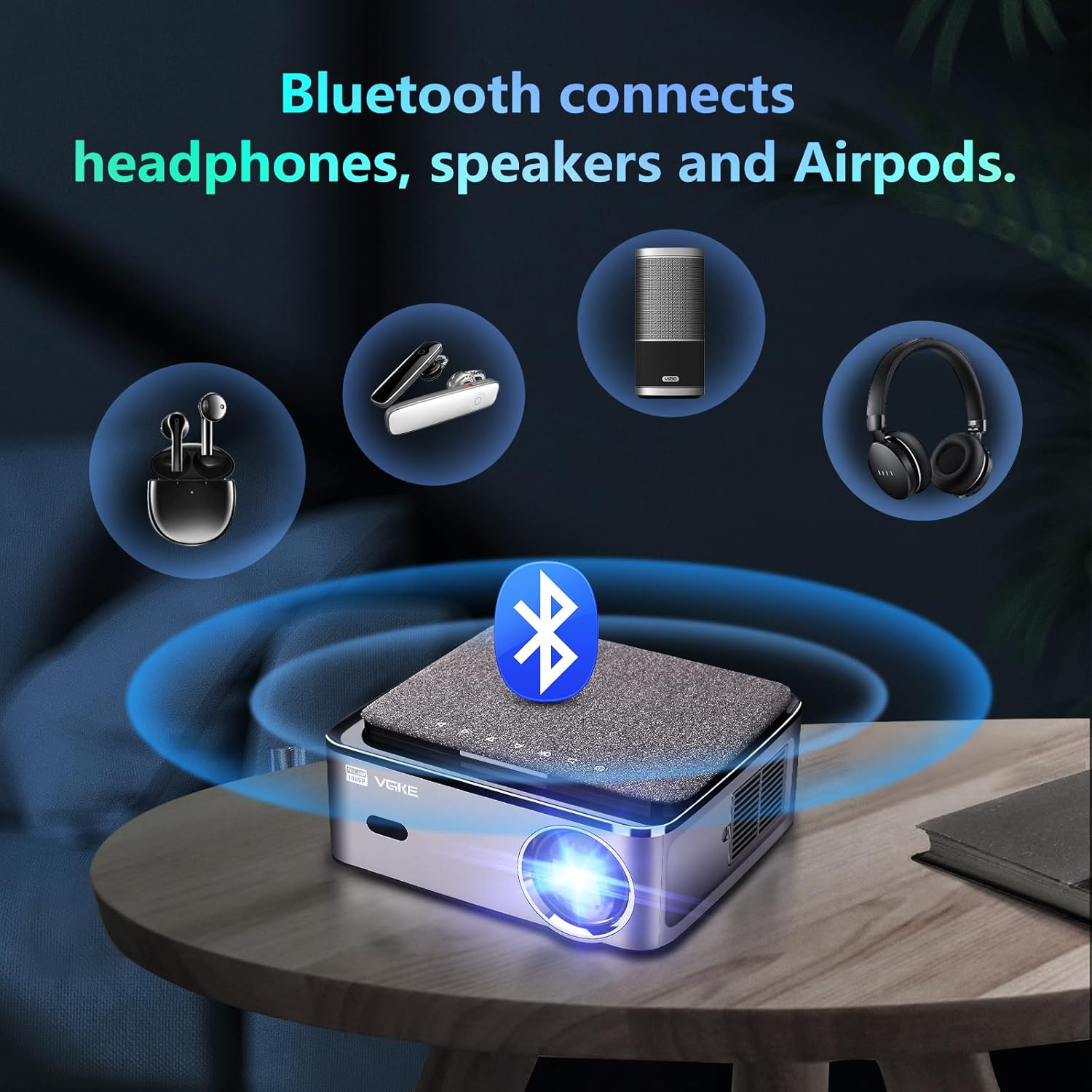
Figure 5.3: The VGKE T28 Projector offers Bluetooth connectivity for headphones, speakers, and other audio accessories.
6. Connectivity
The VGKE T28 Projector offers a wide range of input options:
- HDMI: Connect laptops, game consoles (PS3/PS4, Xbox Series), TV boxes, and other HDMI-enabled devices.
- USB: Play media files directly from USB drives. The projector also supports direct playback of Office documents and PowerPoint presentations.
- RJ45: For wired network connection, ensuring stable internet access for streaming.
- AV: Connect older devices using an AV cable (not specified if included).
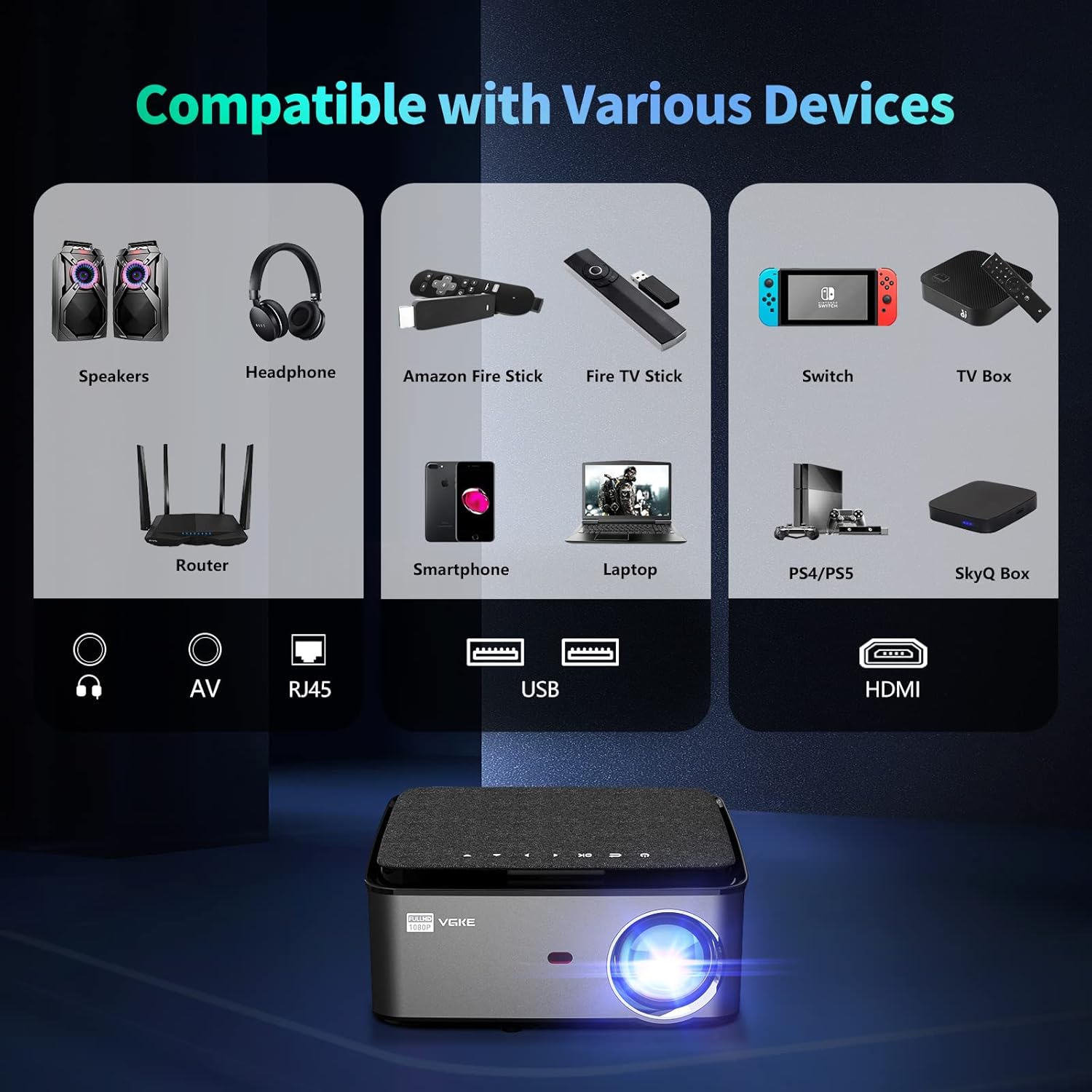
Figure 6.1: The VGKE T28 Projector is compatible with a wide array of devices through its multiple input ports, including HDMI, USB, RJ45, and AV.
7. Maintenance
Regular maintenance helps prolong the life of your projector:
- Lens Cleaning: Use a soft, lint-free cloth specifically designed for optical lenses to gently wipe the projector lens. Do not use abrasive cleaners or excessive force.
- Ventilation: Periodically check and clean the ventilation openings to prevent dust buildup, which can lead to overheating. Use a soft brush or compressed air.
- Storage: When not in use for extended periods, store the projector in a cool, dry place, away from direct sunlight and extreme temperatures.
- Power Off: Always power off the projector correctly and allow it to cool down before unplugging or moving.
8. Troubleshooting
If you encounter issues with your VGKE T28 Projector, refer to the following common problems and solutions:
| Problem | Possible Cause | Solution |
|---|---|---|
| No image displayed | Power cable loose; Input source incorrect; Lens cap on. | Check power connection; Select correct input (HDMI, USB); Remove lens cap. |
| Image blurry | Focus not adjusted; Projector too far/close. | Adjust electronic focus using remote; Adjust projection distance. |
| Image trapezoidal | Projector not perpendicular to screen. | Adjust 4D keystone correction in settings. |
| No sound | Volume too low; Muted; External audio device not connected. | Increase volume; Unmute; Check Bluetooth connection or external speaker connection. |
| WiFi connection unstable | Weak signal; Router issues. | Move projector closer to router; Restart router; Try 5G WiFi if available. |
If the problem persists after trying these solutions, please contact customer support.
9. Specifications
Key technical specifications for the VGKE T28 Projector:
| Feature | Specification |
|---|---|
| Brand | VGKE |
| Model Number | T28 |
| Color | Grey |
| Brightness | 800 ANSI Lumens |
| Native Resolution | 1920 x 1080 (Full HD) |
| Supported Resolution | Up to 4K |
| Display Type | LCD |
| Connectivity Technology | HDMI, USB, RJ45, Bluetooth 5.0, 2.4G+5G WiFi |
| Compatible Devices | Phones, PS3/PS4 Game Consoles, Xbox Series, Laptops |
| Keystone Correction | ±50° 4D Correction |
| Focus Adjustment | Electronic Focus |
| Digital Zoom | 100% to 50% |
| Max Projection Size | 300 inches |
| Audio Output | 5W HIFI Stereo Speaker |
| Power Consumption | 120 Watts |
10. Warranty and Support
VGKE offers a comprehensive warranty and dedicated customer support for your T28 Projector:
- One-Year Warranty: All users are provided with a one-year warranty from the date of purchase.
- 24/7 Customer Service: Our professional support team is available 24 hours a day, 7 days a week, to assist with any quality issues or technical inquiries that may arise during use.
For assistance, please refer to the contact information provided with your product packaging or visit the official VGKE support website.

Figure 10.1: VGKE provides dedicated customer support, including a one-year warranty and 24/7 assistance.