
1. Product Overview
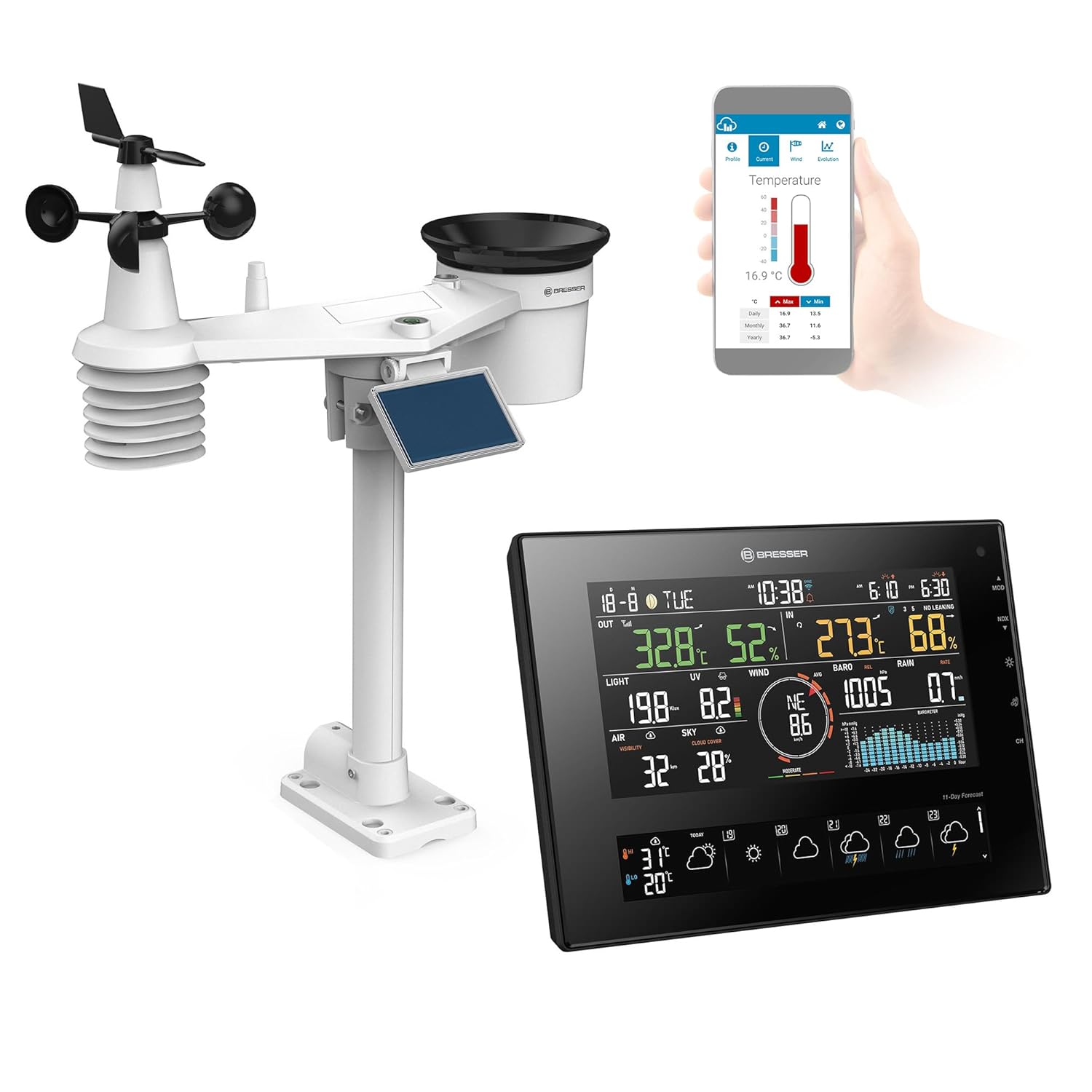
The Bresser Solar 7-in-1 Weather Station 4Cast CV provides comprehensive weather data and forecasts. It includes a solar-powered 7-in-1 outdoor sensor and an indoor base station with an integrated thermo-hygrometer. Data can be accessed via the station's display, the ProWeatherLive application, or a web browser.
Key features include:
- Detailed 11-day and 24-hour weather forecasts, including maximum, minimum, and average temperatures, and rain probability.
- 7-in-1 outdoor sensor measures temperature, humidity, wind speed, wind direction, precipitation, UV level, and light intensity.
- Environmentally friendly operation of the outdoor sensor via a large solar panel, with AA batteries as backup during low sunlight.
- Easy access to weather data through the display, ProWeatherLive app, or web browser.
- Compatibility with optional sensors for ambient climate, soil, pool, and air quality (sold separately).
2. Setup Instructions
2.1 Unpacking and Component Check
Carefully unpack all components and verify that all parts are present:
- Main Display Unit
- 7-in-1 Outdoor Sensor
- Mounting Hardware
- Instruction Manual
2.2 Outdoor Sensor Installation
The 7-in-1 outdoor sensor is designed for solar power operation. For optimal performance, ensure it receives at least 4 hours of direct sunlight (100,000 lux) daily. Insert 3 AA batteries (not included) into the sensor's battery compartment as a backup power source for periods of low sunlight.
- Choose a Location: Select an open area free from obstructions (trees, buildings) that could block wind, rain, or sunlight. The sensor should be mounted at a height that allows accurate readings.
- Mounting: Use the provided mounting hardware. You will need to supply your own mounting pole or system. Ensure the sensor is level for accurate rain and wind measurements. Proper alignment of the tilt may require additional tools or adjustments.
- Battery Installation: Open the battery compartment on the outdoor sensor and insert 3 AA batteries, observing polarity. Close the compartment securely.

2.3 Main Display Unit Setup
Place the main display unit indoors in a central location, away from direct sunlight or heat sources, to ensure accurate indoor temperature and humidity readings.
2.4 Wi-Fi and App Connection
Connecting the weather station to your Wi-Fi network and the ProWeatherLive app is crucial for accessing advanced features and remote monitoring. This process can be intricate; follow the instructions carefully.
- Download the App: Download the ProWeatherLive app from your device's app store.
- Create an Account: Register for an account on the ProWeatherLive platform via the app or web browser.
- Connect to Wi-Fi: Follow the in-app instructions to connect your main display unit to your home Wi-Fi network. This typically involves putting the display unit into a pairing mode and using the app to transfer network credentials.
- Sensor Synchronization: Once the main unit is connected, it will automatically attempt to synchronize with the 7-in-1 outdoor sensor. Ensure both units are within range.
Note: If you encounter difficulties with Wi-Fi setup, refer to the troubleshooting section or the detailed manual provided with the product for specific steps.
3. Operating Instructions
3.1 Main Display Unit
The main display unit provides a clear overview of current weather conditions and forecasts.

The display typically shows:
- Outdoor Data: Temperature, humidity, wind speed, wind direction, precipitation, UV index, light intensity.
- Indoor Data: Temperature and humidity.
- Forecasts: 24-hour and 11-day weather forecasts with icons for sun, clouds, rain, thunderstorms, etc.
- Barometric Pressure: Current pressure and historical graph.
- Time and Date: Automatically synchronized via Wi-Fi.
3.2 ProWeatherLive App and Web Interface
The ProWeatherLive platform allows you to view your weather data remotely and access additional features.
- Real-time Data: Access current and historical weather data from your outdoor sensor and indoor unit.
- Notifications: Set up alerts for specific weather parameters (e.g., high wind, low temperature, high indoor humidity).
- Data Export: Some platforms allow for data export for personal analysis.
- Optional Sensors: If additional sensors are connected, their data will also be available here.
3.3 Indoor Climate Monitoring
The base station's integrated thermo-hygrometer monitors your indoor climate. The display often features a gradient graph showing the development of indoor temperature and humidity, which is useful for preventing excessively dry air or mold growth. Adjust ventilation or use a humidifier/dehumidifier as needed based on these readings.
4. Maintenance
4.1 Outdoor Sensor
- Solar Panel: Periodically clean the solar panel with a soft, damp cloth to ensure efficient charging. Dust, dirt, or debris can reduce its effectiveness.
- Battery Replacement: The 3 AA backup batteries in the outdoor sensor should be checked and replaced annually or when the low battery indicator appears on the display.
- Rain Collector: Ensure the rain collector funnel is free of leaves, insects, or other debris that could obstruct water flow.
- Anemometer/Wind Vane: Check for any obstructions or damage to the rotating cups and wind vane. Keep them clear for accurate wind measurements.
4.2 Main Display Unit
- Cleaning: Clean the display unit with a soft, dry cloth. Avoid abrasive cleaners or solvents.
- Power: Ensure the unit has a stable power supply.
5. Troubleshooting
5.1 No Data from Outdoor Sensor
- Check Batteries: Ensure the 3 AA batteries in the outdoor sensor are fresh and correctly installed.
- Solar Panel: Verify the solar panel is clean and receiving sufficient sunlight.
- Range: Ensure the outdoor sensor is within the wireless range of the main display unit. Obstacles like thick walls can reduce range.
- Re-synchronize: Try re-synchronizing the outdoor sensor with the main unit by following the pairing instructions in the full manual.
5.2 Wi-Fi Connection Issues
- Network Credentials: Double-check your Wi-Fi network name (SSID) and password.
- Router Proximity: Ensure the main display unit is within range of your Wi-Fi router.
- Router Settings: Verify your router is operating on a 2.4 GHz band, as many smart devices do not support 5 GHz.
- Restart: Restart both your Wi-Fi router and the weather station display unit.
- App Instructions: Carefully re-follow the Wi-Fi setup steps in the ProWeatherLive app.
5.3 Inaccurate Readings
- Sensor Placement: Ensure the outdoor sensor is correctly mounted and level, away from heat sources or obstructions.
- Rain Collector: Check for blockages in the rain collector.
- App vs. Display: Minor discrepancies between app data and display data can occur due to data transmission or processing. If significant, ensure both are updated and synchronized.
6. Specifications
| Feature | Detail |
|---|---|
| Model Number | 7003240 |
| Brand | BRESSER |
| Dimensions (L x W x H) | 15.2 x 21.7 x 2.3 cm (Main Unit); 547 grams |
| Power Source | Battery powered (3 AA batteries required for outdoor sensor backup) |
| Connectivity Technology | Wi-Fi |
| Material | Plastic |
| Color | Black |
| Special Features | Day of week display, Automatic, Ice warning, Online connectivity, Alarm function, Weather index, Sunrise/Sunset, Max/Min value memory, Moon phases, Weather platforms, Rain probability, Internet time, Sunburn time, Wi-Fi, Visibility conditions, Cloud cover, Multi-color display |
| Recommended Use | Garden, Weather Forecasts |
7. Warranty and Support
7.1 Warranty Information
Warranty details for the Bresser Solar 7-in-1 Weather Station 4Cast CV are typically provided with the product packaging or can be found on the official Bresser website. Please retain your proof of purchase for warranty claims.
7.2 Customer Support
For technical assistance, troubleshooting beyond this manual, or warranty inquiries, please contact Bresser customer support through their official website or the contact information provided in your product documentation.


