
1. Introduction
The GeekTale Fingerprint Door Knob Lock (Model K11) offers a secure and convenient keyless entry solution for your home or office. This smart lock integrates multiple unlocking methods including fingerprint recognition, mobile application control, and traditional backup keys. Designed for ease of use and installation, it provides enhanced security and smart features for a modern living space.

Image: The GeekTale Fingerprint Door Knob Lock, showcasing its sleek black design and the accompanying mobile app interface for smart control.
2. Product Features
- 3-IN-1 Unlock Ways: Unlock your door using fingerprint recognition, the dedicated mobile app, or traditional emergency backup keys.
- Simple but Smarter: Control and manage your lock via the mobile app, including fingerprint management and access log review, for a more convenient and secure experience.
- Three Mode Features: Easily switch between Entrance Mode, Passage Mode, and Security Mode by turning the button on the interior knob, offering versatile access control.
- Built-in Rechargeable Battery: Features a long-lasting rechargeable battery that provides up to 8 months of use on a single 3-hour charge. (Indoor Use Only)
- Easy Installation: Designed for quick and straightforward installation on standard doors, typically within 15 minutes using a screwdriver.
Unlock Methods Overview

Image: Visual representation of the three primary unlocking methods: fingerprint, Bluetooth app control, and physical key.
Fingerprint Recognition

Image: The lock's fingerprint sensor, highlighting its rapid 0.3-second recognition capability and capacity for up to 20 unique fingerprints.
Bluetooth App Control

Image: The mobile application interface, demonstrating features such as user management, access log viewing, mute mode activation, and remote unlock (requires separate gateway).
Lock Modes
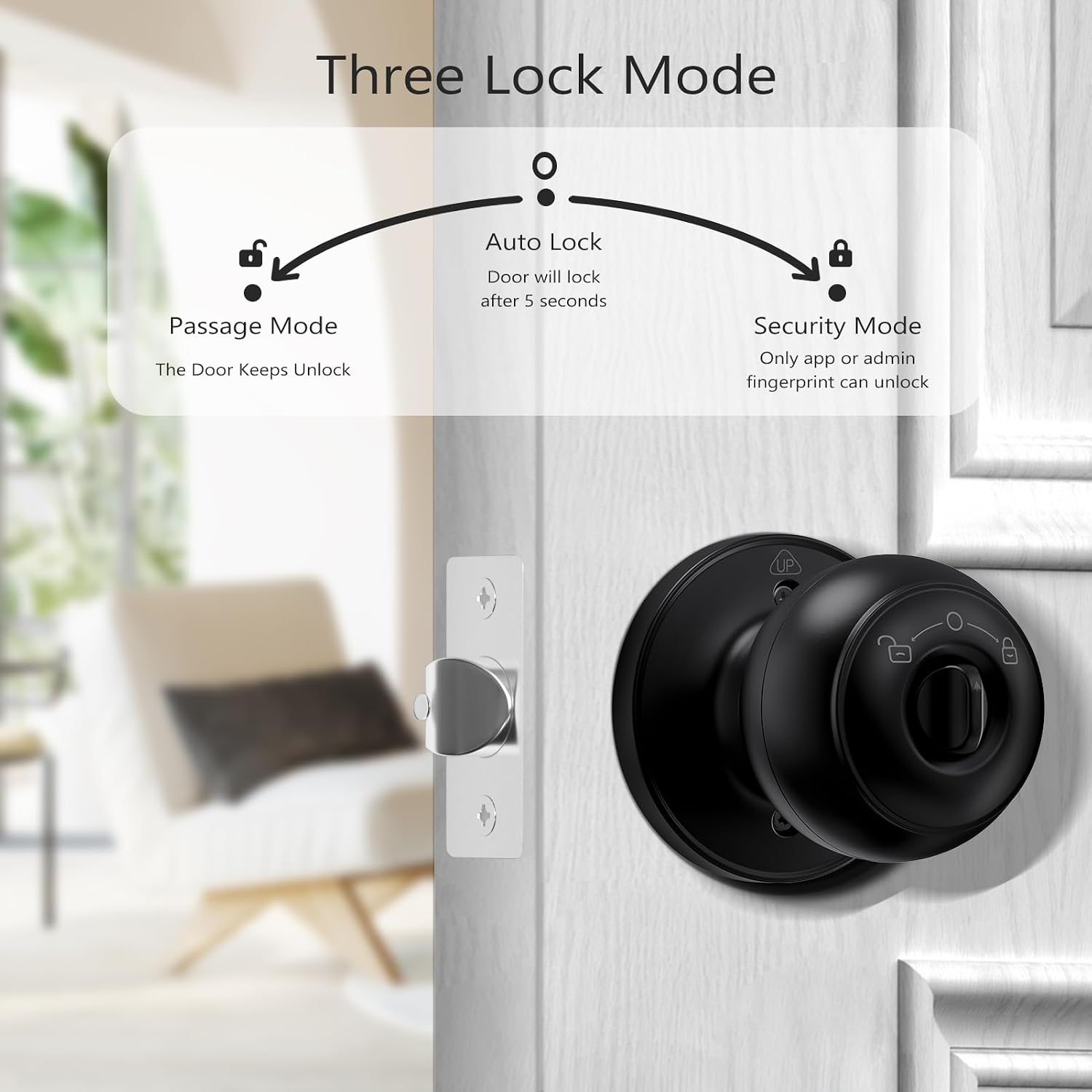
Image: A diagram explaining the three operational modes: Passage Mode (door remains unlocked), Auto Lock (locks after 5 seconds), and Security Mode (only app or admin fingerprint can unlock).
Battery Life and Charging

Image: The lock's Type-C charging port and details about its 450mAh rechargeable battery, including charging time and estimated battery life.
Product Video Overview
Video: An official overview of the GeekTale Smart Door Knob K11-B, demonstrating its key features and functionality.
3. Package Contents
Please verify that all components are present before beginning installation.
- Exterior Door Knob Assembly (with fingerprint sensor)
- Interior Door Knob Assembly (with mode switch)
- Latch Bolt
- Strike Plate
- Mounting Screws
- Backup Keys (2)
- Reset Pin
- User Manual (this document)
- USB Type-C Charging Cable (Note: Power adapter not included)
4. Installation Guide
Before installation, ensure your door dimensions are compatible with the lock. Refer to the diagram below for measurements.

Image: Important door measurements for compatibility: Backset (2-3/4" or 2-3/8"), Door Hole Diameter (2-1/8"), and Door Thickness (1-3/8" to 2-1/8").
Step-by-Step Installation
Follow these steps carefully. Do not close the door until the lock is fully installed and tested.
- Prepare the Door: Ensure the door hole and latch hole are correctly sized according to the specifications.
- Install the Latch Bolt: Insert the latch bolt into the door edge, ensuring the bevel faces the door frame. Secure with screws.
- Install Exterior Door Knob: Insert the exterior door knob assembly into the door, making sure the keyhole and Type-C charging port face downward.
- Connect Cables: Route the cable from the exterior knob through the latch bolt and connect it to the interior knob assembly.
- Install Interior Door Knob: Align the interior knob assembly with the exterior knob and secure it with the provided mounting screws.
- Close the Lid: Once secured, close the battery cover/lid on the interior knob.
- Test Functionality: Before closing the door, test the lock's operation with a backup key and ensure the latch retracts smoothly.

Image: A visual step-by-step guide for installing the GeekTale Fingerprint Door Knob, from initial placement to final assembly.
5. Setup and Programming
This section guides you through setting up your smart lock, including app pairing, fingerprint registration, and configuring lock modes.
Initial Setup and App Pairing
- Download the App: Search for the "GeekTale" app in your smartphone's app store (iOS/Android) and install it.
- Create Account: Open the app and follow the prompts to create a new user account.
- Add Device: In the app, select "Add Device" or the '+' icon. Ensure Bluetooth is enabled on your phone and the lock is powered on.
- Pairing: The app will search for nearby GeekTale devices. Select your K11 lock from the list to pair. Follow any on-screen instructions to complete the pairing process.
Fingerprint Registration
You can register up to 20 fingerprints. The first registered fingerprint will be the administrator fingerprint.
- Access Fingerprint Management: In the GeekTale app, navigate to the "Member Management" or "Fingerprint" section for your K11 lock.
- Add Fingerprint: Select "Add Fingerprint" and follow the app's instructions. You will typically be asked to place your finger on the sensor multiple times from different angles to ensure accurate registration.
- Confirmation: The app will confirm successful registration. Repeat for additional fingerprints.
Configuring Lock Modes
The K11 lock offers three distinct modes for various security needs:
- Passage Mode: The door remains unlocked, allowing free entry and exit without authentication. Ideal for high-traffic periods.
- Auto Lock Mode: The door automatically locks after approximately 5 seconds of being closed. This is the default and recommended mode for general security.
- Security Mode: Only administrator fingerprints or app control can unlock the door. This provides the highest level of security.
To change the lock mode, locate the small switch on the interior knob. Turn the switch to the desired position:
- Turn to the left for Passage Mode.
- Turn to the middle for Auto Lock Mode.
- Turn to the right for Security Mode.

Image: Instructions for changing the lock mode using the switch on the interior knob.
6. Operation
Once installed and set up, operating your GeekTale Fingerprint Door Knob Lock is straightforward.
Unlocking the Door
- By Fingerprint: Place your registered finger firmly on the fingerprint sensor. The light will turn green, and the lock will unlock. Turn the knob to open the door.
- By App: Open the GeekTale app, select your lock, and tap the "Unlock" button. The lock will unlock. Turn the knob to open the door.
- By Key: Insert the backup key into the keyhole on the exterior knob and turn it to unlock. Turn the knob to open the door.
Locking the Door
- Auto Lock Mode: The lock will automatically engage approximately 5 seconds after the door is closed.
- Security Mode: The lock remains engaged. Only administrator fingerprints or app control can unlock it.
- Manual Lock (from inside): In Passage Mode, you can manually lock the door by turning the interior knob to the locked position.
7. Charging and Battery
The GeekTale K11 lock is equipped with a built-in 450mAh rechargeable Lithium-Ion battery.
- Charging: Connect a standard USB Type-C cable (not included) to the charging port located on the exterior knob. A full charge typically takes about 3 hours.
- Battery Life: A fully charged battery can last up to 8 months under normal usage conditions.
- Low Battery Indication: The lock will provide an audible or visual alert when the battery level is low. Please charge promptly to avoid being locked out.
- Emergency Power: In case of a completely drained battery, you can use the backup keys to unlock the door.
8. Maintenance
Proper maintenance ensures the longevity and optimal performance of your GeekTale smart lock.
- Cleaning: Wipe the lock surface with a soft, dry cloth. Avoid using abrasive cleaners, solvents, or harsh chemicals, as these can damage the finish and electronic components.
- Fingerprint Sensor: Keep the fingerprint sensor clean and free of dirt, dust, or moisture for accurate readings.
- Battery Care: Charge the battery regularly, especially when low battery alerts are given. Avoid completely draining the battery frequently.
- Environmental Conditions: This lock is designed for indoor use only. Avoid exposing it to extreme temperatures, direct sunlight, or high humidity, which can affect performance and lifespan.
9. Troubleshooting
If you encounter issues with your GeekTale Fingerprint Door Knob Lock, refer to the following common problems and solutions:
| Problem | Possible Cause | Solution |
|---|---|---|
| Fingerprint not recognized. | Dirty sensor, unregistered fingerprint, improper finger placement. | Clean the sensor. Ensure your finger is clean and dry. Re-register fingerprint if necessary, ensuring full contact and varied angles during registration. |
| Lock not responding. | Low battery, system error. | Charge the lock. If unresponsive, use the backup key. Perform a factory reset if the issue persists (refer to app for reset instructions). |
| App cannot connect to lock. | Bluetooth off, lock too far, app glitch. | Ensure Bluetooth is enabled on your phone. Move closer to the lock. Restart the app or your phone. Re-pair the device if necessary. |
| Battery drains quickly. | Frequent usage, poor signal, aging battery. | Reduce unnecessary unlocks. Ensure good Bluetooth connection. If battery life significantly degrades over time, contact customer support. |
10. Specifications
- Model: K11
- Material: Aluminum
- Color: Matte Black
- Product Dimensions: 2.98"L x 2.95"W
- Item Weight: 1.85 pounds
- Lock Type: Biometric
- Fingerprint Capacity: Up to 20 fingerprints
- Battery: 1 Lithium Ion battery (included)
- Battery Capacity: 450mAh (Rechargeable)
- Charging Port: USB Type-C
- Usage Environment: Indoor Only
- Special Features: Fingerprint Door Knob, Bluetooth Unlock, Smart Control with App, Auto Lock, Change Lock Mode from Inside, Mute Mode, Rechargeable Battery, Easy Install.
11. Warranty and Support
GeekTale products are designed for reliability and performance. For warranty information, technical support, or any questions regarding your K11 Fingerprint Door Knob Lock, please contact GeekTale customer service through the following channels:
- Website: Visit the official GeekTale website for support resources and contact details.
- Email: Refer to your product packaging or the GeekTale website for customer support email addresses.
- In-App Support: Some support features may be available directly within the GeekTale mobile application.
Please have your product model (K11) and purchase details ready when contacting support.


