
Introduction
Welcome to the user manual for your Relndoo P80 Android 14 Tablet. This guide provides essential information on setting up, operating, maintaining, and troubleshooting your device to ensure a smooth and enjoyable experience. Please read this manual thoroughly before using your tablet.
Package Contents
Upon unboxing, please verify that all items listed below are present:
- 1 x Relndoo P80 11-inch Android Tablet
- 1 x Type-C Charging Cable
- 1 x Charging Head (Power Adapter)
- 1 x Screen Protector
- 1 x High-quality Tablet Case
- 1 x User Manual (This document)

Image: The Relndoo P80 Android 14 Tablet shown with its included accessories: a tablet case, screen protector, charging head, Type-C cable, and user manual.
Device Overview
Familiarize yourself with the physical components of your Relndoo P80 tablet.

Image: An overview of the Relndoo P80 tablet, highlighting its 11-inch IPS screen, Android 14 operating system, 12GB RAM, 128GB ROM, 1TB expansion capability, 2.4G/5G WiFi, 8000mAh battery, 5MP front camera, 13MP rear camera, and Bluetooth V5.0. The image also displays the adjustable case, screen protector, charging head, Type-C cable, and an OTG cable.
Key Components:
- 11-inch IPS Touch Screen: High-resolution display for clear visuals and responsive interaction.
- Front Camera (5MP): Located on the front bezel, suitable for video calls and selfies.
- Rear Camera (13MP): Located on the back panel, for capturing photos and videos.
- Power Button: Typically on the side, used to power on/off or wake/sleep the device.
- Volume Buttons: Adjust audio levels.
- Type-C Port: For charging and data transfer.
- 3.5mm Earphone Jack: For connecting headphones or external audio devices.
- Micro SD Card Slot: For expanding storage up to 1TB.
- Built-in Stereo Speakers: For audio output.
Setup
1. Initial Charging
Before first use, fully charge your tablet using the provided Type-C charging cable and charging head. The battery indicator on the screen will show charging status.
2. Powering On/Off
- To Power On: Press and hold the Power button until the Relndoo logo appears.
- To Power Off: Press and hold the Power button, then select "Power off" from the options on the screen.
- To Sleep/Wake: Briefly press the Power button.
3. Initial Setup Wizard
Upon first power-on, the tablet will guide you through an initial setup process. Follow the on-screen prompts to:
- Select your language.
- Connect to a Wi-Fi network.
- Set up your Google account (recommended for full access to Google Play Store and services).
- Configure date, time, and other basic settings.
4. Inserting a Micro SD Card (Optional)
To expand storage, locate the Micro SD card slot on the side of the tablet. Gently insert a Micro SD card (up to 1TB) into the slot until it clicks into place. Ensure the tablet is powered off before inserting or removing the card.
Operating Instructions
1. Basic Navigation
The Relndoo P80 features an 11-inch IPS touch screen for intuitive interaction:
- Tap: Select an item or open an application.
- Swipe: Scroll through pages, menus, or content.
- Pinch-to-Zoom: Enlarge or reduce content on the screen.
- Long Press: Access contextual menus or move icons.

Image: The Relndoo P80 tablet screen highlighting its 11-inch touch screen, 1280x800 HD resolution, adaptive brightness feature, and thin screen borders for an immersive viewing experience.
2. Android 14 Operating System
Your tablet runs on Android 14, offering enhanced customization, privacy controls, data protection, and accessibility features. The octa-core T606 processor ensures smooth multitasking.
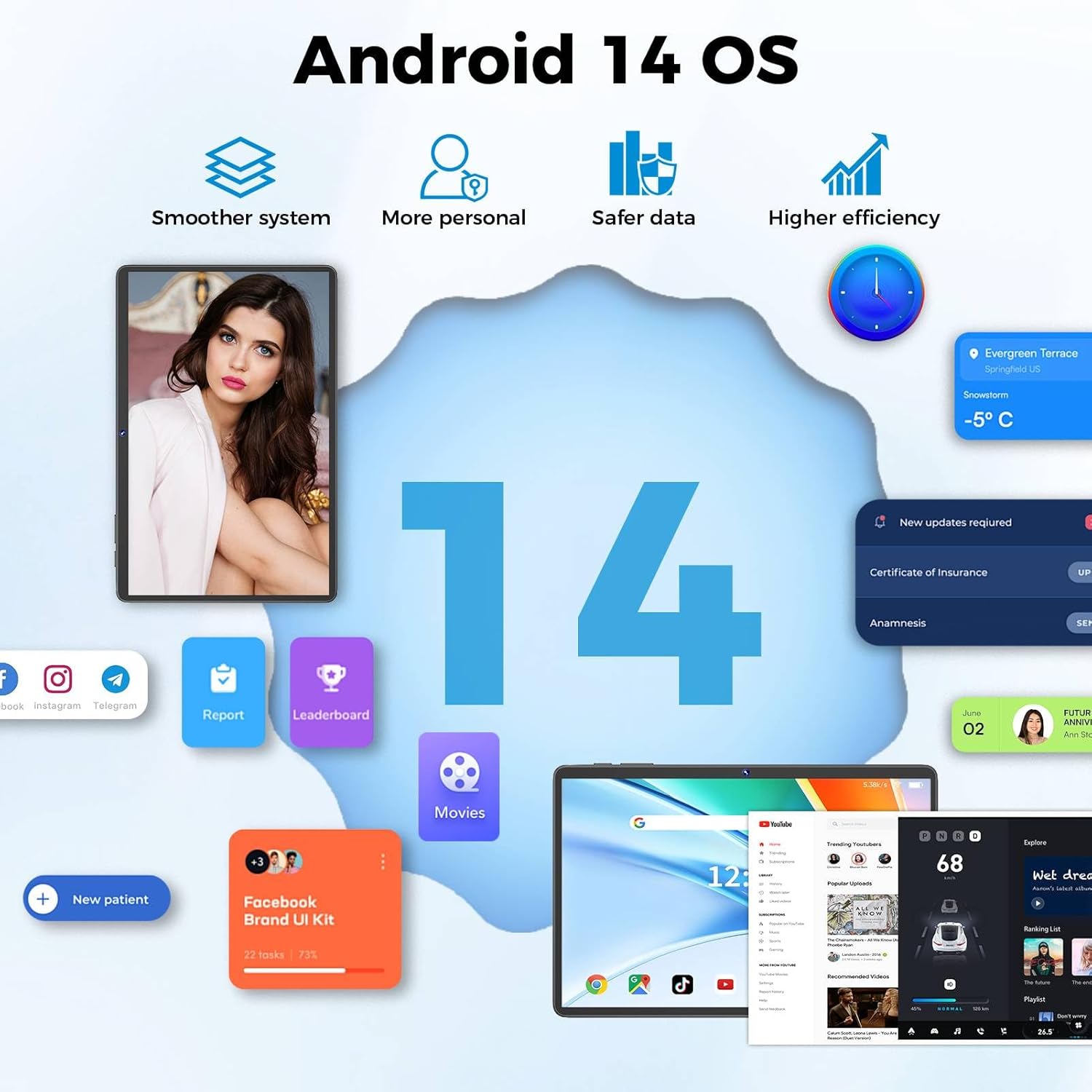
Image: A visual representation of Android 14 OS features, emphasizing a smoother system, personalized user experience, enhanced data safety, and higher operational efficiency.
3. Wi-Fi Connection
To connect to a Wi-Fi network:
- Go to Settings > Network & internet > Internet.
- Turn on Wi-Fi.
- Select your desired 2.4G or 5G Wi-Fi network from the list.
- Enter the password if prompted, then tap Connect.
4. Bluetooth Pairing
To pair with a Bluetooth V5.0 device:
- Go to Settings > Connected devices > Connection preferences > Bluetooth.
- Turn on Bluetooth.
- Ensure your Bluetooth device is in pairing mode.
- Select your device from the list of available devices and follow any on-screen prompts to complete pairing.
5. Camera Usage
Your tablet is equipped with a 5MP front camera and a 13MP rear camera.

Image: The Relndoo P80 tablet being used for a video call, illustrating the functionality of its 5MP front camera and 13MP main (rear) camera.
- Open the Camera application.
- Tap the camera switch icon to toggle between front and rear cameras.
- Tap the shutter button to take a photo or start/stop video recording.
6. Storage Management
The tablet comes with 128GB of internal storage (ROM) and supports expansion up to 1TB via a Micro SD card. You can manage your storage in Settings > Storage.
7. App Installation
As a GMS certified device, you can download and install a wide variety of applications from the Google Play Store. Ensure you have a Google account set up to access the Play Store.
Battery and Charging
Your Relndoo P80 tablet is equipped with an 8000 mAh Li-ion battery, providing extended usage time. It supports 18W fast charging.

Image: This image illustrates the Relndoo P80 tablet's 8000mAh battery and 18W fast charging capabilities, showing estimated usage times for music (20 hours), videos (17 hours), and standby (720 hours). It also depicts various usage scenarios like browsing, gaming, and video calls.
- Use only the provided charging cable and adapter to ensure optimal charging speed and safety.
- Avoid exposing the tablet to extreme temperatures, as this can affect battery life.
- For best battery longevity, avoid completely draining the battery frequently.
Maintenance
1. Cleaning the Tablet
- Use a soft, lint-free cloth to clean the screen and body of the tablet.
- For stubborn smudges, slightly dampen the cloth with water or a screen cleaner designed for electronics.
- Avoid using harsh chemicals, abrasive materials, or excessive moisture.
2. Software Updates
Periodically check for system updates in Settings > System > System update. Keeping your software up-to-date ensures optimal performance, security, and access to new features.
3. Data Backup
Regularly back up important data to cloud storage or an external device to prevent data loss.
Troubleshooting
If you encounter issues with your tablet, refer to the following common solutions:
| Problem | Solution |
|---|---|
| Tablet does not power on | Ensure the battery is charged. Connect the charger and wait a few minutes before attempting to power on again. If unresponsive, perform a forced restart by holding the Power button for 10-15 seconds. |
| Wi-Fi connection issues | Check if Wi-Fi is enabled in Settings. Restart your Wi-Fi router. Forget the network and reconnect. Ensure you are within range of the Wi-Fi signal. |
| Slow performance | Close unnecessary background applications. Clear cache for frequently used apps. Restart the tablet. Check for available system updates. Consider performing a factory reset if the issue persists (back up data first). |
| Apps crashing or freezing | Force close the app (Settings > Apps > [App Name] > Force stop). Clear the app's cache and data. Uninstall and reinstall the app. Ensure the app is updated to its latest version. |
| Battery drains quickly | Reduce screen brightness. Disable Wi-Fi, Bluetooth, and GPS when not in use. Close background apps. Check battery usage in Settings to identify power-hungry apps. |
Specifications
Detailed technical specifications for the Relndoo P80 Android 14 Tablet:
| Feature | Specification |
|---|---|
| Model Name | P80 |
| Operating System | Android 14 |
| Processor | Octa-Core T606 (ARM) |
| RAM | 12 GB (4 GB + 8 GB Extended) |
| Internal Storage (ROM) | 128 GB |
| Expandable Storage | Up to 1 TB via Micro SD Card |
| Screen Size | 11 Inches |
| Display Type | IPS Touch Screen |
| Screen Resolution | 1280 x 800 Pixels |
| Rear Camera | 13 MP |
| Front Camera | 5 MP |
| Battery Capacity | 8000 mAh Li-ion Battery |
| Charging | 18W Fast Charging (DC 5V/2A Output) |
| Average Battery Life | 17 Hours (usage dependent) |
| Wi-Fi Connectivity | 2.4G / 5G Dual-band WiFi (802.11ac) |
| Bluetooth | Bluetooth V5.0 |
| Ports | 1 x Type-C, 1 x 3.5 mm Earphone Jack, 1 x Micro SD Card Slot |
| Speakers | Built-in Stereo Speakers (x2) |
| Dimensions | 28.7 x 19.81 x 6.86 cm |
| Weight | 1.28 Kilograms |
| GMS Certified | Yes |
Warranty and Support
For warranty information and customer support, please refer to the documentation included with your purchase or visit the official Relndoo website. Keep your proof of purchase for warranty claims.