
Relndoo P80
Relndoo P80 Android 15 Tablet User Manual
Model: P80
Introduction
Welcome to the user manual for your new Relndoo P80 Android 15 Tablet. This guide provides detailed instructions on setting up, operating, maintaining, and troubleshooting your device to ensure optimal performance and user experience. Please read this manual thoroughly before using your tablet.
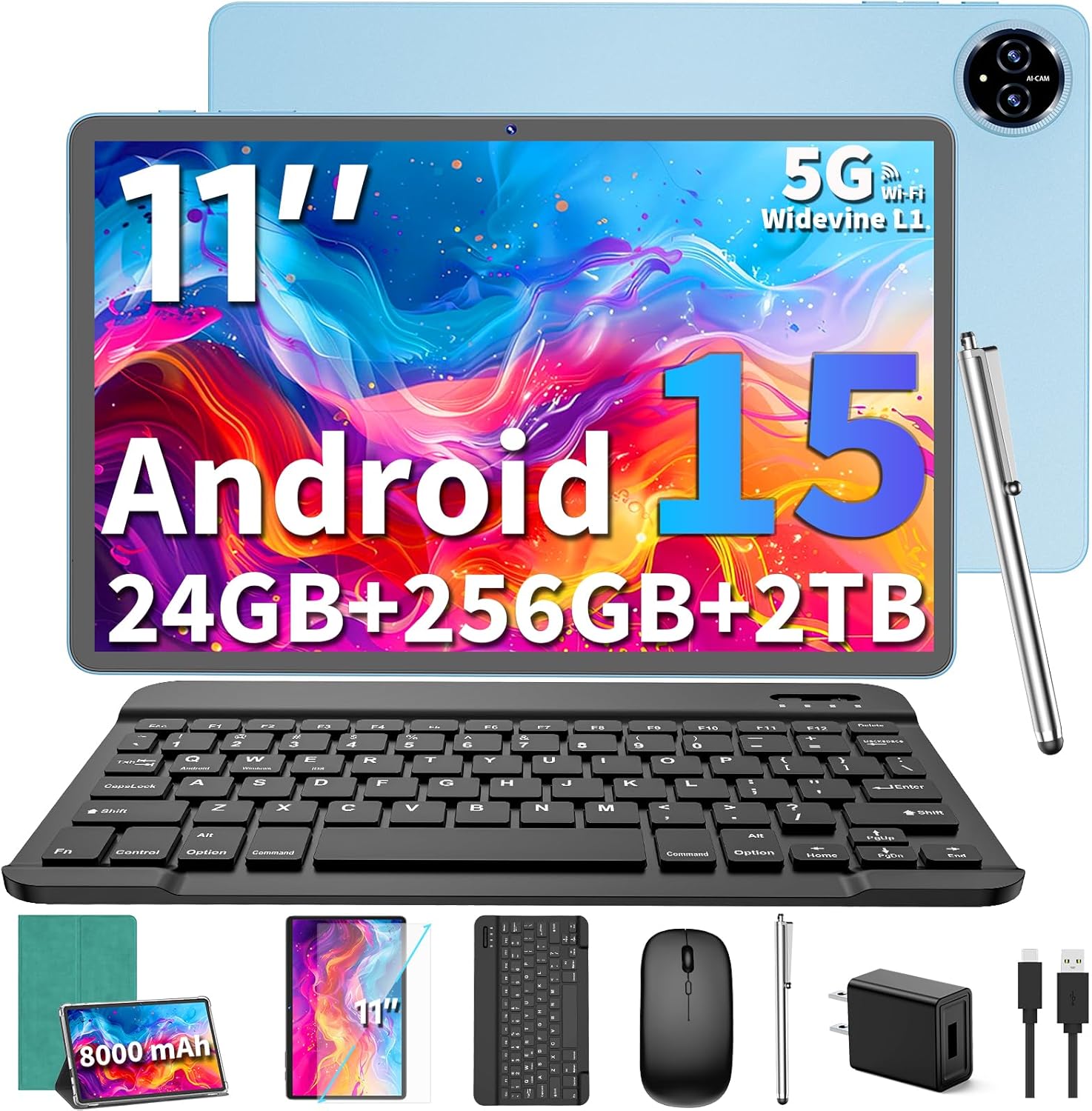
Image: The Relndoo P80 Android 15 Tablet, shown with its accompanying keyboard, mouse, and stylus, highlighting its versatility.
What's in the Box
Verify that all items are present in your package:
- 1 x 11 inch Relndoo Android Tablet
- 1 x Bluetooth Keyboard
- 1 x Wireless Mouse
- 1 x Stylus Pen
- 1 x Foldable Protective Case
- 1 x Screen Protector (pre-applied or separate)
- 1 x Charging Adapter (Charging Head)
- 1 x USB-C Charging Cable
- 1 x User Manual (this document)
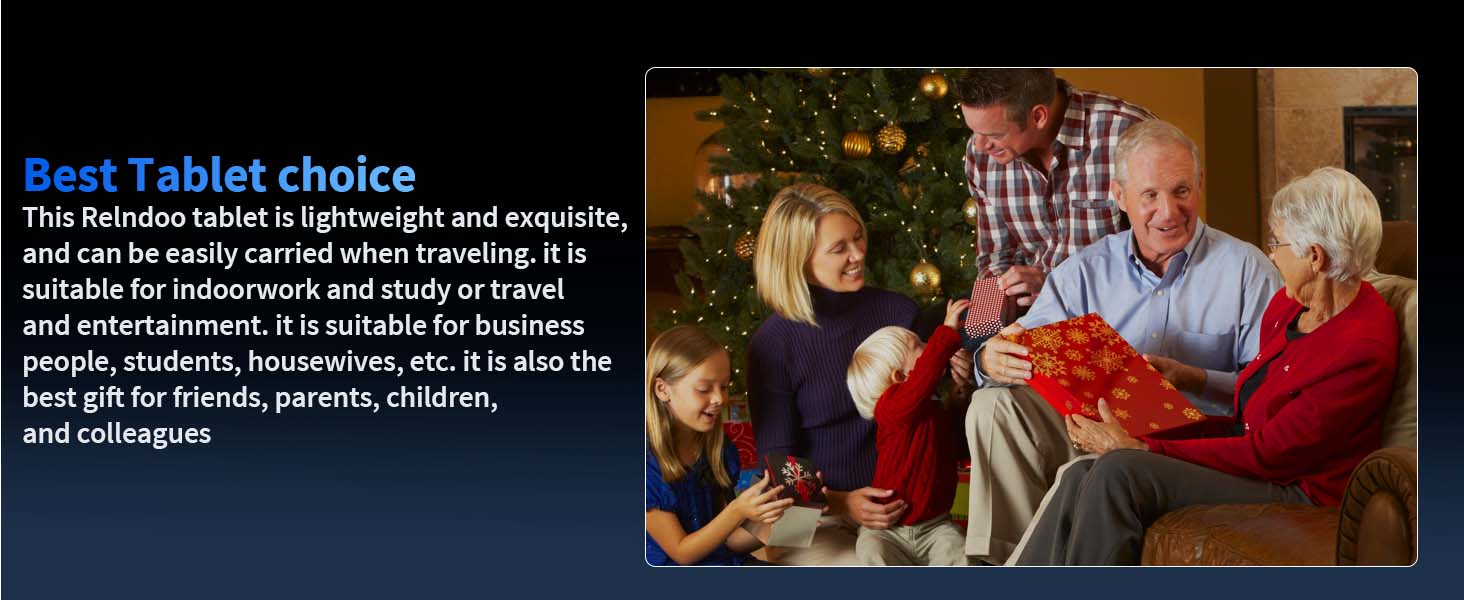
Image: A visual representation of the Relndoo P80 tablet and all its included accessories, such as the keyboard, mouse, stylus, and protective case.
Product Overview
Familiarize yourself with the physical components of your Relndoo P80 tablet.
Image: A detailed diagram illustrating the various ports and buttons on the Relndoo P80 tablet, including the dual microphone, rear camera, power button, volume keys, reset button, headphone jack, TF/SIM card slot, and Type-C port.
Key Components:
- Display: 11-inch IPS display with 1280*800 resolution and Widevine L1 support.
- Cameras: 13MP Rear Camera, 5MP Front Camera.
- Ports: USB-C port for charging and data transfer, 3.5mm Headphone Jack, TF/SIM card slot.
- Buttons: Power Button, Volume Keys, Reset Button.
- Audio: Dual Speakers, Dual Microphone.
Setup
1. Initial Charging
Before first use, fully charge your tablet. Connect the USB-C cable to the tablet's USB-C port and the charging adapter to a power outlet. The 8000mAh battery supports 18W fast charging.
Image: The Relndoo P80 tablet connected to its 18W fast charger, illustrating the charging process and the 8000mAh battery capacity.
2. Powering On/Off
- To Power On: Press and hold the Power Button until the Relndoo logo appears.
- To Power Off: Press and hold the Power Button, then select 'Power off' from the options on the screen.
- To Restart: Press and hold the Power Button, then select 'Restart' from the options.
3. Initial Setup (Android 15)
Follow the on-screen prompts to complete the initial setup of your Android 15 tablet. This includes selecting your language, connecting to Wi-Fi, setting up your Google account, and configuring security options like Face Unlock.
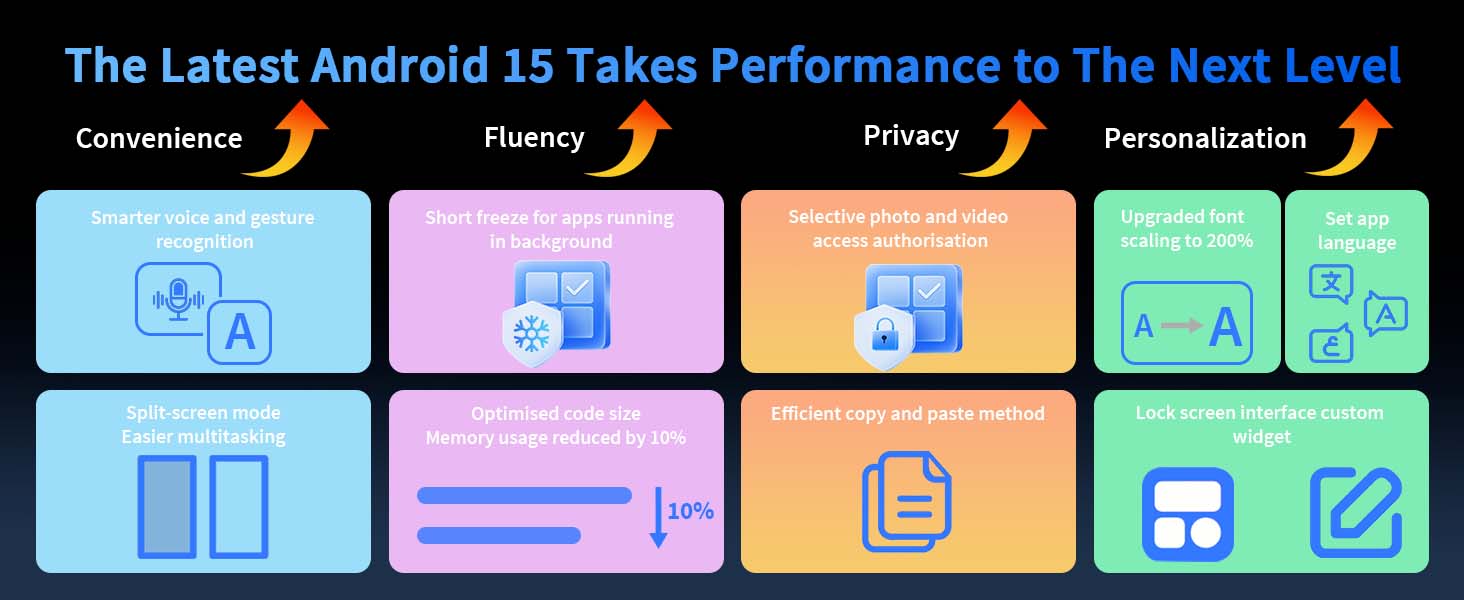
Image: An illustration of the Android 15 OS interface on the Relndoo P80 tablet, highlighting features like smooth operation, convenient taskbar, privacy protection, and improved compatibility.
4. Connecting Accessories
- Bluetooth Keyboard/Mouse: Turn on the keyboard/mouse and enable Bluetooth on your tablet (Settings > Connected devices > Bluetooth). Select the accessory from the list to pair.
- Stylus Pen: The stylus pen is typically passive and does not require pairing. Simply use it on the screen.
5. Inserting a MicroSD Card
To expand storage up to 2TB, locate the TF/SIM card slot on the side of the tablet. Gently insert a FAT32 formatted microSD card into the slot until it clicks into place. Ensure the tablet is powered off before inserting or removing the card.
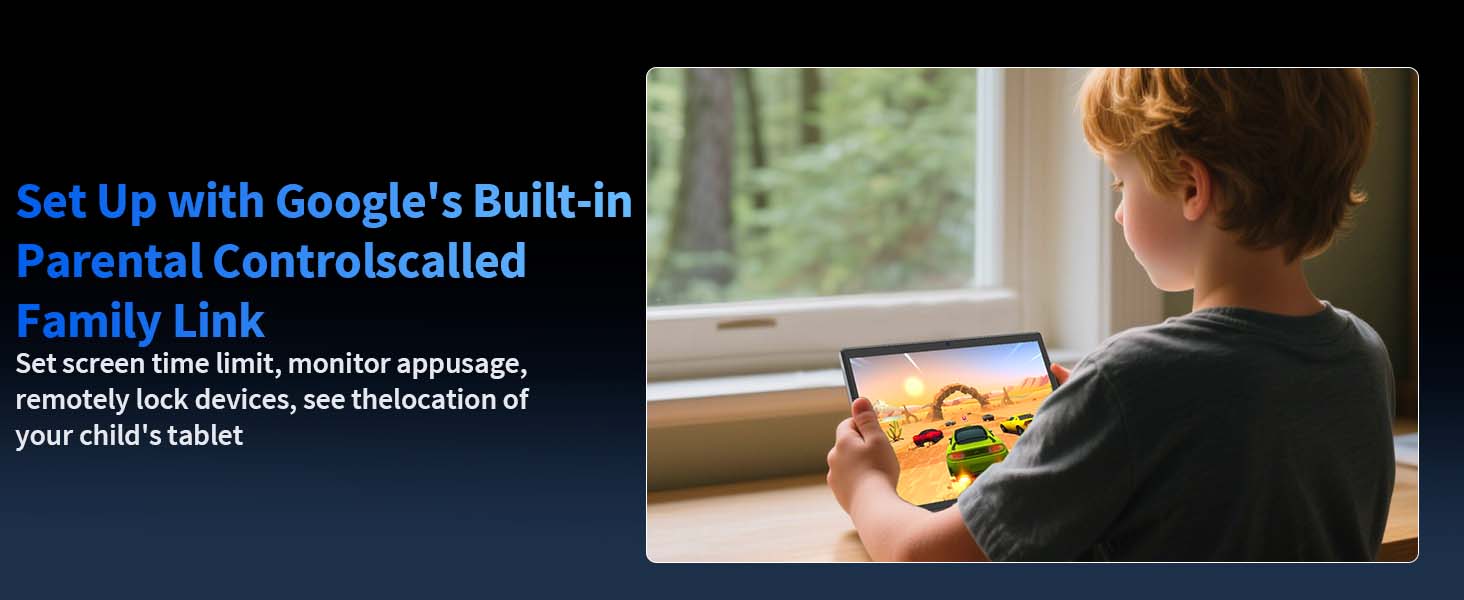
Image: A visual representation of the Relndoo P80 tablet's large storage capabilities, including 6GB LPDDR4X RAM, 18GB Virtual RAM, 256GB ROM, and 2TB expandable storage via Micro SD.
Operating Your Tablet
1. Basic Navigation (Android 15)
The Relndoo P80 runs on Android 15, offering an intuitive user interface. Navigate using touch gestures: tap to select, swipe to scroll, pinch to zoom. Utilize features like widgets for personalized settings, split-screen for multitasking, and parental controls for family use.

Image: A graphic illustrating the performance enhancements of Android 15, including smarter voice recognition, optimized code size, efficient copy/paste, and lock screen widget customization.
2. Connectivity
- Wi-Fi: Supports dual-band Wi-Fi (2.4G/5G) for fast and stable internet connection. Go to Settings > Network & internet > Wi-Fi to connect to a network.
- Bluetooth 5.0: For connecting wireless peripherals like headphones, speakers, keyboard, and mouse. Go to Settings > Connected devices > Bluetooth.

Image: A visual representation of 5G WiFi connectivity, emphasizing faster speeds, smoother streaming, and reduced lag time for the Relndoo P80 tablet.
3. Camera Usage
Open the Camera app to capture photos and videos. The tablet features a 13MP rear camera and a 5MP front camera, suitable for video calls and everyday photography. Utilize Smart Google Lens for enhanced scanning and exploration.

Image: A close-up view of the Relndoo P80 tablet's camera module, highlighting the 13MP main camera and ultra-clear front camera for capturing details and video calls.
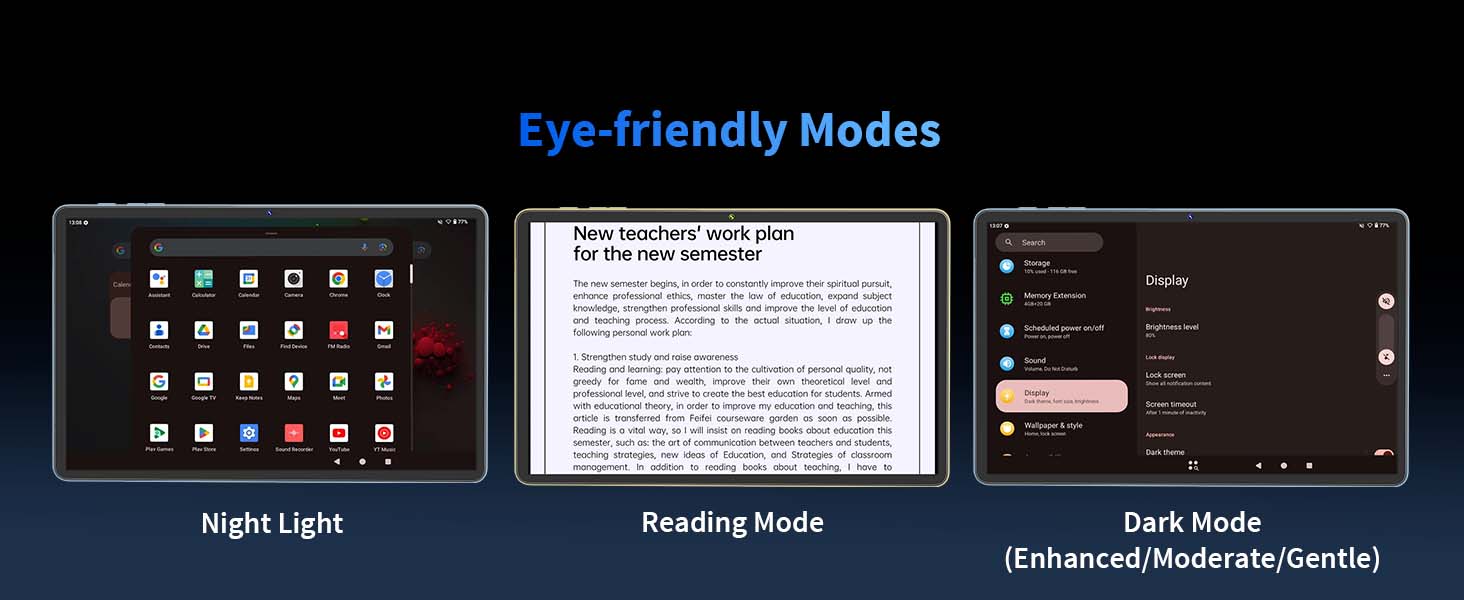
Image: A collage demonstrating the capabilities of Smart Google Lens, including solving math problems, identifying plants, providing historical facts, comparing prices, and offering recipes.
4. Face Unlock
For convenient and secure access, set up Face Unlock in Settings > Security & privacy > Device unlock. The tablet uses advanced depth-sensing technology for reliable face recognition.
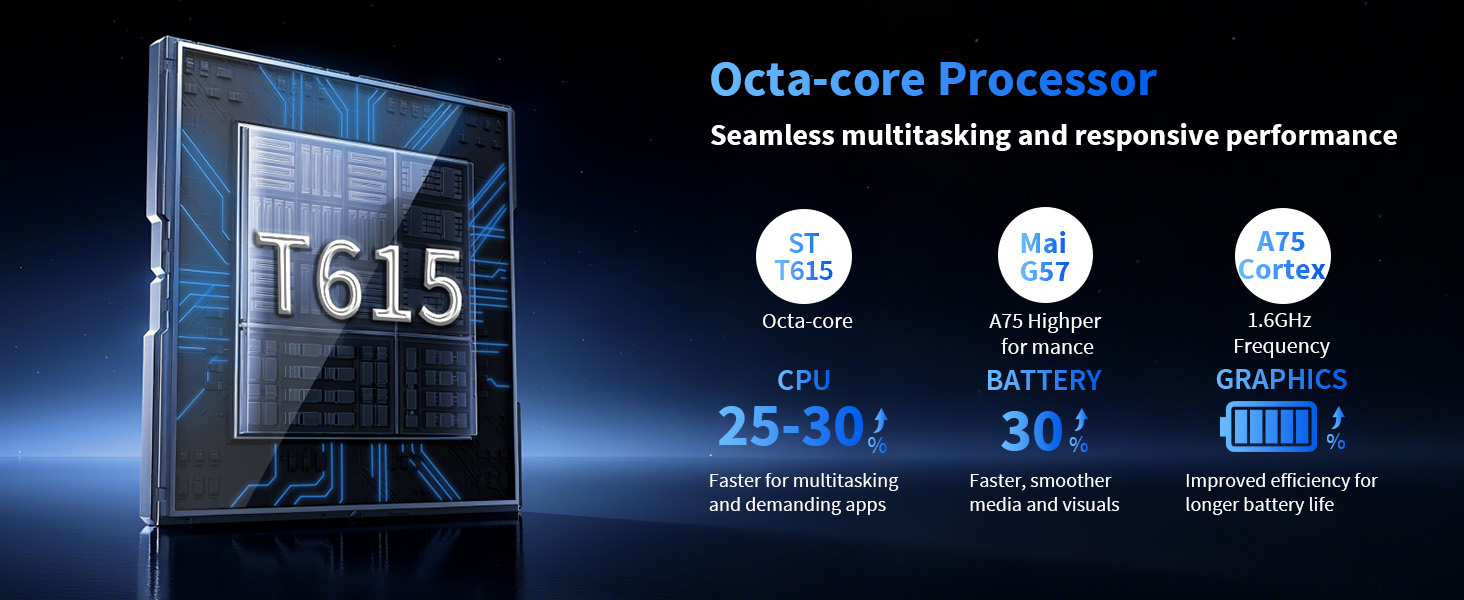
Image: A visual depicting the Face Unlock feature in action on the Relndoo P80 tablet, showing a user unlocking the device with facial recognition technology.
5. Widevine L1 Support
The tablet is Widevine L1 certified, enabling 1080P HD video playback on streaming platforms such as Netflix, Hulu, YouTube, and Amazon Prime Video.
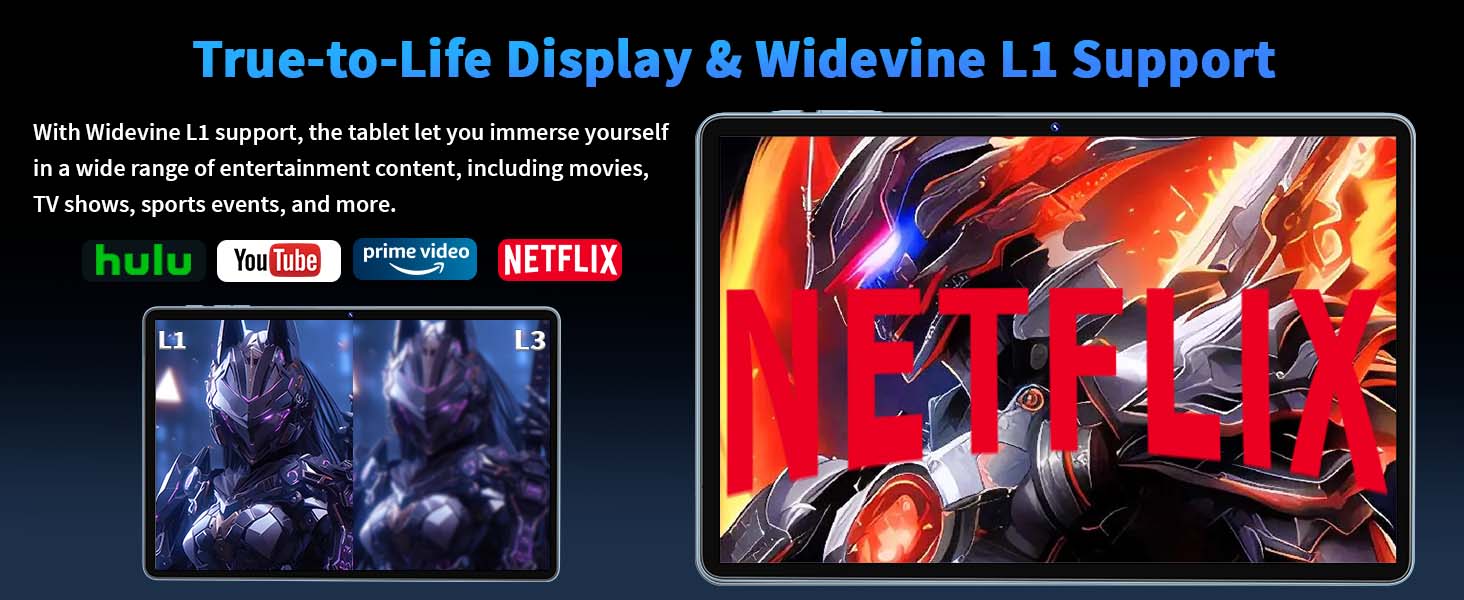
Image: A comparison showing the difference between L1 and L3 Widevine certifications, emphasizing the Relndoo P80 tablet's L1 support for high-definition streaming on platforms like Netflix, Hulu, YouTube, and Prime Video.
6. Eye-friendly Modes
To reduce eye strain, activate various display modes:
- Night Light: Reduces blue light for comfortable viewing in low light.
- Reading Mode: Adjusts screen to a paper-like texture for reading.
- Dark Mode: Inverts colors for a darker interface, reducing glare.
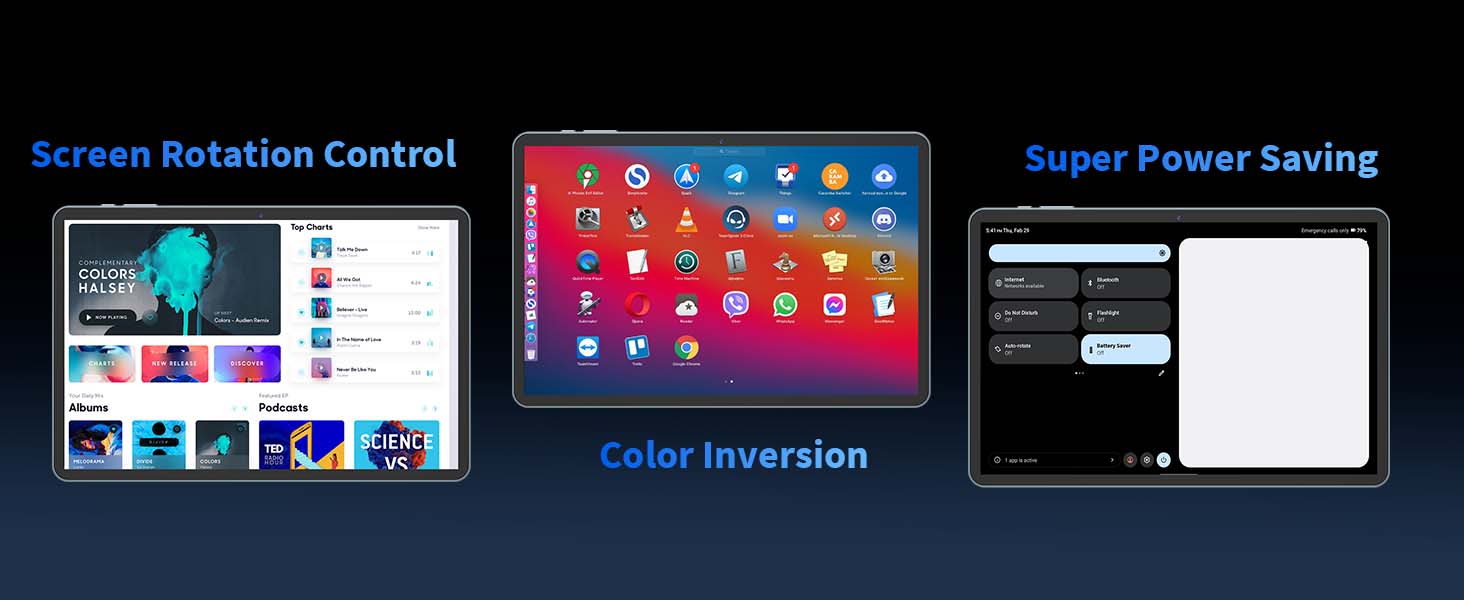
Image: Screenshots demonstrating the Night Light, Reading Mode, and Dark Mode features on the Relndoo P80 tablet, designed to enhance eye comfort during use.
7. Google Assistant
Access Google Assistant by saying "Hey Google" or by swiping from the bottom corners (if enabled). It integrates seamlessly with Google services and supports third-party app extensions.
Image: A graphic detailing the capabilities of Google Assistant, including seamless integration with Google ecosystem, support for third-party app extensions, and continuously evolving AI capabilities.
8. WPS Office
The tablet comes with built-in WPS Office, providing PC-level productivity for Word, PPT, and Excel documents, allowing for seamless work on the go.

Image: Screenshots showcasing the WPS Office suite (Word, PPT, Excel) running on the Relndoo P80 tablet, demonstrating its productivity features.
9. Split Screen & Other Features
- Split Screen: Use two apps simultaneously. Tap the square button (recent apps), then tap the app icon above and select 'Split screen'.
- Screen Rotation Control: Manage automatic screen rotation from quick settings or display settings.
- Super Power Saving: Extend battery life by activating this mode in settings.
- 3-finger Screenshot: Quickly capture a screenshot by swiping down with three fingers on the screen.
- FM Radio: Explore local radio stations using the built-in FM radio feature.
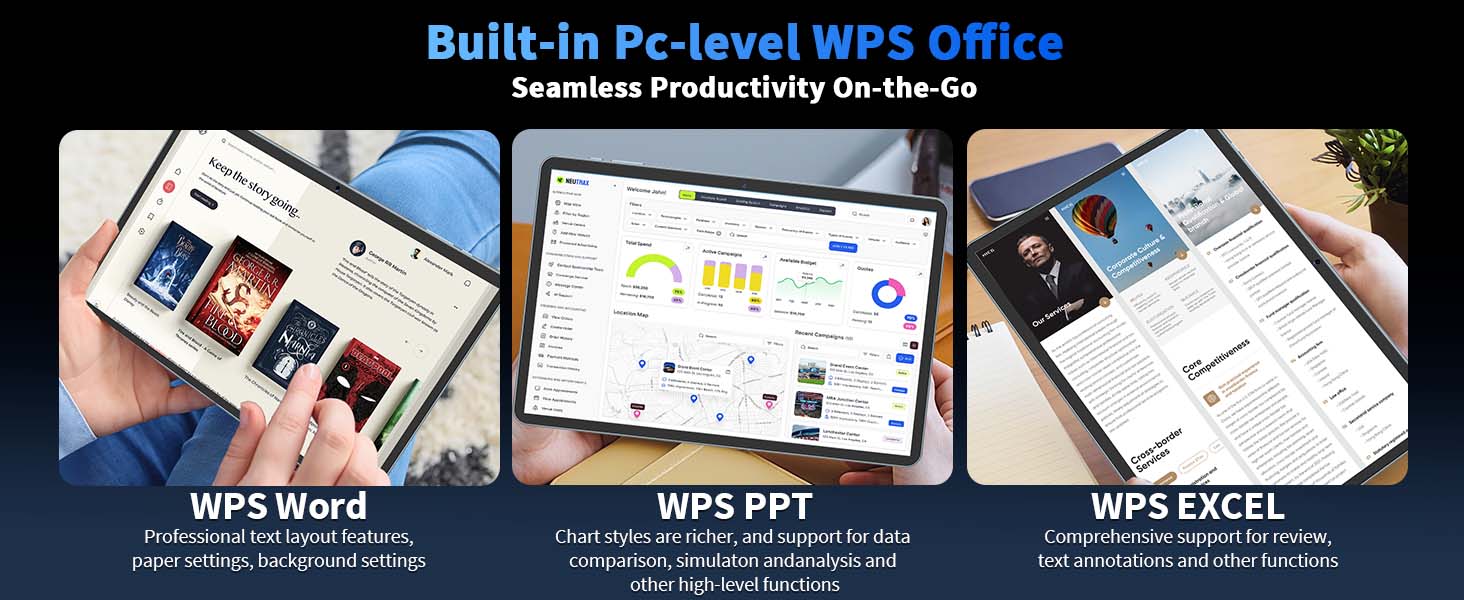
Image: A visual demonstrating the split-screen functionality, FM radio, and 3-finger screenshot feature on the Relndoo P80 tablet.
Maintenance
1. Battery Care
- Avoid extreme temperatures.
- Do not let the battery drain completely regularly.
- Use the provided charging adapter and cable for optimal charging.
2. Cleaning the Screen
Use a soft, lint-free cloth to clean the screen. For stubborn smudges, slightly dampen the cloth with water or a screen-specific cleaning solution. Avoid harsh chemicals.
3. Software Updates
Regularly check for system updates to ensure your tablet has the latest features, security patches, and performance improvements. Go to Settings > System > System update.
4. Storage Management
Your tablet comes with 256GB of internal storage and supports up to 2TB expansion via microSD. Regularly manage your files and uninstall unused apps to free up space and maintain performance. You can view RAM usage in Settings > System > Memory Expansion.
Troubleshooting
| Problem | Possible Solution |
|---|---|
| Tablet won't turn on | Ensure the battery is charged. Connect to charger for at least 30 minutes. If still unresponsive, perform a force restart by holding the power button for 10-15 seconds. |
| Apps are crashing or freezing | Close background apps. Clear app cache (Settings > Apps > [App Name] > Storage > Clear cache). Restart the tablet. Ensure sufficient storage space. |
| Wi-Fi connection issues | Restart your Wi-Fi router. Forget the network on your tablet and reconnect. Ensure you are within range of the Wi-Fi signal. |
| Slow performance | Close unused apps. Clear cache and temporary files. Check for system updates. Consider a factory reset as a last resort (back up data first). |
| Face Unlock not working | Ensure your face is well-lit and clear of obstructions. Re-register your face in settings. Clean the front camera lens. |
Specifications
| Feature | Detail |
|---|---|
| Brand | Relndoo |
| Model Name | P80 |
| Operating System | Android 15 |
| Processor | Octa-Core T615 (ARM) |
| RAM | 24GB (6GB physical + 18GB virtual) |
| Internal Storage | 256GB ROM |
| Expandable Storage | Up to 2TB via MicroSD (FAT32 format) |
| Screen Size | 11 Inches |
| Display Resolution | 1280*800 Pixels (IPS) |
| Rear Camera | 13MP |
| Front Camera | 5MP |
| Battery Capacity | 8000mAh |
| Battery Life (Average) | 12 Hours |
| Charging | 18W Fast Charging (USB-C) |
| Connectivity | Dual WiFi6 (2.4G/5G), Bluetooth 5.0 |
| Dimensions (LxWxH) | 11 x 6.69 x 2.5 inches |
| Item Weight | 3.15 pounds (approx. 538g for tablet only) |
| Color | Green |
| Certifications | Widevine L1, GMS Certified |
Warranty and Support
For warranty information and customer support, please refer to the warranty card included in your product packaging or contact Relndoo customer service directly. Details for contacting support can typically be found on the manufacturer's official website or through your point of purchase.
Optional protection plans may be available for purchase separately, such as 2-Year Protection Plans or Complete Protect monthly plans, which offer extended coverage beyond the standard manufacturer's warranty.
Safety Information
- Do not expose the tablet to extreme temperatures, direct sunlight, or high humidity.
- Avoid dropping or subjecting the tablet to severe impacts.
- Keep the tablet away from water and other liquids.
- Use only approved chargers and accessories.
- Do not attempt to disassemble or repair the tablet yourself. Refer to qualified service personnel.
- Dispose of the tablet and its battery responsibly according to local regulations.
Ask a question about this manual
Ask about setup, troubleshooting, compatibility, parts, safety, or missing instructions. Manuals+ will review the question and use this page’s manual context to help answer it.