
1. Product Overview
The UANTIN DisplayPort Splitter allows you to connect a single DisplayPort source device to up to three DisplayPort monitors. This device supports both mirroring (SST) and extended (MST) display modes, enhancing productivity and display capabilities. It is designed for 4K@60Hz resolution output and is compliant with DP 1.2 standards.

Image 1.1: The UANTIN DisplayPort Splitter connected to a computer (source) and three external DisplayPort monitors, illustrating its primary function.
Key Features:
- DisplayPort 1-in-3 Out: Connects one DP source to three DP monitors.
- 4K UHD Resolution: Supports resolutions up to 4K (3840x2160) at 60Hz.
- Multiple Display Modes: Supports Mirroring (SST) and Extended (MST) modes.
- Plug and Play: No driver installation required.
- Durable Construction: Features a 28AWG copper core wire, nylon braided mesh, multi-layer shielding, aluminum alloy casing, and 24K gold-plated plugs for stable signal transmission and longevity.
- Integrated Smart Chip: Enhances performance and signal stability.
2. Package Contents
- 1x UANTIN DisplayPort Splitter (Model: DisplayPort Splitter 1 in 3 Out)
- 1x USB Power Cable (5V/1A)
3. Specifications
| Product Dimensions | 9 x 1.96 x 0.5 inches |
| Item Weight | 4.6 ounces |
| Model Number | DisplayPort Splitter 1 in 3 Out |
| Compatible Devices | Desktop PCs with DisplayPort output |
| Specific Uses | Extended or mirrored display for multiple monitors/projectors |
| Connector Type | DisplayPort (Input), 3x DisplayPort (Output) |
| Color | Gray |
| Max Resolution (Single DP Output) | 4K@60Hz |
| Max Resolution (Dual DP Output) | 4K@60Hz/30Hz |
| DP Standard Compliance | DP 1.2 |
| HDCP Support | HDCP 2.2 |
Resolution Reference Table:

Image 3.1: A table detailing various supported resolutions for single and simultaneous use of the DisplayPort outputs. Note that all tests were performed with an RTX4000 graphics card.
4. Setup Instructions
Follow these steps to correctly set up your UANTIN DisplayPort Splitter:
- Connect the Source: Plug the DisplayPort connector of the splitter into the DisplayPort output of your signal source (e.g., PC, graphics card).
- Provide Power: Connect the included USB power cable to the splitter's Micro Port and then to a 5V/1A power source (e.g., a USB port on your computer or a USB wall adapter). This power connection is essential for the splitter to function correctly.
- Connect Monitors: Connect your three DisplayPort monitors to the three DP female output ports on the splitter using DisplayPort extension cables that support 4K@60Hz.


Image 4.1: Left: The DisplayPort input cable connected to a PC's DisplayPort output. Right: The USB power cable connected to the splitter's Micro Port, providing essential power.


Image 4.2: Left: Three DisplayPort cables connected to the splitter's output ports. Right: A DisplayPort cable connected to a monitor's input.
Important Notes:
- Ensure your graphics card supports at least 18Gbps bandwidth for 3-monitor extended mode.
- PCs with integrated GPUs may only support mirroring mode or extend to a single additional monitor.
- This splitter cannot be used with any hub, docking station, or KVM switch.
- This device is not compatible with HDMI source devices or HDMI port laptops. Ensure your source device has a DisplayPort output.
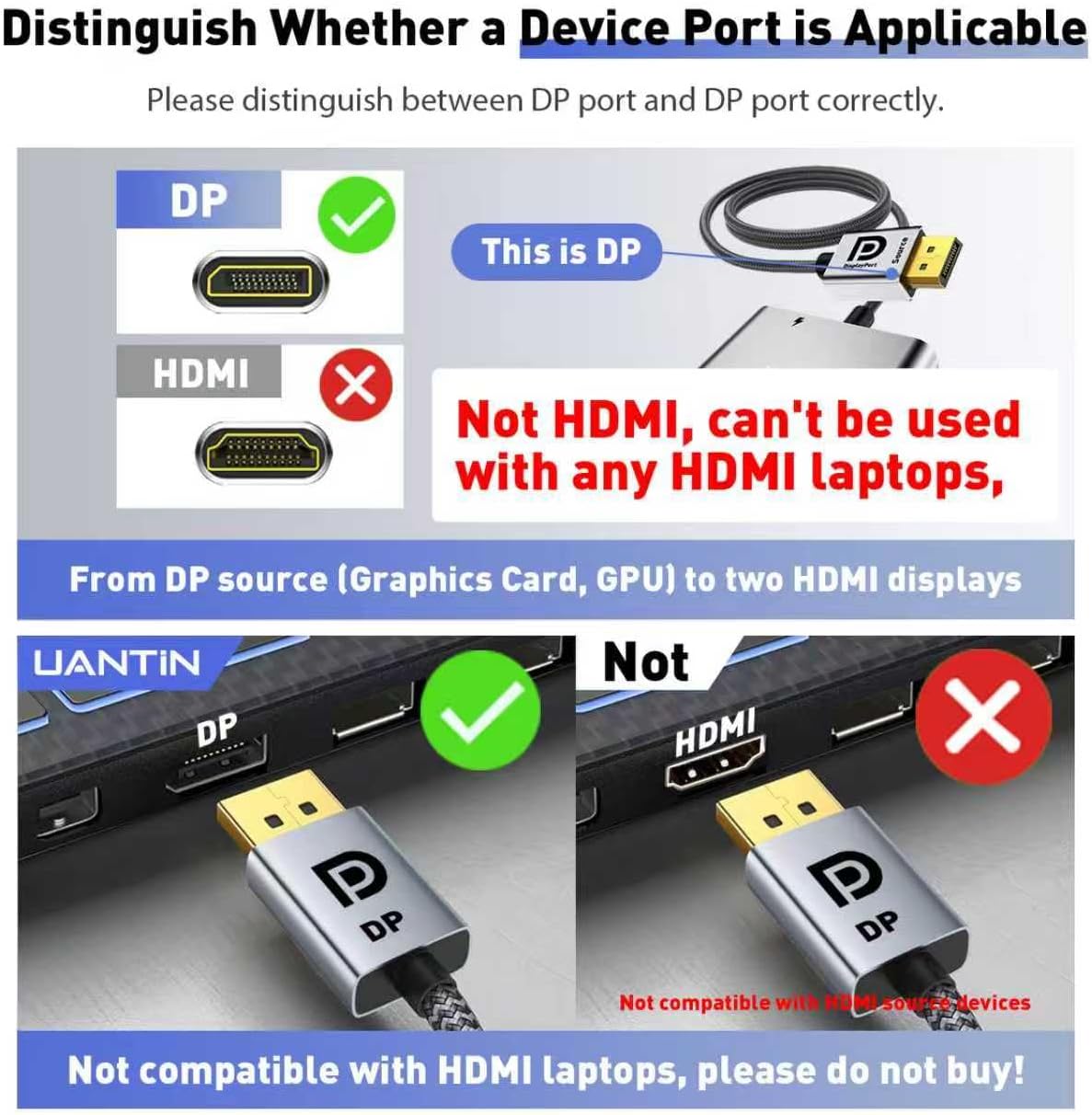
Image 4.3: Visual guide to distinguish between DisplayPort (DP) and HDMI ports, emphasizing that this splitter requires a DP source.
5. Operating Modes
The UANTIN DisplayPort Splitter supports two primary display modes:
- Mirroring Mode (SST - Single Stream Transport): In this mode, all connected monitors display the same content as your primary screen. This is useful for presentations or sharing content across multiple displays.
- Extended Mode (MST - Multi-Stream Transport): This mode allows each connected monitor to display different content, effectively extending your desktop workspace across multiple screens. This is ideal for multitasking and increasing productivity.
To configure these modes, access your operating system's display settings (e.g., Windows Display Settings, NVIDIA Control Panel, AMD Radeon Settings) and select the desired display arrangement.
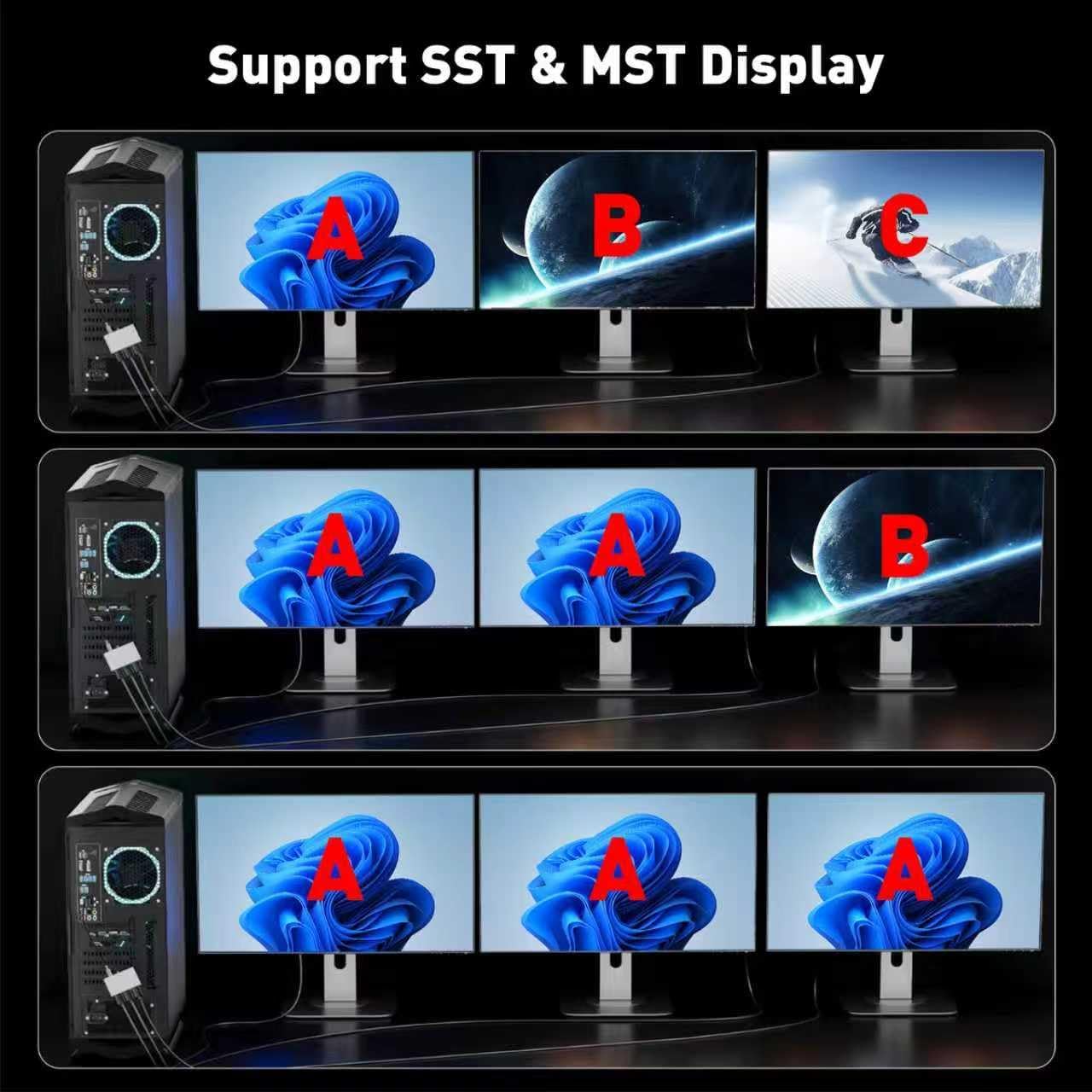
Image 5.1: Examples of a computer setup utilizing both Mirroring (SST) and Extended (MST) display configurations with multiple monitors.
6. Troubleshooting
If you encounter issues with your DisplayPort splitter, please refer to the following common problems and solutions:
- No Display or Intermittent Signal:
- Check Power Connection: Ensure the included USB power cable is securely connected to the splitter and a 5V/1A power source. The splitter requires external power to function.
- Verify Cable Connections: Confirm all DisplayPort cables are firmly seated in both the splitter and your monitors/source device.
- Graphics Card Bandwidth: For extended display across three monitors, your graphics card must support sufficient bandwidth (18Gbps or more). Older or integrated graphics cards may have limitations.
- Resolution Compatibility: Ensure your input and output devices (graphics card and monitors) both support the desired resolution and refresh rate. Refer to the Resolution Reference Table in Section 3.
- Restart Devices: Try restarting your computer and monitors after connecting the splitter.
- Monitors Flashing or Going Black Randomly:
- This often indicates insufficient power or bandwidth. Double-check the power connection and ensure your graphics card meets the bandwidth requirements.
- Try using high-quality DisplayPort cables.
- Reduce the resolution or refresh rate of your monitors to see if the issue persists.
- Only Mirroring Mode Available / Cannot Extend Display:
- Verify your graphics card supports MST (Multi-Stream Transport). Some older graphics cards or integrated GPUs may only support SST.
- Check your operating system's display settings to ensure "Extend these displays" is selected.
- Incompatible with Hubs/Docking Stations/KVMs:
- The UANTIN DisplayPort Splitter is designed for direct connection to a DisplayPort source. It is not intended for use in conjunction with other display hubs, docking stations, or KVM switches.
- Not Working with HDMI Devices:
- This splitter is for DisplayPort connections only. It will not work with HDMI source devices or laptops that only have HDMI outputs.
7. Maintenance
To ensure the longevity and optimal performance of your UANTIN DisplayPort Splitter, follow these simple maintenance guidelines:
- Keep the device in a cool, dry place, away from direct sunlight and extreme temperatures.
- Avoid exposing the splitter to water or excessive moisture.
- Clean the device with a soft, dry cloth. Do not use liquid cleaners or abrasive materials.
- Handle cables and connectors gently to prevent damage. The DisplayPort plug features a non-locking design to prevent damage during unplugging.
8. Warranty and Support
UANTIN is committed to providing high-quality products and customer satisfaction. For any questions, technical assistance, or warranty inquiries regarding your DisplayPort Splitter, please contact UANTIN customer support.
- Customer Support: UANTIN aims to deliver fast and responsive support within 24 hours. Please refer to the contact information provided with your purchase or visit the official UANTIN website for support details.
- Product Information: For more information about UANTIN products, visit the UANTIN Store on Amazon.