
1. Introduction
This manual provides detailed instructions for the proper setup, operation, and maintenance of your Freewell Genius Rig Cage for iPhone 15 Pro Max. Please read this manual thoroughly before using the product to ensure optimal performance and longevity. Keep this manual for future reference.
2. Package Contents
Verify that all items listed below are present in your package:
- Genius Rig Cage for iPhone 15 Pro Max
- TriGenius Handle (Tripod Function)
- MonoGenius Handle (Monopod/Extension Rod Function)
- GeniusRemote (Bluetooth Remote Control)
- CR1632 Battery (for Bluetooth Remote, pre-installed or separate)
- Mini Screwdriver (if applicable for battery compartment)
3. Product Overview
The Freewell Genius Rig Cage is designed to enhance your iPhone 15 Pro Max's video and photography capabilities, offering stability, versatility, and multiple accessory mounting options.

Figure 3.1: Freewell Genius Rig Cage with TriGenius and MonoGenius handles attached.
Key Components:
- Rig Cage: The main frame that securely holds your iPhone 15 Pro Max.
- TriGenius Handle: Functions as a stable tripod for stationary shots.
- MonoGenius Handle: Doubles as a monopod and an extendable rod for dynamic shooting.
- GeniusRemote: A Bluetooth remote control for convenient photo and video capture.
Interfaces and Expansion:
The rig cage is equipped with various interfaces for attaching external accessories:
- 11 x 1/4" Threaded Holes: Standard mounting points for lights, microphones, and other gear.
- 6 x Quick-Connect Ports: For rapid attachment and detachment of accessories.
- 5 x Cold Shoes: Universal mounts for additional accessories like LED lights or external microphones.
- Freewell Magnetic Filter Slot: Integrated slot for Freewell magnetic filters.
- F-Series Lens Mount: For attaching compatible F-series lenses.

Figure 3.2: Detailed view of the rig's expansion interfaces and phone clamping mechanism.
4. Setup
4.1 Installing Your iPhone 15 Pro Max
- Ensure the rig cage is open or the clamping mechanism is disengaged.
- Carefully align your iPhone 15 Pro Max with the rig cage.
- Engage the SnapClamp mechanism to securely hold your phone in place. Ensure the phone is seated firmly and evenly within the cage.
4.2 Attaching TriGenius and MonoGenius Handles
- Identify the attachment points on the sides of the rig cage.
- Align the TriGenius or MonoGenius handle with the desired attachment point.
- Securely fasten the handle by rotating or clicking it into place. Ensure it is locked to prevent accidental detachment.
4.3 Pairing the GeniusRemote
- Ensure the CR1632 battery is correctly installed in the GeniusRemote.
- Turn on the GeniusRemote (if it has a power switch).
- On your iPhone, go to Settings > Bluetooth.
- Look for the GeniusRemote in the list of available devices and tap to pair.
- Once paired, the remote can be attached to either the TriGenius or MonoGenius handle for convenient access.
5. Operating Instructions
5.1 Using the TriGenius Handle (Tripod)
The TriGenius handle provides a stable base for your iPhone, ideal for static shots, time-lapses, or video calls.
- Attach the TriGenius handle to the rig cage.
- Extend the tripod legs and place the rig on a flat, stable surface.
- Adjust the angle of your iPhone as needed.

Figure 5.1: TriGenius handle in tripod configuration.
5.2 Using the MonoGenius Handle (Monopod/Extension Rod)
The MonoGenius handle offers flexibility as a monopod or an extendable rod, allowing for dynamic camera movements and higher or lower angle shots.
- Attach the MonoGenius handle to the rig cage.
- Extend the rod to your desired length (up to 262mm).
- The handle supports 360° rotation for versatile shooting angles. Adjust by loosening, rotating, and tightening the handle mechanism.
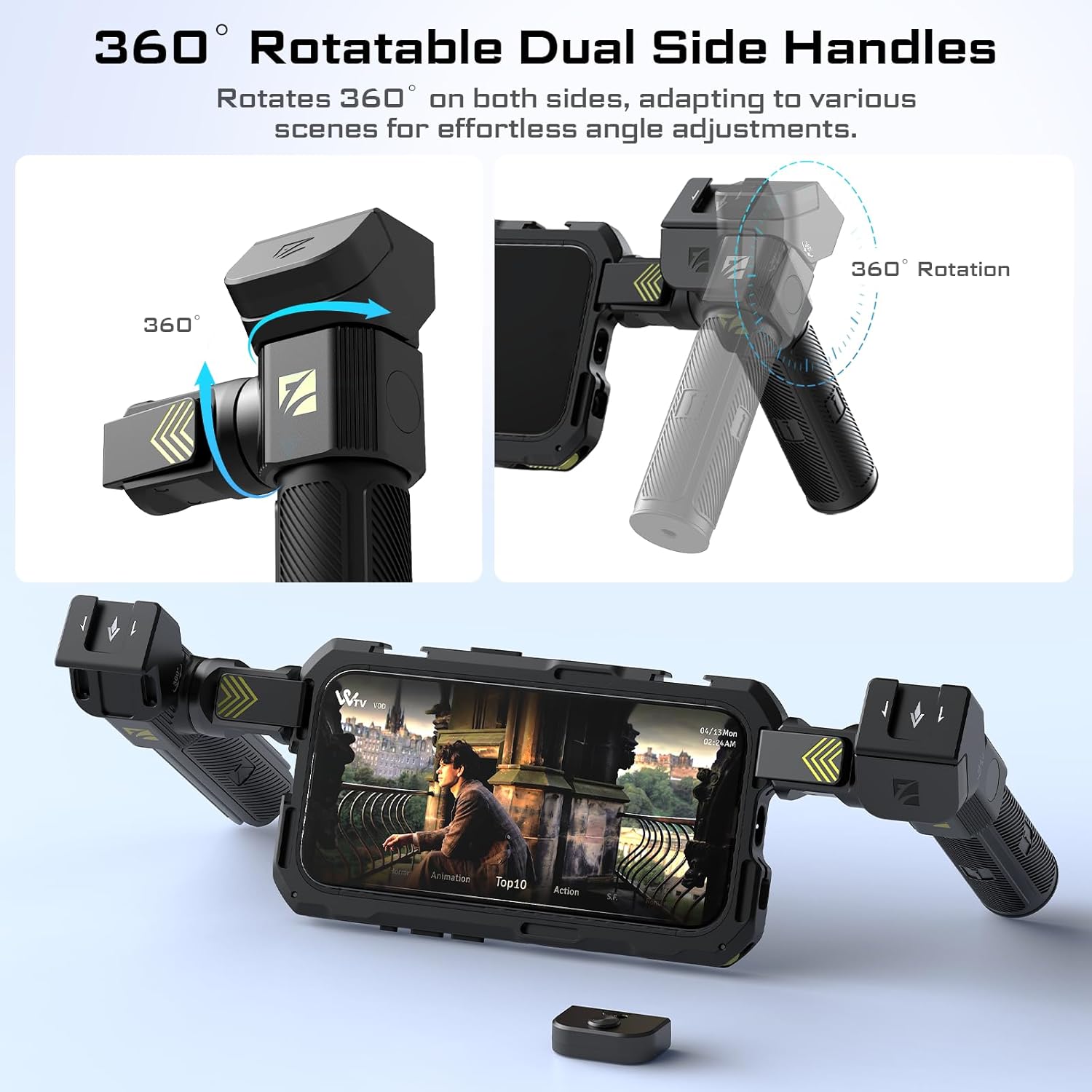
Figure 5.2: Illustration of the 360° rotatable handles.

Figure 5.3: MonoGenius handle in monopod configuration.
5.3 Using the GeniusRemote
The Bluetooth remote allows you to start and stop recording or capture photos from a distance of up to 10 meters (33 feet).
- Ensure the GeniusRemote is paired with your iPhone (refer to Section 4.3).
- Open your iPhone's camera or video recording application.
- Press the designated button on the GeniusRemote to trigger photo capture or start/stop video recording.
5.4 Attaching Accessories
Utilize the various mounting points on the rig cage to attach external accessories such as microphones, LED lights, or additional monitors.
- 1/4" Threaded Holes: Screw in compatible accessories.
- Cold Shoes: Slide in accessories with a cold shoe mount.
- Quick-Connect Ports: Use with Freewell quick-connect accessories for fast attachment.
- Magnetic Filter Slot: Simply place Freewell magnetic filters onto the slot.
- F-Series Lens Mount: Align and attach compatible F-series lenses.

Figure 5.4: Example of optional accessories attached to the rig cage.
6. Maintenance
- Cleaning: Wipe the rig cage and handles with a soft, dry cloth. Avoid using harsh chemicals or abrasive materials.
- Storage: Store the product in a cool, dry place away from direct sunlight and extreme temperatures.
- Battery Replacement: If the GeniusRemote's range or responsiveness decreases, replace the CR1632 battery. Use the provided mini screwdriver if necessary to open the battery compartment.
7. Troubleshooting
7.1 iPhone Not Fitting Securely
- Ensure your iPhone is an iPhone 15 Pro Max model. This rig is specifically designed for this model.
- Remove any thick phone cases before attempting to install the iPhone into the rig cage.
- Verify the SnapClamp mechanism is fully open before inserting the phone and fully engaged afterward.
7.2 GeniusRemote Not Connecting
- Check if the remote's battery is charged or needs replacement (CR1632).
- Ensure Bluetooth is enabled on your iPhone.
- Try unpairing and re-pairing the remote in your iPhone's Bluetooth settings.
- Ensure the remote is within the 10-meter operating range of your iPhone.
7.3 Handles Feel Loose
- Ensure the handles are fully rotated and locked into their attachment points on the rig cage.
- For rotational adjustments, ensure the locking mechanism is tightened after positioning.
8. Specifications
| Feature | Specification |
|---|---|
| Model Compatibility | iPhone 15 Pro Max |
| Material | High-grade Aluminum Alloy, Silicone |
| Rig Cage Weight (without handles) | 121g (4.3 ounces) |
| TriGenius Weight | 233g |
| MonoGenius Weight | 195g |
| MonoGenius Extension Length | Up to 262mm |
| Bluetooth Remote Battery | 1 x CR1632 (included) |
| Bluetooth Remote Range | Up to 10 meters (33 feet) |
| Mounting Interfaces | 11 x 1/4" threaded holes, 6 x quick-connect ports, 5 x cold shoes, Freewell Magnetic Filter Slot, F-Series Lens Mount |

Figure 8.1: Dimensions and weight specifications of the Freewell Genius Rig Cage and its components.
9. Warranty and Support
Freewell products are manufactured to high-quality standards. For warranty information, technical support, or service inquiries, please refer to the official Freewell website or contact their customer service department. Keep your purchase receipt as proof of purchase.
10. Official Product Videos
No official seller videos were provided in the product data for this instruction manual.