
WYRESTORM APO-60-UC
WYRESTORM APO-60-UC Conference Speaker and Microphone User Manual
Model: APO-60-UC
Introduction
The WYRESTORM APO-60-UC is a versatile conference speaker and microphone designed to enhance your meeting experience. It features 360° omnidirectional voice pickup, AI noise reduction, and flexible connectivity options including USB and Bluetooth 5.1. This device is also expandable with a daisy-chain function, making it suitable for various meeting room sizes, from small huddle spaces to large conference halls.

Image: The WYRESTORM APO-60-UC conference speaker and microphone, showcasing its compact design and central control dial.
Package Contents
Before proceeding with the setup, please ensure all items are present in the package:
- WYRESTORM APO-60-UC Conference Speaker and Microphone Unit
- USB-C to USB-A Cable (long)
- Bluetooth Dongle (if applicable)
- Power Adapter with various international plugs
Setup Instructions
1. Power Connection
Connect the provided power adapter to the power input port on the APO-60-UC unit. Plug the adapter into a suitable power outlet. The device will power on automatically as there is no dedicated power switch.
2. Connecting to a Computer (USB)
For a direct and stable connection, use the supplied USB-C to USB-A cable. Connect the USB-C end to the APO-60-UC unit and the USB-A end to an available USB port on your computer. The device is plug-and-play and should be recognized automatically by your operating system.

Image: Diagram illustrating both wired USB and wireless Bluetooth connection methods for the APO-60-UC.
3. Connecting via Bluetooth 5.1
- Ensure the APO-60-UC is powered on.
- On the top control panel of the APO-60-UC, press and hold the Bluetooth icon until the indicator light begins to flash, indicating pairing mode.
- On your computer or smartphone, navigate to Bluetooth settings and search for available devices.
- Select "WYRESTORM APO-60-UC" from the list of devices to pair.
- Once connected, the Bluetooth indicator light on the APO-60-UC will become solid.
4. Daisy Chain Function for Large Meetings
The APO-60-UC supports daisy-chaining up to three additional HALO-COM-MIC units (sold separately) on each side, allowing for expanded microphone coverage in larger conference rooms. This feature is ideal for meeting spaces up to 50-60m².
- Locate the cascade ports on the bottom of the APO-60-UC unit.
- Connect the HALO-COM-MIC units using appropriate cables (not included with APO-60-UC) to these cascade ports.
- Ensure proper connection for all units in the chain. The system will automatically detect and integrate the additional microphones.

Image: Diagram illustrating various daisy-chain configurations for the APO-60-UC with HALO-COM-MIC units to cover large conference rooms.

Image: Visual representation of the APO-60-UC and daisy-chained microphones integrated into a conference room setup with a display.
Operating Instructions
Control Panel Overview

Image: Close-up view of the APO-60-UC's top control panel, highlighting features like 360° voice pickup, 4 microphone array, AI voice reduction, 10W speaker, Bluetooth 5.1/USB connectivity, and double USB 3.0 ports.
- Volume Control: Rotate the central dial clockwise to increase volume, counter-clockwise to decrease.
- Mute Microphone: Press the microphone icon to mute or unmute the microphone. An indicator light will show the microphone status.
- Bluetooth Button: Press and hold to enter Bluetooth pairing mode. Press briefly to disconnect/reconnect (if already paired).
- Call Answer/End: (If supported by your conferencing software) Press the phone icon to answer or end a call.
Key Features
- 360° Omnidirectional Voice Pickup: The four-array digital microphone system captures clear audio from all directions within a 5m (16ft) radius, ensuring every participant is heard.
- AI Noise Reduction: Equipped with Acoustic Echo Cancellation (AEC), Automatic Noise Suppression (ANS), and Automatic Gain Control (AGC), the device intelligently filters out background noise, focusing on human voices for clear communication.
- 10W Powerful Speaker: Delivers impressive and clear sound quality, ensuring all participants can hear conversations effectively.

Image: Diagram illustrating how the AI Noise Reduction feature separates speaker's voice from environmental and keyboard noise.
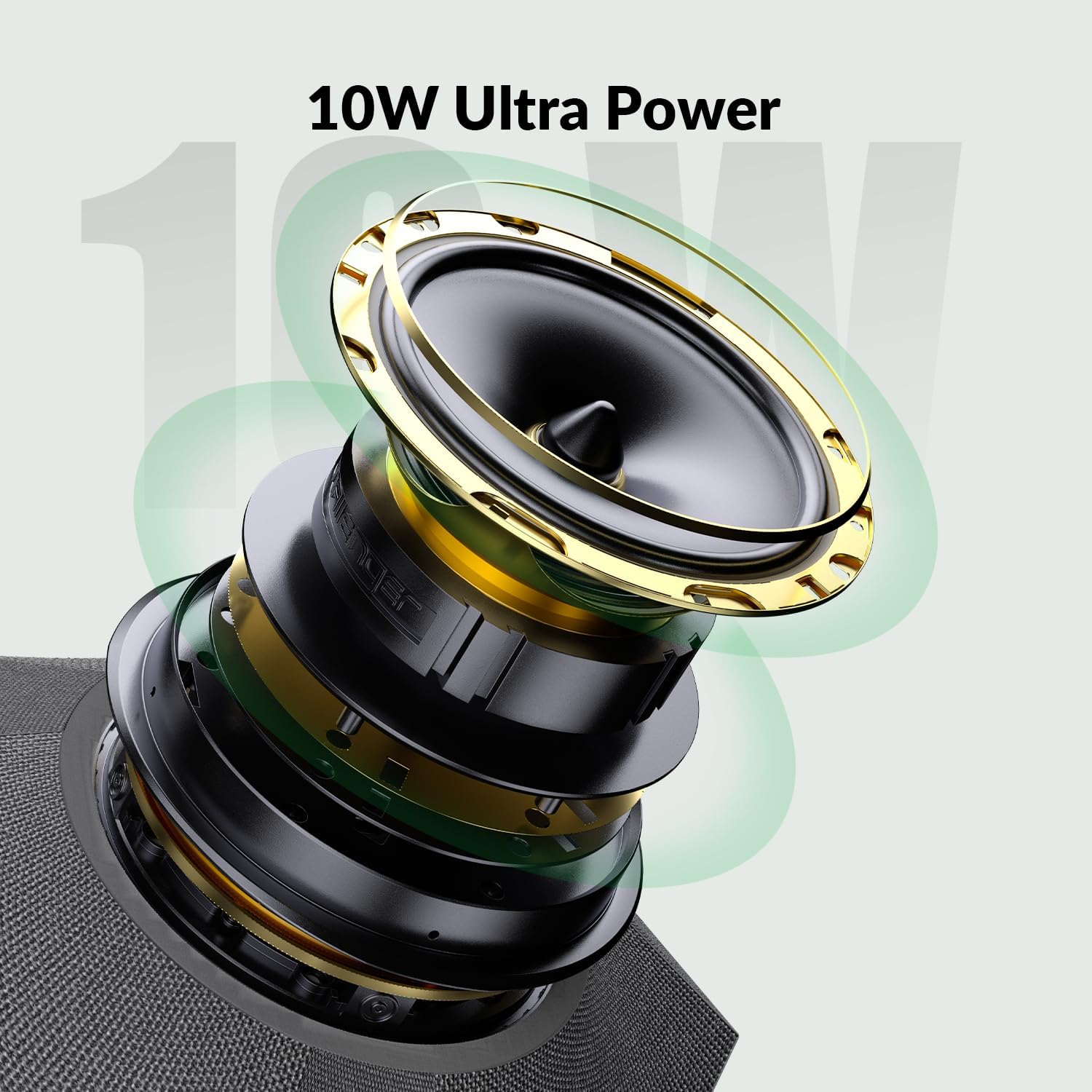
Image: Exploded view of the APO-60-UC's 10W speaker components, highlighting its powerful audio capabilities.
Using with Conferencing Software
After connecting the APO-60-UC via USB or Bluetooth, ensure it is selected as the default microphone and speaker in your conferencing application (e.g., Zoom, Microsoft Teams, Google Meet). This can typically be found in the audio settings of the application.
Maintenance
- Cleaning: Use a soft, dry cloth to clean the exterior of the device. Avoid using liquid cleaners or abrasive materials.
- Storage: Store the device in a cool, dry place away from direct sunlight and extreme temperatures when not in use.
- Handling: Handle the device with care to prevent damage. Avoid dropping or subjecting it to strong impacts.
Troubleshooting
| Problem | Possible Cause | Solution |
|---|---|---|
| No sound from speaker | Volume too low; device not selected as output; cable disconnected; Bluetooth not paired. | Increase volume; select APO-60-UC as default speaker in OS/app settings; check USB/Bluetooth connection. |
| Microphone not picking up audio | Microphone muted; device not selected as input; cable disconnected; Bluetooth not paired. | Unmute microphone; select APO-60-UC as default microphone in OS/app settings; check USB/Bluetooth connection. |
| Bluetooth connection unstable | Interference; device too far; low battery (if applicable). | Move closer to the host device; ensure no strong interference sources; try re-pairing. |
| Daisy chain not working | Incorrect cable connection; incompatible units; too many units in chain. | Verify all HALO-COM-MIC units are correctly connected to the cascade ports; ensure compatibility; check maximum chain length. |
If you encounter issues not listed here or require further assistance, please contact WYRESTORM customer support.
Specifications
| Feature | Detail |
|---|---|
| Model Name | APOLO |
| Item Model Number | APO-60-UC |
| Brand | WYRESTORM |
| Connectivity Technology | Bluetooth, USB |
| Wireless Communication | Bluetooth 5.1 |
| Microphone Pickup Range | 5m / 16ft (360° omnidirectional) |
| Speaker Output Power | 10 Watts |
| Noise Reduction | AEC, ANS, AGC (AI Noise Reduction) |
| Control Method | Touch |
| Product Dimensions | 10.5"D x 9.1"W x 4.2"H |
| Item Weight | 4.91 pounds |
| Compatible Devices | Desktop, Laptop, Tablet |
| Power Source | Corded Electric |
Warranty and Support
WYRESTORM products come with a 2-year manufacturer replacement warranty. Additionally, lifetime technical support is available from our NY-based team, Monday through Friday, 9 AM - 6 PM EST.
For technical assistance or warranty claims, please refer to the contact details provided on the official WYRESTORM seller page or website.
You can visit the WYRESTORM store for more information: WYRESTORM Store
Related documentsAPO-60-UC


Ask a question about this manual
Ask about setup, troubleshooting, compatibility, parts, safety, or missing instructions. Manuals+ will review the question and use this page’s manual context to help answer it.