
1. Introduction
Thank you for choosing the ABASK ZDX78 4K WiFi Dash Cam. This device is designed to provide high-quality video recording for your vehicle, enhancing driving safety and providing crucial evidence in case of incidents. Featuring 4K Ultra HD resolution, advanced night vision, G-sensor for collision detection, 24-hour parking monitoring, and seamless WiFi connectivity with app control, the ZDX78 offers a comprehensive solution for your in-car recording needs. Please read this manual carefully before use to ensure proper installation and operation.
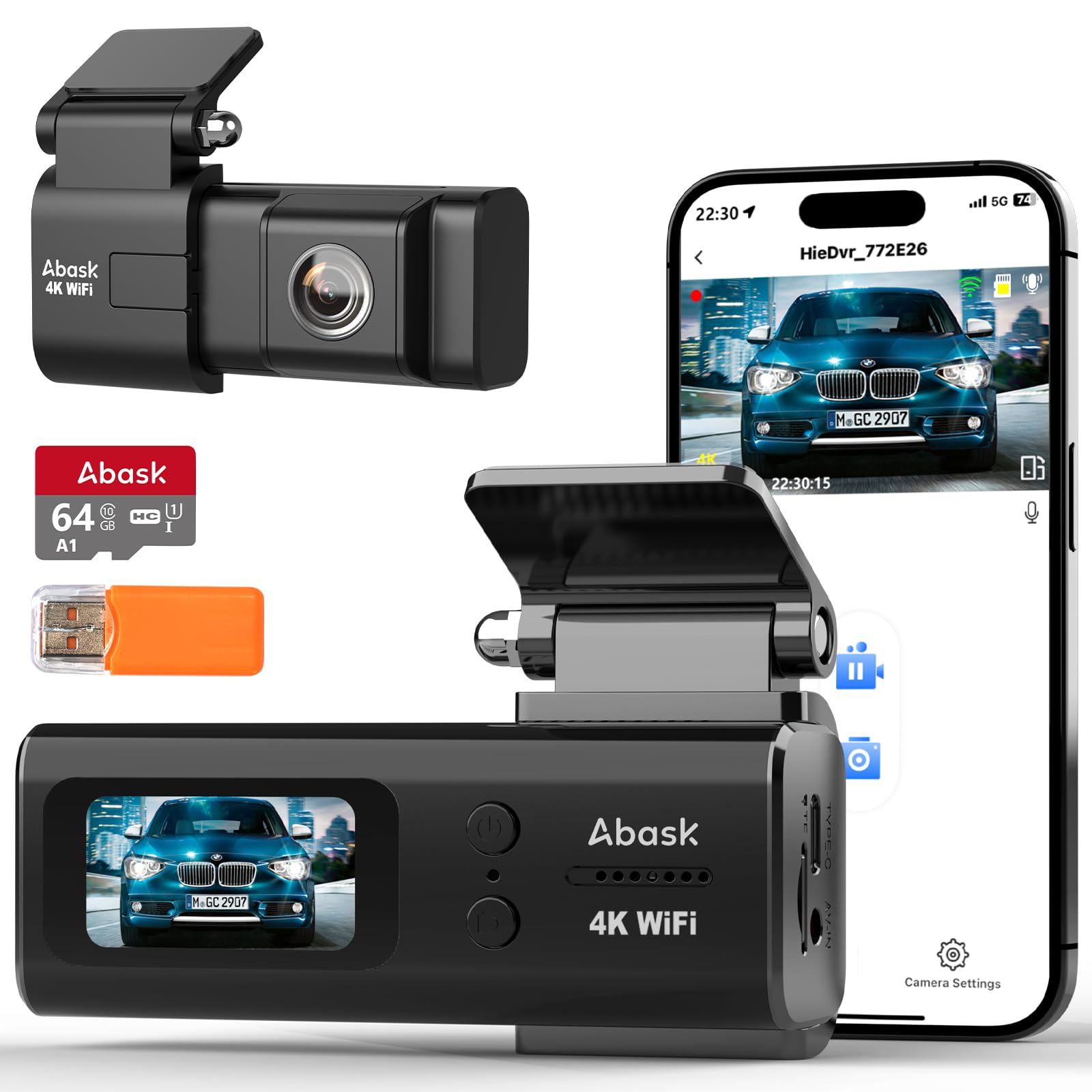
Image: The ABASK ZDX78 4K WiFi Dash Cam, showcasing its compact design, the accompanying mobile app interface, and the included 64GB SD card with a card reader.
2. Product Overview & Package Contents
The ABASK ZDX78 is a compact and durable dash cam designed for easy integration into your vehicle. It features a 1.47-inch IPS display for clear viewing and intuitive controls.
What's Included:
- Dashcam ZD-X78 Unit
- Mounting Bracket
- 64GB Memory Card
- SD Card Reader
- User Manual
- Type-C Car Charger
- USB Cable
- Prying Tool
- 3M Strong Adhesive Sticker
- Electrostatic Sticker
- Cable Clips (for neat cable management)

Image: A visual representation of all items included in the ABASK ZDX78 Dash Cam package, such as the dashcam, bracket, memory card, charger, and installation tools.
3. Setup Guide
Follow these steps for quick and easy installation of your ABASK ZDX78 Dash Cam.
3.1. Prepare the SD Card
- Insert the included 64GB SD card into the dash cam's SD card slot. Ensure it is inserted correctly until it clicks into place.
- It is recommended to format the SD card within the dash cam's settings before first use to ensure optimal performance.
3.2. Mount the Dash Cam
- Clean the windshield area where you intend to mount the dash cam. Ensure it is free of dust and grease.
- Apply the electrostatic sticker to the chosen area on the windshield. This helps in easy removal without leaving adhesive marks.
- Attach the mounting bracket to the dash cam.
- Secure the dash cam with the bracket onto the electrostatic sticker. Ensure the camera has a clear view of the road and does not obstruct your driving vision.
3.3. Power Connection
- Connect the Type-C car charger to the dash cam's Type-C port.
- Plug the other end of the car charger into your vehicle's 12V power outlet (cigarette lighter socket).
- Route the power cable neatly along the windshield edge and dashboard using the provided prying tool and cable clips to avoid interference with driving.

Image: An illustration demonstrating the simple installation process of the ABASK ZDX78 dash cam on a car's windshield, including cable routing.
3.4. Connect to Mobile App (Viidure)
- Download the "Viidure" app from the Google Play Store or Apple App Store.
- Turn on the dash cam.
- Enable Wi-Fi on your smartphone and connect to the dash cam's Wi-Fi network (SSID and password can be found in the dash cam's settings or manual).
- Open the "Viidure" app to view live footage, download, playback, and edit recordings.

Image: A driver interacting with the dash cam via a smartphone app, illustrating the ease of WiFi connectivity and sharing features.
4. Operating Instructions
Understand the various functions of your ABASK ZDX78 Dash Cam.
4.1. Automatic Recording & 4K Resolution
- Once powered on, the dash cam will automatically begin recording.
- The ZDX78 captures video in stunning 4K (3840*2160P/30fps) resolution, ensuring clear and detailed footage.
- The 170° wide-angle lens covers multiple lanes, reducing blind spots.

Image: A side-by-side comparison illustrating the superior clarity and detail of 4K recording compared to 1080P, particularly noticeable on license plates.
4.2. Loop Recording
- The dash cam continuously records in short segments (e.g., 1, 3, or 5 minutes).
- When the SD card is full, the oldest unlocked video files are automatically overwritten to make space for new recordings.
- This ensures continuous recording without manual intervention.

Image: A visual explanation of the loop recording feature, showing how the dash cam automatically overwrites the oldest unlocked video files when the memory card reaches its capacity.
4.3. G-Sensor (Emergency Recording)
- The built-in G-sensor detects sudden impacts or collisions.
- Upon detection, the current video segment is automatically locked and saved to a special folder, preventing it from being overwritten by loop recording.
- This ensures critical accident footage is preserved as evidence.

Image: A scene depicting a car collision, with an overlayed lock icon, symbolizing the G-sensor's function to automatically lock and protect video footage during an impact.
4.4. 24-Hour Parking Monitoring
- When connected to a hardwire kit (sold separately), the dash cam can monitor your vehicle even when it's parked and the engine is off.
- If an impact or motion is detected, the dash cam will automatically start recording to capture any incidents.
- This provides continuous protection for your vehicle.

Image: A car parked with a protective shield icon and '24h' symbol, illustrating the 24-hour parking monitoring feature. A note indicates the need for a separate hardwire kit.
4.5. Voice Control
- The ZDX78 supports voice commands (English only) for hands-free operation.
- You can issue commands such as "Successfully photo" to take a picture, "Start recording", "Stop recording", or "Start the emergency video" to lock the current recording.
- This feature enhances safety by allowing you to keep your hands on the steering wheel.

Image: A driver using voice commands to control the dash cam, with visual cues indicating successful photo capture, Wi-Fi connection status, and recording initiation.
4.6. Super Night Vision
- Equipped with an F1.8 large aperture and advanced sensor, the ZDX78 provides enhanced night vision capabilities.
- It captures clear and sharp footage even in low-light conditions, ensuring license plates and road signs are visible.

Image: A car driving at night, demonstrating the dash cam's super night vision capability, which clearly records road signs and license plates due to its F1.8 aperture and 6-layer lens.
4.7. Taking Photos
- The dash cam features a dedicated button for taking still photos.
- Simply press the photo button to capture high-resolution images of your surroundings.

Image: A hand pressing the photo button on the dash cam, capturing a still image of a deer on the side of the road, highlighting the instant photo-taking function.
5. Maintenance
Proper maintenance ensures the longevity and optimal performance of your dash cam.
5.1. Cleaning
- Gently wipe the lens and screen with a soft, lint-free cloth. Do not use abrasive cleaners or solvents.
- Ensure the camera body is free from dust and debris.
5.2. SD Card Management
- Regularly format the SD card (e.g., once a month) through the dash cam's settings to prevent data corruption and ensure smooth recording.
- Back up important video files to your computer or cloud storage before formatting.
- Use only high-quality, genuine SD cards (Class 10 or higher, U3 recommended) to avoid recording issues.
5.3. Temperature Considerations
- The ZDX78 is built with a heat-resistant chipset and aluminum alloy shell, designed to withstand extreme temperatures from -40°F to 185°F (-40°C to 85°C).
- While durable, avoid prolonged exposure to direct sunlight in extremely hot conditions when the vehicle is parked, if possible.
Image: Visuals demonstrating the integrated supercapacitor's resilience, allowing the dash cam to operate reliably in extreme weather conditions, from intense heat to freezing cold.
6. Troubleshooting
If you encounter any issues with your ABASK ZDX78 Dash Cam, refer to the following common problems and solutions:
- Dash Cam not turning on:
- Ensure the car charger is properly connected to both the dash cam and the vehicle's 12V power outlet.
- Check if the vehicle's 12V power outlet is functioning.
- Try a different USB cable or car charger if available.
- Recording stops unexpectedly:
- Format the SD card regularly.
- Ensure you are using a high-speed (Class 10, U3) SD card.
- Check if the SD card is full and loop recording is enabled.
- Clean the SD card slot and reinsert the card.
- Video footage is blurry or unclear:
- Clean the dash cam lens and your car's windshield.
- Ensure the protective film has been removed from the lens.
- Check if the dash cam is securely mounted and not vibrating.
- Wi-Fi connection issues:
- Ensure the dash cam's Wi-Fi is enabled.
- Restart both the dash cam and your smartphone.
- Ensure you are within range of the dash cam's Wi-Fi signal.
- Re-enter the Wi-Fi password if prompted.
- Parking monitor not working:
- Ensure a hardwire kit is properly installed and connected to the vehicle's power supply.
- Check the parking monitor settings in the dash cam menu.
If the problem persists, please contact ABASK customer support for assistance.
7. Technical Specifications
| Feature | Specification |
|---|---|
| Brand | ABASK |
| Model | ZDX78 |
| Video Capture Resolution | 4K (3840*2160P) |
| Viewing Angle | 170 Degrees (Front) |
| Display Type | LCD |
| Standing Screen Display Size | 1.47 Inches |
| Flash Memory Type | SD (Supports up to 128GB) |
| Included Memory Card Size | 64 GB |
| Special Features | Built-In WiFi, Night Vision, App Control, Voice Control, Built-In Supercapacitor, G-Sensor, Loop Recording, 24H Parking Monitor |
| Connectivity Technology | Wi-Fi |
| Mounting Type | Windshield Mount |
| Product Dimensions | 4.5 x 11 x 5 cm; 310 g |
8. Warranty and Support
ABASK is committed to providing high-quality products and excellent customer service.
- Warranty: Enjoy peace of mind with an 18-month warranty on the entire machine.
- Return Policy: A 45-day full refund policy is available.
- Technical Support: Benefit from lifetime technical support for your product.
- Customer Service: ABASK's professional team provides round-the-clock online consultation services. If you need any assistance, feel free to reach out.


Image: Icons representing key support features: 24-hour quick reply, 101-day trial, 18-month warranty, and lifetime technical support.


