
Ulecoce Ulecoce U68
Ulecoce Fingerprint Keypad Deadbolt with Handle Set Instruction Manual
Model: Ulecoce U68 | Brand: Ulecoce
1. Product Overview
The Ulecoce Fingerprint Keypad Deadbolt with Handle Set offers advanced security and convenience for your home or property. This smart lock provides multiple unlocking methods including ultra-fast fingerprint recognition, keypad passcodes, and smartphone app control. It features an auto-locking function for enhanced security and is designed for easy installation on standard doors.
Key features include:
- Fingerprint Smart Door Lock: Experience ultra-fast and effortless unlocking with 0.3-second identification and 99.99% recognition rate. Supports up to 50 fingerprints.
- App Control: Manage users, generate temporary passwords, view real-time unlock records, and unlock remotely via smartphone app (within 50 meters via Bluetooth, or remotely with optional gateway).
- 5-in-1 Unlock: Unlock using fingerprints, keypad passcodes (up to 100 codes), smartphone app, one-touch unlocking, or traditional physical keys.
- Auto-Lock Convenience: Customizable automatic locking within 10-30 seconds, plus a one-touch lock function on the rear lock body.
- Easy to Install: Designed for quick installation with just a screwdriver, fitting both standard left and right-hand doors without extra drilling.
2. Setup and Installation
The Ulecoce Smart Lock is designed for straightforward installation. Please follow these steps carefully. A screwdriver is the only tool required for most installations.
2.1 Check Door Compatibility and Dimensions
Before beginning installation, ensure your door meets the required dimensions for the lock. Refer to the diagram below for detailed measurements.

Figure 2.1: Door Size Compatibility and Dimensions. Ensure backset, hole diameter, and minimum distance are compatible.
The lock is compatible with both standard left and right-hand doors. Review the compatibility guide to ensure your current door setup is suitable.

Figure 2.2: Wide Compatibility. The lock supports various standard door configurations.
2.2 Installation Steps
Follow the step-by-step video guide for a smooth installation process. Ensure all components are accounted for before starting.
Video 2.1: Installation Video Guide. This video provides comprehensive instructions for installing your Ulecoce Smart Lock.
Important: Do not install batteries until the installation is fully complete and the lock is properly aligned.

Figure 2.3: Installation requires only a screwdriver (not included).
3. Operating Instructions
The Ulecoce Smart Lock offers multiple convenient ways to secure and access your door.
3.1 Fingerprint Unlocking
The fingerprint sensor provides rapid and secure access. Simply place your registered finger on the sensor for instant unlocking.

Figure 3.1: Your finger is the key. Fast biometric identification.

Figure 3.2: Unlock with a touch. 0.3s identification with 99.9% accuracy.
3.2 Keypad Passcode Unlocking
Enter your personalized passcode on the illuminated keypad to unlock the door. The lock supports up to 100 unique passcodes.

Figure 3.3: Unlock with Password. Enter your code on the keypad.
For enhanced security, the lock supports an anti-peeking password feature, allowing you to add random numbers before and after your correct code.

Figure 3.4: Anti-Peeking Password. Random numbers can be added for security.
You can set various types of passcodes including permanent, short-term, one-time, and recurring codes for different users.

Figure 3.5: Passcode Setting. Options for permanent, short-term, and one-time access.
Video 3.1: Door Lock Password Setting. Learn how to set and manage passcodes.
3.3 App Control
Control your lock conveniently from your smartphone. The app allows for unlocking, managing users, generating temporary codes, and viewing real-time access records.

Figure 3.6: Smart App Control. Manage your lock settings and access from your phone.

Figure 3.7: App Control. Unlock via Bluetooth or remotely with an optional gateway.
For remote access from anywhere, anytime, a separate gateway device is required to connect the lock to your home Wi-Fi network.

Figure 3.8: Remote Control. Connect to smart home devices via a gateway.
Generate and share time-limited passcodes for guests or service personnel directly from the app.

Figure 3.9: Timed Passcode. Remotely generate and share time-limited codes.
Keep track of all lock activity with real-time unlocking records available in the app.

Figure 3.10: Real-time Unlocking Records. Monitor lock activity for peace of mind.
3.4 Auto-Lock and One-Touch Locking
The auto-lock feature can be customized to automatically lock the door within 10-30 seconds after closing. For immediate locking, use the one-touch lock button on the rear unit.

Figure 3.11: Auto-Lock & One-touch Lock. Enhanced security and convenience.

Figure 3.12: Auto Lock Setting. Customizable automatic locking time.
The lock also supports an "always-open" mode, useful for high-traffic periods. Refer to the video below for instructions on setting and canceling this mode.
Video 3.2: Always-Open Mode Setting. Instructions for enabling and disabling constant open mode.
3.5 Mechanical Key Unlocking
In case of battery depletion or other issues, the lock can always be opened using the provided mechanical keys.

Figure 3.13: Backup Mechanical Key. For temporary access or emergencies.
4. Maintenance
Proper maintenance ensures the longevity and optimal performance of your Ulecoce Smart Lock.
4.1 Battery Management
The lock operates on 4 AA batteries, providing up to 180 days of power with typical usage (assuming 20 unlocks per day). Battery consumption may increase in colder temperatures.
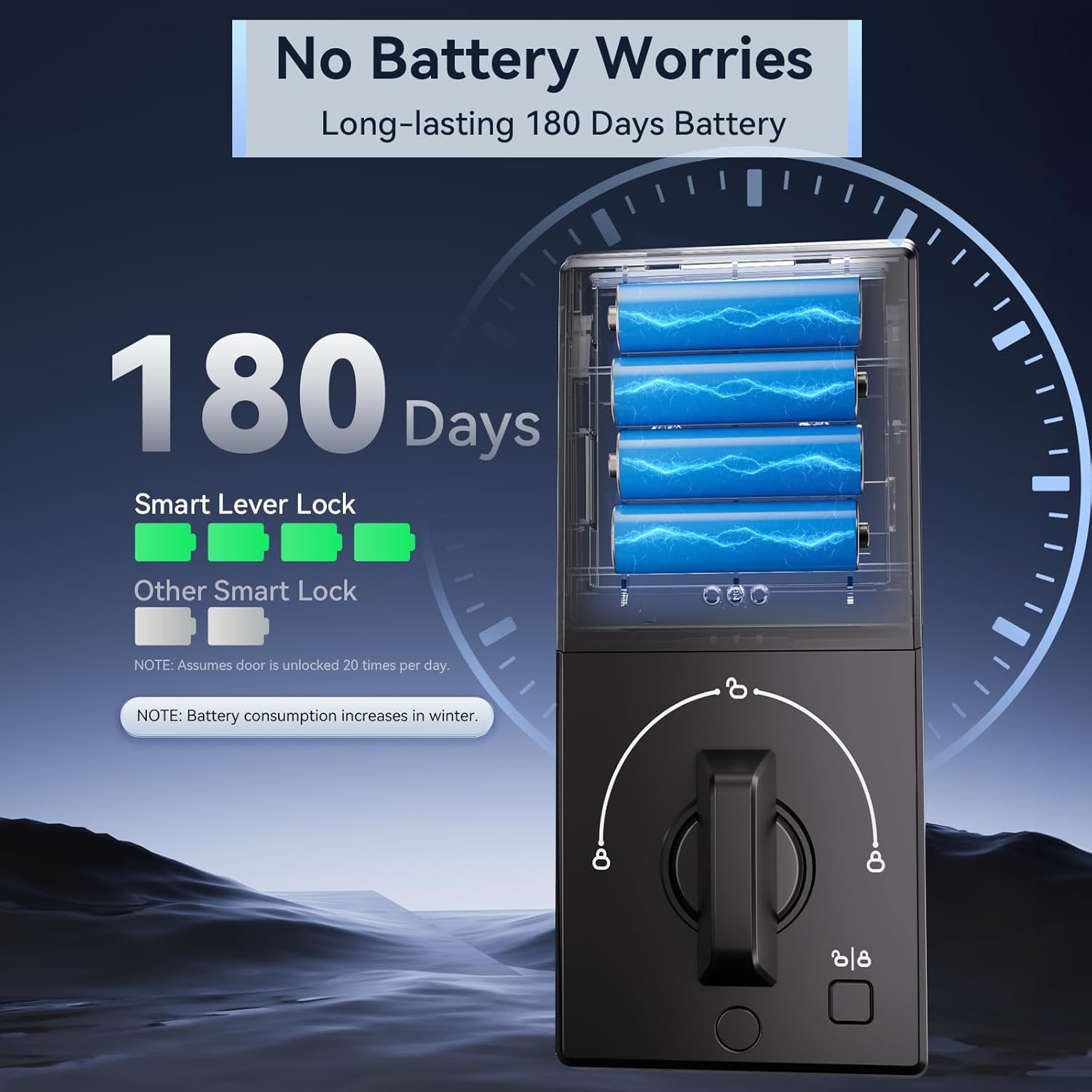
Figure 4.1: No Battery Worries. Long-lasting 180-day battery life.
The lock will provide a low battery alert when power is running low. Replace batteries promptly to avoid interruption of service. A Type-C backup charging port is available for temporary power if batteries die completely.

Figure 4.2: Low Battery Alert. Replace batteries as soon as possible.
4.2 Cleaning
Wipe the lock's exterior with a soft, damp cloth. Avoid abrasive cleaners or solvents that could damage the finish or electronic components.
5. Troubleshooting
If you encounter any issues with your Ulecoce Smart Lock, refer to the following common solutions.
5.1 Resetting Settings
If the lock is not responding correctly or you wish to clear all settings, you can perform a factory reset. This will erase all user data and return the lock to its default state.
Video 5.1: U68 Reset Settings Video. Follow these steps to reset your smart lock.
5.2 Other Common Issues
- Lock not responding: Check battery levels. Ensure the lock is properly installed and aligned.
- Fingerprint not recognized: Ensure your finger is clean and dry. Re-register your fingerprint if issues persist.
- Keypad not lighting up: Check battery levels.
- App connectivity issues: Ensure Bluetooth is enabled on your device. If using a gateway, check its internet connection.
6. Specifications
| Feature | Detail |
|---|---|
| Brand | Ulecoce |
| Model Name | Ulecoce U68 |
| Lock Type | Deadbolt, Combination Lock, Keypad |
| Special Features | Fingerprint, Passcode Unlock, App Control, One-Touch Lock, Auto-Lock |
| Material | Zinc |
| Color | Black |
| Item Weight | 3.45 Pounds |
| Product Dimensions (L x W x H) | 3.54 x 7.17 x 11.02 inches |
| Power Source | 4 AA Batteries (not included) |
| Connectivity Protocol | Bluetooth |
| Recommended Uses | Residential doors, hospitality doors, rental property doors, secure access control |
7. Warranty and Support
Ulecoce is a professional factory with nearly 15 years of lock manufacturing experience, dedicated to providing customers with smarter and safer products. We have a professional international research and development team, bringing together experts in the fields of electronics, structure, industrial design, and smart interaction.
While specific warranty details are not provided in this manual, Ulecoce is proudly backed by 98% customer satisfaction. For any support inquiries, technical assistance, or warranty claims, please refer to the contact information provided with your product packaging or visit the official Ulecoce website.
Related documentsUlecoce U68


Ask a question about this manual
Ask about setup, troubleshooting, compatibility, parts, safety, or missing instructions. Manuals+ will review the question and use this page’s manual context to help answer it.