
abask ZD-X35
abask 4K Dash Cam Front and Rear
User Manual - Model ZD-X35
1. Introduction
Thank you for choosing the abask 4K Dash Cam Front and Rear. This device is designed to provide comprehensive video surveillance for your vehicle, enhancing driving safety and providing crucial evidence in case of incidents. Featuring ultra-high-definition recording, advanced night vision, and smart connectivity, this dash cam is a reliable eye on the road.

Image: The abask 4K Dash Cam, showing its main unit, suction mount, rear camera, and a smartphone displaying the app interface with live footage.
2. Package Contents
Please check the box for the following items:
- ZDX35 4K Dash Cam (Front Unit)
- 1080P Rear Camera
- Suction Mount
- Car Charger (for cigarette lighter port)
- User Manual
- 64GB SD Card (pre-inserted in dash cam body)
- 19.5ft Cable for Rear Camera Installation
- 1ft Cable for Inside Installation (if applicable)
- Car Wiring Trim Tool Kit (1x Double-sided Adhesive, 2x Screws, 1x Crowbar, 4x Cable Clamps)

Image: A visual representation of all components included in the abask 4K Dash Cam package, such as the main dash cam unit, rear camera, cables, mount, and tools.
3. Product Overview
The abask ZDX35 dash cam system consists of a main front camera unit and a separate rear camera. The front unit features a 3-inch IPS display for clear viewing and menu navigation. It includes various ports for power, the rear camera connection, and a memory card slot. The rear camera is compact and designed for discreet mounting.
Key Components:
- Front Dash Cam: Main recording unit with 4K resolution, wide-angle lens, and integrated display.
- Rear Camera: 1080P resolution camera for recording the vehicle's rear view, with flexible rotation.
- Suction Mount: For secure attachment of the front dash cam to the windshield.
- USB-C Port: For power connection, offering easy plug and unplug.
- Micro SD Card Slot: Supports up to 128GB (64GB card included).
4. Installation Guide
4.1 Front Dash Cam Installation
- Clean the windshield area where you intend to mount the dash cam.
- Attach the suction mount to the front dash cam.
- Press the suction mount firmly against the windshield and twist the lock to secure it. Position the camera to ensure a clear view of the road without obstructing your driving vision.
- Connect the car charger to the dash cam's USB-C port and plug the other end into your vehicle's cigarette lighter socket. Route the cable neatly along the windshield edge and dashboard using the provided cable clamps.

Image: A visual guide demonstrating the simple installation process of the front dash cam on the windshield and routing of the power cable.
4.2 Rear Camera Installation
- Determine the optimal placement for the rear camera, typically on the rear windshield. Ensure it has a clear view and does not obstruct your rear visibility.
- Use the provided 19.5ft cable to connect the rear camera to the main front dash cam unit. Route the cable discreetly along the vehicle's interior trim.
- For reverse assistance functionality, connect the red reverse driving cable from the rear camera to your vehicle's reverse light power supply. This allows the dash cam screen to automatically display the rear view when reversing.

Image: A visual representation of the rear camera's functionality, showing a full-screen rearview display on the dash cam for reversing assistance.
4.3 SD Card Preparation
Before first use, it is crucial to format the Micro SD card within the dash cam's settings. This ensures optimal performance and compatibility. The 64GB SD card is pre-inserted.
5. Operating Instructions
5.1 Basic Recording
Once powered on, the dash cam will automatically begin recording. The 3-inch IPS screen provides a live view of both front and rear cameras. Recording status is indicated on the display.
5.2 WiFi & App Control
The dash cam features built-in WiFi for seamless connection to your Android or iOS smartphone via a dedicated app. This allows you to:
- View live video streams from both cameras.
- Access and play back recorded videos.
- Download footage directly to your smartphone.
- Adjust camera settings.
- Share recorded journeys to social media.
Note: To connect to the app, first enable Wi-Fi on the dash cam, then search for its network on your mobile phone and connect.
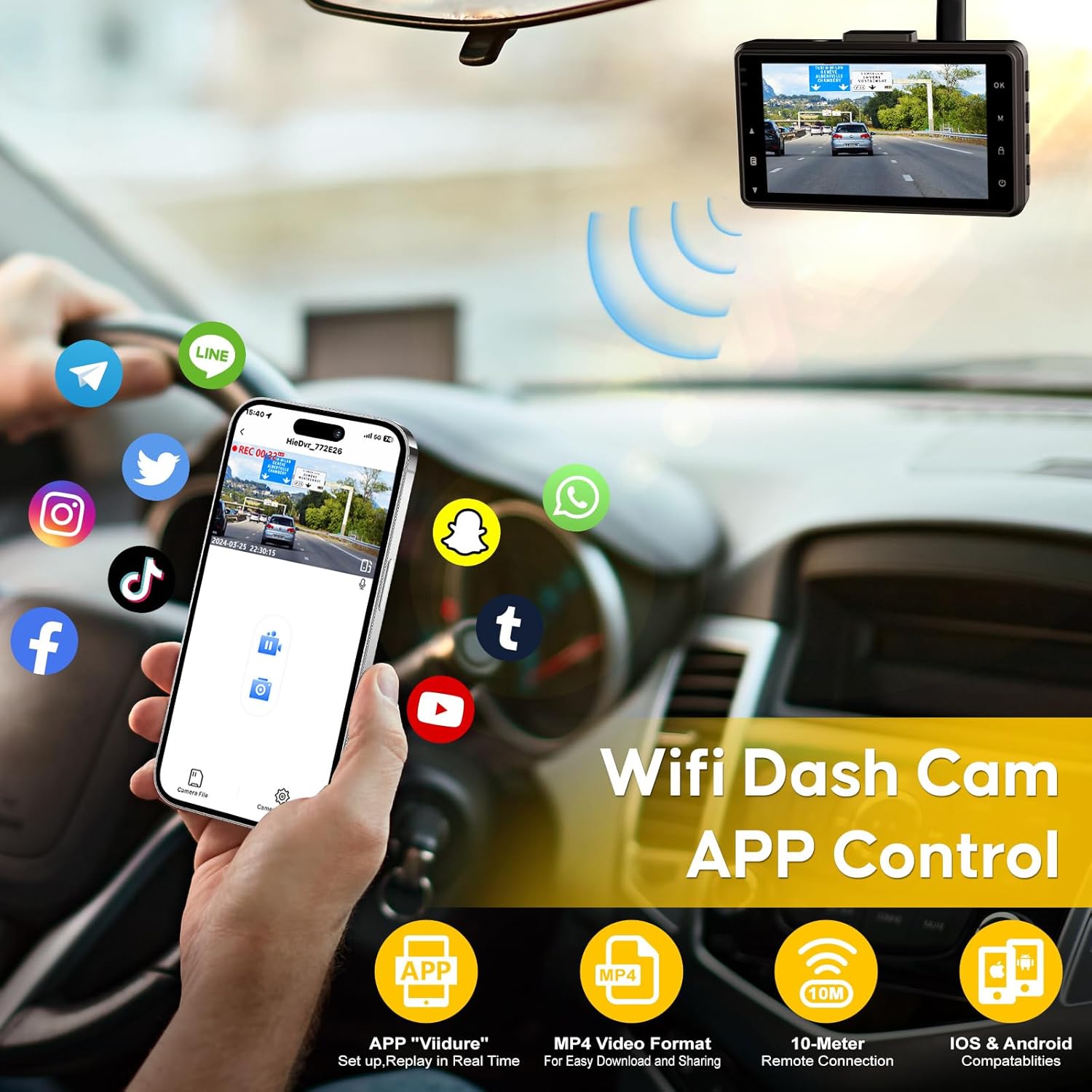
Image: A smartphone screen showing the abask dash cam app interface, demonstrating real-time viewing and control capabilities.
5.3 G-Sensor & Emergency Capture
The integrated G-sensor detects sudden collisions or impacts. When triggered, the dash cam automatically locks the current video segment, preventing it from being overwritten by loop recording. This ensures critical footage is preserved.

Image: An illustration depicting the G-Sensor locking video footage during a collision and the continuous nature of loop recording.
5.4 Loop Recording
The dash cam continuously records video in short segments. When the memory card is full, the newly recorded video automatically overwrites the oldest unlocked video files. This ensures continuous recording without manual intervention, provided emergency-locked files are not filling the card.
5.5 24-Hour Parking Monitoring
With the 24-hour parking monitor function, the dash cam can record continuously even when the vehicle is parked. This feature utilizes a Timelapse function to save storage space. It activates upon detecting motion or impact, providing surveillance against vandalism or hit-and-runs.
Note: For continuous 24-hour parking monitoring, an additional hardwire kit (not included) is required to connect the dash cam directly to the vehicle's power fuse box when the engine is off.

Image: A graphic illustrating the 24-hour parking monitoring feature, showing protection against window break-ins and parking scratch accidents.
5.6 Super Night Vision
Equipped with an F1.8/6 glass aperture lens and an advanced image sensor, the ZDX35 dash cam delivers enhanced low-light performance. Combined with Wide Dynamic Range (WDR) technology, it balances light and dark areas in challenging lighting conditions, such as tunnels or night driving, to produce clear and accurate recordings.
6. Maintenance
To ensure the longevity and optimal performance of your abask Dash Cam, follow these maintenance guidelines:
- Cleaning: Gently wipe the camera lenses with a soft, lint-free cloth to remove dust or smudges. Do not use abrasive cleaners or solvents.
- Temperature: Avoid exposing the dash cam to extreme temperatures for prolonged periods. Store it in a cool, dry place when not in use.
- SD Card: Regularly format the SD card (at least once a month) to maintain its health and prevent data corruption. Back up any important footage before formatting.
- Firmware Updates: Check the official abask website or app periodically for firmware updates to ensure your dash cam has the latest features and bug fixes.
7. Troubleshooting
If you encounter issues with your abask Dash Cam, please refer to the following common problems and solutions:
| Problem | Possible Cause / Solution |
|---|---|
| Dash cam does not power on. | Ensure the car charger is securely plugged into the cigarette lighter port and the vehicle's ignition is on. Check the fuse of the cigarette lighter. The dash cam requires continuous power during use. |
| SD card error / Card not recognized. | Format the Micro SD card within the dash cam's settings. Ensure the card is a high-speed (Class 10 or U3) card. Reinsert the card properly. |
| Wi-Fi connection issues with smartphone app. | First, turn on the Wi-Fi function on the dash cam. Then, search for the dash cam's Wi-Fi network in your phone's Wi-Fi settings and connect. Ensure the app is updated. |
| Recorded video quality is not 4K. | The preview mode on the dash cam or app may display 1080P. To view the full 4K recorded video, you must download it to your device first. |
| Rear camera not working. | Ensure the rear camera cable is securely connected to both the rear camera and the main dash cam unit. Do not plug or unplug the rear camera during operation. |
| Dash cam freezes or crashes. | Perform a soft reset by pressing the reset button (if available) or by disconnecting and reconnecting power. Ensure the SD card is not corrupted and is formatted regularly. |
8. Technical Specifications
| Feature | Detail |
|---|---|
| Model Name | 4K Dash Cam Front and Rear (ZD-X35) |
| Front Video Resolution | UHD 3840x2160P (4K) |
| Rear Video Resolution | FHD 1920x1080P (1080P) |
| Display Screen | 3-inch IPS Screen |
| Front Lens Angle | 170° Ultra-wide angle |
| Rear Lens Angle | 140° Wide angle |
| Storage | Supports up to 128GB Micro SD Card (64GB included) |
| Power Source | Supercapacitor (no internal battery) |
| Connectivity | Built-in WiFi, USB-C |
| Special Features | Built-In G-sensor, Loop Recording, 24/7 Parking Monitor, Rear Recording, Parking Assistance, Real 4K Resolution, Smart App Control, Automatic Incident Detection, Mute function |
| Product Dimensions | 10 x 5 x 5.98 cm |
| Product Weight | 66.3 g |
9. Warranty and Customer Support
abask is committed to providing high-quality products and excellent customer service.
- Warranty: Your abask Dash Cam comes with an 18-month warranty from the date of purchase. This warranty can be extended with official registration with abask.
- Returns & Replacements: We offer a 30-day full refund or replacement policy from the date of purchase.
- Lifetime After-Sales Service: abask provides lifetime after-sales service support for its products.
- Contact Us: If you have any questions, concerns, or require technical assistance, please do not hesitate to contact our customer support team. We aim to respond to all inquiries within 24 hours. Please refer to the contact information provided on the product packaging or the official abask website.
No official product videos from the seller were provided in the product data for embedding in this manual.
Related documentsZD-X35

Ask a question about this manual
Ask about setup, troubleshooting, compatibility, parts, safety, or missing instructions. Manuals+ will review the question and use this page’s manual context to help answer it.