
1. Introduction
The M-Wave M21CW is a wireless bicycle computer designed to enhance your cycling experience by providing essential ride data. Featuring wireless transmission between the hub sensor and the main unit, this device offers 21 functions, including speed, distance, time, and more. Its backlit display ensures readability in various conditions, and tool-free mounting simplifies installation.
2. Product Features
- Wireless Transmission: Eliminates the need for cables, providing a clean setup.
- 21 Functions: Includes current speed, average speed, maximum speed, trip distance, total odometer, riding time, clock, thermometer, calorie consumption, cadence calculator, stopwatch, freeze frame function, and more.
- Backlit Display: Ensures clear visibility of data in low-light conditions.
- Tool-Free Mounting: Easy installation on handlebars or stem.
- Auto Power On/Off: Automatically activates with motion and powers down after inactivity to conserve battery life.
- Metric/English Conversion: Supports both kilometers/miles and Celsius/Fahrenheit units.
- Batteries Included: Ready for immediate use.
3. Package Contents
Verify that all items are present in the package:
- M-Wave M21CW Bicycle Computer Unit
- Wireless Speed Sensor
- Mounting Bracket for Handlebar/Stem
- Wheel Magnet
- Batteries (for computer unit and sensor)

Image: M-Wave M21CW Bicycle Computer in its retail packaging.
4. Setup
4.1. Battery Installation
- Computer Unit: Open the battery compartment on the back of the computer unit. Insert the battery, ensuring correct polarity (+/-). Close the compartment securely.
- Wireless Sensor: Open the battery compartment on the wireless sensor. Insert the battery, ensuring correct polarity. Close the compartment securely.
4.2. Mounting the Sensor and Magnet
- Attach the wireless speed sensor to the bicycle fork using the provided zip ties or strap. Position it on the side of the fork closest to the wheel spokes.
- Secure the wheel magnet to a spoke on the wheel.
- Adjust the position of the sensor and magnet so that the magnet passes within 5mm of the sensor when the wheel rotates. Ensure they do not touch.
4.3. Mounting the Computer Unit
- Attach the mounting bracket to your bicycle's handlebar or stem using the provided tool-free strap.
- Slide the M21CW computer unit onto the mounting bracket until it clicks securely into place.
4.4. Initial Settings
After battery installation, the unit will typically enter setup mode automatically. If not, press and hold the SET button.
- Wheel Circumference: The display will show a flashing number. Use the MODE button to adjust the value and the SET button to confirm and move to the next digit. Refer to your bicycle tire's sidewall for its size (e.g., 700x23c) and consult a wheel circumference chart for the corresponding value in millimeters.
- Units: Select between kilometers per hour (km/h) or miles per hour (mph) for speed/distance, and Celsius (°C) or Fahrenheit (°F) for temperature. Use MODE to toggle and SET to confirm.
- Clock: Set the current time (24-hour or 12-hour format, depending on model). Use MODE to adjust and SET to confirm.
5. Operating Instructions
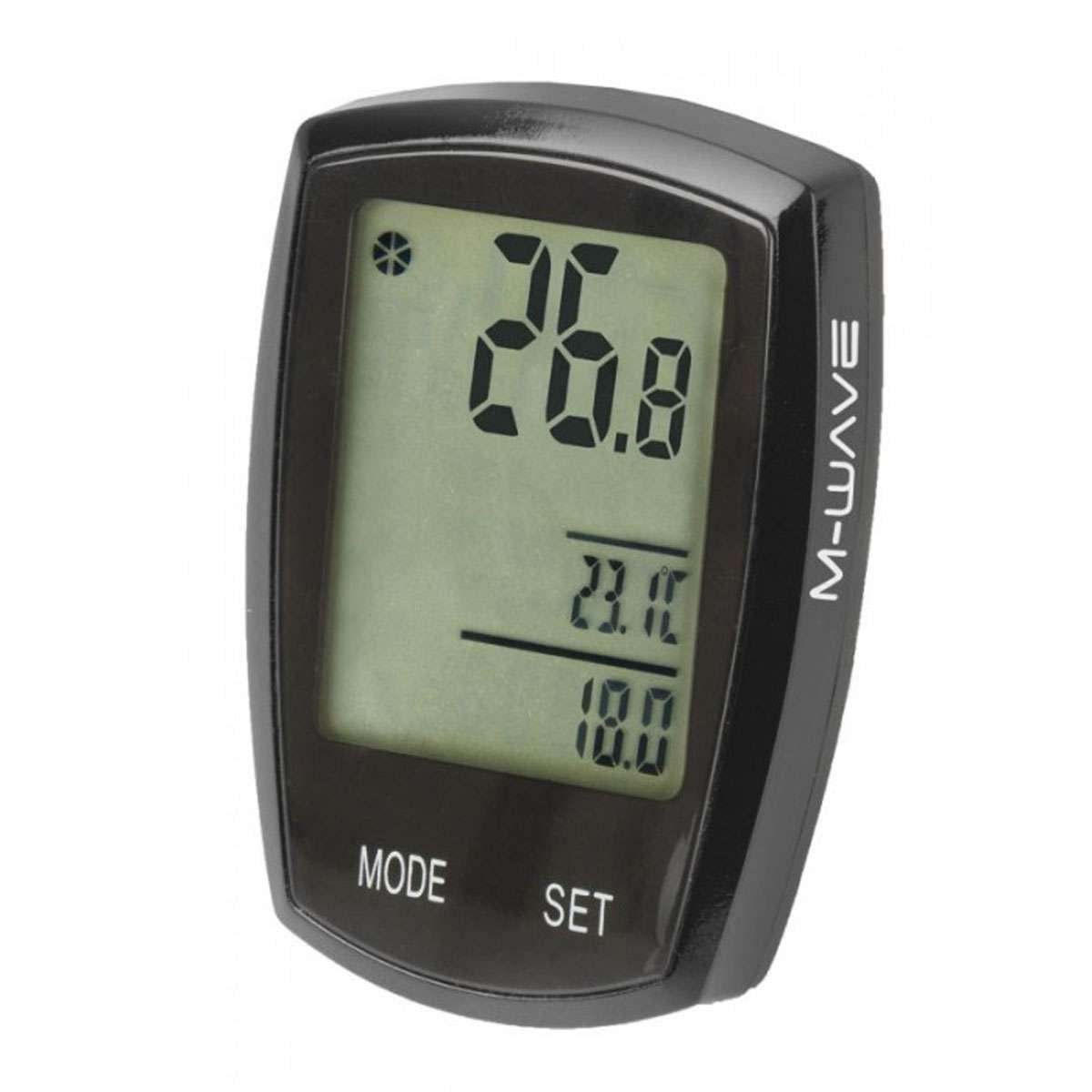
Image: M-Wave M21CW Bicycle Computer display.
5.1. Button Functions
- MODE Button:
- Short Press: Cycles through various display functions (e.g., Current Speed, Odometer, Trip Distance, Max Speed, Avg Speed, Riding Time, Clock, Thermometer, Calories, Cadence).
- Long Press: May activate specific sub-menus or reset certain values depending on the current mode.
- SET Button:
- Short Press: Used to confirm selections or adjust values during setup.
- Long Press: Typically used to enter or exit setup mode, or to reset trip data (e.g., trip distance, riding time) when in the corresponding display mode.
5.2. Navigating Functions
From the main display, repeatedly press the MODE button to view different data points. The display will show one or more functions simultaneously, such as current speed at the top, and other data like trip distance or temperature at the bottom.
5.3. Backlight
The M21CW features a backlight for improved visibility. The activation method may vary (e.g., automatic in low light, short press of a button, or a specific button combination). Refer to the quick start guide included with your product for precise instructions.
5.4. Auto On/Off
The computer automatically powers on when it detects wheel movement and powers off after a period of inactivity to conserve battery life. No manual intervention is typically required for this function.
6. Maintenance
- Cleaning: Wipe the computer unit and sensor with a soft, damp cloth. Do not use abrasive cleaners, solvents, or harsh chemicals, as these can damage the display or casing.
- Battery Replacement: When the low battery indicator appears on the display, replace the batteries in both the computer unit and the wireless sensor. Ensure you use the correct battery type (Lithium Manganese Dioxide) and observe correct polarity.
- Storage: If the computer will not be used for an extended period, consider removing the batteries to prevent leakage and damage. Store the unit in a dry, cool place away from direct sunlight.
7. Troubleshooting
- No Speed Display or Incorrect Readings:
- Check the alignment between the wireless sensor and the wheel magnet. Ensure the gap is no more than 5mm.
- Verify that batteries in both the computer unit and the sensor are correctly installed and have sufficient charge. Replace if necessary.
- Ensure the computer unit is securely seated in its mounting bracket.
- Display Not Working:
- Check the battery in the computer unit.
- Ensure the unit is properly connected to the mounting bracket.
- Inaccurate Distance or Speed:
- Re-check the wheel circumference setting in the initial setup. An incorrect value will lead to inaccurate measurements.
8. Specifications
| Feature | Specification |
|---|---|
| Brand | M-Wave |
| Model Number | 244750 |
| Item Weight | 0.09 Kilograms |
| Battery Cell Composition | Lithium Manganese Dioxide |
| International Protection Rating | IP54 (Dust and splash resistant) |
| Human Interface Input | Buttons |
| Colour | Black |
9. Warranty and Support
For detailed warranty information, technical support, or service inquiries regarding your M-Wave M21CW Wireless Bicycle Computer, please refer to the official M-Wave website or contact the retailer from whom you purchased the product. Keep your proof of purchase for warranty claims.