Introduction
Thank you for choosing the Hodozzy Carplay Android Autoradio. This manual provides detailed instructions for the installation, operation, and maintenance of your new car stereo system. Please read this manual thoroughly before installation and use to ensure proper function and safety. This unit is specifically designed for Peugeot 308 and 408 models manufactured between 2007 and 2015.
Safety Information
- Always consult a professional for installation if you are unsure about any steps. Incorrect installation can damage the vehicle's electrical system or the device.
- Do not operate the device in a way that distracts you from driving. Always prioritize road safety.
- Ensure all wiring is properly insulated and secured to prevent short circuits or damage.
- Keep the device away from water and excessive heat.
- Only use accessories and parts specified by the manufacturer.
Setup and Installation
Before beginning installation, ensure your vehicle's ignition is off and the battery is disconnected. Verify that the interfaces of the various accessories are compatible with your vehicle.
Package Contents
Please check the package for the following items:

Image: Detailed view of the Hodozzy Carplay Android Autoradio package contents, including the main unit, frame, various cables (power, USB, RCA, camera input), GPS antenna, external microphone, backup camera, radio antenna, original USB cable, and an installation tool.
- Autoradio Main Unit
- Vehicle-specific Frame
- Power Cable
- USB Cables (Dual Port)
- RCA Input/Output Cable
- Reversing Camera Input Cable
- GPS Antenna
- Radio Antenna
- External Microphone
- Backup Camera
- Installation Tool
- User Manual (this document)
Installation Steps
- Remove Original Unit: Carefully remove the existing car stereo and trim from your Peugeot 308/408 dashboard.
- Connect Wiring: Connect the provided power cable, USB cables, RCA cables, GPS antenna, and radio antenna to the corresponding ports on the new autoradio. Refer to the wiring diagram for correct connections.
- Connect Backup Camera: If installing the backup camera, route the camera cable to the rear of the vehicle and connect it to the reversing camera input on the autoradio. Ensure the camera receives power (usually from the reverse light circuit).
- Test Connections: Before fully securing the unit, temporarily reconnect the car battery and turn on the ignition to test basic functions (power, audio, display).
- Secure Unit: Once tested, carefully slide the autoradio into the dashboard opening, ensuring all cables are tucked away and not pinched. Secure it with the provided frame and mounting hardware.
- Final Assembly: Reinstall any removed trim pieces.

Image: Visual comparison of the car dashboard before and after the Hodozzy autoradio installation, highlighting the integrated look of the new 9-inch touchscreen. Below, an illustration of Mirror Link connecting a smartphone to the autoradio display.
Operating Instructions
Basic Operation
- Power On/Off: Press and hold the power button (usually on the left side of the unit or indicated on the screen) to turn the device on or off. A short press typically mutes/unmutes audio.
- Volume Control: Adjust volume using the on-screen controls or steering wheel buttons (if configured).
- Touchscreen: The 9-inch capacitive touchscreen responds to touch gestures similar to a smartphone.
Wireless CarPlay and Android Auto
The autoradio supports both wireless CarPlay and wired/wireless Android Auto, allowing seamless integration with your smartphone for navigation, calls, messages, and music.
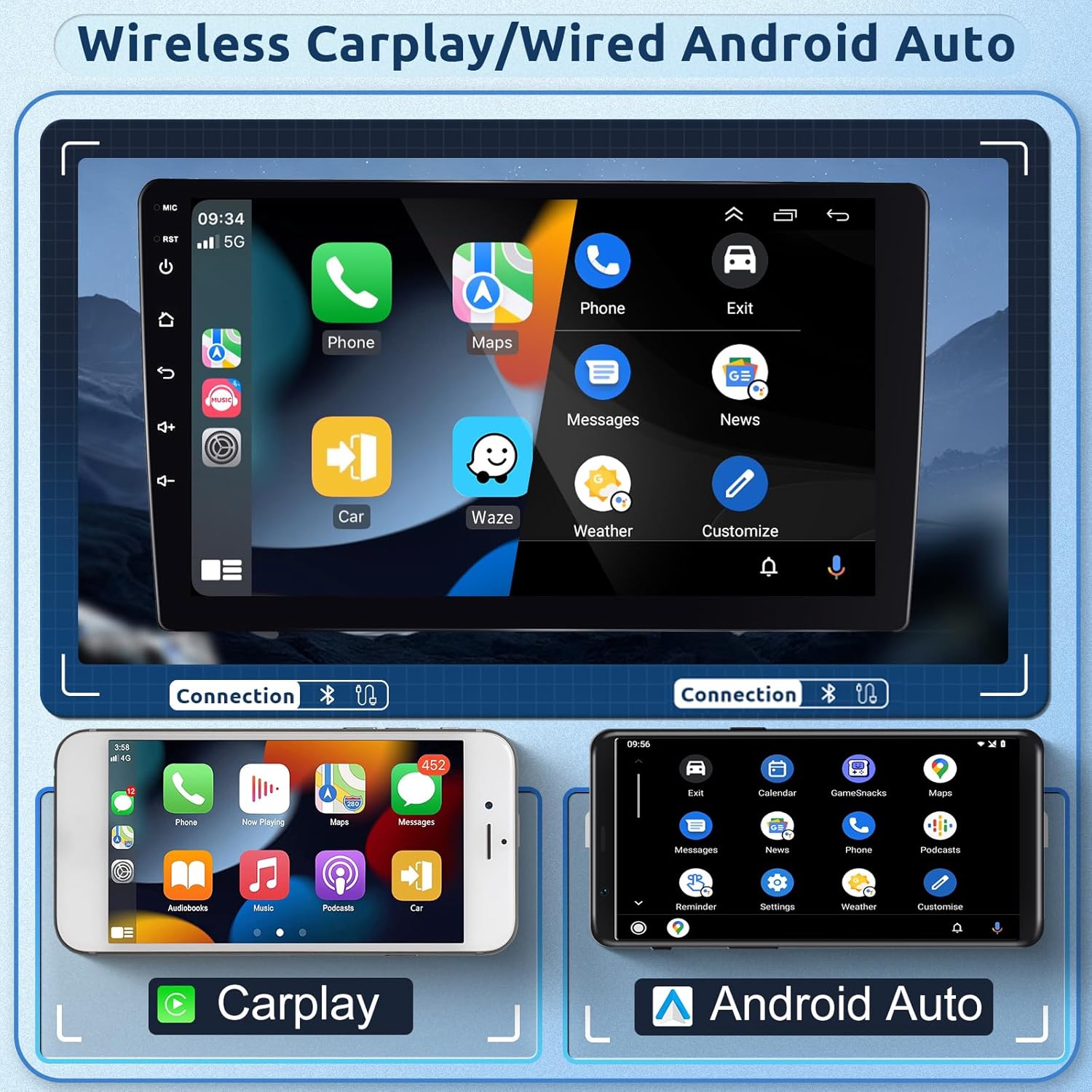
Image: The autoradio screen displaying the user interfaces for both Apple CarPlay and Android Auto, featuring common application icons. Below, a visual representation of a smartphone connected to the system, showing the CarPlay and Android Auto logos.
- For Wireless CarPlay: Ensure Bluetooth and Wi-Fi are enabled on your iPhone (iOS 5-17). Pair your iPhone with the autoradio via Bluetooth. Once paired, CarPlay should automatically activate.
- For Android Auto: For wireless connection, ensure Bluetooth and Wi-Fi are enabled on your Android phone (Android 4-13, Samsung phones may not be supported). Pair your phone via Bluetooth. For wired connection, connect your Android phone to the autoradio's USB port using a quality USB cable.
- Follow on-screen prompts to complete the setup.
GPS Navigation and WiFi
The unit features an integrated GPS receiver and WiFi connectivity for navigation and online services.
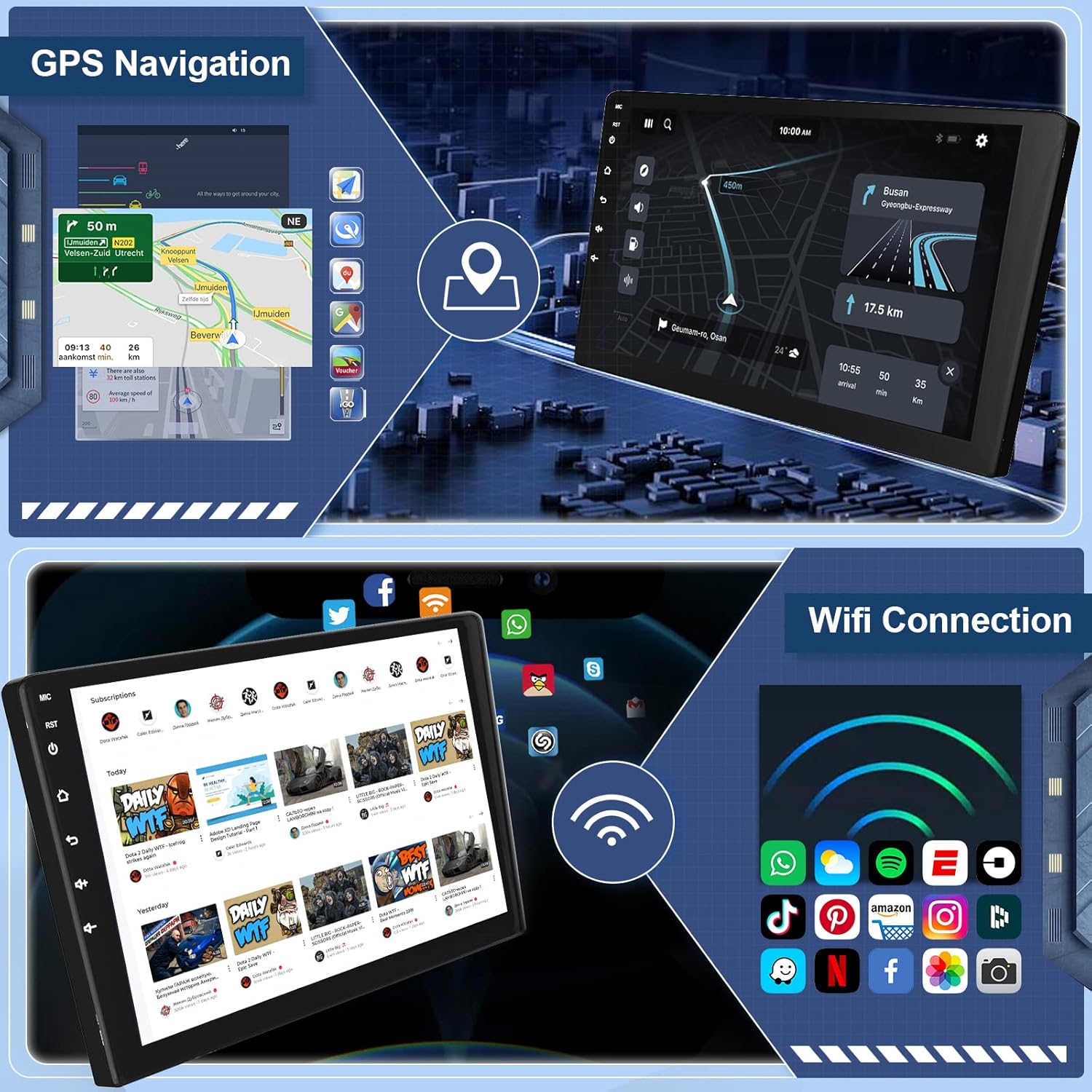
Image: The top portion displays the autoradio's GPS navigation interface, showing a detailed map with a highlighted route and directional information. The bottom portion illustrates the WiFi connectivity feature, with the screen showing various application icons and a prominent WiFi signal indicator.
- GPS: The unit comes with integrated offline maps. To download map data, connect to the internet via WiFi and access the "Here We Go" navigation app. You can also use other online map applications.
- WiFi: Connect to a WiFi network or use your phone's hotspot to access online features, download apps, and update maps.
Bluetooth, FM/RDS Radio, and DSP
Enjoy hands-free calling, music streaming, and high-quality radio with the built-in Bluetooth and FM/RDS tuner, enhanced by Digital Signal Processing (DSP).

Image: The top section illustrates Bluetooth functionalities, including a dial pad, an active hands-free call screen, and music playback via Bluetooth. The bottom section displays the FM/RDS radio interface with frequency tuning and a detailed 32-band Digital Signal Processor (DSP) equalizer for audio customization.
- Bluetooth (Version 5.0): Pair your phone to make hands-free calls using the integrated microphone, sync contacts, and stream audio.
- FM/RDS Radio: Access the radio application to scan for stations (87.5 MHz - 107.5 MHz) or manually tune. RDS (Radio Data System) provides station information.
- DSP: The integrated DSP (Digital Signal Processor) enhances sound quality by reducing noise, distortion, and interference, offering a customizable audio experience.
Rear Camera Functionality
The system supports an AHD (Analog High Definition) backup camera, providing a clear view when reversing.

Image: The main display shows a live feed from the rear camera with dynamic parking guidelines, assisting with safe reversing. Below, comparative images demonstrate the camera's clear visibility during both day and night conditions, alongside a diagram highlighting the features of the waterproof AHD night vision camera with a 140-degree view angle.
- When the vehicle is shifted into reverse gear, the autoradio automatically displays the rear camera feed.
- The included camera features AHD night vision and is waterproof for reliable performance in various conditions.
Steering Wheel Control
Integrate your vehicle's steering wheel controls for safer and more convenient operation.

Image: The autoradio display shows the "Steering Wheel Key" learning interface, where users can assign various functions (e.g., volume, mode, navigation) to their vehicle's steering wheel buttons. Below, close-up images of a car's steering wheel buttons illustrate the physical controls that can be configured.
- Access the "Steering Wheel Control" settings in the unit's menu.
- Follow the on-screen instructions to program your steering wheel buttons to control functions like volume, track skipping, mode switching, and answering calls.
Split Screen and Mirror Link
Enhance multitasking and content sharing with split screen and Mirror Link features.

Image: The autoradio screen demonstrates the split-screen feature, displaying the FM radio interface on one side and the graphic equalizer (EQ System) on the other, allowing simultaneous use of two applications. A separate view of the FM radio interface is also shown.
- Split Screen: This function allows you to run two applications simultaneously on the screen, for example, navigation on one side and music on the other. Activate it through the multitasking menu.
- Mirror Link: Synchronize your smartphone's screen to the autoradio display. Connect via USB cable or Wi-Fi. Android phones support two-way control (control from phone or autoradio), while iOS phones support one-way control (view phone screen on autoradio).
Maintenance
- Screen Cleaning: Use a soft, lint-free cloth to gently wipe the touchscreen. For stubborn smudges, slightly dampen the cloth with water or a screen-safe cleaner. Avoid harsh chemicals.
- Software Updates: Periodically check for software updates via the system settings to ensure optimal performance and access to new features. Updates may require a stable internet connection.
- General Care: Keep the unit free from dust and debris. Avoid exposing it to extreme temperatures or direct sunlight for prolonged periods.
Troubleshooting
| Problem | Possible Cause / Solution |
|---|---|
| Unit does not power on. | Check power cable connections. Ensure vehicle battery is connected and charged. Check vehicle's fuse box. |
| No sound. | Check volume level. Ensure speakers are properly connected. Verify audio output settings. |
| GPS not working or inaccurate. | Ensure GPS antenna is properly connected and has a clear view of the sky. Check map data download status. |
| Bluetooth connection issues. | Ensure Bluetooth is enabled on both the autoradio and your phone. Delete previous pairings and try reconnecting. Restart both devices. |
| CarPlay/Android Auto not connecting. | For wireless, ensure Bluetooth and Wi-Fi are on. For wired, try a different USB cable. Check phone compatibility (Samsung phones may not be supported for Android Auto). Restart phone and autoradio. |
| Rear camera not displaying. | Check camera cable connection to the autoradio and power supply. Ensure the vehicle is in reverse gear. |
| System is slow or unresponsive. | Close unnecessary background applications. Perform a system restart. If issues persist, consider a factory reset (note: this will erase all user data). |
| Default Keyword Setting / Factory Reset Password | The default keyword for certain settings or factory reset is 1234. |
Product Specifications
| Feature | Specification |
|---|---|
| Model | B0D69GGVJS |
| Brand | Hodozzy |
| Compatible Vehicles | Peugeot 308/408 (2007-2015) |
| Operating System | Android |
| Chipset | 8257 (8-core) |
| RAM | 4 GB |
| ROM (Internal Storage) | 64 GB |
| Screen Size | 9 inches |
| Display Type | LCD Touchscreen |
| Screen Resolution | 1280 x 720 |
| Output Power | 4 x 45 W |
| Radio Chip | 8035 |
| Radio Band | FM/RDS (87.5 MHz - 107.5 MHz) |
| Bluetooth Version | 5.0 |
| Connectivity | Bluetooth, Wi-Fi, Dual USB Ports |
| GPS | Integrated GPS Receiver, Offline Maps (Here We Go) |
| CarPlay / Android Auto | Wireless CarPlay, Wired/Wireless Android Auto |
| Steering Wheel Control | Supported |
| Rear Camera Input | AHD/CVBS (Backup Camera Included) |
| Video Output | Supported |
| Split Screen | Supported |
| External Microphone | Supported (Included) |
| Operating Temperature | -20 °C to 75 °C |
| Dimensions (L x W x H) | 5 x 5 x 6.5 cm (Product); 232mm/9.1inch (Top Width), 222mm/8.7inch (Bottom Width) for the screen unit. |
| Weight | 1.44 kg |
| Supported Audio Formats | APE/FLAC/WAV/MP3/WMA, etc. |
| Supported Video Formats | MKV/RMVB/AVI/MP4/MDV, etc. |
| Supported Image Formats | PNG/JPEG/JPG/GIF/WBMP/BNP, etc. |
| Default Keyword | 1234 |
| Supported Languages | Chinese, English, French, Italian, Korean, Japanese, Arabic, Spanish, Portuguese, Russian, Turkish, Vietnamese, Hebrew, Polish, German. |
Warranty and Support
For any questions, technical support, or warranty claims, please contact Hodozzy customer service. You can typically find contact information on the seller's page where you purchased the product.

Image: Guide on how to contact Hodozzy support. It shows clicking on "Hodozzy Electronic" (the seller name) on the product page, then selecting "Ask a question" to reach customer service.
When contacting support, please have your product model (B0D69GGVJS) and purchase details ready.


