1. Introduction
This manual provides detailed instructions for the installation, operation, and maintenance of your RetroSound RetroRadio LABC-M1-226-08-80F1. This unit is designed for 1967-68 Ford Mustang vehicles and features an AM/FM RDS tuner, Bluetooth connectivity, and auxiliary input.
2. Safety Information
- Always disconnect the vehicle's battery before installation to prevent electrical shorts.
- Ensure all wiring connections are secure and properly insulated to avoid damage to the unit or vehicle.
- Do not operate the unit in a manner that distracts you from driving.
- Refer to a professional installer if you are unsure about any part of the installation process.
3. Package Contents
Verify that all items are present in your package:
- RetroSound RetroRadio LABC-M1-226-08-80F1 Head Unit
- Wiring Harness (Power/Speakers)
- InfiniMount Brackets
- Knob Shafts
- External Microphone
- Installation Hardware

Figure 3.1: Included Knob Shafts

Figure 3.2: External Microphone
4. Setup and Installation
4.1. Dimensions
Before installation, ensure the unit fits your vehicle's dashboard opening. Refer to the diagram below for precise measurements.

Figure 4.1: Unit Dimensions
4.2. Mounting with InfiniMount Brackets
The patented InfiniMount brackets allow for flexible mounting of the unit's shafts at various angles to accommodate different dashboard configurations.

Figure 4.2: InfiniMount Brackets and Flexible Shaft Mounting
- Attach the InfiniMount brackets to the sides of the head unit using the provided screws.
- Insert the knob shafts into the desired positions on the brackets.
- Adjust the angle of the shafts as needed to align with your vehicle's dashboard openings.
- Secure the unit into the dashboard opening.
4.3. Wiring Connections
Carefully connect all necessary wires as shown in the diagram below. Ensure all connections are secure.
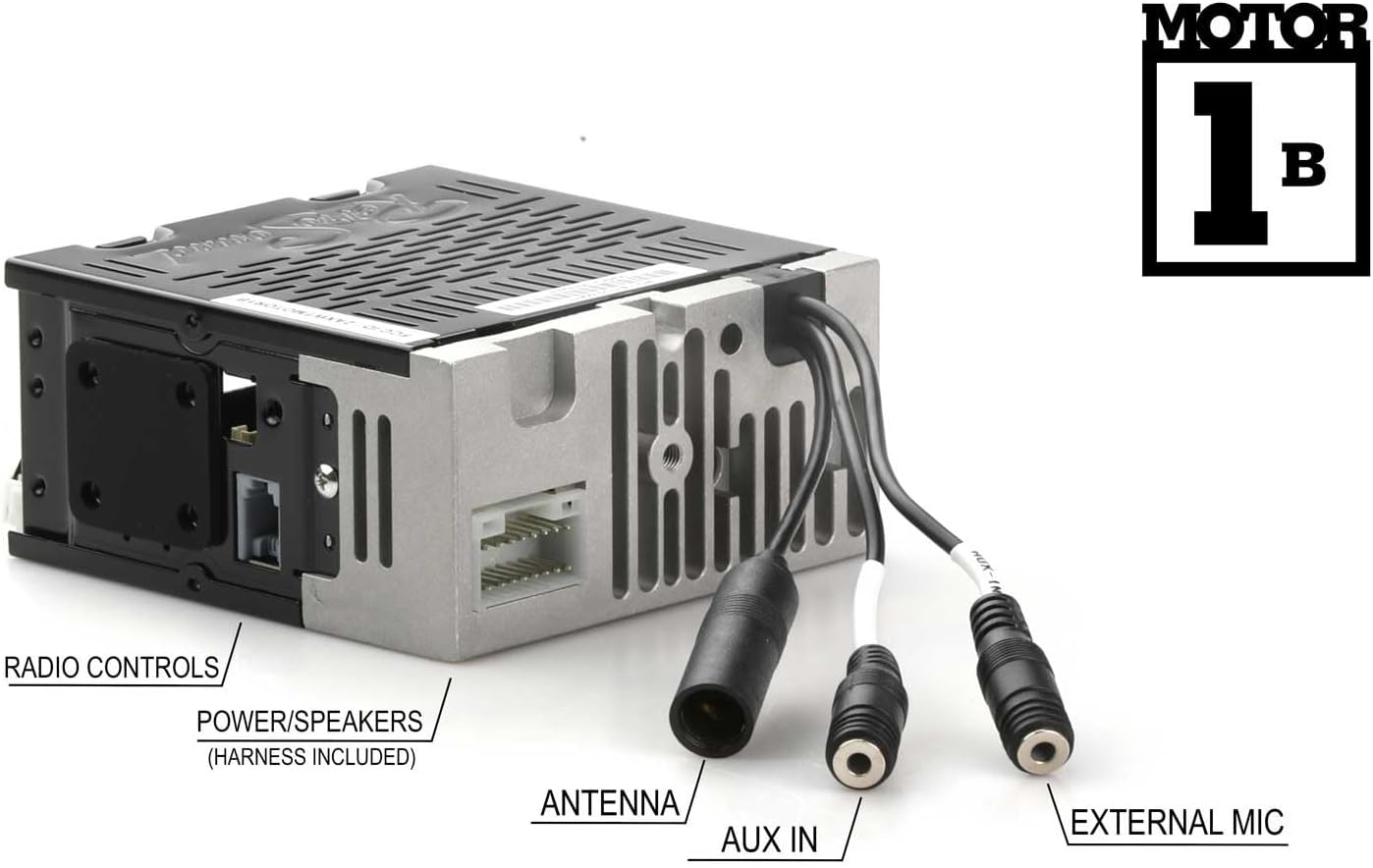
Figure 4.3: Rear Panel Connections
- Power/Speakers: Connect the included wiring harness to the corresponding port on the unit and then to your vehicle's power and speaker wiring. Refer to your vehicle's wiring diagram for correct connections.
- Antenna: Connect your vehicle's AM/FM antenna to the antenna input.
- AUX In: Connect external audio devices using a 3.5mm audio cable to this input.
- External Mic: Plug in the provided external microphone for hands-free calling. Position the microphone in a location that allows for clear voice pickup.
- Radio Controls: Connect to compatible vehicle radio controls if available.
5. Operating Instructions
5.1. Power On/Off
Press the power button (usually integrated with the volume knob) to turn the unit on or off.
5.2. AM/FM Tuner
- Band Selection: Press the BAND button to switch between AM and FM bands.
- Tuning: Use the tuning knobs or seek buttons to find radio stations.
- Presets: The unit supports 30 presets. To save a station, tune to the desired station, then press and hold a preset button until you hear a confirmation beep. To recall a preset, press the corresponding preset button.
- RDS (Radio Data System): When available, RDS will display station information such as station name, song title, or artist.
- Tuner Frequencies: The tuner frequencies can be selected for USA, Europe, Australia, Japan, or Russia. Refer to the settings menu to adjust this if needed.
5.3. Bluetooth Connectivity (Version 5.0)
The unit features built-in Bluetooth for hands-free calling and audio streaming.
- Pairing:
- Ensure Bluetooth is enabled on your mobile device.
- On the RetroRadio, navigate to the Bluetooth menu (refer to the display for menu options).
- Select "Pair Device" or similar option. The unit will become discoverable.
- On your mobile device, search for available Bluetooth devices and select "RetroRadio" (or similar name).
- Confirm the pairing code if prompted.
- Hands-Free Calling: Once paired, you can make and receive calls through the unit using the external microphone. Use the unit's controls to answer, end, or reject calls.
- Audio Streaming: Play audio from your paired mobile device directly through the RetroRadio. Use the unit's controls to play, pause, skip tracks, and adjust volume.
5.4. Auxiliary Input
Connect any portable audio device (e.g., MP3 player, smartphone) to the rear-mounted auxiliary input using a 3.5mm audio cable. Select the AUX input source on the RetroRadio to listen to audio from the connected device.
6. Maintenance
- Cleaning: Use a soft, dry cloth to clean the unit's display and controls. Do not use abrasive cleaners or solvents.
- Firmware Updates: Check the RetroSound website periodically for any available firmware updates to ensure optimal performance.
7. Troubleshooting
| Problem | Possible Cause | Solution |
|---|---|---|
| No power | Loose power connection, blown fuse, vehicle battery disconnected. | Check power wiring, inspect vehicle fuses, ensure battery is connected. |
| No sound | Speaker wires disconnected, volume too low, incorrect source selected. | Verify speaker connections, increase volume, select correct audio source (AM/FM, Bluetooth, AUX). |
| Bluetooth not pairing | Bluetooth not enabled on device, unit not in pairing mode, device too far. | Ensure Bluetooth is on, put unit in pairing mode, bring device closer, try re-pairing. |
| Poor radio reception | Antenna not connected, damaged antenna, weak signal area. | Check antenna connection, inspect antenna for damage, try tuning to a stronger station. |
8. Specifications
- Model: LABC-M1-226-08-80F1
- Brand: RetroSound
- Amplifier: Built-in 275-watt (peak power) Mosfet amplifier, 18 watts RMS x 4 channels
- Bluetooth: Version 5.0 (with external microphone for hands-free calls)
- Tuner: AM/FM RDS tuner with 30 presets
- Tuner Frequencies: Selectable (USA/EUR/AUS/JAP/RUS)
- Inputs: Rear-mounted Auxiliary input (3.5mm), Bluetooth
- Non-volatile memory: Yes
- Unit Dimensions (H x W x D): Approximately 2" x 4.34" x 4" (51mm x 110mm x 100mm) - Refer to Figure 4.1 for exact measurements.
- Item Weight: 3.3 pounds
9. Warranty Information
This RetroSound product is covered by a 1-Year Warranty from the date of purchase. This warranty covers defects in materials and workmanship under normal use. Please retain your proof of purchase for warranty claims. For full warranty terms and conditions, please refer to the official RetroSound website or contact customer support.
10. Customer Support
If you encounter any issues not covered in this manual or require further assistance, please contact RetroSound customer support. Contact information can typically be found on the official RetroSound website.
Website: www.retrosound.com


