
Lenovo Legion T5 28IMB05 Tower Desktop
Lenovo Legion T5 28IMB05 Tower Desktop User Manual
1. Introduction
This manual provides essential information for setting up, operating, maintaining, and troubleshooting your Lenovo Legion T5 28IMB05 Tower Desktop. Please read this manual thoroughly before using your new desktop to ensure proper function and longevity.
The Lenovo Legion T5 28IMB05 is a high-performance tower desktop designed for demanding tasks, including gaming and content creation. It features an Intel Core i5-10400 processor, 16GB of RAM, a 256GB SSD for fast boot times, a 1TB HDD for ample storage, and an Nvidia GeForce GTX 1660 Super graphics card.
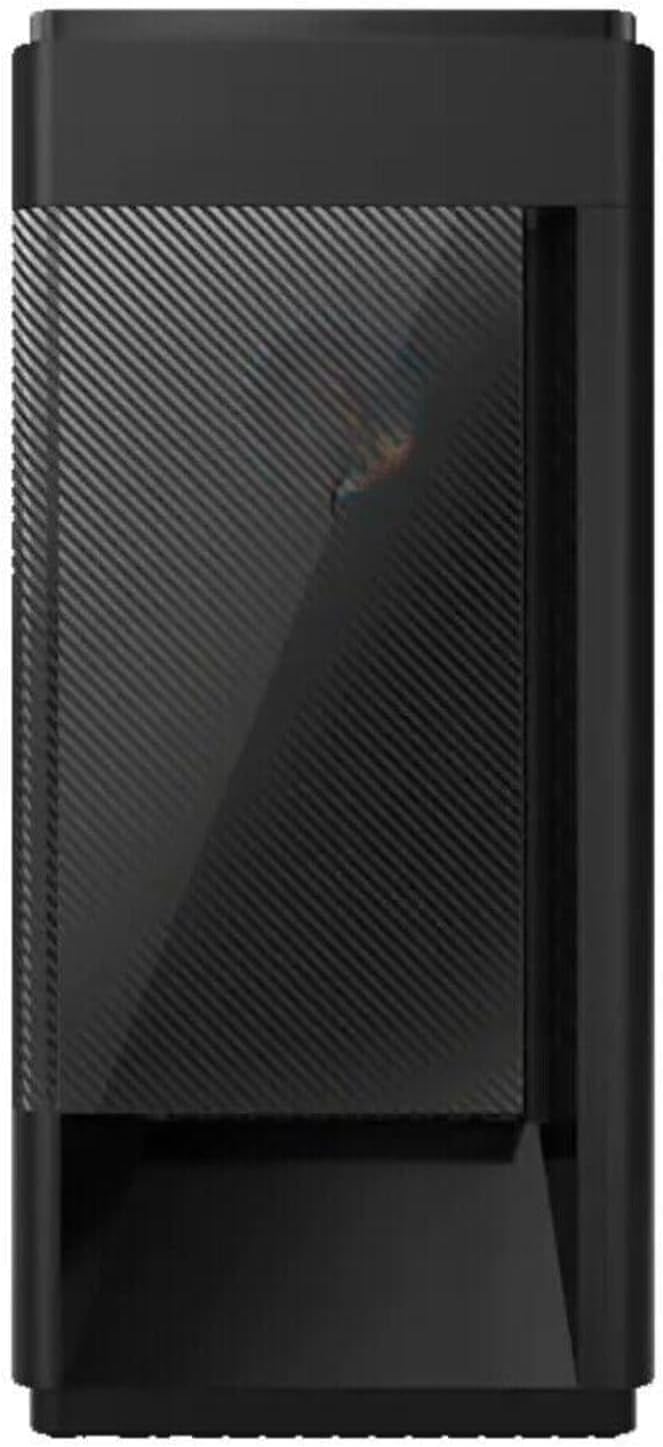
Figure 1.1: Front view of the Lenovo Legion T5 28IMB05 Tower Desktop, showcasing its sleek black design and patterned front panel.
2. Setup Guide
Follow these steps to set up your Lenovo Legion T5 28IMB05 Tower Desktop.
2.1 Unpacking
- Carefully remove the desktop and all accessories from the packaging.
- Verify that all components listed in the packing slip are present.
- Retain the packaging for future transport or service.
2.2 Connecting Peripherals

Figure 2.1: Angled front view of the desktop, highlighting the illuminated Legion logo and front panel design.
- Power Cable: Connect the power cable to the power input on the rear of the desktop and then to a grounded electrical outlet.
- Monitor: Connect your monitor to one of the available video output ports (HDMI, DisplayPort) on the graphics card located at the rear of the desktop.
- Keyboard and Mouse: Connect your keyboard and mouse to any available USB ports on the front or rear of the desktop.
- Network: For a wired connection, connect an Ethernet cable from your router or modem to the Ethernet port on the rear of the desktop. For wireless, ensure your Wi-Fi antenna is connected (if applicable) or that the internal Wi-Fi is enabled.
- Audio: Connect speakers or headphones to the audio output jacks.
2.3 Initial Power-On
- Ensure all cables are securely connected.
- Press the power button located on the top front of the desktop.
- The system will boot up, and you will be guided through the Windows 10 Home initial setup process. Follow the on-screen instructions to configure your operating system, user accounts, and network settings.
3. Operating Your Desktop
This section covers basic operation and usage of your Lenovo Legion T5 28IMB05.
3.1 Windows 10 Home Basics
Your desktop comes pre-installed with Windows 10 Home. Familiarize yourself with the Windows interface, including the Start Menu, Taskbar, and File Explorer.
3.2 Installing Software and Drivers
- Software: Install applications from trusted sources.
- Drivers: Ensure all hardware drivers are up-to-date for optimal performance. You can check for updates via Windows Update or by visiting the official Lenovo support website.
3.3 Shutting Down and Restarting
Always shut down your desktop properly to prevent data corruption. Click the Start button, then Power, and select Shut down or Restart.
4. Maintenance and Care
Regular maintenance helps ensure the longevity and optimal performance of your desktop.
4.1 Cleaning
- Exterior: Use a soft, damp cloth to clean the exterior surfaces. Avoid harsh chemicals.
- Vents: Regularly check and clean the air vents to prevent dust buildup, which can impede airflow and cause overheating. Use compressed air to gently clear dust from the vents.

Figure 4.1: Side view of the desktop, displaying the 'LEGION' branding and side ventilation.
4.2 Software Maintenance
- Windows Updates: Keep your operating system updated by regularly checking for and installing Windows Updates.
- Driver Updates: Ensure your graphics card and other hardware drivers are updated from the manufacturer's websites (Nvidia, Lenovo).
- Antivirus Software: Use reputable antivirus software and keep its definitions updated to protect against malware.
- Disk Cleanup: Periodically run Disk Cleanup to remove temporary files and free up storage space.
5. Troubleshooting
This section addresses common issues you might encounter and their potential solutions.
5.1 No Power
- Ensure the power cable is securely connected to both the desktop and the electrical outlet.
- Check if the power outlet is functional by plugging in another device.
- Verify that the power supply unit (PSU) switch on the back of the desktop is in the 'ON' position.
5.2 No Display on Monitor
- Confirm the monitor's power cable is connected and the monitor is turned on.
- Ensure the video cable (HDMI/DisplayPort) is securely connected to both the desktop's graphics card and the monitor.
- Check the monitor's input source setting to ensure it matches the port you are using (e.g., HDMI 1, DisplayPort).
- Try connecting the monitor to a different video output port on the graphics card, if available.
5.3 Slow Performance
- Close unnecessary applications running in the background.
- Check Task Manager (Ctrl+Shift+Esc) for high CPU, RAM, or disk usage by specific processes.
- Ensure your operating system and drivers are up-to-date.
- Run a full system scan with your antivirus software.
- Ensure adequate ventilation to prevent thermal throttling.
6. Technical Specifications
Below are the detailed specifications for the Lenovo Legion T5 28IMB05 Tower Desktop:
| Feature | Specification |
|---|---|
| Processor | Intel Core i5-10400 (6 cores, 4.3 GHz max turbo) |
| RAM | 16 GB DDR SDRAM |
| Storage | 256 GB SSD + 1 TB HDD |
| Graphics Coprocessor | Nvidia GeForce GTX 1660 Super (6GB GDDR6) |
| Operating System | Windows 10 Home |
| Hardware Platform | PC |
| Product Dimensions (LxWxH) | 16.73 x 6.69 x 14.65 inches |
| Connectivity Technology | Bluetooth, Wi-Fi |
| First Available Date | May 19, 2024 |
7. Warranty and Support
For detailed warranty information, technical support, and service inquiries, please visit the official Lenovo support website. You will typically need your product's serial number, which can be found on a label on the desktop chassis.
Lenovo Support Website: https://support.lenovo.com/
Always refer to the official Lenovo resources for the most accurate and up-to-date support information.