
Introduction
Thank you for choosing the AirKing HEPA 13 Air Purifier. This device is designed to significantly improve your indoor air quality by effectively removing airborne particles, allergens, and odors. Equipped with a HEPA 13 filter, activated carbon filter, UV-C light, and an ionizer, it targets up to 99% of bacteria and harmful substances, providing a healthier living environment. Please read this manual thoroughly before operating the device to ensure safe and optimal performance.

Image: The AirKing Air Purifier, a sleek black cylindrical unit, positioned in a modern living room next to a wooden cabinet and a comfortable armchair, demonstrating its aesthetic integration into a home environment.
Safety Instructions
- Always unplug the air purifier before cleaning, maintenance, or when not in use for extended periods.
- Do not operate the device with a damaged cord or plug. Contact customer support for assistance.
- Keep the air purifier away from water or other liquids. Do not use it in wet environments like bathrooms.
- Ensure proper ventilation around the unit. Do not block air inlets or outlets.
- This appliance is not intended for use by persons (including children) with reduced physical, sensory or mental capabilities, or lack of experience and knowledge, unless they have been given supervision or instruction concerning use of the appliance by a person responsible for their safety.
- Do not insert any objects into the air inlets or outlets.
- Use only original AirKing replacement filters.
- Do not attempt to repair or modify the device yourself. Refer all servicing to qualified personnel.
Product Overview
Components
- Main Air Purifier Unit
- HEPA 13 + Activated Carbon Filter (pre-installed or separately packaged)
- Power Cord
- User Manual (this document)
Control Panel and Indicators
The AirKing Air Purifier features an intuitive touchscreen control panel located on the top of the unit. It also includes an air quality indicator light that changes color based on the current air quality.

Image: A detailed diagram illustrating the top control panel of the AirKing Air Purifier. It shows various touch buttons including Power, Timer, UV-C, Light, Ionizer, Speed, Filter Reset, Auto Mode, and WiFi, along with an air quality indicator light and a digital display for PM2.5 levels and filter life.
- Power Button: Turns the device on or off.
- Timer Button: Sets the operating timer (1-12 hours).
- UV-C Button: Activates or deactivates the UV-C sterilization function.
- Light Button: Adjusts the brightness of the display lights (normal/dim).
- Ionizer Button: Turns the ionizer function on or off.
- Speed Button: Adjusts the fan speed (3 levels).
- Filter Button: Indicates filter life and resets the filter timer after replacement.
- Auto Button: Activates automatic mode, adjusting fan speed based on air quality.
- WiFi Button: Initiates WiFi pairing for app control.
- Air Quality Indicator Light: Changes color to reflect current air quality (e.g., Blue for Perfect, Green for Good, Orange for Moderate, Red for Bad).
Setup
- Unpack the Air Purifier: Carefully remove the air purifier and all packaging materials from the box.
- Install/Check Filter: The HEPA 13 + Activated Carbon filter is typically pre-installed. Open the filter compartment (usually at the bottom or back) and ensure the filter is unwrapped from any protective plastic bag before use. Close the compartment securely.
- Placement: Place the air purifier on a flat, stable surface. Ensure there is at least 20 cm (8 inches) of clear space around all sides for optimal air circulation. The compact design allows for placement in various room sizes up to 45 m².
- Connect Power: Plug the power cord into the air purifier and then into a standard electrical outlet. The unit will enter standby mode.

Image: A close-up view of the AirKing Air Purifier, highlighting its integrated brown leather handle, designed for convenient portability and easy relocation within your home.
Operating Instructions
Basic Operation
- Power On/Off: Touch the Power Button to turn the air purifier on. Touch it again to turn it off.
- Adjust Fan Speed: With the unit on, touch the Speed Button repeatedly to cycle through the 3 available fan speeds (Low, Medium, High).
- Auto Mode: Touch the Auto Button to activate automatic mode. In this mode, the air purifier will automatically adjust its fan speed based on the detected air quality.
- UV-C Function: Touch the UV-C Button to turn the UV-C sterilization light on or off.
- Ionizer Function: Touch the Ionizer Button to activate or deactivate the ionizer.
- Set Timer: Touch the Timer Button repeatedly to set the desired operating time (e.g., 1 hour, 2 hours, up to 12 hours). The unit will automatically turn off after the set time.
- Dim Display Lights: Touch the Light Button to dim the display lights, which is particularly useful during sleep.
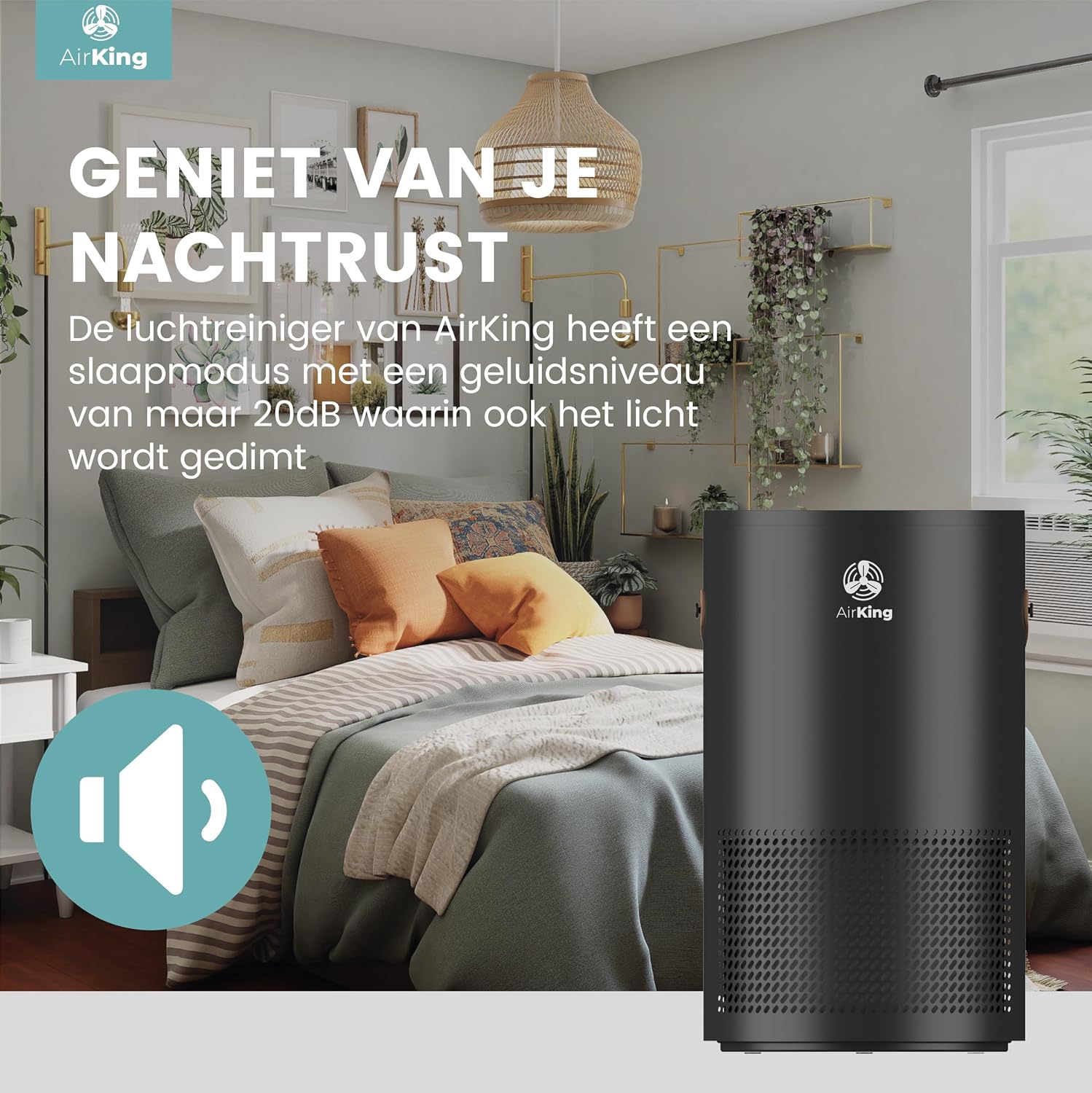
Image: The AirKing Air Purifier positioned in a serene bedroom setting, with a prominent sound icon indicating its quiet operation. This illustrates the device's sleep mode feature, designed for undisturbed rest.
Sleep Mode
The air purifier features a dedicated sleep mode. When activated (often by selecting the lowest fan speed or a specific button, refer to the control panel diagram), the unit operates at its quietest setting (as low as 28dB) and dims its display lights to ensure an undisturbed night's sleep.
SmartLife App Connection
For enhanced control and monitoring, you can connect your AirKing Air Purifier to the SmartLife app.
- Download the SmartLife app from your smartphone's app store.
- Register or log in to your SmartLife account.
- On the air purifier, press and hold the WiFi Button until the WiFi indicator light starts blinking, indicating pairing mode.
- Follow the in-app instructions to add your device. You may need to scan a QR code (often found on the device or in the manual) or manually select the device type.
- Once connected, you can monitor air quality, adjust settings, and set schedules remotely via the app.

Image: A person holding a smartphone that displays the SmartLife app interface, showing real-time air quality data (PM2.5 level, indoor air quality rating) and control options for the AirKing Air Purifier, including power, fan speed, and timer settings. A QR code for app download is visible in the corner.
Maintenance
Filter Replacement
The HEPA 13 + Activated Carbon filter has a limited lifespan and needs to be replaced periodically to maintain optimal performance. The filter life indicator on the control panel will alert you when a replacement is due.
- Unplug the air purifier from the power outlet.
- Open the filter compartment (refer to your specific model's design for location, usually bottom or back).
- Remove the old filter and dispose of it properly.
- Insert the new AirKing HEPA 13 + Activated Carbon filter, ensuring it is correctly oriented.
- Close the filter compartment securely.
- Plug the air purifier back in.
- Press and hold the Filter Button for 3-5 seconds to reset the filter life indicator.
Cleaning the Unit
- Wipe the exterior of the air purifier with a soft, dry cloth.
- Do not use abrasive cleaners, waxes, or solvents.
- Gently vacuum the air inlets and outlets to remove dust accumulation.
Troubleshooting
| Problem | Possible Cause | Solution |
|---|---|---|
| Air purifier does not turn on. | No power supply. | Check if the power cord is securely plugged into the unit and the outlet. Try a different outlet. |
| Poor air purification performance. | Filter is dirty or expired. | Replace the filter and reset the filter life indicator. |
| Unusual noise during operation. | Obstruction in fan or loose filter. | Unplug the unit and check for any foreign objects. Ensure the filter is correctly installed. |
| Cannot connect to SmartLife app. | Incorrect WiFi password or network issues. | Ensure you are using a 2.4GHz WiFi network. Re-enter WiFi password. Restart the air purifier and your router. |
| Air quality indicator always red/orange. | High pollution levels or sensor issue. | Ensure the room is well-ventilated initially. Clean the air quality sensor (refer to specific model instructions if available). If problem persists, contact support. |
Specifications
- Model: AKPU01BK
- Dimensions: 28 x 28 x 40 cm (D x W x H)
- Weight: 3.4 kg
- Color: Black
- Power Source: Electric with cord
- Wattage: 50W
- Noise Level: 28 - 52 dB
- CADR (Clean Air Delivery Rate): 230 m³/h
- Suitable Room Size: Up to 45 m²
- Filter Type: HEPA 13 + Activated Carbon
- Special Features: UV-C Filter, Ionizer, Sleep Mode, Touchscreen Control, SmartLife App Control, 3 Fan Speeds
- Certification: CE

Image: A diagram illustrating the physical dimensions of the AirKing Air Purifier, showing a height of 40 cm and a width/depth of 23 cm, providing a clear visual reference for its compact size.
Warranty and Support
Warranty Information
The AirKing HEPA 13 Air Purifier comes with a 2-year warranty from the date of purchase, covering manufacturing defects. Please retain your proof of purchase for warranty claims.
Return Policy
You are eligible for a return within 30 days of your purchase, subject to the retailer's return policy.
Customer Support
Should you have any questions, comments, or require assistance with your AirKing Air Purifier, please do not hesitate to contact AirKing customer support. Contact details can typically be found on the AirKing official website or through your retailer.