
DOOGEE SPUNK-Q2
DOOGEE S Punk Rugged Smartphone User Manual
Model: SPUNK-Q2
Introduction
This manual provides essential information for the safe and efficient operation of your DOOGEE S Punk Rugged Smartphone. Please read it thoroughly before using the device to ensure proper functionality and to prevent damage.
The DOOGEE S Punk is designed for durability and performance, featuring a robust build, powerful battery, and advanced camera capabilities, suitable for various environments and uses.
Package Contents
Upon opening the package, please verify that all items listed below are present:
- 1 x DOOGEE S Punk Cellphone
- 1 x Type-C USB Cable
- 1 x Charger (33W)
- 1 x Packing Box / Manual / Warranty Card

Image: The DOOGEE S Punk smartphone shown with its included Type-C USB cable and 33W charger.
Setup Guide
1. SIM Card and TF Card Installation
The DOOGEE S Punk supports dual nano SIM cards or one nano SIM card and one TF (microSD) card for expandable storage up to 1TB.
- Locate the SIM card tray on the side of the phone.
- Insert the SIM ejector tool (not included, but typically comes with SIM cards or can be a paperclip) into the small hole next to the tray and push gently until the tray pops out.
- Place your nano SIM card(s) and/or TF card into the designated slots on the tray, ensuring correct orientation.
- Carefully push the tray back into the phone until it is flush with the device body.

Image: Close-up view of the DOOGEE S Punk showing the dual SIM card tray slot.
2. Initial Charging
Before first use, it is recommended to fully charge your DOOGEE S Punk. The device features a 10800mAh battery with 33W fast charging support.
- Connect the Type-C USB cable to the charging port at the bottom of the phone.
- Connect the other end of the USB cable to the provided 33W charger.
- Plug the charger into a power outlet.
- The charging indicator on the screen will show the charging status. A full charge from 0% takes approximately 180 minutes.

Image: The DOOGEE S Punk connected to its 33W fast charger, illustrating the rapid charging capability.
3. Powering On/Off
- To Power On: Press and hold the Power button (located on the right side of the phone) until the DOOGEE logo appears on the screen.
- To Power Off: Press and hold the Power button until the power options menu appears. Tap "Power off" and confirm.
- To Restart: From the power options menu, tap "Restart" and confirm.
Operating Instructions
Display and Navigation
The DOOGEE S Punk features a 6.58-inch FHD+ IPS display with a resolution of 1080*2408 pixels and 400 nits brightness, ensuring clear visibility even in sunlight. Navigate the Android 14 operating system using touch gestures.

Image: The 6.58-inch FHD+ display of the DOOGEE S Punk, showcasing its vibrant screen quality.
Camera Functions
Capture high-quality photos and videos with the 50MP AI main camera and 16MP front camera. The phone also includes a 2MP macro camera for detailed close-up shots.
- Rear Camera: 50MP AI Main Camera + 2MP Macro Camera.
- Front Camera: 16MP.
- Shooting Modes: Panorama, Portrait, Macro, Beauty, AI Camera, Mono, Pro Mode, Intelligent Scanning, Night View.

Image: Overview of the DOOGEE S Punk's camera setup, highlighting the 50MP main and 16MP front cameras.
Audio and Intelligent Lights
Experience powerful audio with the 4W super speaker, delivering up to 126 dB volume. The intelligent interaction lights on the back of the phone can be customized to respond to incoming calls, music playback, SMS notifications, and charging status, adding a dynamic visual element.
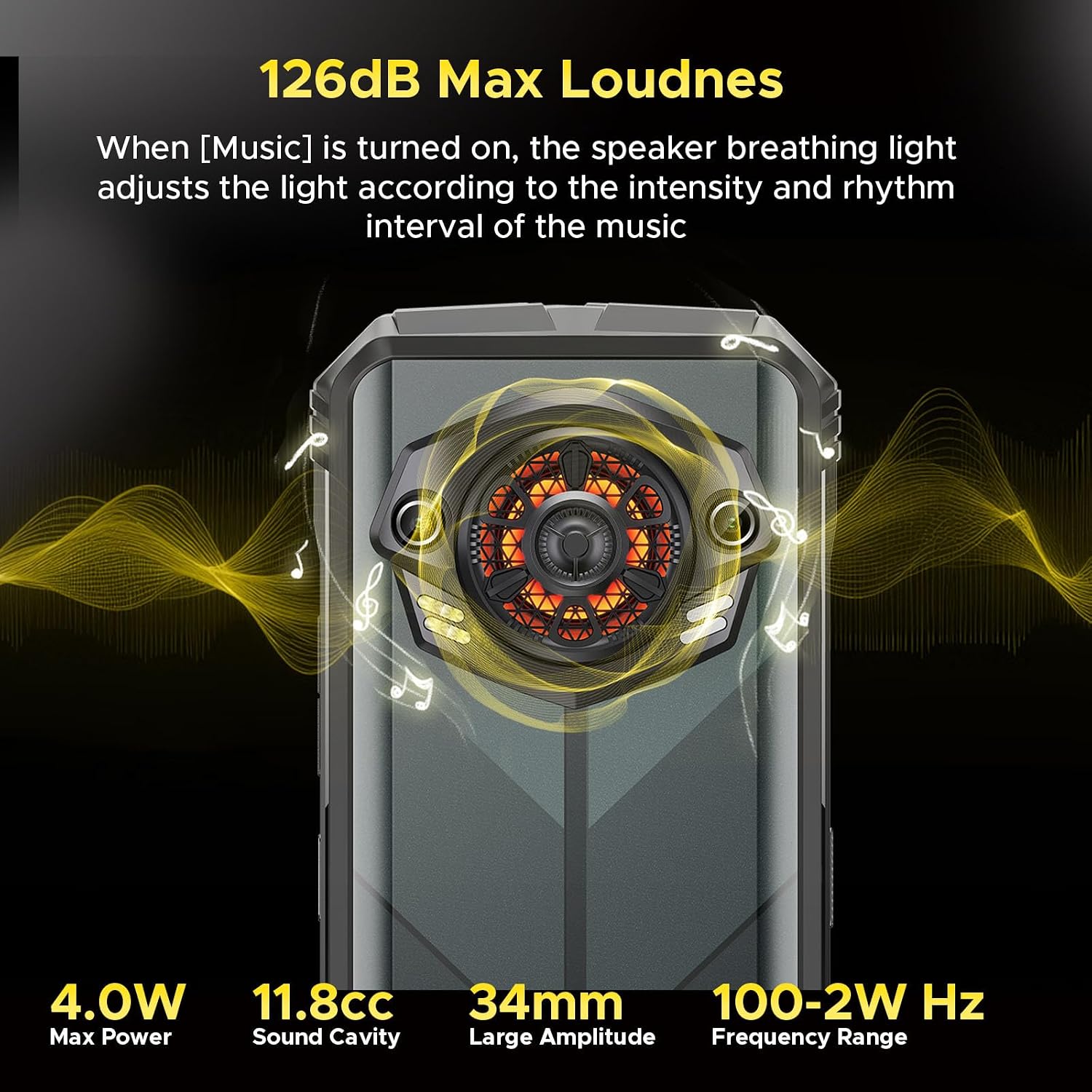
Image: Illustration of the DOOGEE S Punk's 126dB super speaker and the customizable intelligent interaction lights on the rear.

Image: The intelligent interaction lights on the DOOGEE S Punk displaying various color options and their rhythmic response to music.
Connectivity and Security
- Dual SIM: Supports two 4G nano SIM cards for flexible network usage.
- NFC: For contactless payments (Google Pay) and quick data transfer.
- OTG: On-The-Go support allows the phone to act as a power bank for other devices (OTG cable not included).
- GPS: Integrated GPS, GLONASS, Galileo, and Beidou for precise location tracking.
- Unlock Methods: Secure your device with face unlock or the side-mounted fingerprint recognition sensor.

Image: A collage showing various connectivity and security features of the DOOGEE S Punk, such as GPS navigation, side fingerprint recognition, Wi-Fi, Dual 4G SIM, and NFC support.
Maintenance and Durability
The DOOGEE S Punk is built to withstand harsh environments, certified with IP68, IP69K, and MIL-STD-810H standards.
- Waterproof: IP68 rated, submersible up to 1.5 meters for 30 minutes.
- Dustproof: IP69K rated, fully protected against dust ingress.
- Drop-proof: MIL-STD-810H compliant, withstands drops from up to 1.5 meters.
- Temperature Resistance: Operates reliably in temperatures ranging from -20°C to 55°C.

Image: Visual representation of the DOOGEE S Punk's rugged features, including drop-proof, dust-resistance, and IP68 waterproof capabilities, along with its wide operating temperature range.
Cleaning Your Device
To maintain the device's appearance and functionality, clean it regularly:
- Use a soft, lint-free cloth to wipe the screen and body.
- For stubborn dirt, slightly dampen the cloth with water. Avoid harsh chemicals or abrasive materials.
- Ensure all ports are dry before charging or connecting accessories, especially after exposure to water.
Battery Care
To maximize battery lifespan:
- Avoid exposing the phone to extreme temperatures (above 55°C or below -20°C) for prolonged periods.
- Use only the original charger and cable provided with the device.
- Do not fully discharge the battery frequently. Charge it before it drops to very low levels.
Troubleshooting
If you encounter issues with your DOOGEE S Punk, refer to the following common solutions:
Device Not Powering On
- Ensure the battery is charged. Connect the charger and wait a few minutes before attempting to power on.
- Press and hold the Power button for at least 10-15 seconds to force a restart.
Poor Network Connection / No Signal
- Check if the SIM card is correctly inserted.
- Verify that your carrier supports the phone's network bands (FDD: B1/2/3/4/5/7/8/18/19/20/25/26/28AB/66, TDD: B34/38/39/40/41, WCDMA: B1/2/4/5/8, GSM: B2/B3/B5/B8). Note: AT&T is not supported.
- Move to an area with better network coverage.
- Restart the phone.
Applications Freezing or Crashing
- Close and reopen the problematic application.
- Clear the app's cache and data in Settings > Apps.
- Ensure all applications and the phone's operating system are updated to the latest version.
- If issues persist, consider a factory reset (back up your data first).
Charging Issues
- Ensure the charging cable and adapter are securely connected and undamaged.
- Try a different power outlet.
- Clean the charging port gently with a soft brush to remove any debris.
- If the phone was recently exposed to water, ensure the charging port is completely dry before attempting to charge.
Specifications
| Feature | Detail |
|---|---|
| Model Name | SPUNK-Q2 |
| Operating System | Android 14 |
| Processor | Octa-core, 1.6 GHz |
| RAM | 16 GB (6GB + 10GB virtual memory) |
| Internal Storage | 256 GB |
| Expandable Storage | Up to 1 TB via TF card |
| Display Size | 6.58 Inches FHD+ IPS |
| Display Resolution | 1080 x 2408 pixels |
| Brightness | 400 nits |
| Rear Camera | 50MP AI Main Camera + 2MP Macro Camera |
| Front Camera | 16MP |
| Battery Capacity | 10800 mAh |
| Charging | 33W Fast Charging |
| Speaker | 4W Super Speaker, 126 dB Max Loudness |
| Durability | IP68, IP69K, MIL-STD-810H |
| Connectivity | 4G Dual SIM, Wi-Fi, Bluetooth, NFC, OTG |
| Navigation | GPS, GLONASS, Galileo, Beidou |
| Dimensions | 7 x 3.26 x 0.7 inches |
| Weight | 9.2 ounces (262 grams) |
Warranty and Support
DOOGEE offers comprehensive support for your S Punk smartphone:
- Warranty: Your mobile phone is entitled to a 2-year free warranty.
- Returns: 30 days no-reason refund policy.
- Customer Service: Professional team available to solve any issues you may encounter.
For further assistance, please refer to the warranty card included in your package or visit the official DOOGEE support website.
Related documentsSPUNK-Q2


Ask a question about this manual
Ask about setup, troubleshooting, compatibility, parts, safety, or missing instructions. Manuals+ will review the question and use this page’s manual context to help answer it.