
1. Introduction
Thank you for choosing the WESTTREE Solar Fan X98 Black. This versatile device combines a powerful fan, an LED lantern, and a power bank, making it an essential companion for outdoor activities such as camping, travel, and fishing, as well as for indoor use. Designed for portability and durability, the X98 Black offers multiple charging options and adjustable settings to ensure comfort and convenience.
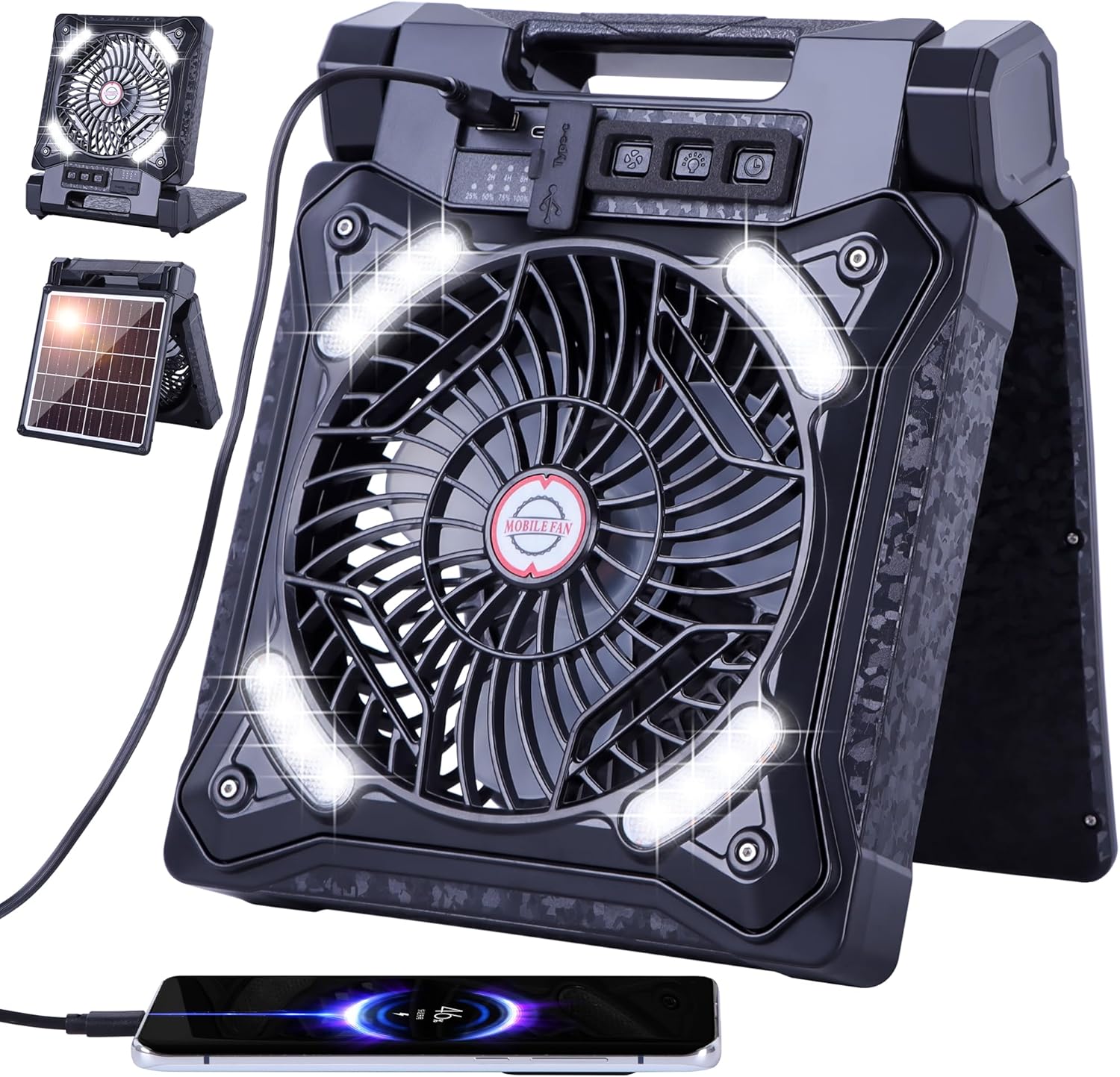
Figure 1.1: Overview of the WESTTREE Solar Fan X98 Black, highlighting its multi-functional design.
2. Product Features
- 90° Adjustable Angle: The fan can be adjusted from 0-90° to direct airflow precisely where needed. Constructed from durable ABS material, it is designed to withstand heavy impacts, making it suitable for rugged outdoor environments.
- Dual Charging Options: Features a built-in monocrystalline solar panel for solar charging and a USB-C port for rapid charging. A full charge via USB-C takes approximately 3 hours.
- Powerful Airflow & Long Battery Life: Equipped with an advanced brushless motor and ultra-thin fan blades, providing strong airflow across 4 speed settings. Operates for up to 50 hours on the lowest speed and 16 hours on the highest speed.
- Ultra Bright LED Lantern: Integrated LED light with 3 brightness settings, offering bright yet soft illumination for night camping or hiking.
- Timer Function: Includes 2-hour, 4-hour, and 8-hour timer settings for convenient operation, especially useful for sleep.
- Power Bank Functionality: Features USB-A and USB-C output ports to charge other devices, such as smartphones and tablets.

Figure 2.1: The fan's dual charging capabilities, featuring a solar panel for outdoor charging and a USB-C port for faster indoor charging.

Figure 2.2: Visual representation of the fan's four speed settings and their respective operating durations.

Figure 2.3: The integrated LED light showcasing its three adjustable brightness levels.
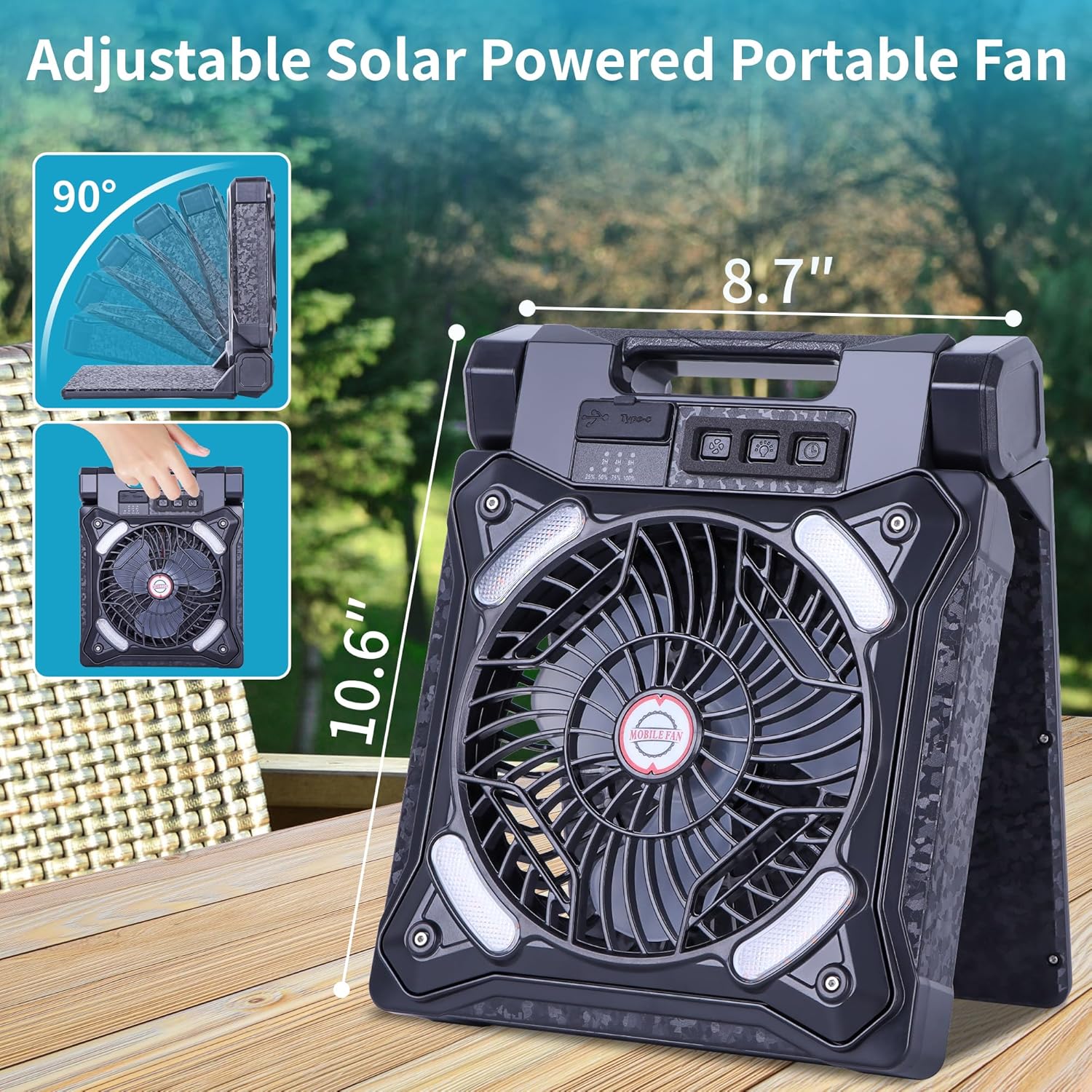
Figure 2.4: The fan's adjustable design and compact form factor, emphasizing its ease of transport.
3. Package Contents
- 1 x WESTTREE Solar Fan X98 Black
- 1 x USB-C Cable
- 1 x User Manual (This Document)
4. Setup
- Unpack: Carefully remove all components from the packaging.
- Initial Charge: For optimal performance, fully charge the fan before first use. Connect the included USB-C cable to the fan's USB-C port and plug the other end into a compatible USB power adapter (not included). The battery indicator lights will show charging progress. A full charge takes approximately 3 hours.
- Positioning: The fan features a foldable design allowing it to stand upright. Adjust the angle (0-90°) to suit your needs. Ensure the fan is placed on a stable, flat surface.
5. Operating Instructions
5.1 Fan Operation
The fan has 4 speed settings. The battery indicator lights (25%, 50%, 75%, 100%) will illuminate to show the current battery level.
- Power On/Adjust Speed: Press the fan button (usually indicated by a fan icon) repeatedly to cycle through the 4 speed settings (Natural Wind, Low Wind, Mid Wind, High Wind).
- Power Off: Continue pressing the fan button until the fan turns off, or press and hold the button for a few seconds.
5.2 LED Lantern Operation
The integrated LED lantern has 3 brightness settings.
- Turn On/Adjust Brightness: Press the light button (usually indicated by a light bulb icon) repeatedly to cycle through the 3 brightness settings (Low White Light, Middle White Light, High White Light).
- Turn Off: Continue pressing the light button until the light turns off, or press and hold the button for a few seconds.
5.3 Timer Function
Set a timer for the fan to automatically turn off.
- Set Timer: Press the timer button (usually indicated by a clock icon) repeatedly to select a timer duration: 2 hours, 4 hours, or 8 hours. Corresponding indicator lights will illuminate.
- Cancel Timer: Press the timer button until no timer indicator lights are illuminated.
5.4 Power Bank Function
Use the fan's built-in battery to charge other electronic devices.
- Connect Device: Open the protective cover over the USB ports. Connect your device's charging cable to either the USB-A or USB-C output port on the fan.
- Charging: The fan will automatically begin charging your device. Monitor your device's screen for charging status.
- Disconnect: Once charging is complete, disconnect your device and close the protective cover to prevent dust and moisture ingress.
5.5 Charging the Fan
The fan can be charged via solar power or USB-C.
- Solar Charging: Unfold the solar panel and place the fan in direct sunlight. The solar panel will convert sunlight into energy to charge the internal battery. This method is ideal for maintaining charge during outdoor use.
- USB-C Charging: For faster charging, connect the included USB-C cable to the fan's USB-C input port and a compatible USB power adapter. Charging takes approximately 3 hours.
6. Maintenance
- Cleaning: Use a soft, dry cloth to wipe down the fan's exterior. Do not use abrasive cleaners or immerse the unit in water. Ensure the fan is off and unplugged before cleaning.
- Storage: When not in use, fold the fan into its compact form and store it in a cool, dry place away from direct sunlight and extreme temperatures.
- Battery Care: To prolong battery life, avoid fully discharging the battery frequently. Recharge the fan regularly, even if not in active use.
7. Troubleshooting
| Problem | Possible Cause | Solution |
|---|---|---|
| Fan does not turn on. | Battery is depleted. | Charge the fan using the USB-C cable or solar panel. |
| Fan airflow is weak. | Fan is on a low speed setting. | Press the fan button to increase the speed. |
| LED light is dim or not working. | Battery is low; light setting is too low. | Charge the fan; press the light button to increase brightness. |
| Device not charging from power bank. | Fan battery is low; incorrect cable/port. | Ensure fan is charged; use correct USB-A or USB-C port and cable. |
| Solar charging is slow. | Insufficient direct sunlight. | Place the solar panel in direct, unobstructed sunlight for best results. |
8. Specifications
| Feature | Detail |
|---|---|
| Brand | WESTTREE |
| Model Name | X98 Black |
| Color | Black |
| Power Source | Solar & Battery Powered |
| Product Dimensions | 1"D x 1"W x 1"H (Folded) |
| Item Weight | 3.47 pounds |
| Wattage | 2.5 watts |
| Voltage | 5 Volts (DC) |
| Number of Fan Speeds | 4 |
| LED Light Brightness Levels | 3 |
| Timer Settings | 2-4-8 hours |
| Battery Type | Lithium Ion (included) |
| Charging Port | USB Type C |
| Output Ports | USB-A, USB-C |
| Material | Acrylonitrile Butadiene Styrene (ABS) |
| Indoor/Outdoor Usage | Outdoor |
9. Safety Information
Please read and follow all safety instructions to prevent injury or damage to the device.
- Do not disassemble, repair, or modify the device.
- Keep away from water and excessive moisture. This product is designed for outdoor use but is not waterproof.
- Avoid exposing the device to extreme temperatures (hot or cold) or direct flame.
- Do not insert fingers or foreign objects into the fan blades.
- Keep out of reach of children and pets.
- Use only the provided USB-C cable or a certified equivalent for charging.
- Dispose of the battery and device according to local regulations.
10. Warranty and Support
WESTTREE products are manufactured to the highest quality standards. For any questions or issues, please contact our customer support team via Amazon E-mail. We are committed to responding and resolving your problem within 24 hours.
Please retain your proof of purchase for warranty claims.
For further assistance, visit the WESTTREE brand store on Amazon or refer to the contact information provided with your purchase.
Note: Specific warranty details may vary. Please refer to the warranty card included with your product for complete terms and conditions.