
1. Introduction
This manual provides detailed instructions for the installation, operation, and maintenance of your Camcamp SC36C-005 4K PoE Security Camera System. This system features an 8-channel Network Video Recorder (NVR) and four 5MP Pan-Tilt-Zoom (PTZ) cameras, designed for comprehensive surveillance with advanced features like color night vision, motion tracking, and two-way audio.
2. Package Contents
Please verify that all items listed below are included in your package:
- 8-Port PoE NVR (1 unit)
- 5MP PTZ Cameras (4 units)
- NVR Power Adapter (1 unit)
- 60-foot PoE Network Cables (4 units)
- 3-foot Network Cable (1 unit)
- USB Mouse (1 unit)
- HDMI Cable (1 unit)
- User Manual (1 unit)
- Mounting Screw Kit (1 set)

Image: The complete Camcamp 4K PoE Security Camera System package, including the NVR, hard drive, and four PTZ cameras.
3. Setup Instructions
3.1 System Connection
- Connect Cameras to NVR: Use the provided 60-foot PoE network cables to connect each PTZ camera to the PoE ports on the NVR. The cameras will receive both power and data through these cables.
- Connect NVR to Power: Plug the NVR power adapter into the NVR's power input and then into a standard electrical outlet.
- Connect NVR to Monitor (Optional): For local viewing, connect the NVR to a monitor using the supplied HDMI cable. You can also use a VGA cable (not included).
- Connect NVR to Router: Use the 3-foot network cable to connect the NVR's WAN port to your home router. This enables remote access and app functionality.
- Connect USB Mouse: Plug the USB mouse into one of the NVR's USB ports for local control and navigation.

Image: A diagram illustrating the plug-and-play setup, connecting PoE cameras to the NVR and the NVR to a router.
3.2 App Installation and Remote Access
To access your security system remotely and receive alerts, download the "CloudEye365" application on your smartphone or tablet (iOS/Android) or PC.
- Download the "CloudEye365" app from your device's app store.
- Create an account and log in.
- Scan the QR code displayed on the NVR's monitor (or found on the NVR unit) to add your device to the app.
- Once added, you can view live feeds, playback recordings, and manage settings from your smart device.
4. Operating Instructions
4.1 Pan-Tilt-Zoom (PTZ) Control
The PTZ cameras can be controlled remotely via the CloudEye365 app or locally using the NVR interface. They offer:
- Pan: 270-degree horizontal rotation.
- Tilt: 90-degree vertical rotation.
- Zoom: Digital zoom for closer inspection.
This allows for a 360-degree field of view, eliminating blind spots.

Image: Illustration of the camera's pan and tilt capabilities, demonstrating its auto-tracking feature.
4.2 Two-Way Audio
Each camera is equipped with a built-in microphone and high-fidelity speaker, enabling two-way communication. This feature is accessible through the CloudEye365 app, allowing you to speak to individuals near the camera and hear their responses.
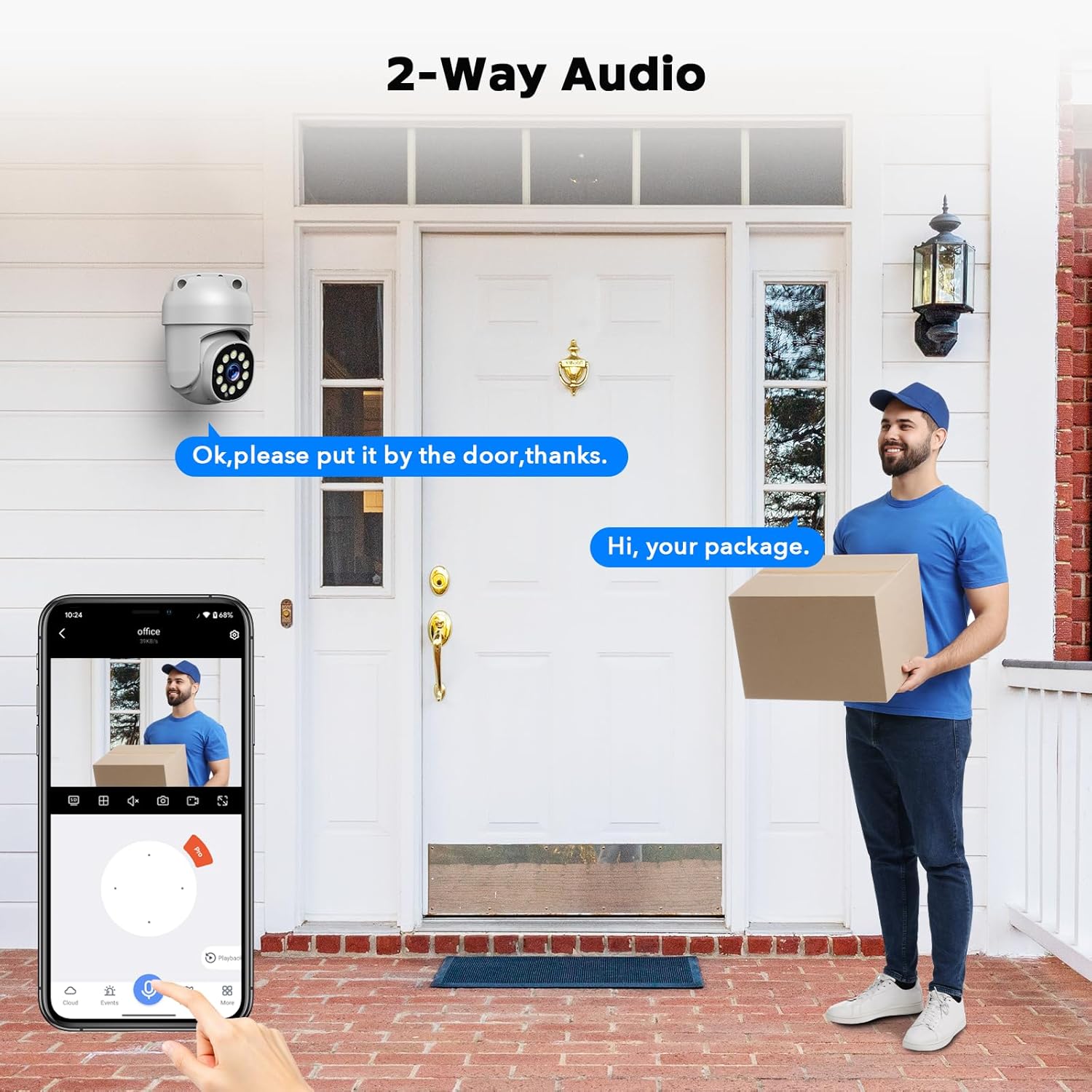
Image: A visual representation of the two-way audio function, showing interaction with a delivery person.
4.3 Recording and Storage
The system provides 24/7 continuous recording. The pre-installed 3TB hard drive stores all video data locally and securely. When the storage is full, the system automatically overwrites the oldest recordings. The NVR supports up to a 6TB HDD for extended storage.

Image: Conceptual graphic highlighting secure local storage and no monthly fees.
4.4 Motion Detection and Alerts
The system features intelligent motion detection, including human tracking. When suspicious movement is detected, the cameras can automatically:
- Track the subject: Automatically follow human or object movement within the surveillance area.
- Activate Spotlights: Turn on powerful spotlights to illuminate the area and deter intruders.
- Trigger Siren Alarm: Emit an audible siren to further deter potential threats.
- Send Instant Alerts: Push notifications to your smartphone via the CloudEye365 app and email alerts.

Image: Depiction of smart detection features, including spotlights, siren, and app alerts.
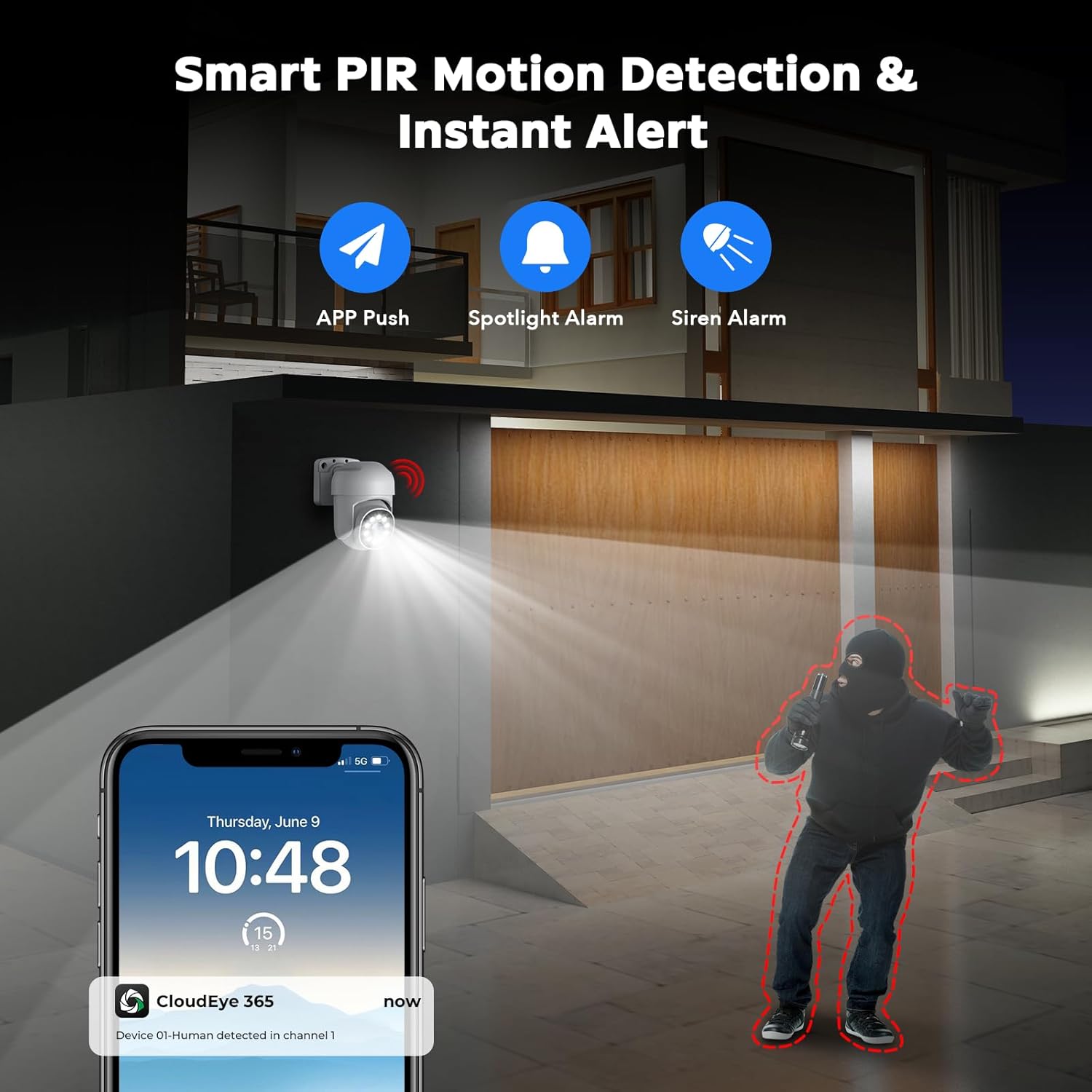
Image: A smartphone displaying a 'Human detected' alert from the CloudEye365 app, triggered by smart PIR motion detection.
4.5 Night Vision
The cameras provide clear surveillance even in low-light conditions with two night vision modes:
- Color Night Vision: Utilizes built-in white lights to provide full-color images in low light, making it easier to identify details like license plates up to 100 feet away.
- Infrared (IR) Night Vision: Uses infrared LEDs for clear black-and-white images in complete darkness.

Image: Visual comparison of daytime 4K clarity, color night vision, and infrared night vision.
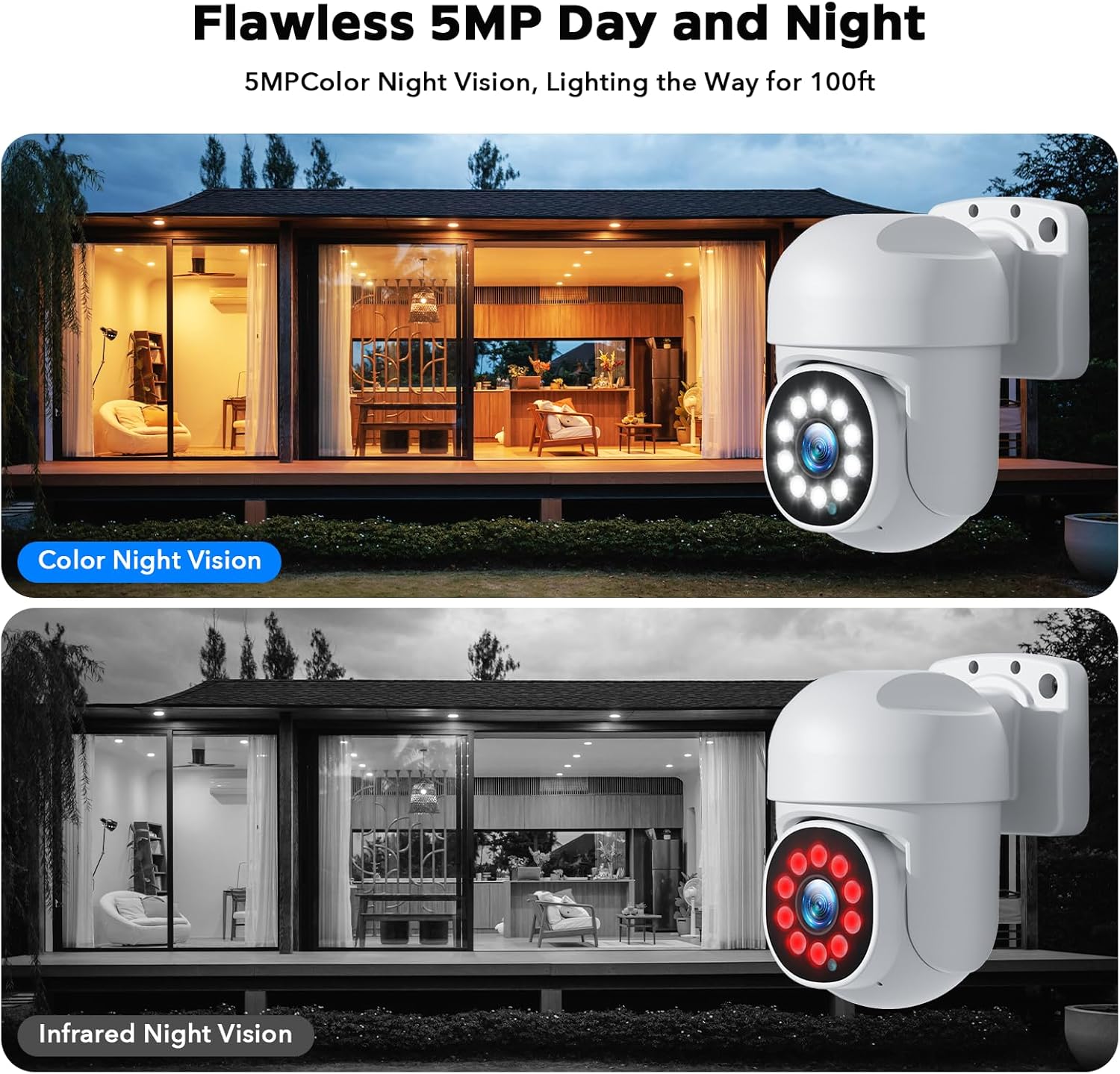
Image: Detailed view of 5MP color night vision and infrared night vision capabilities.

Image: Example of 5MP full-color night vision capturing a clear license plate with 5x digital zoom.
4.6 Local Viewing
The NVR supports HDMI output, allowing you to connect an external display for live viewing and playback of recordings without an internet connection. This ensures continuous monitoring even if your network is down.
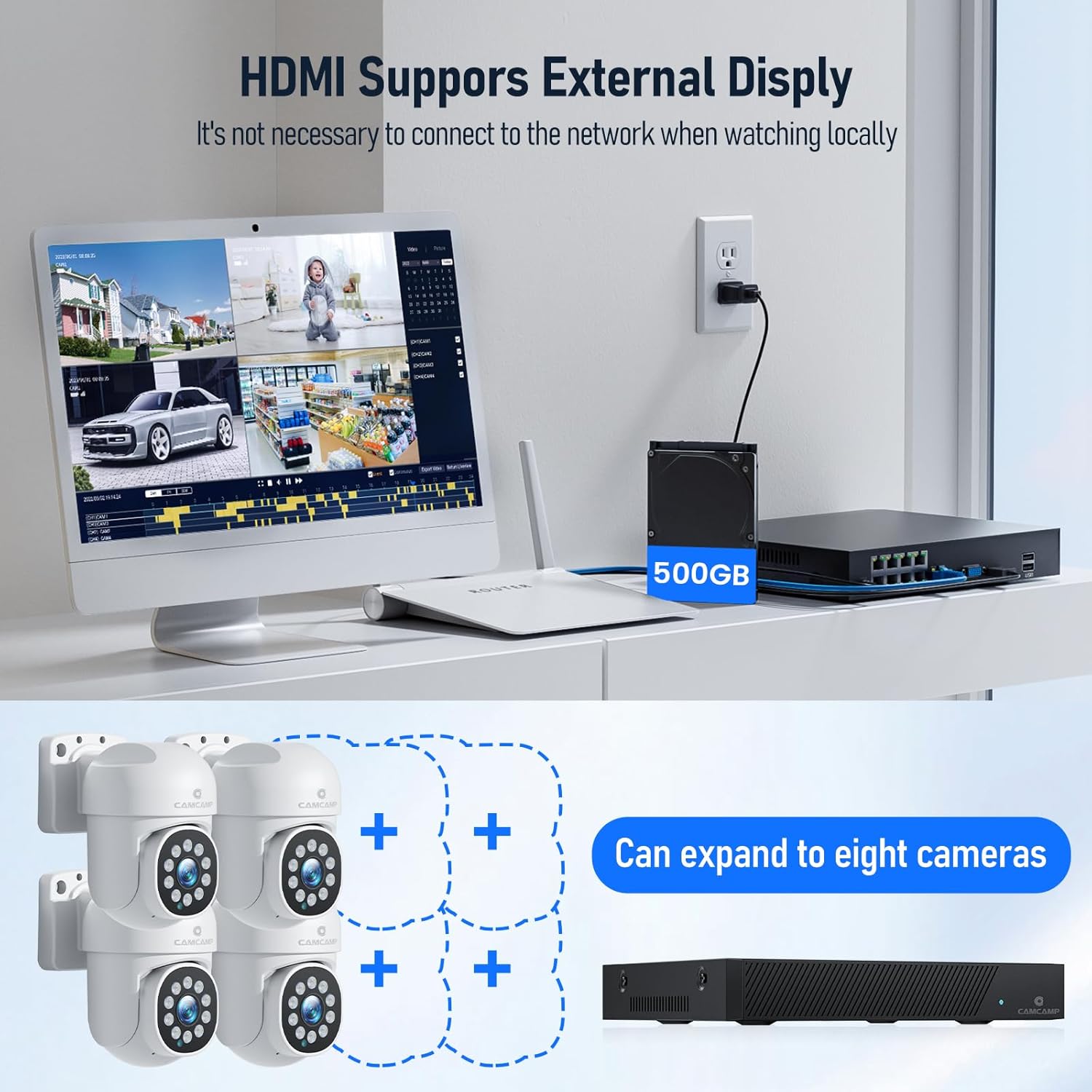
Image: The NVR connected to an external monitor via HDMI for local display, also showing the system's expandability to eight cameras.
5. Maintenance
5.1 Hard Drive Management
The 3TB hard drive is pre-installed and configured for continuous recording with automatic overwriting of old data. While the system is designed for minimal intervention, you can access NVR settings via the local interface or app to manage storage, view recording schedules, or format the drive if necessary. The NVR supports upgrading the HDD up to 6TB.
5.2 Weather Resistance
The cameras are rated IP66 weatherproof, making them suitable for both indoor and outdoor installation. They are designed to withstand various environmental conditions, including rain, snow, and extreme temperatures (from -20°C to 50°C).

Image: Visual examples of the camera's IP66 weather resistance in different environments and conditions.
6. Troubleshooting
- No Wi-Fi Connectivity: This system uses wired PoE cameras for a stable connection. The cameras cannot connect to 2.4G/5G Wi-Fi networks. Ensure all cameras are connected to the NVR via Ethernet cables. The NVR itself connects to your router via an Ethernet cable for internet access.
- Forgot NVR Password: If you forget your NVR administrator password, please contact Camcamp customer support for assistance. They can provide guidance on password recovery procedures.
- No Image/Video: Check all cable connections (PoE, HDMI, power). Ensure the NVR is powered on and cameras are receiving power through the PoE connection.
- App Connection Issues: Ensure your NVR is connected to your home router and has internet access. Verify your smartphone has a stable internet connection. Restart the app and NVR if necessary.
7. Specifications
| Feature | Specification |
|---|---|
| Model Number | SC36C-005 |
| Image Sensor | 1/3.2 inch CMOS |
| Max. Camera Resolution | 5MP (2880 x 1620 pixels) |
| NVR Channel Capacity | 8 Channels (supports up to 4K resolution cameras) |
| Lens | 3.6 mm Fixed |
| Video Compression | H.265/H.264 |
| Frame Rate | 15fps |
| Smart Alarm | PIR + Humanoid Motion Detection |
| Storage Capacity | 3TB HDD pre-installed (supports up to 6TB) |
| Connectivity Technology | Wired (PoE) |
| Power Source | Electric Cable |
| Voltage | 12 Volts |
| Wattage | 5 watts |
| Operating Temperature | -20°C to 50°C |
| Weather Resistance | IP66 |
| Product Dimensions | 18 x 20 x 21 cm; 6.09 kg |
8. Warranty and Support
Camcamp offers the following warranty and support for your security camera system:
- 30-Day Refund Policy: If you are not satisfied with your purchase, you may be eligible for a full refund within 30 days.
- 12-Month Replacement Warranty: The product is covered by a 12-month replacement warranty for manufacturing defects or malfunctions.
- Customer Support: For any technical issues, questions, or assistance with password recovery, please contact Camcamp customer service. Refer to the contact information provided in your package or on the official Camcamp website.


