
1. Introduction
Thank you for choosing the Rii Wireless Keyboard and Mouse Combo. This product is designed to provide a reliable and comfortable wireless input solution for your computer. This manual will guide you through the setup, operation, and maintenance of your new device.
2. Package Contents
- Wireless Mouse ×1
- Wireless Keyboard ×1
- USB Receiver ×1 (stored in the keyboard battery compartment)
- User Manual ×1
Note: AAA batteries for the keyboard and mouse are not included and must be purchased separately.
3. Specifications
| Feature | Detail |
|---|---|
| Brand | Rii |
| Color | WHITE |
| Connectivity Technology | 2.4G Wireless |
| Special Feature | Ergonomic Design |
| Compatible Devices | Windows XP / VISTA / 7 /8 /10; Mac OS; Chrome OS; Linux (Laptop, Desktop PC) |
| Product Dimensions (Keyboard) | 17.3 x 4.9 inches (43.9 x 12.5 cm) |
| Product Dimensions (Mouse) | 3.92 x 2.38 x 1.3 inches (10 x 6 x 3.5 cm) |
| Item Weight | 12.3 ounces (for the combo) |
| Mouse DPI | 1000 |
4. Setup Instructions
4.1. Battery Installation
- For the Keyboard: Open the battery compartment on the back of the keyboard. Insert 1 AAA battery (not included), ensuring correct polarity.
- For the Mouse: Open the battery compartment on the bottom of the mouse. Insert 2 AAA batteries (not included), ensuring correct polarity.

Figure 1: Battery compartments for the keyboard (1x AAA) and mouse (2x AAA). The USB receiver is located in the keyboard's battery slot.
4.2. Connecting the USB Receiver
- Locate the USB receiver. It is stored in the battery compartment of the keyboard.
- Plug the USB receiver into an available USB port on your computer.
- The keyboard and mouse are designed for plug-and-play functionality and should connect automatically. No additional drivers are typically required.
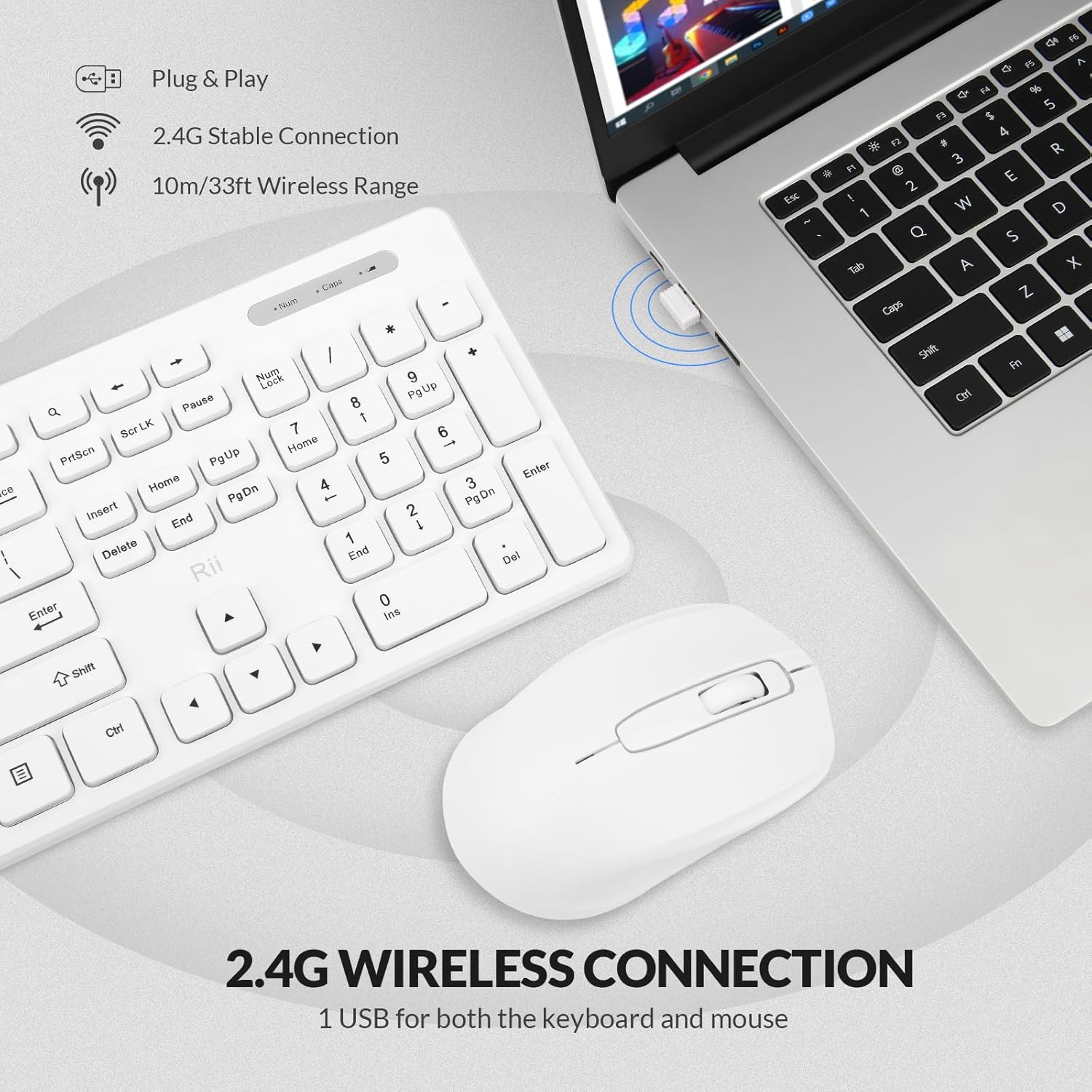
Figure 2: The 2.4G wireless USB receiver plugged into a laptop, enabling connection for both the keyboard and mouse.
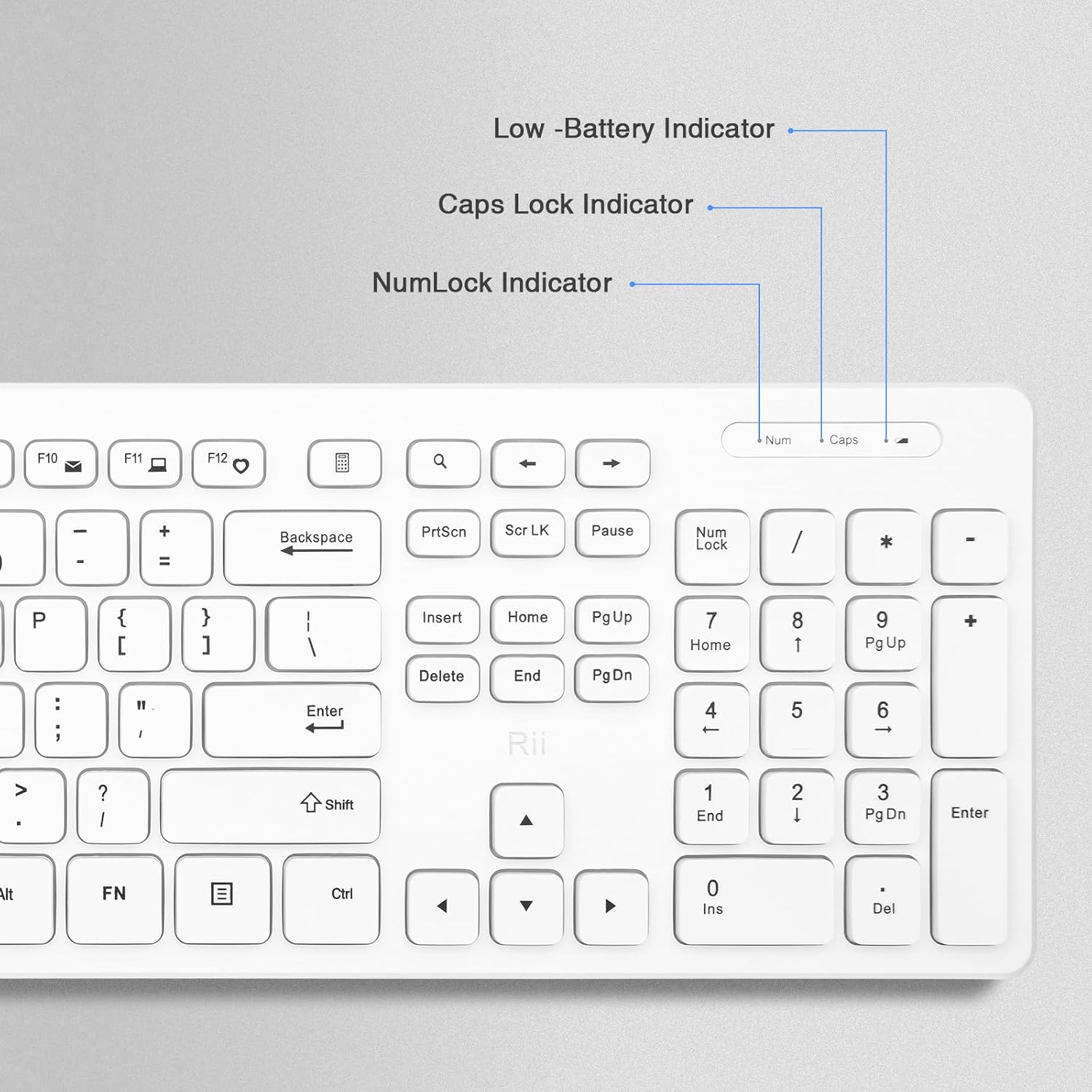
Figure 3: The Rii wireless keyboard and mouse, emphasizing the simple plug-and-play setup with a single USB receiver.
5. Operating Instructions
5.1. Keyboard Usage
- Standard Layout: The keyboard features a standard full-size layout with 104 keys, including a numeric keypad.
- Function Keys: It includes 12 easy-to-reach function keys (F1-F12) for quick access to various commands.
- Indicator Lights: The keyboard has indicator lights for Num Lock, Caps Lock, and a Low Battery warning.

Figure 4: Detail of the keyboard's indicator lights for Num Lock, Caps Lock, and Low Battery status.
5.2. Mouse Usage
- Optical Tracking: The mouse uses optical tracking for smooth and precise cursor movement on various surfaces.
- DPI Setting: The mouse has a fixed DPI of 1000 for balanced sensitivity.
- Ergonomic Design: The slim and ergonomic design provides comfortable use and reduces fatigue.
- Auto Sleep Mode: The mouse features an auto-sleep mode to conserve battery life. To wake it up, simply click any button (moving it will not wake it).

Figure 5: Exploded view of the Rii mouse, detailing its features including the scroll wheel, buttons, LED indicator, power switch, and battery compartment.
6. Maintenance
- Cleaning: Use a soft, dry cloth to clean the keyboard and mouse. For stubborn dirt, a slightly damp cloth can be used, but ensure no moisture enters the devices.
- Battery Replacement: Replace batteries when the low battery indicator on the keyboard illuminates, or when mouse movement becomes erratic. Always use fresh AAA batteries.
- Storage: When not in use for extended periods, remove batteries to prevent leakage and store the USB receiver in the keyboard's battery compartment.
7. Troubleshooting
7.1. Connection Issues (Keyboard & Mouse)
If your keyboard or mouse cannot be connected to your computer, try the following steps:
- Remove the batteries from both the keyboard and mouse.
- Unplug the USB receiver from your computer.
- Reinstall the batteries into the keyboard and mouse, ensuring correct polarity.
- Plug the USB receiver back into a different USB port on your computer.
- To pair the keyboard: Long press the ESC key and the K key simultaneously.
- To pair the mouse: Long press the Scroll button and the Right button simultaneously.
7.2. Mouse Not Waking Up
If the mouse enters sleep mode, it will not wake up by simply moving it. Click any button on the mouse to reactivate it.
7.3. Intermittent Connection
Ensure the USB receiver is within the recommended 10m/33ft wireless range and there are no significant obstructions between the devices and the receiver.
8. Warranty and Support
Rii provides friendly customer service and a worry-free 1-year product service for this keyboard and mouse kit. If you encounter any problems during use, please contact our support team for assistance. We are committed to helping you resolve any issues promptly.
For support, please refer to the contact information provided with your purchase or visit the official Rii website.
9. Additional Resources
9.1. Product Images


9.2. Product Videos
No official product videos from the seller were available for embedding based on the provided criteria.


