
1. Introduction
This manual provides detailed instructions for the installation, operation, and maintenance of your myGEKOgear Orbit T100 4-Channel 1080P Dash Cam System. This system is designed for trucks and other large vehicles, offering comprehensive video recording and monitoring capabilities with its 10.1-inch IPS screen and four 1080P cameras. Please read this manual thoroughly before using the product to ensure proper function and safety.
2. Package Contents
Verify that all items listed below are included in your package:
- 1 x Monitor Display
- 4 x Cameras
- 1 x Power cord
- 3 x 16.5 Ft (5m) camera cables
- 2 x 50 Ft (15m) camera cables

Image: The myGEKOgear Orbit T100 system, showing the 10.1-inch monitor and four individual cameras.
3. Product Overview
The myGEKOgear Orbit T100 is a robust dash camera system designed for comprehensive vehicle surveillance. It features a central 10.1-inch IPS display and four independent 1080P cameras, providing multiple viewing angles and high-definition recording.
Key Features:
- 4-Channel 1080P Recording: Simultaneously records from four cameras in Full HD resolution.
- 10.1-inch IPS Screen: Provides a clear and wide viewing angle for real-time monitoring.
- G-Sensor: Automatically detects sudden impacts or collisions and locks the current video file to prevent overwriting.
- IP67 Waterproof Cameras: Cameras are rated for dust and water resistance, suitable for outdoor vehicle mounting.
- Wide Field of View: Each camera offers a 139-degree field of view.

Image: The 10.1-inch IPS monitor display, designed for clear visibility.

Image: The rear view of the monitor, showing mounting bracket and connection ports.

Image: A close-up of one of the IP67 waterproof cameras.
4. Setup and Installation
Proper installation is crucial for optimal performance. It is recommended to have this system installed by a qualified professional.
4.1. Monitor Installation
- Select a suitable location on your dashboard for the monitor display, ensuring it does not obstruct your view or interfere with vehicle controls.
- Secure the monitor using the provided dashboard mount. Ensure it is firmly attached to prevent movement during vehicle operation.
4.2. Camera Installation
The system includes four cameras for comprehensive coverage. Typical placements include front, rear (backup), and two side cameras.
- Identify optimal mounting points for each camera to cover desired blind spots and recording areas.
- Mount each camera securely using appropriate hardware. Ensure the cameras are oriented correctly for the intended view.
- Route the camera cables carefully, avoiding sharp edges, moving parts, and heat sources. Use the provided 5m and 15m cables as needed.

Image: A diagram illustrating typical camera placements on a truck for front, side, and backup views.
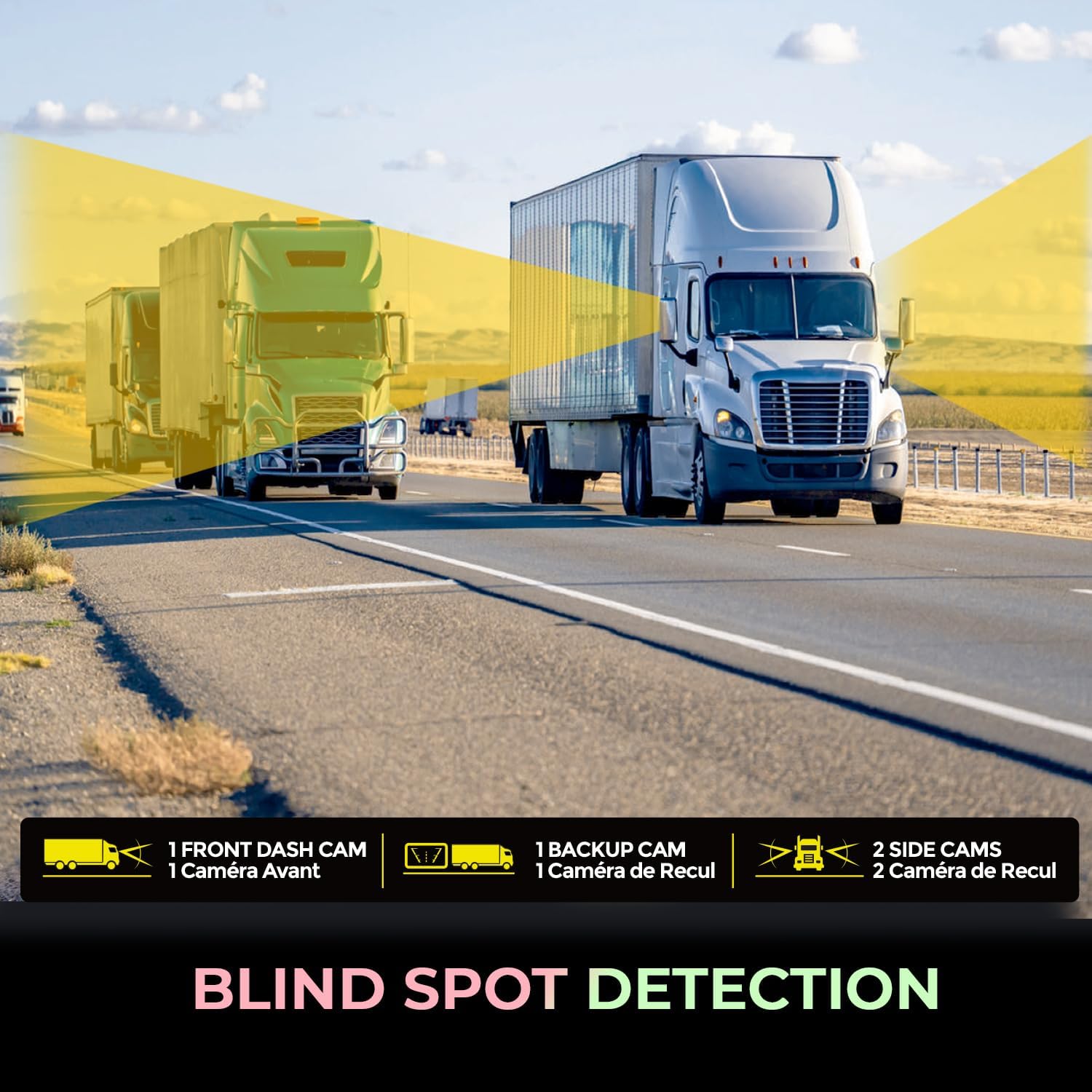
Image: Visual representation of blind spot detection with camera coverage on a truck.
4.3. Wiring and Power Connection
- Connect each camera cable to the corresponding input ports on the monitor.
- Connect the power cord to the monitor and then to a 12V power source in your vehicle.
- Ensure all connections are secure.
5. Operating Instructions
Once installed and powered on, the Orbit T100 system will typically begin recording automatically.
5.1. Basic Operation
- Power On/Off: The system powers on with the vehicle's ignition and powers off when the ignition is turned off. A manual power button may also be present on the monitor.
- Live View: The 10.1-inch IPS screen displays live feeds from the connected cameras. You can typically switch between single-camera views or a multi-camera split view.
- Recording: Continuous loop recording is the default mode. Older files are overwritten by new ones when the storage card is full, unless protected by the G-Sensor.

Image: A driver's perspective of the monitor displaying real-time footage from multiple cameras, monitoring truck activity.
5.2. G-Sensor Functionality
The integrated G-Sensor detects sudden acceleration, braking, or impacts. When triggered, it automatically locks the current video segment, preventing it from being overwritten during loop recording. These protected files are stored in a separate folder on the memory card.

Image: An accident scene, symbolizing the G-Sensor's role in emergency file saving.
5.3. Playback
Refer to the on-screen menu options for accessing recorded footage. You can typically browse by date and time, and play back videos directly on the monitor.
6. Maintenance
Regular maintenance ensures the longevity and optimal performance of your dash cam system.
- Cleaning the Monitor: Use a soft, dry cloth to clean the screen. For stubborn smudges, slightly dampen the cloth with water or a screen-safe cleaner. Avoid abrasive materials.
- Cleaning the Cameras: Periodically check camera lenses for dirt, dust, or water spots. Clean gently with a soft, lint-free cloth. The cameras have an IP67 rating, meaning they are protected against dust ingress and can withstand immersion in water up to 1 meter for 30 minutes.
- Cable Inspection: Regularly inspect all cables for signs of wear, fraying, or damage. Replace damaged cables immediately to prevent system malfunction.
- Memory Card: Format the memory card periodically (e.g., once a month) to maintain optimal recording performance and prevent data corruption. Back up any important files before formatting.

Image: A camera shown in adverse weather conditions (rain and snow), demonstrating its IP67 waterproof rating.
7. Troubleshooting
If you encounter issues with your Orbit T100 system, refer to the following common problems and solutions:
| Problem | Possible Cause | Solution |
|---|---|---|
| Monitor does not power on. | No power supply; loose connection. | Check power cable connection to monitor and vehicle's 12V source. Ensure vehicle ignition is on. |
| No camera image displayed. | Loose camera cable; faulty camera. | Verify camera cable connections to the monitor. Test with another camera if available. |
| Recording stops or is intermittent. | Memory card full; faulty memory card; low power. | Format the memory card. Replace the memory card if issues persist. Ensure stable power supply. |
| Poor image quality. | Dirty lens; incorrect settings. | Clean camera lenses. Check monitor display settings. |
If the problem persists after attempting these solutions, please contact customer support.
8. Specifications
| Feature | Detail |
|---|---|
| Model Name | Orbit T100 |
| Item Model Number | ORBITT100 |
| Video Capture Resolution | 1080p |
| Special Features | 10.1" IPS Screen, 4 Channel Recording, G-Sensor |
| Connectivity Technology | 12V (Wired) |
| Mounting Type | Dashboard Mount |
| Field Of View | 139 Degrees |
| Camera Rating | IP67 Waterproof |
| Product Dimensions (Monitor) | 10.1"D x 6.5"W x 0.5"H |
| Item Weight | 8.75 pounds (total package) |
| Manufacturer | Adesso, Inc |
9. Warranty and Support
For warranty information and technical support, please refer to the documentation provided with your purchase or visit the official myGEKOgear website. You may also contact the seller directly for assistance.
Manufacturer: Adesso, Inc
Brand: myGEKOgear


