Introduction
The Yesido TV10 HD Wireless Display Receiver is a compact and portable device designed to mirror content from your mobile devices (smartphones, tablets) or computers to a larger screen, such as a TV or projector, wirelessly. It supports 2.4G and 5G Wi-Fi frequencies and delivers up to 4K resolution, providing a stable and high-quality viewing experience. This manual provides detailed instructions for setup, operation, maintenance, and troubleshooting.
Product Overview
Key Features
- Wireless Connectivity: Supports 2.4G and 5G Wi-Fi for stable and fast transmission.
- High Definition Output: Delivers up to 4K resolution for clear and detailed images.
- Screen Mirroring: Compatible with various devices for seamless screen sharing (Miracast, AirPlay).
- Compact and Portable: Small, lightweight design for easy transport and setup.
- Horizontal and Vertical Screen Switching: Adaptable display orientation for diverse content viewing.
- Strong Anti-Interference: Ensures stable image transmission without flickering.
Device Components
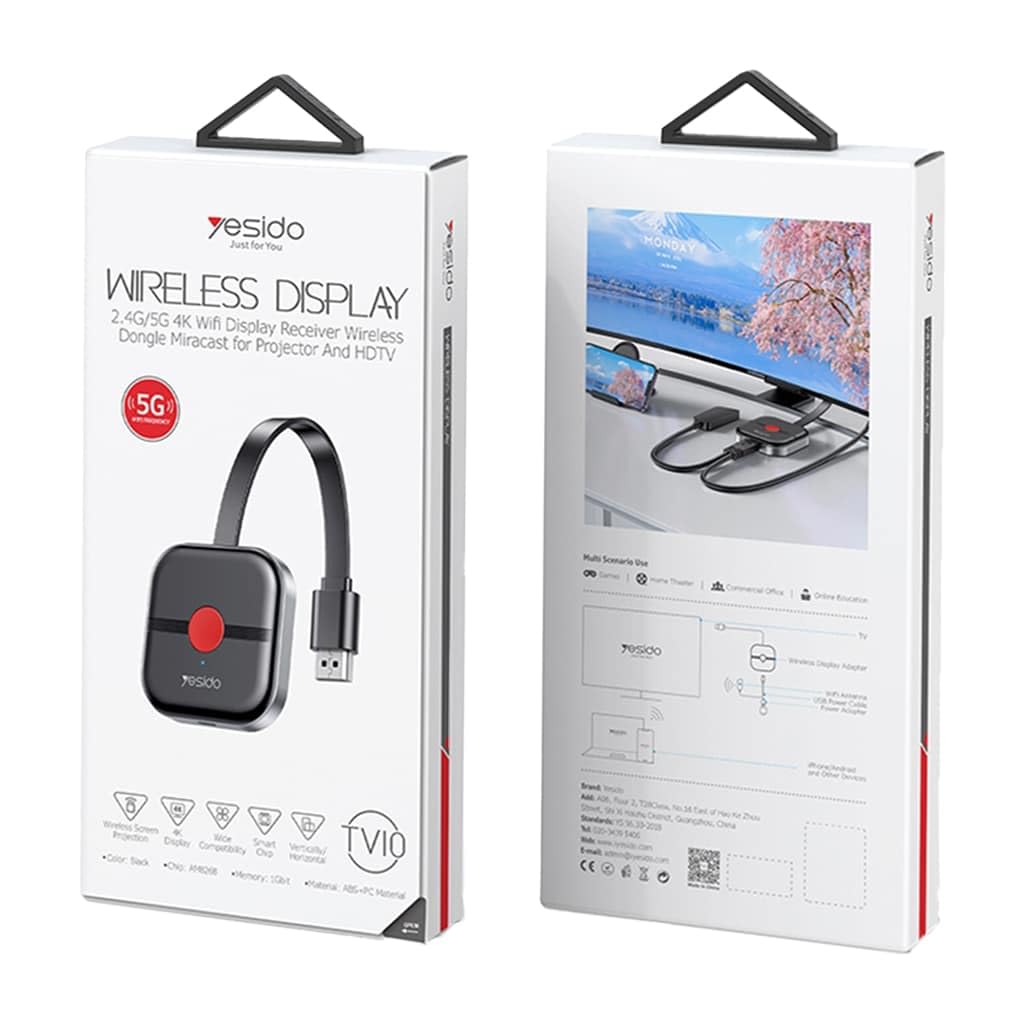
Image: The Yesido TV10 HD Wireless Display Receiver, a compact black dongle with a flexible HDMI cable and a red button on its surface.
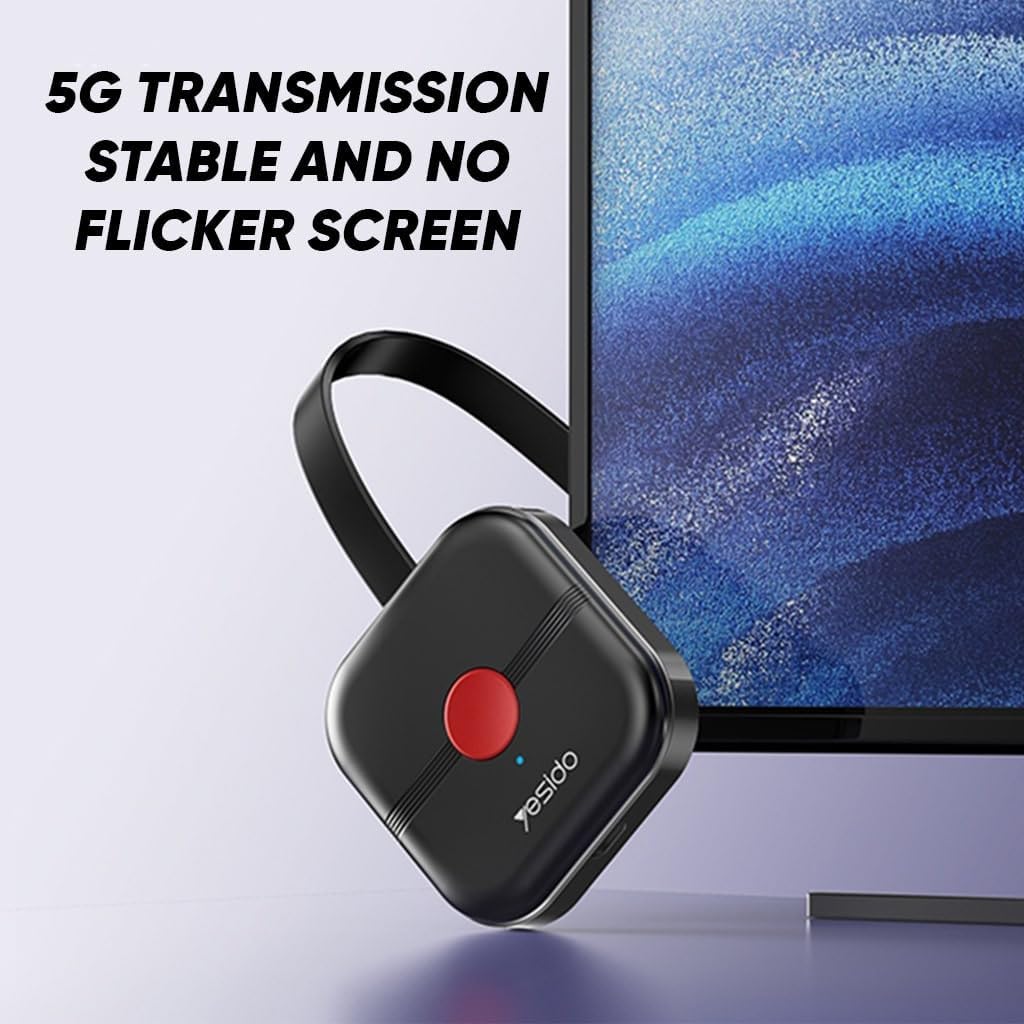
Image: The Yesido TV10 dongle positioned next to a monitor, illustrating its 5G transmission capability for stable and flicker-free screen mirroring.

Image: A visual comparison showing the difference between 1080P (blurred) and 4K (clear and rich in detail) picture quality, highlighting the device's 4K capability.

Image: The Yesido TV10 dongle floating above an open palm, emphasizing its small size and portability.
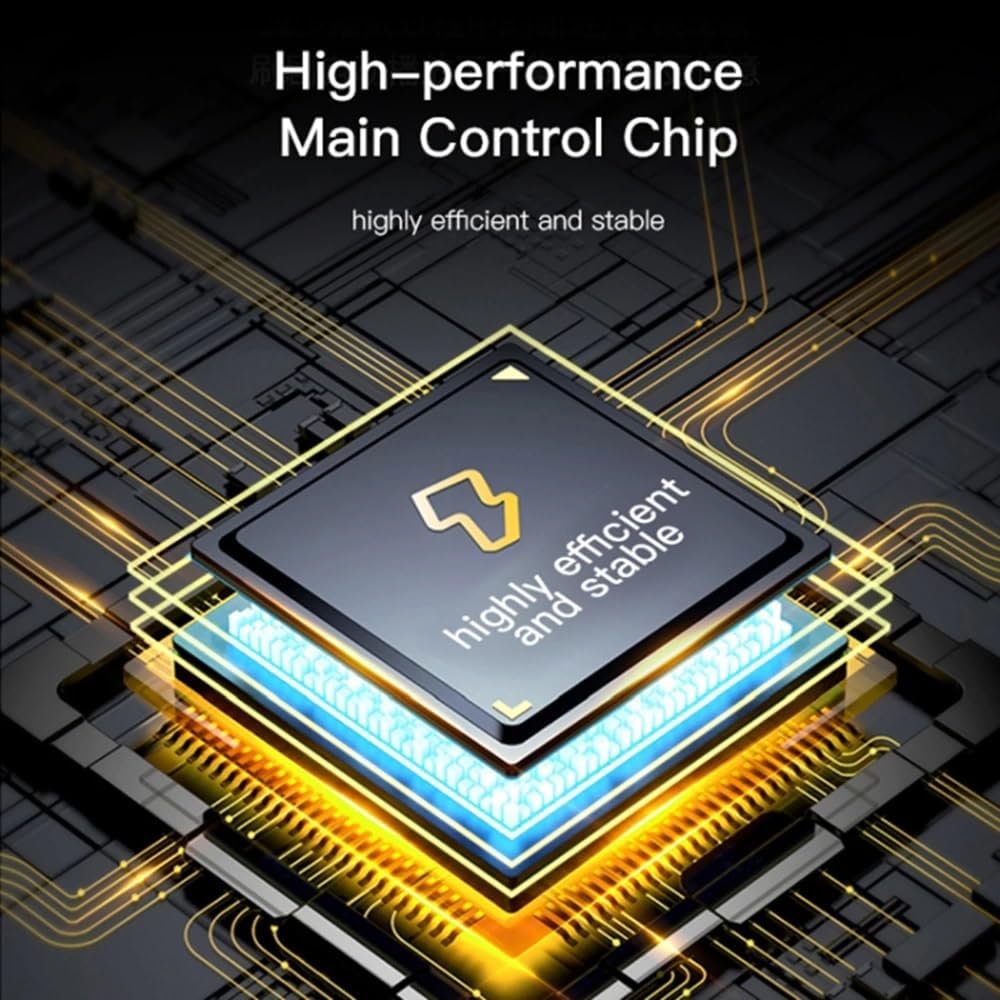
Image: A stylized depiction of a high-performance main control chip, indicating the advanced technology within the Yesido TV10 for efficient and stable operation.
Setup Guide
- Connect the Dongle: Insert the HDMI connector of the Yesido TV10 into an available HDMI port on your TV or projector.
- Provide Power: Connect the USB power cable (usually included) to the dongle's USB port and then to a USB power adapter (5V/1A recommended, not always included) or a powered USB port on your TV. Ensure the dongle receives sufficient power.
- Select Input Source: Turn on your TV/projector and use its remote control to select the correct HDMI input source to which the dongle is connected. You should see the dongle's startup screen.
- Connect Your Device:
- For Android Devices (Miracast): Go to your device's settings and look for "Wireless Display," "Screen Mirroring," "Smart View," or similar options. Select the Yesido TV10 device from the list.
- For iOS Devices (AirPlay): Swipe down from the top-right corner (or up from the bottom for older models) to open Control Center. Tap "Screen Mirroring" and select the Yesido TV10 device.
- For Windows/macOS: Depending on your operating system and hardware, you may use built-in casting features (e.g., "Connect" in Windows) or third-party applications.
- Follow On-Screen Instructions: The dongle's display may provide specific instructions or a Wi-Fi password for initial setup.
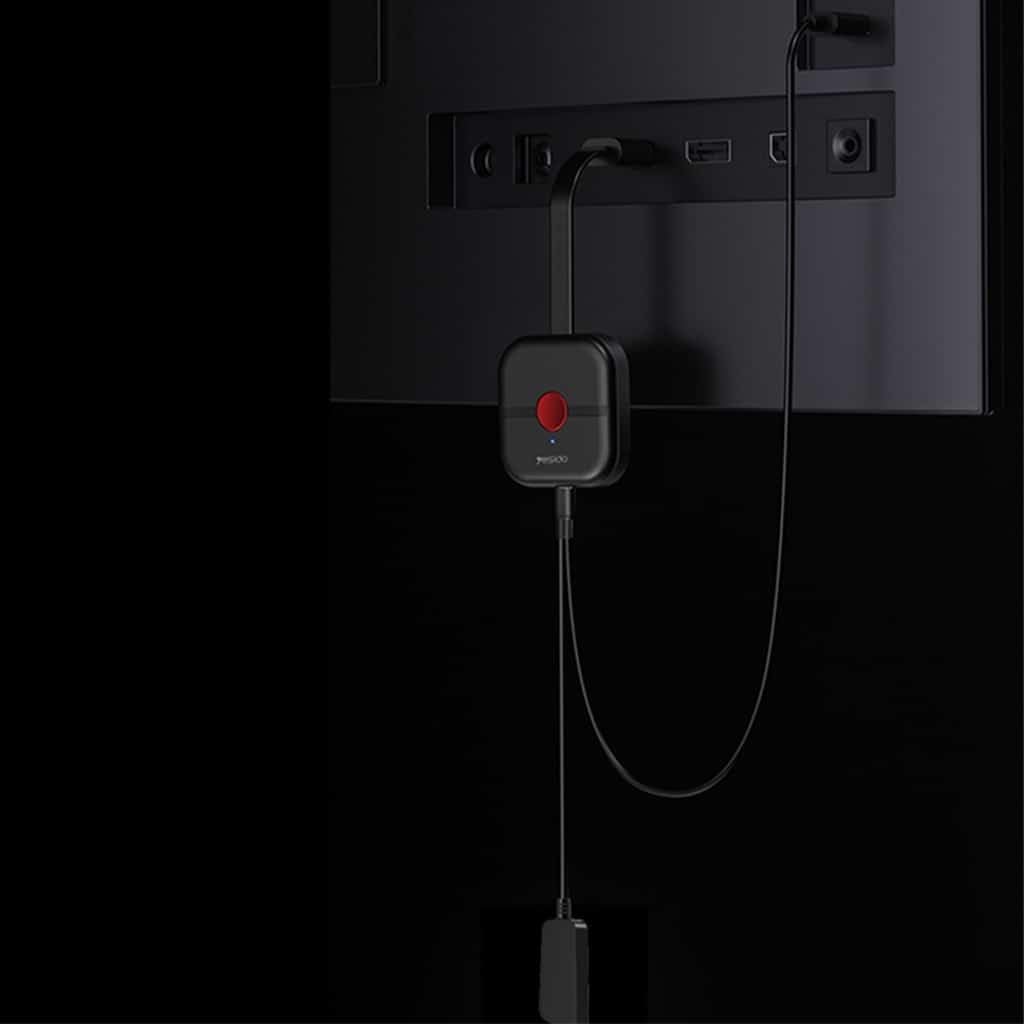
Image: The Yesido TV10 dongle connected to the HDMI port of a television, with its USB power cable also connected, demonstrating the physical setup.
Operating Instructions
Once your device is successfully connected to the Yesido TV10, your screen will be mirrored to the connected display.
- Screen Mirroring: Any content displayed on your source device (phone, tablet, laptop) will appear on the larger screen. This includes videos, photos, presentations, and web pages.
- Horizontal and Vertical Screen Switching: The Yesido TV10 supports dynamic screen orientation. If your source device changes its orientation (e.g., from portrait to landscape when watching a video), the mirrored display will automatically adjust to match, providing an optimized viewing experience.

Image: Two monitors displaying content in both horizontal and vertical orientations, demonstrating the Yesido TV10's ability to freely switch between screen modes.
Maintenance
- Cleaning: Use a soft, dry cloth to clean the device. Do not use liquid cleaners or aerosols.
- Storage: Store the device in a cool, dry place away from direct sunlight and extreme temperatures.
- Handling: Avoid dropping the device or subjecting it to strong impacts. Do not attempt to disassemble the device, as this will void any warranty.
- Power Supply: Always use a compatible 5V/1A USB power adapter to ensure stable operation.
Troubleshooting
| Problem | Possible Cause | Solution |
|---|---|---|
| No display on TV/projector. | Incorrect HDMI input selected, insufficient power, loose connection. |
|
| Unstable connection or flickering screen. | Weak Wi-Fi signal, interference, distance from source device. |
|
| No audio or poor audio quality. | TV volume low, audio settings on source device, compatibility issue. |
|
| Cannot connect source device. | Incorrect mirroring settings, device compatibility, dongle not in pairing mode. |
|
Specifications
| Brand | Yesido |
| Model Number | TV10 |
| Connectivity Technology | Wireless (2.4G/5G Wi-Fi), HDMI |
| Connector Type | HDMI |
| Special Features | Miracast, AirPlay support, Horizontal/Vertical Screen Switching |
| Resolution | Up to 4K (Full HD/4K) |
| Color | Black |
| Item Weight | 200 grams |
| Dimensions (Shipping) | 20 x 5 x 5 cm |
Warranty and Support
For warranty information and technical support, please refer to the documentation included with your purchase or contact the retailer where the product was acquired. Keep your proof of purchase for warranty claims.