1. Introduction
This manual provides essential information for the proper setup, operation, and maintenance of your Hannspree Tab 13.3 Zeus 3 SN14TP6B IPS tablet. Please read this manual thoroughly before using the device to ensure optimal performance and longevity.
2. Package Contents
Upon opening the package, verify that all items listed below are present and in good condition:
- Hannspree Tab 13.3 Zeus 3 SN14TP6B IPS Tablet
- Power Adapter
- USB Charging Cable
- Quick Start Guide
- Warranty Card
Note: Specific accessories may vary by region or retailer.
3. Product Overview
Familiarize yourself with the physical components of your tablet.
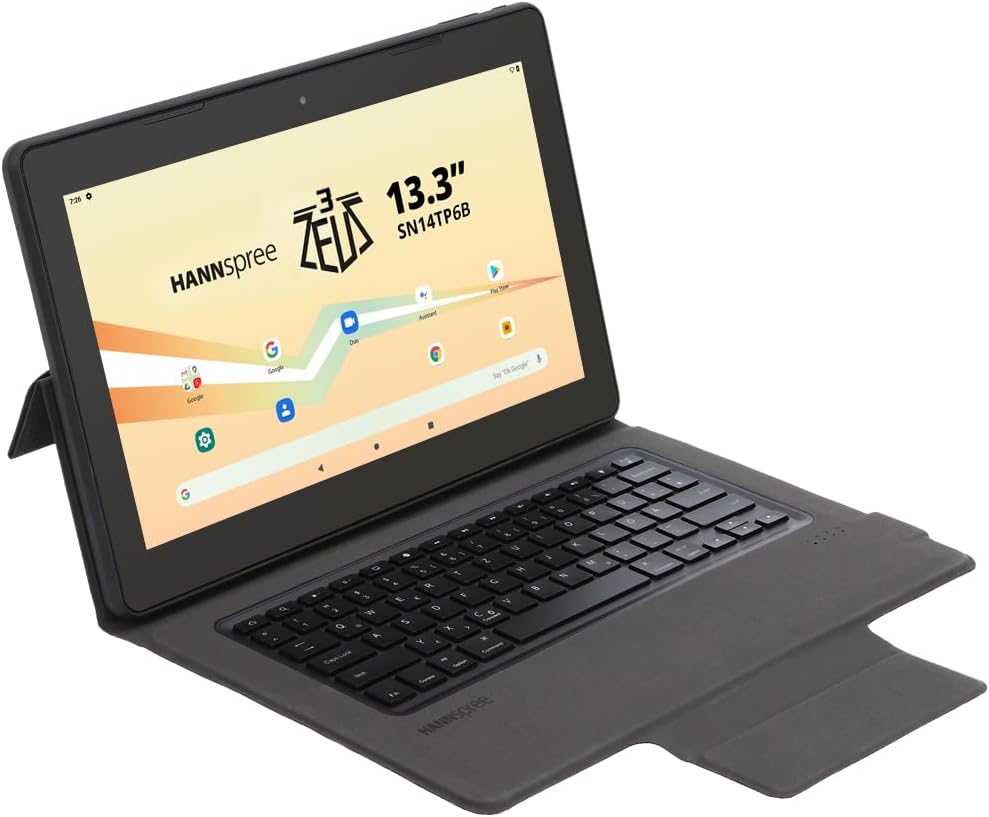
Figure 3.1: The Hannspree Tab 13.3 Zeus 3 SN14TP6B IPS tablet shown with its detachable keyboard case, viewed from an angle. The screen displays the Hannspree logo and various app icons.

Figure 3.2: The Hannspree Tab 13.3 Zeus 3 SN14TP6B IPS tablet positioned in a stand configuration, showcasing the display with the Hannspree logo and Android interface elements.

Figure 3.3: The rear panel of the Hannspree Tab 13.3 Zeus 3 SN14TP6B IPS tablet, displaying the Hannspree brand name and regulatory markings.
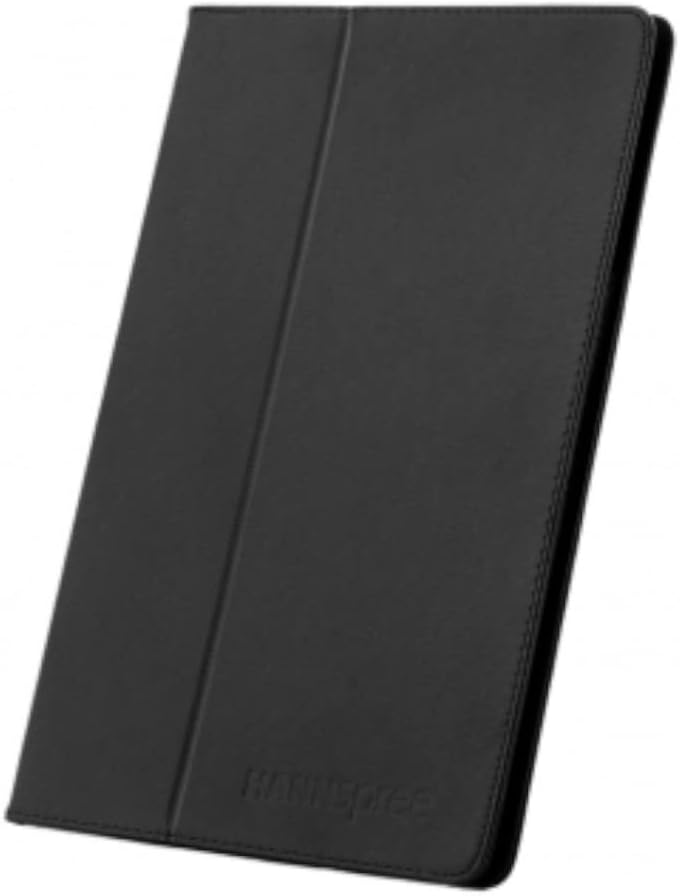
Figure 3.4: The Hannspree Tab 13.3 Zeus 3 SN14TP6B IPS tablet enclosed within its protective keyboard case, shown in a closed, folded position.
3.1. Buttons and Ports
- Power Button: Located on the side/top edge. Press and hold to power on/off or restart. Short press to wake/sleep the screen.
- Volume Buttons: Located near the power button. Press to adjust media volume or notification volume.
- USB-C Port: For charging the device and connecting to a computer for data transfer.
- Headphone Jack: Standard 3.5mm audio output for headphones or external speakers.
- MicroSD Card Slot: For expanding storage capacity (card not included).
- Front Camera: For video calls and selfies.
- Rear Camera: For taking photos and videos.
- Speakers: For audio output.
4. Setup
4.1. Initial Charging
Before first use, fully charge your tablet. Connect the USB charging cable to the tablet's USB-C port and the power adapter. Plug the adapter into a wall outlet. The charging indicator will typically illuminate or the battery icon on the screen will show charging status.
4.2. Powering On/Off
- To Power On: Press and hold the Power button until the Hannspree logo appears on the screen.
- To Power Off: Press and hold the Power button until a power menu appears. Select "Power off" and confirm.
- To Restart: Press and hold the Power button until a power menu appears. Select "Restart" and confirm.
4.3. Initial Setup
Upon first power-on, the tablet will guide you through the initial setup process. This typically includes:
- Selecting your language.
- Connecting to a Wi-Fi network.
- Signing in with your Google account or creating a new one.
- Setting up screen lock (PIN, pattern, password).
- Reviewing and accepting terms and conditions.
5. Operating the Tablet
5.1. Basic Navigation
The Hannspree Tab 13.3 Zeus 3 runs on the Android operating system. Navigation is primarily touch-based:
- Tap: To select an item or open an application.
- Tap and Hold: To access contextual menus or move icons.
- Swipe: To scroll through screens, lists, or pages.
- Pinch-to-Zoom: To zoom in or out on images and web pages.
5.2. Connecting to Wi-Fi
- Go to Settings > Network & internet > Wi-Fi.
- Toggle Wi-Fi On.
- Select your desired network from the list.
- Enter the network password if prompted, then tap Connect.
5.3. Managing Applications
- Install Apps: Open the Google Play Store app, search for the desired app, and tap Install.
- Uninstall Apps: Tap and hold an app icon on the home screen or app drawer, then drag it to "Uninstall" or select "App info" and choose "Uninstall". Alternatively, go to Settings > Apps > See all apps, select the app, and tap Uninstall.
6. Maintenance
6.1. Cleaning the Tablet
Use a soft, lint-free cloth to clean the screen and body of the tablet. For stubborn smudges, slightly dampen the cloth with water or a screen-cleaning solution. Avoid using harsh chemicals, abrasive materials, or excessive moisture.
6.2. Software Updates
Regularly check for and install software updates to ensure your tablet has the latest features, security patches, and performance improvements. Go to Settings > System > System update to check for available updates.
6.3. Battery Care
- Avoid extreme temperatures, which can degrade battery life.
- Do not let the battery completely drain frequently.
- Use the original charger and cable for optimal charging.
7. Troubleshooting
This section addresses common issues you might encounter with your tablet.
7.1. Tablet Does Not Power On
- Ensure the battery is charged. Connect the tablet to its charger and wait a few minutes before attempting to power it on again.
- Try a forced restart: Press and hold the Power button for approximately 10-15 seconds.
7.2. Wi-Fi Connection Issues
- Ensure Wi-Fi is enabled in Settings.
- Restart your Wi-Fi router and the tablet.
- Forget the network in tablet settings and reconnect.
- Ensure you are within range of the Wi-Fi signal.
7.3. Applications Crashing or Freezing
- Close and reopen the application.
- Clear the app's cache: Go to Settings > Apps > See all apps, select the problematic app, then Storage & cache > Clear cache.
- Restart the tablet.
- Ensure the app is updated to its latest version.
8. Specifications
| Feature | Detail |
|---|---|
| Model Name | Tab HANNspree 13,3 Zeus 3 SN14TP6B IPS |
| Item Model Number | SN14TP6B |
| Brand | Hannspree |
| Operating System | Android |
| Standing Screen Display Size | 13.3 Inches |
| Display Resolution | 1920 x 1080 pixels |
| Max Screen Resolution | 1920x1080 |
| Processor | 2 GHz (AMD Processor Brand) |
| Card Description | Integrated |
| Wireless Standard | 802.11g |
| Flash Memory Size | 128 GB |
| Colour | Blue |
| Product Dimensions (L x W x H) | 18 x 30 x 6 cm |
| Item Weight | 2 kg |
| Date First Available | Aug. 15 2024 |
9. Warranty and Support
For warranty information and technical support, please refer to the warranty card included in your product package or visit the official Hannspree website. Keep your proof of purchase for warranty claims.


