
1. Introduction to Life360 Tile Pro
The Life360 Tile Pro is a powerful Bluetooth tracker designed to help you locate your valuable items quickly and efficiently. Integrated with the Life360 app, it offers advanced tracking capabilities, a loud ring, and a robust design for everyday use. This manual provides detailed instructions for setup, operation, and maintenance of your Tile Pro.

Image: Comparison of previous Tile packaging with the new Life360 Tile Pro packaging.

Image: A 2-pack of Life360 Tile Pro trackers in black and white colors.
Video: An overview of the Tile Pro (2024) highlighting its powerful Bluetooth tracking capabilities for various items like keys, cameras, and golf bags. It demonstrates how to find items using the app, ring your phone with the Tile, and use the SOS feature.
2. What's in the Box
Your Life360 Tile Pro package includes the following items:
- 1 x Tile Pro (Black)
- 1 x Tile Pro (White)
3. Setup and Activation
To begin using your Life360 Tile Pro, follow these steps:
- Download the Life360 App: Download and install the free Life360 app on your iOS or Android smartphone or tablet. The app is available on the Apple App Store and Google Play Store.
- Create/Log In to Life360 Account: Open the Life360 app and either create a new account or log in with your existing credentials. You will need to accept Life360's Terms of Service and acknowledge their Privacy & Cookie Policy.
- Add Your Tile Pro: Follow the in-app instructions to add your new Tile Pro. This typically involves pressing the Tile's button and placing it near your phone for pairing.
- Attach Your Tile: Attach your Tile Pro to any item you wish to track, such as keys, bags, or other valuables. The Tile Pro comes with a built-in keyring hole for easy attachment.
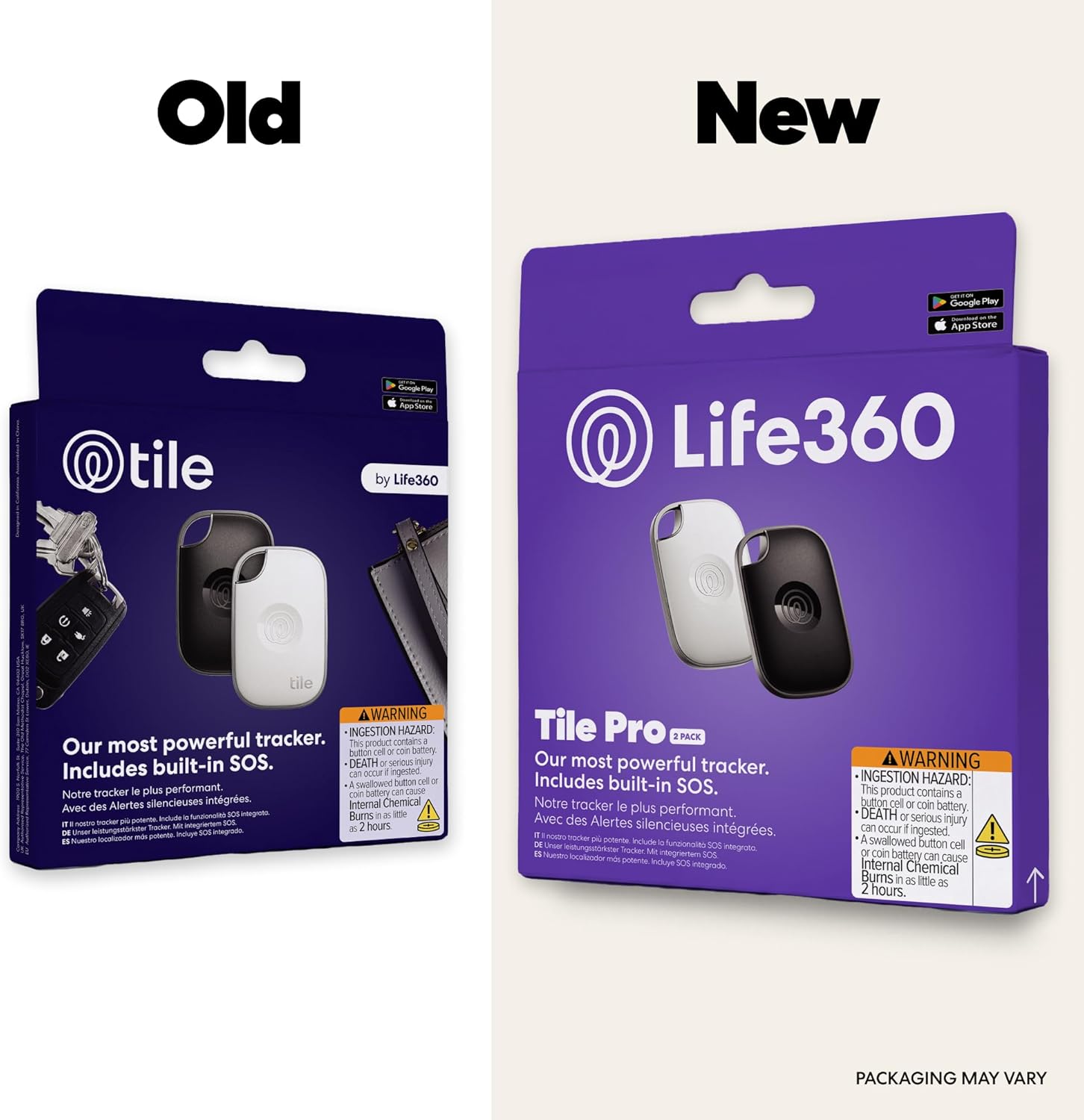
Image: A black Life360 Tile Pro attached to a set of car keys, demonstrating its portability and ease of attachment.

Image: A Life360 Tile Pro attached to the zipper of a backpack, illustrating how it can be easily secured to various items.
4. Operating Instructions
4.1 Finding Your Items
When your Tile Pro is within Bluetooth range (up to 500 feet / 150 meters), you can use the Life360 app to make it ring. The Tile Pro features Life360's loudest ring, making it easier to locate misplaced items.
- Open the Life360 app on your smartphone or tablet.
- Select the Tile Pro you wish to find from your list of items.
- Tap the "Find" button. Your Tile Pro will start ringing loudly.
- Follow the sound to locate your item. Tap "Done" in the app once found.

Image: A smartphone screen displaying the Life360 app with a map and a prominent "Find" button to ring a Tile, next to a Tile Pro attached to keys.
4.2 Finding Your Phone
If you've misplaced your phone, your Tile Pro can help you find it, even if it's on silent mode.
- Double-press the button on your Tile Pro.
- Your phone will start ringing, allowing you to locate it.

Image: A hand pressing the Tile Pro button, causing a nearby smartphone to display a notification indicating it's ringing.
4.3 SOS Feature
The Tile Pro includes a built-in SOS button for discreet alerts in unsafe situations. This feature requires the Life360 app and account registration.
- Triple-press the button on your Tile Pro.
- After a 15-second countdown, a discreet SOS alert will be sent to your Life360 Circle and emergency contacts.
- If you have a Gold or Platinum Life360 membership, the app will also contact dispatch services.
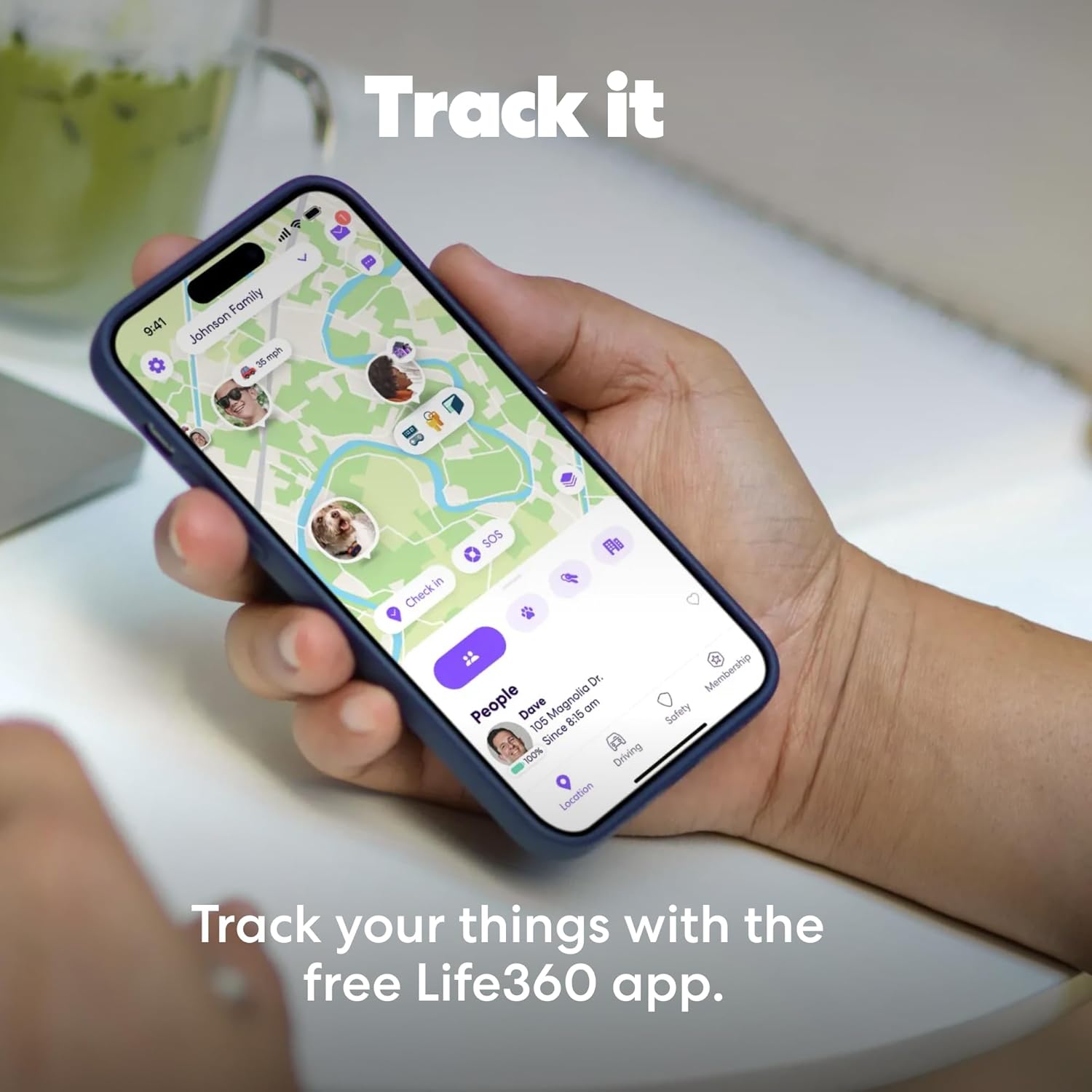
Image: A hand holding a black Life360 Tile Pro, with red concentric circles emanating from it, symbolizing an SOS alert.
4.4 Tile Community Network
If your item is lost beyond Bluetooth range, the Tile community can help. When any Tile user running the Life360 app passes within Bluetooth range of your lost Tile, its location will be anonymously updated in your app.
- In the Life360 app, mark your Tile as "Lost."
- The Tile network will then anonymously search for your item.
- You will receive a notification with its last known location when it's detected by another Tile user.

Image: A smartphone displaying the Life360 app map interface, showing the locations of family members and tracked items like a Tile Pro.
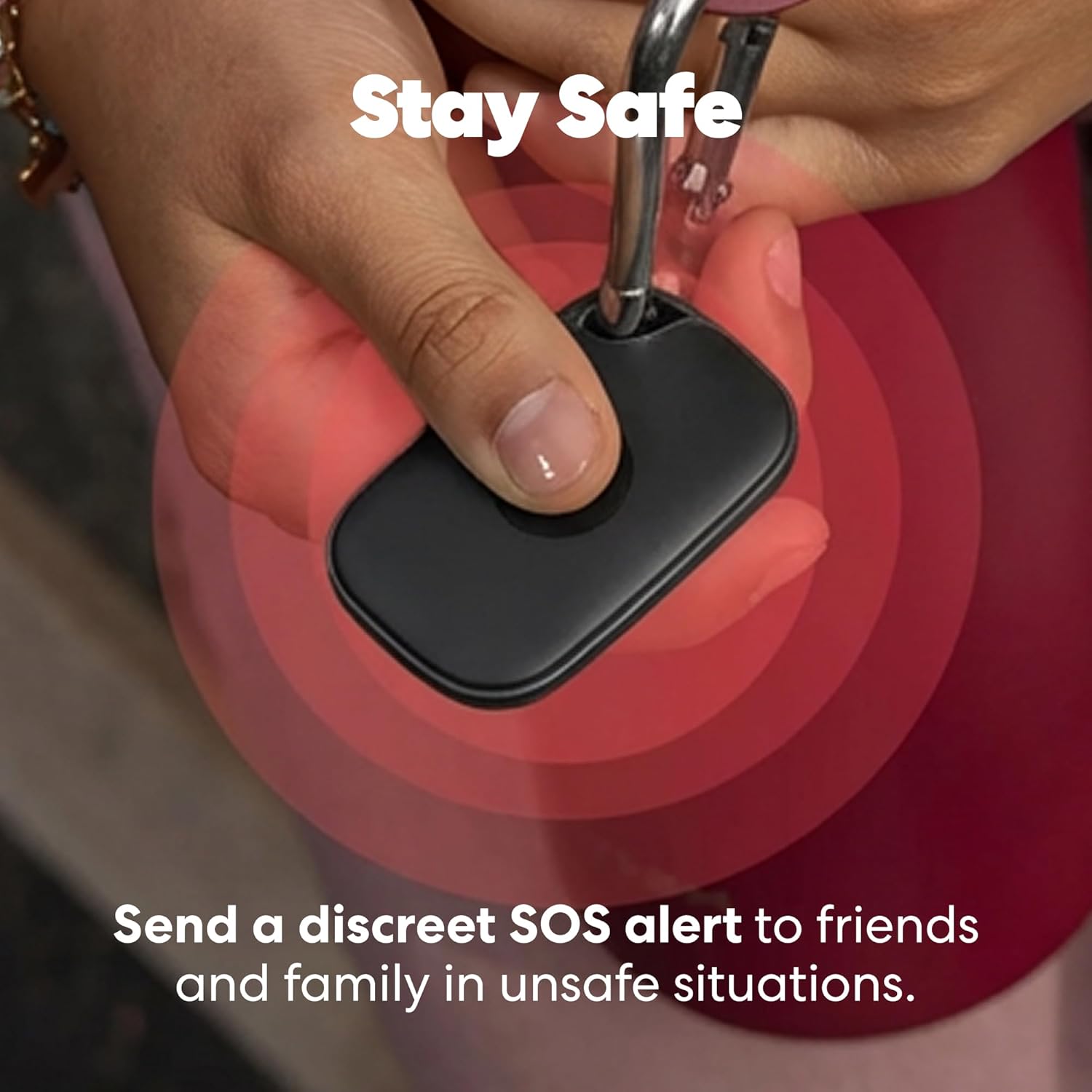
Image: A hand holding a smartphone displaying the Life360 app, showing a map with tracked items and people, emphasizing the tracking feature.
Video: A quick overview of the Tile Pro 2025, demonstrating its core functionalities including finding items, ringing a phone, and using the SOS feature. This video is a preview and is 13 seconds long.
5. Features
- Powerful Tracking: Locate lost or stolen items using the Life360 app.
- SOS Button: Discreetly trigger an SOS alert to your Life360 Circle in emergencies.
- Find Your Things: Ring your misplaced Tile directly from the app.
- Find Your Phone: Use your Tile to make your phone ring, even when silenced.
- Life360 Integration: Track all your people, pets, and things on one map within the Life360 app.
- Cross-Platform Compatibility: Works seamlessly with both iOS and Android devices.
- Extended Bluetooth Range: Up to 500 feet (150 meters) of Bluetooth connectivity.
- Replaceable Battery: Features a 1-year replaceable CR2032 battery.
- Water Resistant: IP68 rated for water resistance.
- Scannable QR Code: Update your contact information on the Tile's QR code to help return lost items.

Image: A graphic summarizing the key features of the Life360 Tile Pro, including battery life, Bluetooth range, ring volume, water resistance, and app compatibility.
6. Battery Replacement
The Life360 Tile Pro uses a replaceable CR2032 coin cell battery, which typically lasts for one year. To replace the battery, follow these steps:
- Locate the small gap on the side of the Tile Pro where the battery cover meets the main body.
- Insert a small flat-head screwdriver, a pin, or a SIM card removal tool into the gap.
- Gently twist or pry to release the battery cover. Due to child safety regulations, the cover may be difficult to open.
- Remove the old CR2032 battery.
- Insert a new CR2032 battery with the positive (+) side facing up.
- Align the battery cover and press firmly until it clicks securely into place.
Video: A demonstration of how to replace the battery in a Tile Pro (2022) model, showing the process of opening the device and inserting a new CR2032 battery.
Video: A detailed guide on replacing the battery in a Tile Pro 360, illustrating the steps to open the device and replace the CR2032 battery.
7. Specifications
| Feature | Detail |
|---|---|
| Brand | Life360 |
| Model Number | T1701N |
| Product Dimensions | 1.32"L x 2.32"W x 0.3"Th (33.5mm L x 58.9mm W x 7.6mm Th) |
| Item Weight | 12 Grams |
| Material | Plastic |
| Enclosure Material | Plastic |
| Connectivity Technology | Bluetooth |
| Range | 500 feet (150 meters) |
| Battery Type | 1 Lithium Metal battery (CR2032) |
| Battery Average Life | 1 year (replaceable) |
| Water Resistance | IP68 Rated |
| Compatible Devices | Smartphone, Tablet (iOS and Android) |
| Control Method | App |
| Smart Home Compatibility | Smart Home Compatible |
| UPC | 819039025188 |
8. Troubleshooting
8.1 Tile Not Ringing or Connecting
- Check Bluetooth: Ensure Bluetooth is enabled on your smartphone or tablet.
- Check Range: Make sure your Tile Pro is within the 500-foot Bluetooth range of your device. Walls and obstacles can reduce this range.
- App Running: Confirm the Life360 app is running in the background on your device.
- Battery Level: Check the battery status of your Tile Pro in the Life360 app. Replace the battery if it's low.
- Restart Device: Try restarting your smartphone/tablet and reopening the Life360 app.
8.2 QR Code Not Scanning
- Ensure the QR code on the back of your Tile Pro is clean and free from scratches or debris.
- Use a standard QR code scanner app on your phone.
- If the QR code is worn or damaged, you may need to rely on the app's tracking features.

Image: A close-up of the back of a Life360 Tile Pro, showing the "SCAN ME IF FOUND" QR code, which can be updated with contact information for easy return of lost items.
9. Warranty and Support
The Life360 Tile Pro comes with a 1-Year Limited Warranty. For warranty claims or technical support, please refer to the Life360 app's help section or visit the official Life360 website.
For additional support and resources, you can visit the Life360 Store on Amazon.
10. Important Safety Information
- Battery Warning: This device contains a button cell or coin battery. Swallowing a button cell or coin battery can cause internal chemical burns in as little as 2 hours and lead to death. Keep new and used batteries away from children. If the battery compartment does not close securely, stop using the product and keep it away from children. If you think batteries might have been swallowed or placed inside any part of the body, seek immediate medical attention.
- App Requirements: Use of the device requires installation of the Tile app, Tile account registration, acceptance of Life360’s Terms of Service, and acknowledgment of Life360’s Privacy & Cookie Policy. For details, go to tile.com.
- SOS Feature: Use of the SOS feature requires installation of the Life360 app and Life360 account registration.


