
1. Product Overview
The Zienstar S37 Wireless Keyboard and Mouse Combo provides a comfortable and efficient input solution with a retro design. It features 2.4G wireless connectivity, silent keys and mouse clicks, and broad compatibility across various operating systems.
Package Contents:
- 1 x Wireless Keyboard (Spanish Layout)
- 1 x Wireless Mouse
- 1 x 2.4G USB Nano Receiver
- 4 x AAA Batteries (2 for keyboard, 2 for mouse)
This combo is designed for ease of use and durability, featuring high-quality materials and a refined craftsmanship.
2. Setup Instructions
2.1 Battery Installation
- Locate the battery compartments on the underside of both the keyboard and the mouse.
- Open the battery covers.
- Insert two AAA batteries into the keyboard, ensuring correct polarity (+/-).
- Insert two AAA batteries into the mouse, ensuring correct polarity (+/-).
- Close the battery covers securely.
2.2 Connecting the Receiver (Plug and Play)
- Locate the 2.4G USB Nano Receiver, typically stored in the mouse's battery compartment or packaging.
- Plug the USB Nano Receiver into an available USB port on your computer, laptop, or compatible device.
- The system will automatically detect and install the necessary drivers. This process may take a few moments.
- Once installed, the keyboard and mouse are ready for use.
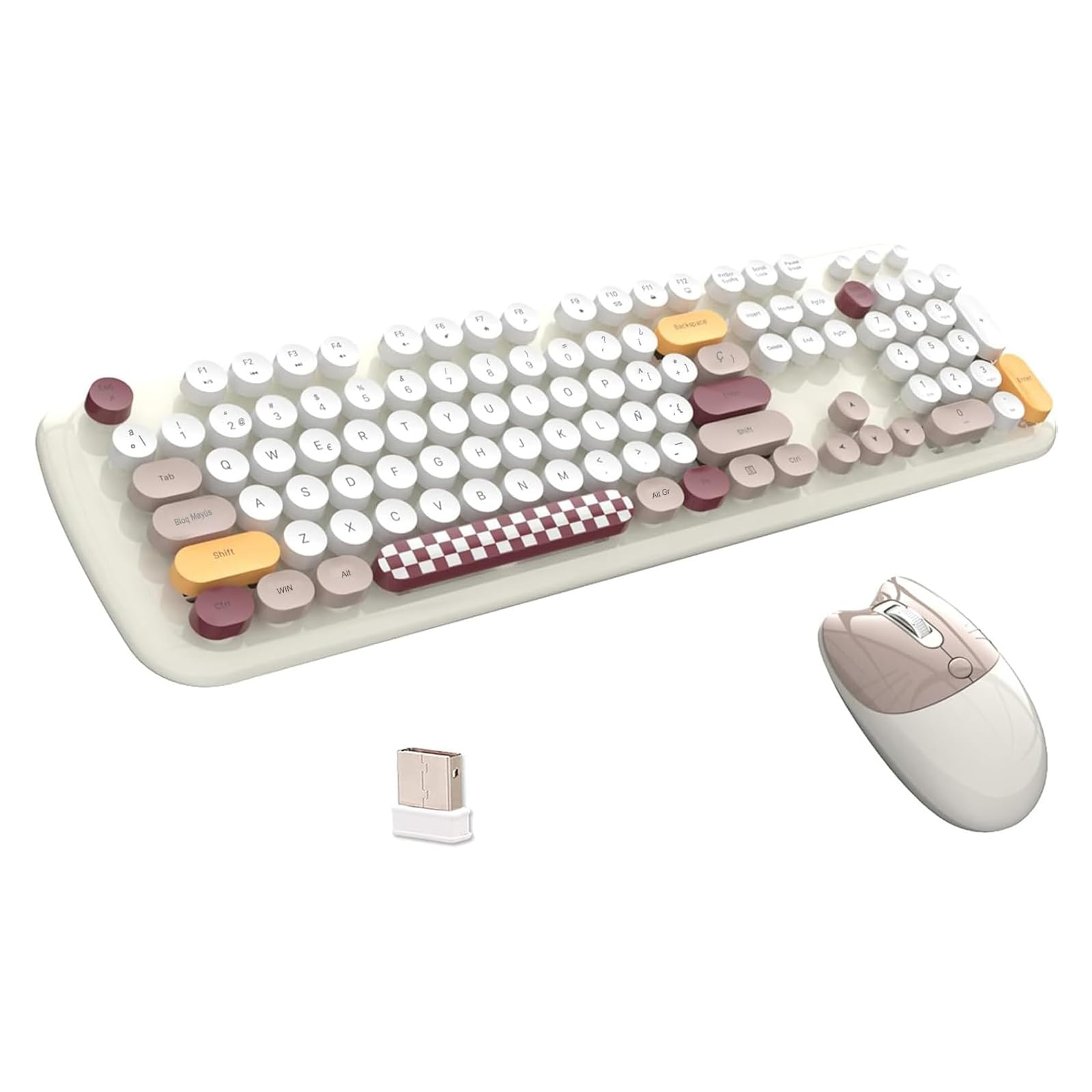
Image: The 2.4G USB Nano Receiver connects both the wireless keyboard and mouse to your device, offering a simple plug-and-play setup.
2.3 Compatibility
This wireless combo is widely compatible with various operating systems, including:
- Android
- Windows
- iOS
- Mac OS
3. Operating Instructions
3.1 Keyboard Functions
- Typing: The keyboard features a Spanish QWERTY layout with retro round keys and scissor-switch technology for comfortable and precise typing.
- Hotkeys: The keyboard includes 15 hotkeys and a numeric keypad to enhance efficiency. Refer to the keycap legends for specific functions (e.g., media control, volume).
3.2 Mouse Functions
- Clicking and Scrolling: Standard left/right click and scroll wheel functionality. The silent design reduces click noise by up to 97%.
- DPI Adjustment: The wireless mouse offers adjustable DPI settings (800-1200-1600-2400). Press the DPI button (usually located near the scroll wheel) to cycle through sensitivity levels.
3.3 Intelligent Auto-Sleep Feature
To conserve battery life, both the keyboard and mouse are equipped with an intelligent auto-sleep function. The mouse will automatically enter power-saving mode after 20 seconds of inactivity. Simply move the mouse to reactivate it. The keyboard also enters a sleep mode after a period of inactivity. Press any key to wake it up.

Image: The intelligent auto-sleep feature helps preserve battery life by entering sleep mode during inactivity.
3.4 Ergonomic Design
The keyboard features an ergonomic design with foldable stands and silicone non-slip pads, allowing for an adjustable typing angle to reduce wrist pressure and promote comfortable, effective work.

Image: The ergonomic design with foldable stands helps reduce wrist fatigue during extended use.
4. Maintenance
4.1 Cleaning
To clean the keyboard and mouse:
- Ensure the devices are turned off or disconnected from the receiver.
- Use a soft, dry, lint-free cloth to wipe down the surfaces.
- For stubborn dirt, lightly dampen the cloth with water or a mild cleaning solution. Avoid excessive moisture.
- The keycaps are detachable for easier cleaning. Gently pull them upwards to remove, and press firmly to reattach.

Image: Detachable keycaps allow for thorough cleaning and maintenance of the keyboard.
4.2 Battery Replacement
When the keyboard or mouse performance degrades (e.g., delayed response, erratic cursor movement), it may be time to replace the batteries. Follow the battery installation steps in Section 2.1.
5. Troubleshooting
5.1 No Response from Keyboard or Mouse
- Check Batteries: Ensure batteries are correctly installed and not depleted. Replace if necessary.
- Check Receiver: Ensure the USB Nano Receiver is securely plugged into a working USB port. Try a different USB port.
- Distance: Ensure the keyboard and mouse are within the effective operating range (up to 35 feet) of the receiver.
- Interference: Move away from other wireless devices or large metal objects that might cause interference.
- Re-pairing: In rare cases, you might need to re-pair the devices. Consult the manufacturer's website for specific re-pairing instructions if standard plug-and-play does not work.
5.2 Erratic Cursor Movement or Typing
- Surface: For the mouse, ensure you are using it on a suitable, non-reflective surface.
- DPI Setting: Adjust the mouse DPI setting to a comfortable level (800-1200-1600-2400).
- Low Battery: Replace batteries in both devices.
- Clean Sensor: Ensure the mouse's optical sensor is clean and free from obstructions.
5.3 Hotkeys Not Functioning
- Software Compatibility: Some hotkeys may require specific software or operating system settings to function correctly. Ensure your operating system is up to date.
- Function Key Lock: Check if a function lock (Fn Lock) key is active, which might alter hotkey behavior.
6. Specifications
| Feature | Detail |
|---|---|
| Brand | Zienstar |
| Model Number | S37 |
| Color | Brown (Multicolor keys) |
| Connectivity Technology | 2.4G Radio Frequency Wireless |
| Compatible Devices | Personal Computer, Laptop, Television |
| Operating System Compatibility | Android, Mac OS, Windows, iOS |
| Keyboard Layout | QWERTY (Spanish) |
| Keyboard Description | Membrane with Scissor-Switch Keys |
| Mouse Movement Detection | Optical |
| Mouse DPI | Adjustable (800-1200-1600-2400) |
| Power Source | Battery Powered |
| Batteries Required | 4 x AAA (2 for keyboard, 2 for mouse) |
| Special Features | Round Keys, Ergonomic Design, Multicolor, Silent Click |

Image: Dimensions of the Zienstar S37 wireless keyboard and mouse combo.
7. Warranty and Support
7.1 Warranty Information
Zienstar products are typically covered by a limited warranty against defects in materials and workmanship. Please refer to the warranty card included with your product or visit the official Zienstar website for detailed warranty terms and conditions specific to your region.
7.2 Customer Support
For technical assistance, troubleshooting, or product inquiries, please contact Zienstar customer support through their official website or the contact information provided in your product packaging. When contacting support, please have your product model number (S37) and purchase details available.