
1. Introduction
The Keychron K10 Max is a versatile wireless mechanical keyboard featuring a 100% full-size layout. It offers multiple connectivity options including 2.4 GHz wireless, Bluetooth 5.1, and a wired USB-C connection, ensuring compatibility across various devices such as computers, phones, and tablets. Designed for enhanced productivity and gaming, the K10 Max is fully configurable through QMK firmware and the intuitive Keychron Launcher web application, allowing for extensive key remapping and macro commands. It is compatible with macOS, Windows, and Linux operating systems.
This manual provides detailed instructions on setting up, operating, maintaining, and troubleshooting your Keychron K10 Max keyboard to ensure optimal performance and longevity.

Image: The Keychron K10 Max Wireless Mechanical Keyboard, showcasing its full-size layout and design.
2. Package Contents
Please verify that all items listed below are included in your Keychron K10 Max package:
- Keychron K10 Max Wireless Mechanical Keyboard
- Type-A to Type-C Cable x1
- Type-A 2.4GHz Receiver x1
- Extension Adapter for Receiver x1
- Keycap-Switch Puller x1
- Hex Key & Screwdriver x1
- Additional Windows Keycaps (if applicable)

Image: All components included with the Keychron K10 Max keyboard, laid out for inspection.
3. Setup Guide
3.1 Connectivity Options
The Keychron K10 Max supports three connection modes: 2.4 GHz wireless, Bluetooth, and wired USB-C. You can switch between these modes using the toggle switches located on the back of the keyboard.
- 2.4 GHz Wireless: For a rapid 1000 Hz polling rate, connect the included 2.4 GHz receiver to your device's USB-A port. Ensure the keyboard's mode switch is set to 2.4G.
- Bluetooth 5.1: To connect via Bluetooth, switch the keyboard to BT mode. On your device, search for 'Keychron K10 Max' in the Bluetooth settings and pair. The keyboard can connect to up to three devices simultaneously (Fn + 1/2/3 to switch).
- Wired USB-C: Connect the keyboard directly to your device using the provided USB-C to USB-A cable. This mode also supports a 1000 Hz polling rate and charges the keyboard's battery.

Image: The Keychron K10 Max keyboard connected to a desktop, laptop, and tablet, demonstrating its versatile 2.4 GHz and Bluetooth connectivity.
3.2 Operating System Compatibility
The K10 Max is designed to be compatible with Mac, Windows, and Linux operating systems. A dedicated switch on the side of the keyboard allows you to toggle between Windows/Android and macOS modes to ensure proper key mapping and functionality.

Image: Close-up of the side of the Keychron K10 Max keyboard, showing the physical toggle switches for Windows/Android and macOS modes, as well as the connectivity mode switch.
4. Operating Instructions
4.1 Key Remapping with QMK & Keychron Launcher
The Keychron K10 Max is fully programmable with QMK firmware and can be easily customized using the Keychron Launcher web application. Connect the keyboard via USB-C, open the Keychron Launcher in your web browser, and drag-and-drop keys or macro commands to remap any key. This allows for a fluid workflow tailored to your specific needs across macOS, Windows, or Linux.

Image: Screenshot of the Keychron Launcher web application interface, demonstrating how to easily remap keys and create custom layouts for macOS, Windows, and Linux.
4.2 Hot-swappable Switches
The K10 Max features hot-swappable sockets, allowing you to easily change the pre-lubed Keychron Super Red switches with almost any 3-pin or 5-pin MX mechanical switches on the market without soldering. This provides flexibility to customize your typing feel. The PCB-mounted screw-in stabilizers for larger keys (Space bar, Shift, Enter, Delete) ensure less wobbliness and smooth performance.
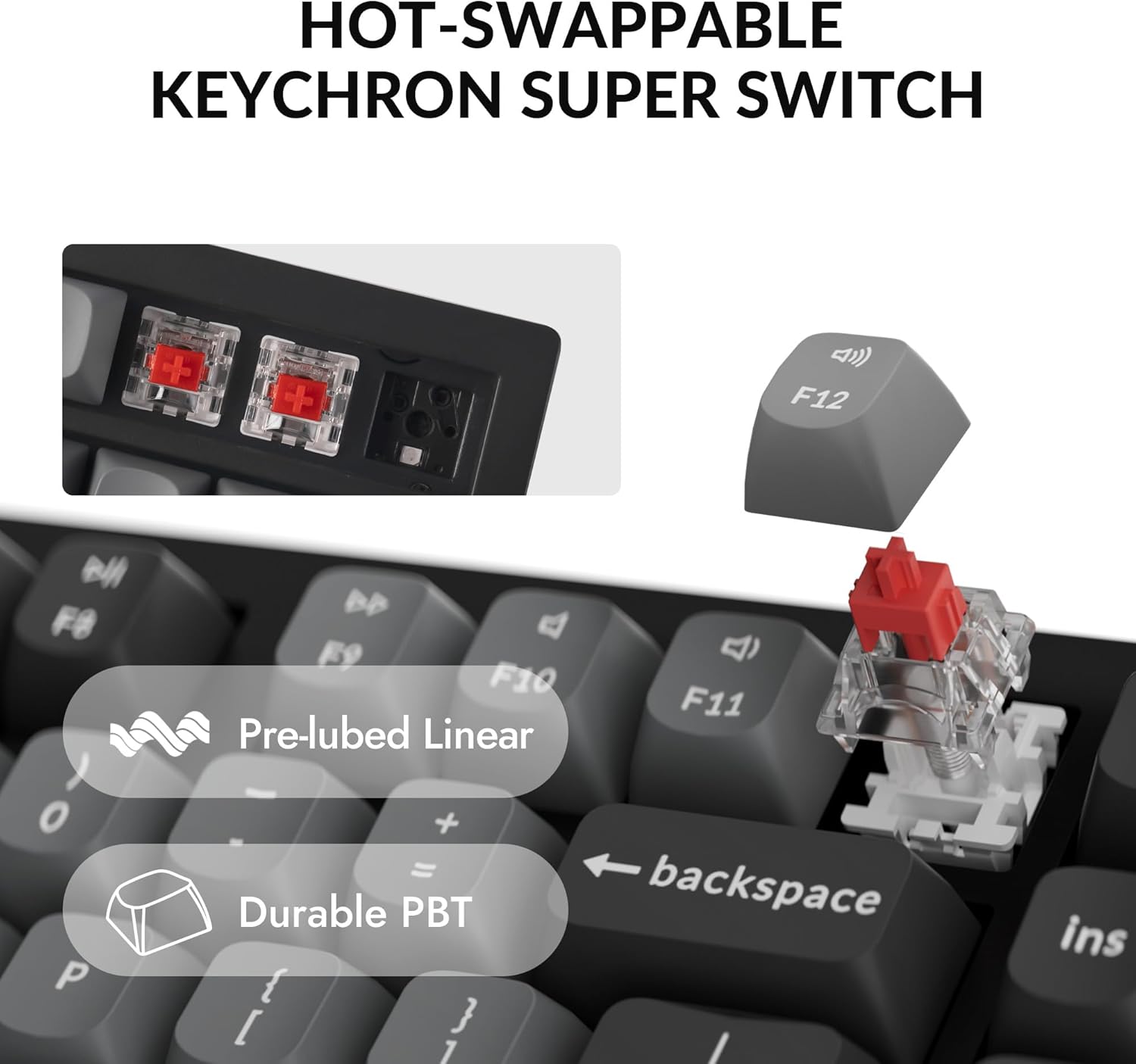
Image: A close-up view illustrating the hot-swappable nature of the Keychron Super Red switches, highlighting their pre-lubed linear characteristic and durable PBT keycaps.
4.3 Keycaps and Backlighting
The keyboard comes with unique OSA profile, double-shot PBT keycaps. These keycaps are designed to provide a comfortable fingertip feel and excellent oil resistance for long-term use. The south-facing RGB backlighting is designed to better illuminate the keyboard from the typist's angle, offering more than 22 types of RGB backlight settings for personalization.

Image: A detailed view of the Keychron K10 Max's double-shot PBT keycaps, emphasizing their OSA profile for ergonomic typing.
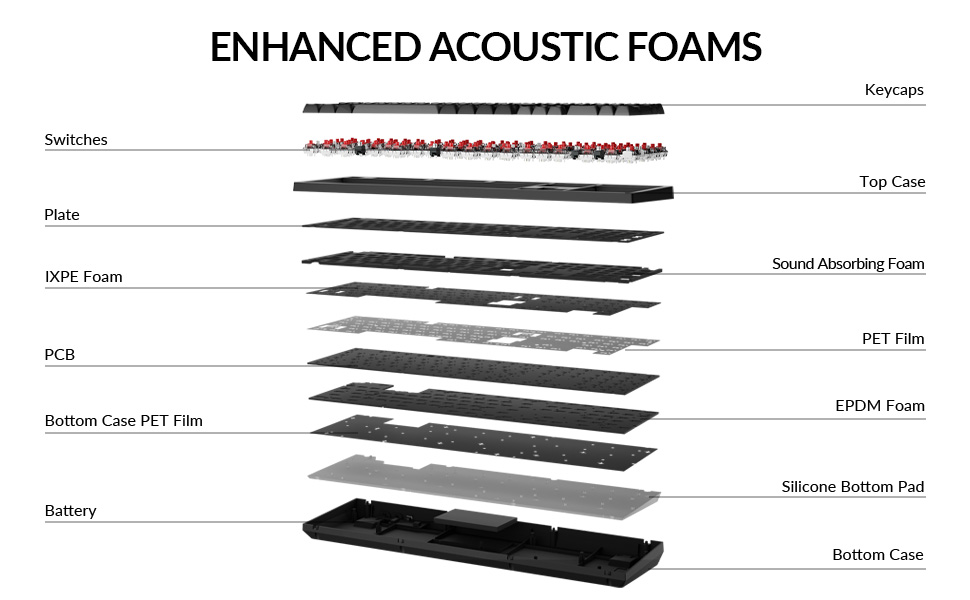
Image: Illustration of the south-facing RGB backlighting on the Keychron K10 Max, designed for optimal illumination from the user's perspective.
5. Maintenance and Care
5.1 Cleaning Your Keyboard
To maintain the performance and appearance of your Keychron K10 Max, regular cleaning is recommended:
- Keycaps: Use the provided keycap puller to remove keycaps. Clean them with a mild soap solution and a soft cloth, then dry thoroughly before reattaching.
- Keyboard Body: Wipe the keyboard body with a soft, damp, lint-free cloth. Avoid using harsh chemicals or abrasive materials.
- Between Keys: Use compressed air to remove dust and debris from between the keys.
5.2 Battery Care
The K10 Max is equipped with a rechargeable Lithium-Ion battery. To prolong battery life:
- Avoid fully discharging the battery frequently.
- Store the keyboard in a cool, dry place if not used for extended periods.
- Charge the keyboard using the provided USB-C cable connected to a standard USB power source.
6. Troubleshooting
If you encounter issues with your Keychron K10 Max, refer to the table below for common problems and their solutions.
| Problem | Possible Cause | Solution |
|---|---|---|
| Keyboard not connecting via 2.4 GHz | Receiver not plugged in, keyboard not in 2.4G mode, interference. | Ensure receiver is securely plugged in. Set keyboard switch to 2.4G. Try a different USB port or move closer to the receiver. |
| Bluetooth connection issues | Keyboard not in BT mode, device Bluetooth off, already connected to 3 devices. | Set keyboard switch to BT mode. Ensure device Bluetooth is on. Disconnect from other devices or try pairing to a different slot (Fn+1/2/3). |
| Keys not responding | Low battery, incorrect OS mode, switch issue. | Charge the keyboard. Check the OS mode switch (Windows/macOS). If a single key, try hot-swapping the switch. |
| Backlight not working | Backlight turned off, low battery. | Press Fn + Light key to cycle through backlight modes. Charge the keyboard. |
| Keyboard not charging | Cable issue, power source issue. | Ensure USB-C cable is properly connected. Try a different USB port or power adapter. |
7. Technical Specifications
Below are the key technical specifications for the Keychron K10 Max Wireless Custom Mechanical Keyboard:
- Layout: 100% Full-Size (108 Keys)
- Connectivity: 2.4 GHz Wireless, Bluetooth 5.1, USB-C Wired
- Polling Rate: 1000 Hz (2.4 GHz & Wired), 90 Hz (Bluetooth)
- Switches: Hot-swappable Keychron Super Red Mechanical Switches (compatible with 3-pin & 5-pin MX mechanical switches)
- Keycaps: Double-shot PBT, OSA Profile
- Backlighting: South-facing RGB (22+ types)
- Stabilizers: PCB-mounted Screw-in Stabilizers
- MCU: ARM Cortex-M4 32-bit STM32F402 (256KB Flash)
- Frame Material: ABS
- Battery: 1 Lithium Ion battery (included)
- Battery Life: Up to 146 hours (backlight off)
- Product Dimensions: 17.61 x 5.5 x 1.57 inches (447.37 x 139.82 x 39.88 mm)
- Item Weight: 5.14 pounds (2.33 kg)
- N-Key Rollover (NKRO): Yes
- Compatible Devices: Laptop, PC, Smartphone, Tablet
- Operating System Compatibility: macOS, Windows, Linux

Image: A visual summary of the Keychron K10 Max's technical specifications, including dimensions, polling rate, and component details.

Image: An exploded view diagram of the Keychron K10 Max, illustrating the internal layers including keycaps, switches, plate, IXPE foam, PCB, PET film, EPDM foam, silicone bottom pad, and battery, contributing to its enhanced acoustics.
8. Warranty and Support
Keychron products are designed for durability and performance. For specific warranty information regarding your Keychron K10 Max keyboard, please refer to the warranty card included in your product packaging or visit the official Keychron website.
For technical support, troubleshooting assistance beyond this manual, or inquiries about replacement parts, please contact Keychron customer support through their official website or the contact information provided with your purchase. Always provide your product model (K10 Max) and purchase details when seeking support.


