
Product Overview
The ZMDCAM 1080P Indoor Security Camera is a versatile device designed for monitoring indoor spaces such as homes, offices, or nurseries. It features 1080P HD video resolution, a 150° wide-angle lens, motion detection, two-way audio, and infrared night vision. This camera supports local storage via an SD card and can be accessed remotely via a smartphone application.

Image: Front view of the ZMDCAM 1080P Indoor Security Camera, showing its compact design and lens.
Key Features:
- 1080P HD Video & 150° Wide-angle: Captures clear, detailed video with a broad field of view.
- Motion Detection: Alerts you to movement within the camera's view.
- 2-Way Audio: Allows for communication through the camera.
- Infrared Night Vision: Provides clear monitoring in low-light or dark conditions up to 5 meters.
- SD Card Storage: Supports local video storage from 2GB to 128GB (SD card not included).
- Remote Access: View live video and recordings from anywhere via the mobile app.
- 24/7 Recording: Can record continuously when connected to a power source.
Setup Guide
1. Package Contents:
Before you begin, ensure all items are present in the package:
- ZMDCAM 1080P Indoor Security Camera (Model A9)
- USB Charging Cable
- User Manual (this document)
2. Initial Charging:
The camera contains a rechargeable lithium-ion battery. For optimal performance, fully charge the camera before first use. Connect the camera to a USB power adapter (not included) or a power bank using the provided USB cable. A full charge typically provides about 120 minutes of operation.
3. App Download and Installation:
To access the camera's features and live feed, you need to download the dedicated mobile application. The app is compatible with both iOS and Android devices. Scan the QR code provided in the quick start guide (if available) or search for the "senri" app in your device's app store.
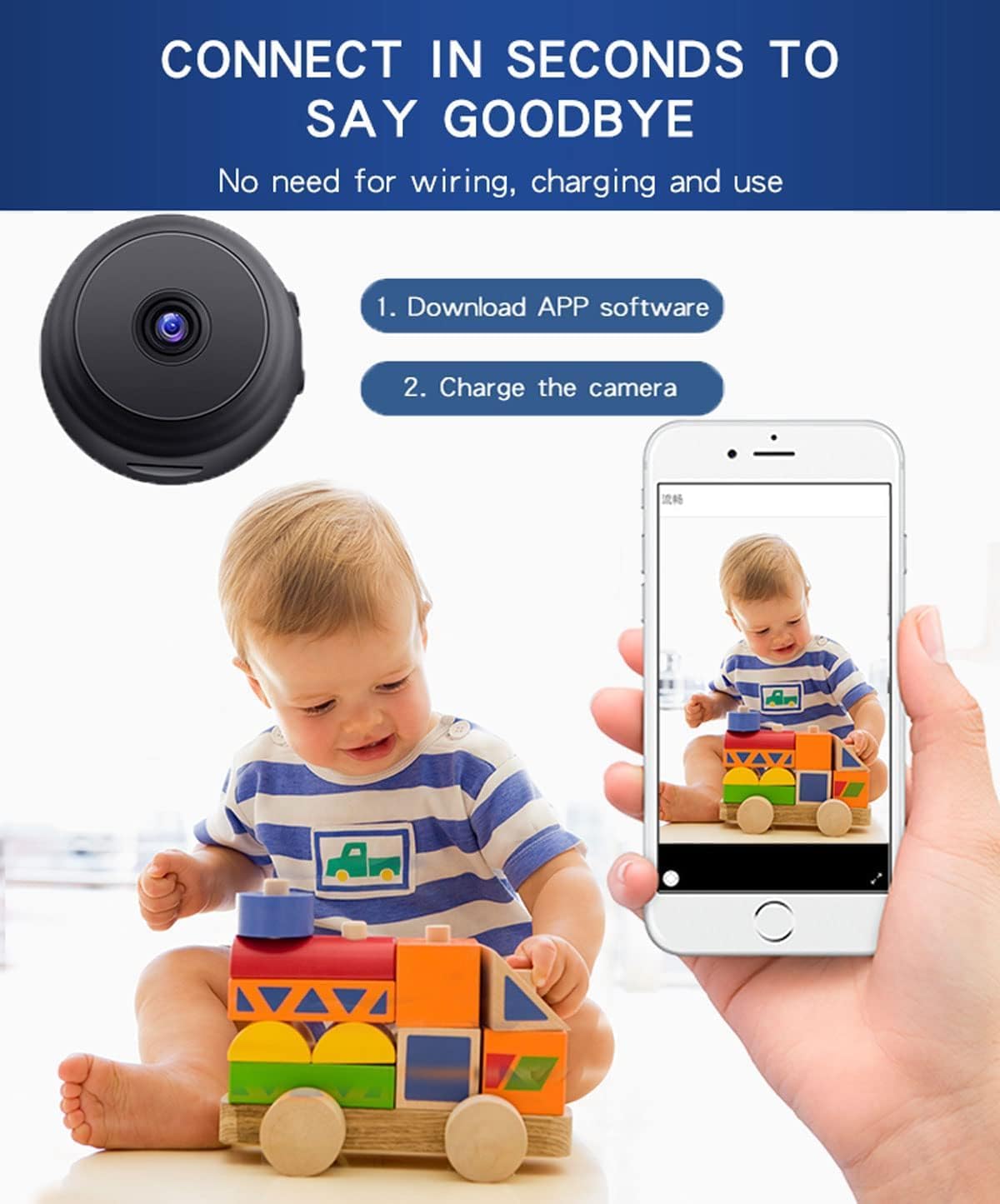
Image: Illustration showing the camera, a smartphone displaying the app, and a baby playing, emphasizing ease of connection.
4. Connecting to Wi-Fi:
- Power on the camera.
- Open the "senri" app on your smartphone.
- Follow the in-app instructions to add a new device. This typically involves selecting your Wi-Fi network and entering the password.
- Ensure the camera is within range of your Wi-Fi router for a stable connection.
5. SD Card Installation (Optional):
For local video storage, insert a Micro SD card (2GB to 128GB, not included) into the designated slot on the camera. Ensure the card is inserted correctly. The camera will automatically begin recording to the SD card once detected and formatted (if necessary, via the app).
Operating Instructions
1. Live View:
Once connected, open the "senri" app and select your camera from the device list to view the live feed. You can monitor your space in real-time from anywhere in the world.

Image: Depiction of the camera's 150-degree wide-angle view covering a large living space.
2. Video Recording:
- Continuous Recording: If an SD card is installed and the camera is connected to power, it can record 24/7.
- Motion-Activated Recording: The camera can be configured to record only when motion is detected, saving storage space.
- Manual Recording: You can initiate recording directly from the app during live view.
3. Two-Way Audio:
Tap the microphone icon in the app's live view interface to speak through the camera's speaker. Tap the speaker icon to listen to audio from the camera's surroundings.
4. Night Vision:
The camera is equipped with 6 invisible infrared lights for night vision. It automatically switches to night vision mode in low-light conditions, providing clear black-and-white video up to 5 meters. You can also manually toggle night vision on/off via the app.
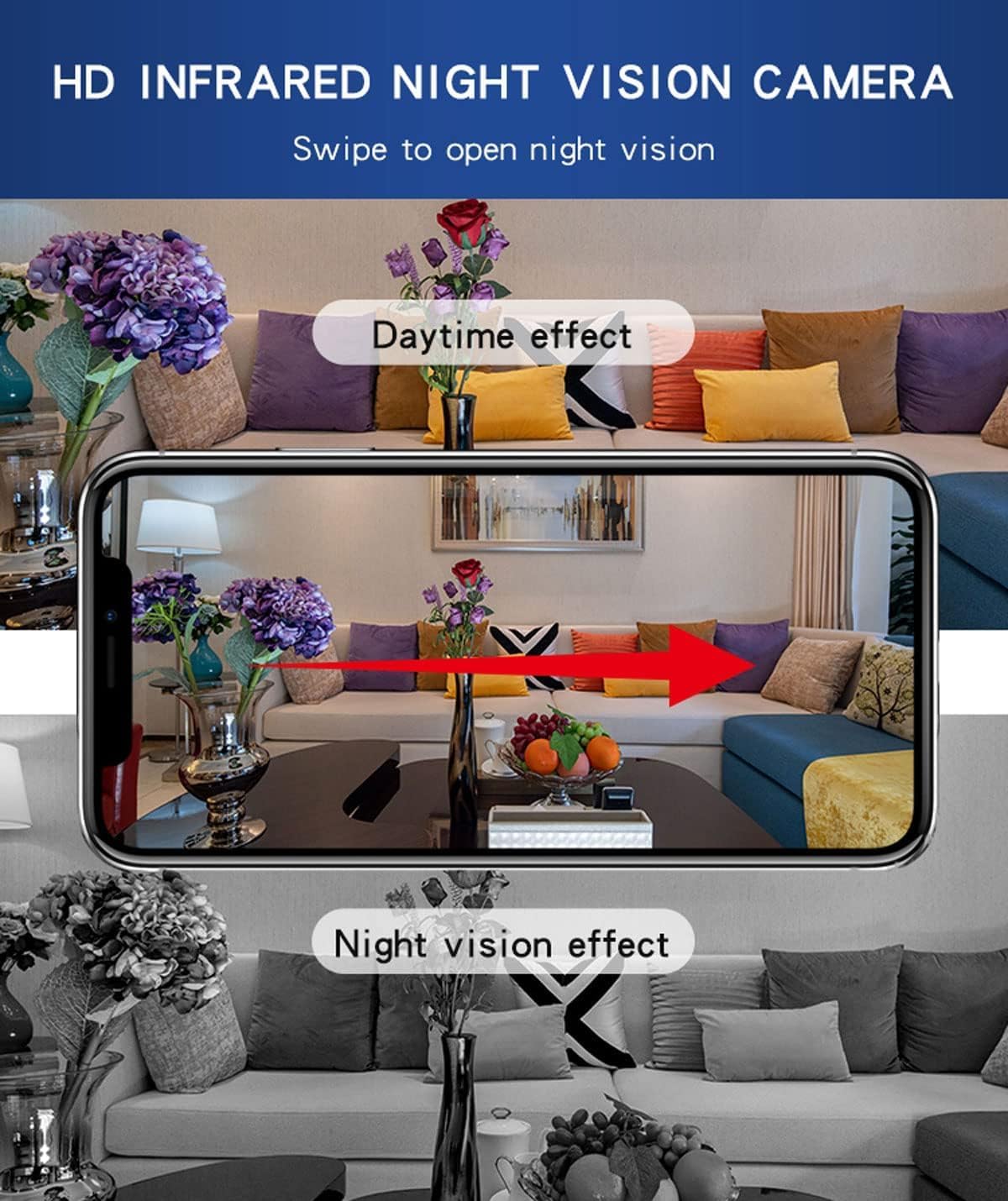
Image: Comparison showing a room in daytime effect (color) and night vision effect (black and white), demonstrating the camera's infrared capabilities.
5. Playback and Download:
Access recorded footage from the SD card via the app's playback function. You can review past events and download important clips directly to your smartphone.
Maintenance
1. Cleaning:
To maintain optimal performance, regularly clean the camera lens and body. Use a soft, dry cloth to wipe away dust and smudges. Do not use liquid cleaners or abrasive materials, as they may damage the lens or camera components.
2. Software Updates:
Periodically check the "senri" app for firmware updates. Keeping your camera's firmware up-to-date ensures you have the latest features, security enhancements, and bug fixes. Follow the in-app instructions for any available updates.
3. SD Card Management:
If using an SD card for storage, it is recommended to format the card periodically through the app to ensure smooth recording and prevent data corruption. Back up any important footage before formatting.
Troubleshooting
| Problem | Possible Cause | Solution |
|---|---|---|
| Camera offline/Cannot connect to Wi-Fi | Weak Wi-Fi signal, incorrect Wi-Fi password, camera too far from router. | Ensure camera is within Wi-Fi range. Verify Wi-Fi password. Restart camera and router. |
| No video recording to SD card | SD card not inserted correctly, card full, card corrupted, incorrect recording settings. | Reinsert SD card. Check storage space. Format SD card via app. Verify recording settings. |
| Poor night vision quality | Infrared lights obstructed, reflective surfaces nearby, camera lens dirty. | Ensure clear line of sight for IR lights. Avoid placing near reflective surfaces. Clean lens. |
| Two-way audio not working | Microphone/speaker muted in app, app permissions not granted, network issues. | Check app audio settings. Grant microphone/speaker permissions to the app. Ensure stable network connection. |
| App crashes or freezes | Outdated app version, insufficient phone storage, temporary software glitch. | Update the app to the latest version. Clear app cache or reinstall. Restart your phone. |
If you encounter issues not listed here, please refer to the support section for assistance.
Specifications
| Feature | Detail |
|---|---|
| Model Name | A9 |
| Brand | ZMDCAM |
| Indoor/Outdoor Usage | Indoor |
| Connectivity Technology | Wireless (Wi-Fi) |
| Video Capture Resolution | 1080p |
| Wide-angle Lens | 150° |
| Night Vision Range | Up to 5m (Infrared) |
| Power Source | Corded Electric / Rechargeable Battery |
| Battery Life (on full charge) | Approx. 120 minutes |
| Storage Support | Micro SD Card (2GB to 128GB, not included) |
| Compatible Devices | Smartphone (iOS, Android) |
| Alert Type | Motion Only |
| Product Dimensions | 2 x 2 x 1 inches |
| Item Weight | 8 ounces |
Warranty and Support
ZMDCAM provides comprehensive support for its products. Your ZMDCAM 1080P Indoor Security Camera comes with:
- 30-Day Money Back Guarantee: If you are not satisfied with your purchase, you may return it within 30 days for a full refund.
- 3-Year Technical Support: Dedicated technical assistance is available for three years from the date of purchase.
For technical assistance, troubleshooting, or warranty claims, please contact ZMDCAM customer support. Contact details are typically found on the product packaging or the official ZMDCAM website.

Image: A customer support representative wearing a headset, symbolizing available assistance.
Please have your product model number (A9) and purchase date ready when contacting support to expedite the process.
Important Safety Information
- Do not expose the camera to extreme temperatures, humidity, or direct sunlight.
- Keep the camera away from water or other liquids.
- Use only the provided USB cable for charging.
- Do not attempt to disassemble or repair the camera yourself. Contact support for service.
- Ensure the camera is placed on a stable surface to prevent falls.