
1. Introduction
Thank you for purchasing the MOKiN 16-in-1 USB-C Triple Display Docking Station. This device is designed to expand the connectivity of your USB-C or Thunderbolt 3/4 enabled laptop, providing multiple display outputs, high-speed data transfer, network connectivity, and power delivery through a single USB-C connection. Please read this manual carefully to ensure proper setup and operation.
2. Product Features
- Triple Display Output: Supports up to three external monitors via 3 HDMI ports, with resolutions up to 4K@60Hz.
- High-Speed Data Transfer: Features USB-A 3.1 and USB-C 3.1 ports with up to 10Gbps data transfer speed. Includes additional USB 3.0 (5Gbps) and USB 2.0 (480Mbps) ports.
- Power Delivery (PD 3.0): Provides up to 100W power passthrough to charge your laptop while using the docking station.
- Gigabit Ethernet: Integrated RJ45 port for stable and fast wired network connection (10/100/1000 Mbps).
- Card Readers: Built-in SD and MicroSD card slots for convenient data access, supporting speeds up to 200Mbps.
- Audio Connectivity: 3.5mm audio/microphone jack for headphones or external speakers.
- Plug and Play: No drivers or software installation required for most functions.
3. Package Contents
- MOKiN 16-in-1 USB-C Triple Display Docking Station
- USB-C to USB-C Cable
- User Manual
4. Port Layout
The MOKiN 16-in-1 USB-C Triple Display Docking Station features a comprehensive array of ports to enhance your workstation. Refer to the diagram below for a detailed overview of each port and its function.

Image 4.1: Front and rear view of the MOKiN 16-in-1 Docking Station with all ports labeled. This includes SD/MicroSD, RJ45, USB-A 2.0, USB-A 3.0, USB-A 3.1, Audio/Mic, USB-C 3.1, USB-C Host, PD3.0 100W, and three HDMI ports.
- USB-C Host Port: Connects to your laptop's USB-C or Thunderbolt port.
- PD3.0 USB-C Port: For connecting a power adapter to charge your laptop (up to 100W).
- 3 x HDMI Ports: Connect external monitors for video output (up to 4K@60Hz).
- RJ45 Ethernet Port: For wired network connection (10/100/1000 Mbps).
- 1 x USB-C 3.1 Port: High-speed data transfer (up to 10Gbps).
- 1 x USB-A 3.1 Port: High-speed data transfer (up to 10Gbps).
- 2 x USB-A 3.0 Ports: Data transfer (up to 5Gbps).
- 2 x USB-A 2.0 Ports: Data transfer (up to 480Mbps), ideal for keyboard and mouse.
- SD Card Slot: For SD, SDHC, SDXC cards (up to 200Mbps).
- MicroSD Card Slot: For MicroSD, MicroSDHC, MicroSDXC cards (up to 200Mbps).
- 3.5mm Audio/Mic Jack: For connecting headphones, speakers, or a microphone.
5. Setup Instructions
- Connect Power Adapter (Optional but Recommended): If your laptop requires charging or if you are connecting multiple power-hungry devices, connect your laptop's original USB-C power adapter to the PD3.0 USB-C port on the docking station.
- Connect External Monitors: Use HDMI cables to connect your monitors to the HDMI ports on the docking station.
- Connect Peripherals: Plug in your USB devices (keyboard, mouse, external hard drives, etc.) to the appropriate USB-A or USB-C data ports. Insert SD/MicroSD cards if needed.
- Connect Network Cable: For a wired internet connection, plug an Ethernet cable into the RJ45 port.
- Connect Audio Devices: If using external audio, plug your headphones or speakers into the 3.5mm audio/mic jack.
- Connect to Laptop: Connect the included USB-C to USB-C cable from the docking station's USB-C Host port to your laptop's USB-C or Thunderbolt 3/4 port.
- Verify Connection: Your laptop should automatically detect the docking station and connected devices. Adjust display settings as needed in your operating system.
6. Operating Instructions
6.1. Display Modes
The docking station supports various display configurations depending on your operating system and laptop's capabilities. Ensure your laptop's USB-C port supports DisplayPort Alternate Mode (Alt Mode) for video output.
For Windows Systems (DP1.4 Compatible Laptops):
Windows systems support both Mirror Mode and Extend Mode across multiple displays. In Extend Mode, you can have three distinct displays (HDMI 1 + HDMI 2 + HDMI 3) in addition to your laptop screen.
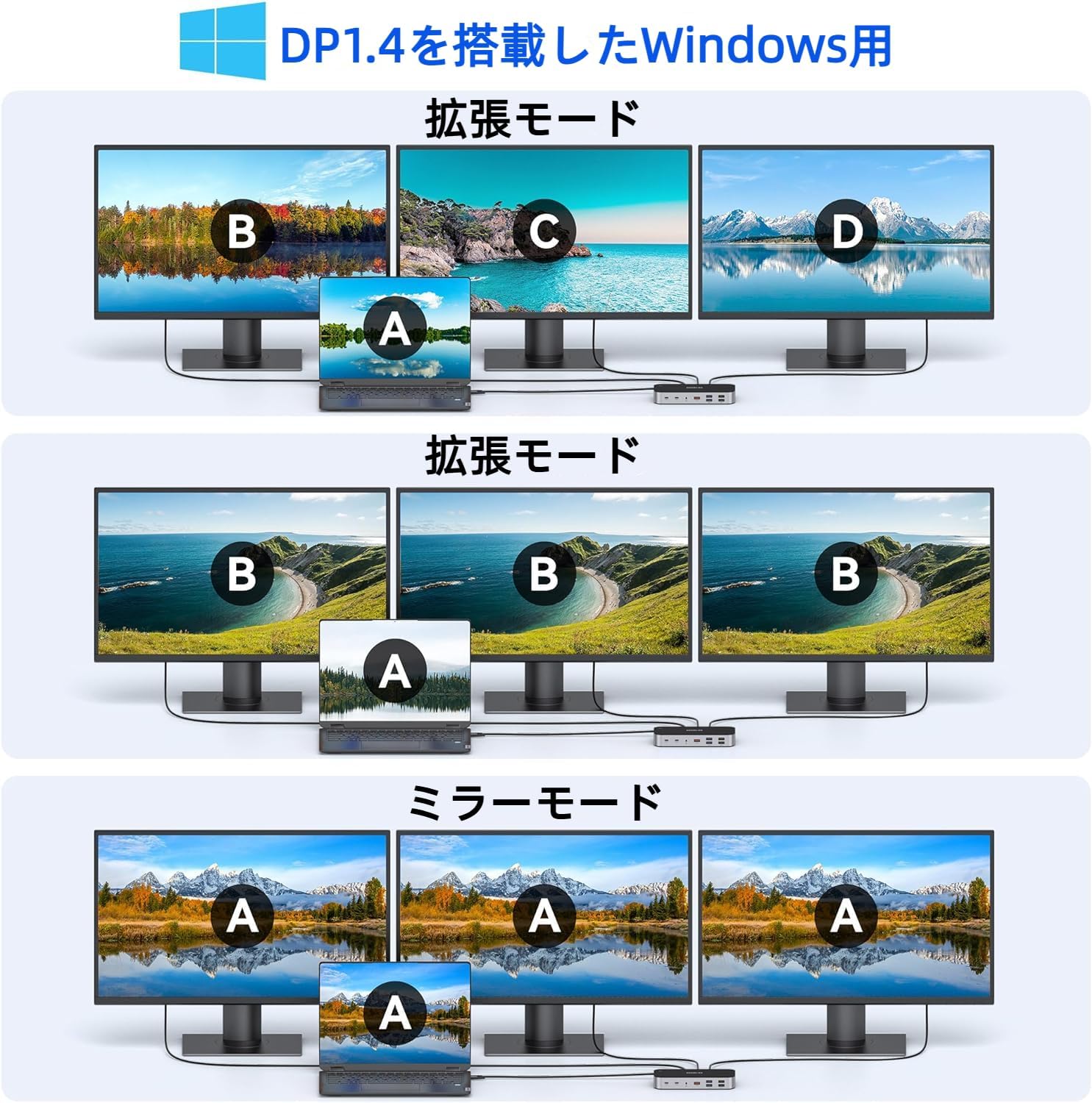
Image 6.1: Windows Multi-Display Modes (Extend and Mirror). The image shows how a laptop screen (A) can be extended to three unique external displays (B, C, D) or mirrored across all three external displays (A, A, A).
For macOS Systems (MacBook M1/M2 Chip):
macOS systems, including those with M1/M2 chips, typically support Mirror Mode for multiple external displays. This means all three external monitors will display the same content as your MacBook screen. Extended display to multiple distinct monitors is generally not supported by macOS via MST (Multi-Stream Transport) through a single USB-C connection.

Image 6.2: macOS Multi-Display Modes. The image demonstrates that macOS typically mirrors the laptop screen (A) across all connected external displays (A, A, A). It explicitly states that macOS does not support Multi-Stream Transport (MST) for distinct extended displays.
6.2. Data Transfer
Utilize the various USB ports and card readers for efficient data transfer.

Image 6.3: USB 3.1 10Gbps High-Speed Data Transfer. This image highlights the data transfer capabilities of the docking station's USB ports, showing speeds for USB 3.1, USB 3.0, and USB 2.0, along with examples of compatible devices.
- USB 3.1 (Type-A & Type-C): Connect external SSDs, high-speed flash drives, or other devices requiring maximum bandwidth.
- USB 3.0 (Type-A): Suitable for most USB peripherals like external hard drives, cameras, or faster flash drives.
- USB 2.0 (Type-A): Ideal for connecting low-bandwidth devices such as keyboards, mice, and printers to ensure stable performance.
- SD/MicroSD Card Readers: Transfer photos and videos from your camera's memory cards directly to your computer.
6.3. Power Delivery
The PD3.0 USB-C port allows you to power your laptop through the docking station. Connect your laptop's original power adapter to this port. The docking station can deliver up to 100W of power to your connected laptop, ensuring it stays charged during use.

Image 6.4: 100W Power Delivery. This image demonstrates how the docking station receives 100W input from a power adapter and delivers 85W output to a connected laptop, ensuring efficient charging.
6.4. Network Connectivity
The integrated RJ45 Gigabit Ethernet port provides a reliable and high-speed wired internet connection, which is often more stable than Wi-Fi.

Image 6.5: RJ45 Gigabit Ethernet. This image illustrates the use of the RJ45 port for a stable 1000 Mbps wired internet connection.
- Connect an Ethernet cable from your router/modem to the RJ45 port on the docking station.
- The docking station will automatically detect and adjust to network speeds of 10/100/1000 Mbps.
6.5. Audio
The 3.5mm audio/mic jack allows you to connect headphones, speakers, or a microphone for your audio needs.
- Plug your 3.5mm audio device into the audio/mic jack.
- Ensure your operating system's sound settings are configured to use the docking station's audio output/input.
7. Compatibility
This docking station is designed for devices equipped with a USB-C port that supports DisplayPort Alternate Mode (Alt Mode) or Thunderbolt 3/4. Compatibility may vary based on your device's specific USB-C port capabilities.
Supported Operating Systems:
- Windows (Windows 10/11 and later)
- macOS (Mac OS 14 Sonoma and later)
- Chrome OS
- Linux
Compatible Devices (Examples):
- MacBook/MacBook Pro (2017-2023)
- MacBook Air (2018-2023)
- iPad Pro (2018 and later)
- Lenovo Yoga 720/910/920/930
- Microsoft Surface Book 2
- Dell XPS 13/15
- Surface Laptop 3
- Dell Latitude 13 7000/E7370
- Other laptops with full-featured USB-C (DisplayPort Alt Mode) or Thunderbolt 3/4 ports.
Note: For HDMI display functionality, ensure your device's USB-C port supports DisplayPort Alternate Mode.
8. Maintenance
- Keep the docking station clean and free from dust. Use a soft, dry cloth for cleaning.
- Avoid exposing the device to extreme temperatures, humidity, or direct sunlight.
- Do not attempt to disassemble or repair the docking station yourself. This may void the warranty.
- Disconnect all cables when the device is not in use for extended periods.
9. Troubleshooting
| Issue | Possible Solution |
|---|---|
| No display output |
|
| Laptop not charging |
|
| USB devices not recognized |
|
| Slow network speed |
|
| Audio not working |
|
10. Specifications
| Feature | Detail |
|---|---|
| Brand | MOKiN |
| Model Number | MODK0705 |
| Total Ports | 15 (plus 1 host connection) |
| Display Output | 3 x HDMI (up to 4K@60Hz) |
| USB-C Data Port | 1 x USB-C 3.1 (10Gbps) |
| USB-A Data Ports | 1 x USB-A 3.1 (10Gbps), 2 x USB-A 3.0 (5Gbps), 2 x USB-A 2.0 (480Mbps) |
| Power Delivery | 1 x USB-C PD3.0 (up to 100W passthrough) |
| Ethernet | 1 x RJ45 Gigabit Ethernet (10/100/1000 Mbps) |
| Card Reader | SD & MicroSD (up to 200Mbps) |
| Audio | 1 x 3.5mm Audio/Mic Jack |
| Minimum OS Required | Mac OS 14 Sonoma |
| Warranty | 2 Years |
| Country of Origin | China |
11. Warranty and Support
The MOKiN 16-in-1 USB-C Triple Display Docking Station comes with a 2-year warranty from the date of purchase. This warranty covers manufacturing defects and malfunctions under normal use.
The warranty does not cover:
- Damage caused by misuse, abuse, accident, or neglect.
- Unauthorized repairs or modifications.
- Normal wear and tear.
For Warranty Claims or Technical Support:
Please contact the retailer where you purchased the product or visit the official MOKiN support website for assistance. Have your purchase receipt and product model number (MODK0705) ready when contacting support.


