
1. Introduction
This manual provides detailed instructions for the setup, operation, and maintenance of your SABLUTE Wireless Keyboard and Mouse Combo, model KC213D. Please read this manual thoroughly before use to ensure optimal performance and longevity of your device.

Image 1.1: SABLUTE Wireless Keyboard and Mouse Combo (Champagne Pink) with USB receiver and batteries.
2. Package Contents
Verify that all items are present in your package:
- 1 x SABLUTE Wireless Keyboard (KC213D)
- 1 x SABLUTE Wireless Mouse
- 1 x USB 2.4G Receiver (stored in the mouse battery compartment)
- 2 x AAA Batteries (for keyboard)
- 1 x AA Battery (for mouse)

Image 2.1: Illustration of the keyboard, mouse, USB receiver, and batteries included in the package.
3. Setup Instructions
3.1 Battery Installation
For the Keyboard:
- Locate the battery compartment on the underside of the keyboard.
- Open the battery compartment cover.
- Insert two (2) AAA batteries, ensuring correct polarity (+/-).
- Close the battery compartment cover.
For the Mouse:
- Locate the battery compartment on the underside of the mouse. The USB receiver is typically stored here.
- Open the battery compartment cover.
- Insert one (1) AA battery, ensuring correct polarity (+/-).
- Close the battery compartment cover.

Image 3.1: Keyboard battery compartment with AAA batteries and USB receiver.

Image 3.2: Mouse battery compartment with AA battery.
3.2 Connecting the USB Receiver
- Remove the USB 2.4G receiver from the mouse battery compartment.
- Plug the USB receiver into an available USB-A port on your computer or laptop.
- The keyboard and mouse should automatically connect within a few seconds. No additional drivers are typically required.
The wireless connection operates on a 2.4G frequency, providing a reliable range of up to 33 feet (10 meters).

Image 3.3: The USB 2.4G receiver and its effective wireless range.
3.3 Compatibility
This keyboard and mouse combo is compatible with a variety of operating systems and devices:
- Windows operating systems
- macOS
- Chrome OS
- Desktop PCs
- Laptops
- Chromebooks
- Dell Inspiron, HP ENVY, HUAWEI MateBook, Macbook Air, iMac, Personal Computer, Television (with USB-A port)
Note: A USB-C dongle is not included. This combo cannot connect directly to tablets or phones without an appropriate adapter.

Image 3.4: Visual representation of compatible operating systems and device types.
4. Operating Instructions
4.1 Ergonomic Design Features
The keyboard is designed for comfort during extended use:
- Integrated Wrist Rest: Features a 2.8-inch wide wrist rest to provide support and reduce strain.
- 10° Tilt Angle: The keyboard is designed with a 10-degree tilt for a more natural typing posture.

Image 4.1: The ergonomic wrist rest and 10-degree tilt angle of the keyboard.
4.2 Integrated Phone and Tablet Holder
The keyboard includes a built-in holder for mobile devices:
- The holder accommodates phones and tablets up to 11.9 inches in width.
- Dimensions of the holder: 8.87 inches (length) x 0.59 inches (width).

Image 4.2: A tablet positioned in the keyboard's integrated holder.
4.3 Multimedia and Shortcut Keys
The keyboard features 6 multimedia hotkeys for quick access to common functions:
- Previous Page: Navigates to the previous page in a browser or document.
- Next Page: Navigates to the next page in a browser or document.
- Refresh/Search: Refreshes the current page or activates search function.
- Search: Opens the search utility.
- Stop Loading: Halts the loading of a web page.
- Calculator: Opens the system calculator.

Image 4.3: Detailed view of the dedicated multimedia and shortcut keys.
4.4 Silent Typing and Clicking
- The keyboard utilizes soft membrane keys designed to reduce typing noise by up to 95%.
- The wireless mouse features Silent Micro Motion technology, resulting in nearly silent clicks.

Image 4.4: Comparison of noise levels, highlighting the 95% noise reduction of the combo.
4.5 Mouse Operation
The wireless mouse is equipped with 6 buttons and adjustable tracking speed:
- 6-Button Design: Includes standard left/right click, scroll wheel, DPI adjustment, and forward/backward buttons.
- 3 Levels of Tracking Speed (DPI): Adjust the mouse sensitivity to your preference. Press the DPI button (usually located below the scroll wheel) to cycle through the settings.
- Forward/Backward Buttons: Located on the side of the mouse for convenient navigation in web browsers or file explorers.
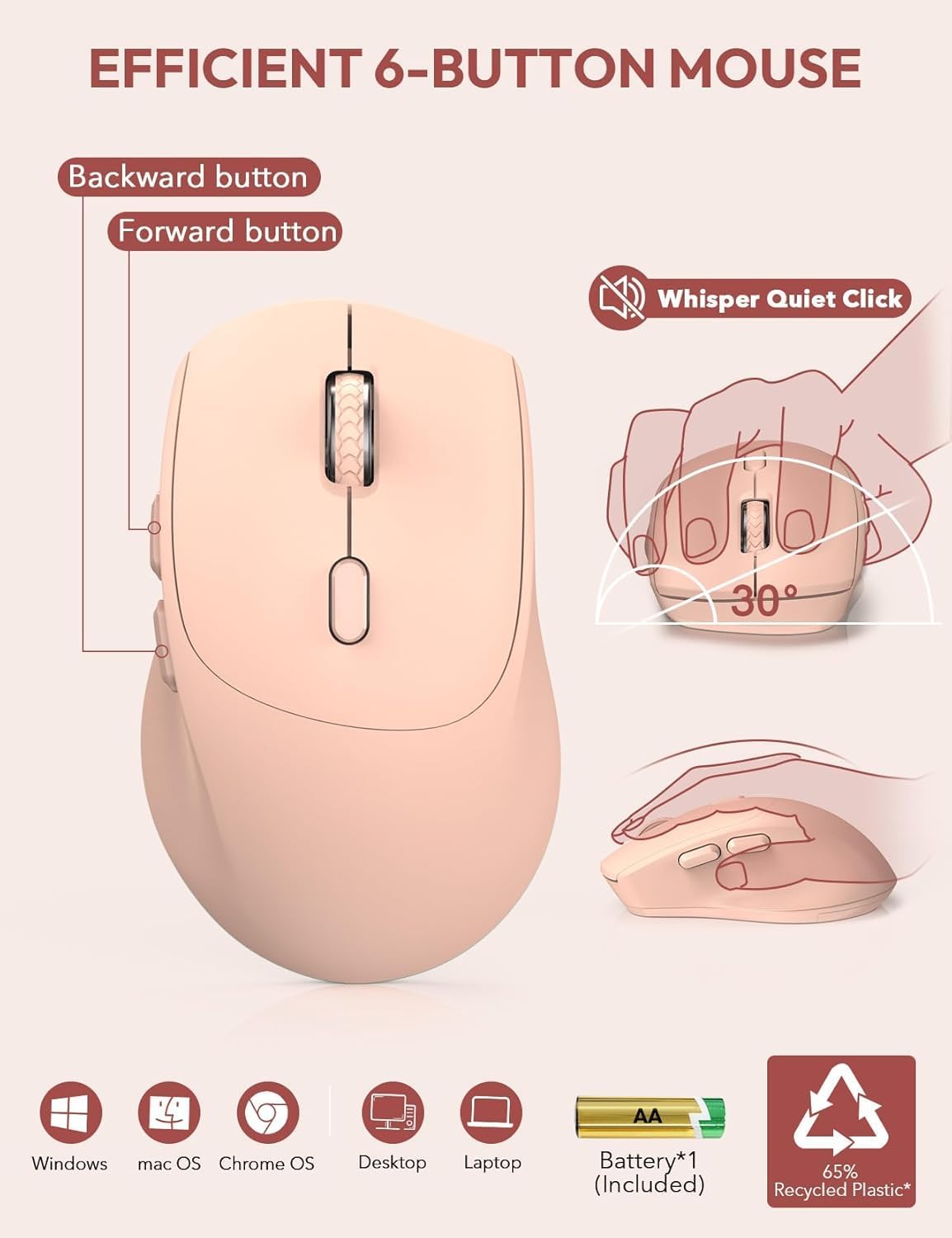
Image 4.5: Features of the 6-button mouse, including silent click and ergonomic design.
4.6 Power Saving Function
To conserve battery life, the keyboard and mouse feature an automatic sleep mode:
- Auto Sleep Mode: Both devices will enter sleep mode after 10 minutes of inactivity.
- Quick Wake-up: To wake the keyboard, press any key. To wake the mouse, click any button. The devices will become active within 1 second.
- Extended Standby: Provides up to 365 days of standby time for the keyboard and up to 400 hours of working time for the mouse on a single set of batteries.

Image 4.6: Details on the power-saving functions and battery life.
5. Maintenance
Proper maintenance ensures the longevity and performance of your SABLUTE Wireless Keyboard and Mouse Combo:
- Cleaning: Use a soft, dry cloth to clean the surfaces of the keyboard and mouse. For stubborn dirt, a slightly damp cloth with mild soap can be used, ensuring no liquid enters the device.
- Battery Replacement: Replace batteries when performance degrades or the low battery indicator (if present) illuminates. Always use new batteries of the specified type (AAA for keyboard, AA for mouse).
- Storage: Store the devices in a cool, dry place away from direct sunlight and extreme temperatures.
- USB Receiver: When not in use, the USB receiver can be stored in the mouse's battery compartment to prevent loss.
6. Troubleshooting
If you encounter issues with your SABLUTE Wireless Keyboard and Mouse Combo, refer to the following common solutions:
- Device Not Responding:
- Ensure the USB receiver is securely plugged into a functional USB-A port on your computer.
- Check if the batteries in both the keyboard and mouse are correctly installed and have sufficient charge. Replace if necessary.
- Move the keyboard and mouse closer to the USB receiver to rule out range issues.
- Try plugging the USB receiver into a different USB-A port, preferably directly on your computer rather than a USB hub, as some hubs may cause connectivity issues.
- Missing USB Dongle:
- The USB receiver is typically stored in a sealed bag within the product packaging or inside the mouse's battery compartment. Please check all packaging materials and the mouse compartment carefully.
- If still missing, contact customer support for assistance.
- Lag or Intermittent Connection:
- Ensure there are no large metallic objects or other wireless devices (like Wi-Fi routers, cordless phones) operating too close to the receiver, which could cause interference.
- As noted in reviews, connecting the USB receiver directly to a computer's USB-A port, rather than a USB-A hub, can resolve lag issues.
- Keys Wearing Off:
- Keycap legends may show wear over time with heavy use. Gentle typing and regular cleaning can help preserve them.
- If excessive wear occurs prematurely, contact customer support.
- General Problems:
- For any other issues not covered here, refer to the support section or contact SABLUTE customer service.
7. Specifications
| Feature | Detail |
|---|---|
| Model Number | KC213D |
| Product Dimensions (Keyboard) | 16.54 x 8.27 x 1.38 inches |
| Item Weight | 2.2 pounds |
| Connectivity Technology | 2.4G USB Wireless |
| Keyboard Batteries | 2 x AAA batteries (included) |
| Mouse Batteries | 1 x AA battery (included) |
| Special Features | Ergonomic Wrist Rest, Phone Holder, Full Size, Shortcut Keys, Low-profile keycap, Water Repellent |
| Compatible Devices | Chromebook, Dell Inspiron, HP ENVY, HUAWEI MateBook, Laptop, Notebook, Macbook Air, iMac, Personal Computer, Television |
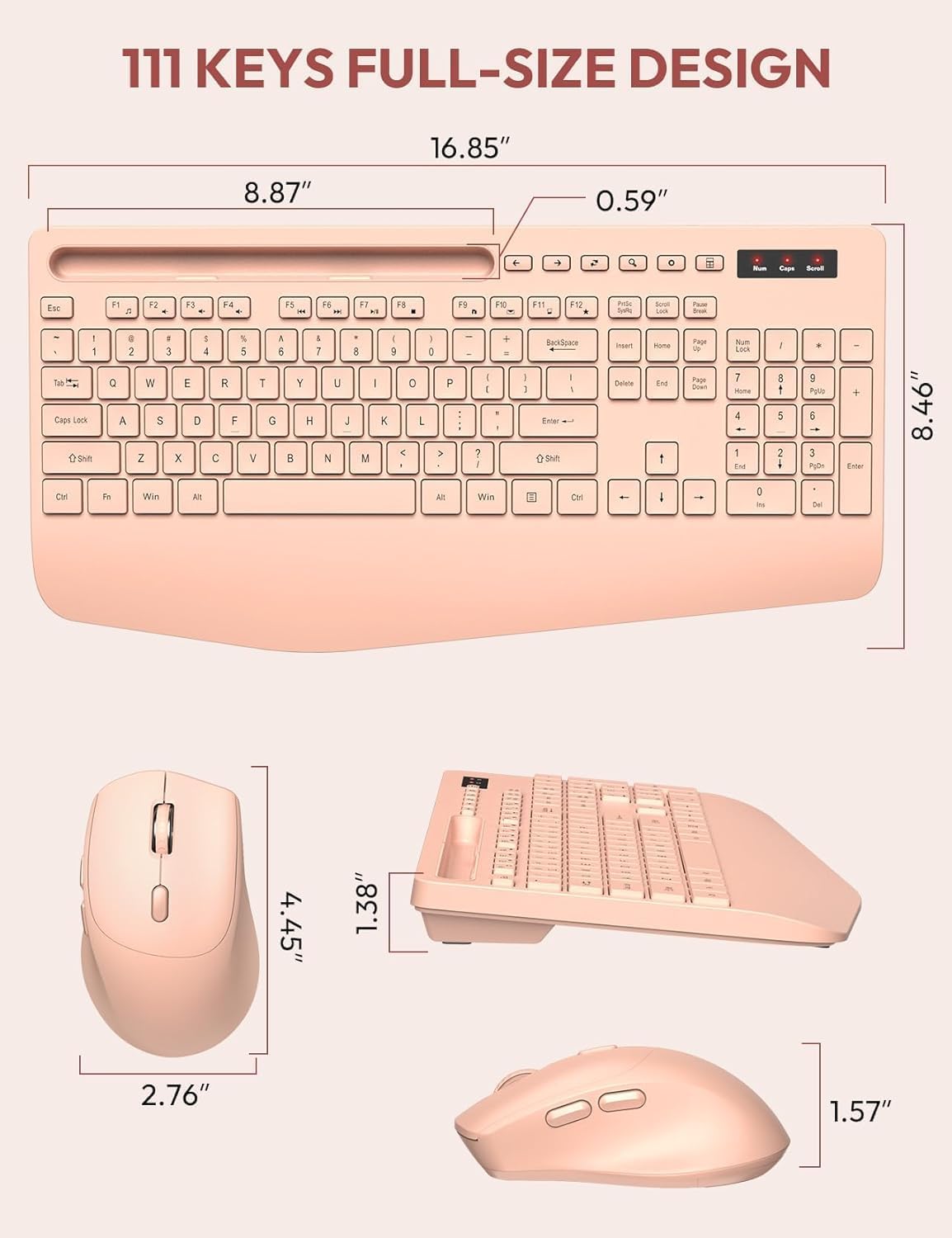
Image 7.1: Detailed dimensions of the keyboard and mouse.
8. Warranty and Support
SABLUTE is committed to providing quality products and customer satisfaction.
- 90-Day Replacement: We offer a 90-day replacement policy for product defects.
- 360-Day Manufacturer Warranty: Your product is covered by a 360-day manufacturer warranty from the date of purchase.
- Customer Service: For any inquiries, troubleshooting assistance, or warranty claims, please contact our support team.
Contact Email: sabluteservices@outlook.com

Image 8.1: SABLUTE customer support details.