
Introduction
This manual provides detailed instructions for the AlgoLaser RR2 Rotary Roller, an accessory designed to enhance your laser engraving capabilities. The RR2 allows for precise 360° engraving on cylindrical and irregularly shaped objects, expanding the versatility of your laser engraver. Please read this manual thoroughly before use to ensure proper setup, safe operation, and optimal performance.
Product Overview
Key Features
- Wide Compatibility: Compatible with Lightburn, LaserGRBL, and AlgoLaser APP. Designed to work with most laser engraving machines utilizing a GRBL controller.
- 360° Rotary Engraving: Enables engraving on cylindrical objects such as tumblers, bottles, logs, cups, and pens.
- Adjustable Diameter: Features 7 adjustable steps to accommodate engraving diameters up to 150mm.
- High Precision: Equipped with a precision 42 hybrid stepper motor for detailed engraving.
- Ease of Use: Pre-assembled, plug-and-play design with minimal setup required.
Components
The AlgoLaser RR2 Rotary Roller consists of the main roller unit and an adjustable bracket for supporting various object shapes.

Figure 1: The AlgoLaser RR2 Rotary Roller main unit, showcasing its compact design.

Figure 2: The AlgoLaser RR2 Rotary Roller positioned with various cylindrical objects, demonstrating its versatility as a laser engraver accessory.

Figure 3: Diagram illustrating the AlgoLaser RR2 Rotary Roller's accurate and efficient operation, including speed, roller travel, and precision control.

Figure 4: Safety features of the AlgoLaser RR2 Rotary Roller, including durable base, aluminum body for heat dissipation, and silicone rollers for stability.

Figure 5: Compatibility information for the AlgoLaser RR2 Rotary Roller, showing support for Lightburn, LaserGRBL, and AlgoLaser APP.
Setup Instructions
- Unpacking: Carefully remove the AlgoLaser RR2 Rotary Roller from its packaging.
- Placement: Position the rotary roller on a stable, flat surface within the working area of your laser engraver. Ensure it is level and secure.
- Connecting to Engraver: Connect the rotary roller to your laser engraver's Y-axis port. The RR2 is designed for plug-and-play operation with GRBL-controlled machines, requiring no additional drivers.
- Adjusting Width: For cylindrical objects, adjust the width of the rollers using the thumb screws to securely hold the object. The active roller has 7 gears for width adjustment.
- Using the Adjustable Bracket: For irregular or extra-long items (e.g., wine glasses, baseball bats), utilize the height-adjustable bracket to ensure the item remains horizontal and stable on the roller. The bracket can be adjusted vertically and horizontally.

Figure 6: The AlgoLaser RR2 Rotary Roller integrated with a laser engraver, ready for operation. Note the thumb screw for width adjustment.

Figure 7: Close-up view of the rotary roller's adjustable width mechanism, showing the 7 gear positions for different object diameters.

Figure 8: Examples of using the height-adjustable bracket to stabilize a wine glass and a baseball bat for engraving.
Operating Instructions
The AlgoLaser RR2 Rotary Roller is designed for seamless integration with common laser engraving software. Follow these general steps for operation:
- Prepare Object: Place the cylindrical object (e.g., tumbler, bottle) securely on the rotary roller. Adjust the roller width and use the support bracket if necessary to ensure stability.
- Software Configuration: Open your preferred laser engraving software (Lightburn, LaserGRBL, or AlgoLaser APP). Configure the software for rotary engraving. This typically involves enabling the rotary axis and inputting the object's diameter and circumference. Refer to your software's documentation for specific rotary setup procedures.
- Design and Positioning: Load your engraving design. Carefully position the design on the virtual representation of your object in the software. Ensure the design will engrave correctly on the curved surface.
- Focus Laser: Adjust the laser focus according to your engraver's instructions and the material of your object.
- Start Engraving: Initiate the engraving process from your software. Monitor the engraving closely.
The linear speed of the roller surface automatically matches the original Y-axis speed, simplifying software setup.

Figure 9: The AlgoLaser RR2 Rotary Roller actively engraving a tumbler, demonstrating its capability for cylindrical objects.
Maintenance
Regular maintenance ensures the longevity and optimal performance of your AlgoLaser RR2 Rotary Roller.
- Cleaning: Periodically clean the rollers and the main unit to remove dust, debris, and engraving residue. Use a soft, dry cloth. Avoid abrasive cleaners or solvents.
- Roller Inspection: Inspect the silicone rollers for any signs of wear, damage, or accumulation of material that might affect grip or rotation.
- Motor Check: Ensure the stepper motor and its connections are secure and free from obstruction.
- Storage: When not in use, store the rotary roller in a clean, dry environment away from direct sunlight and extreme temperatures.
Troubleshooting
If you encounter issues with your AlgoLaser RR2 Rotary Roller, refer to the following common problems and solutions:
| Problem | Possible Cause | Solution |
|---|---|---|
| Roller not rotating | Loose connection, motor issue, software misconfiguration. | Check cable connections. Verify rotary axis settings in engraving software. Ensure the motor is not obstructed. |
| Engraving distortion | Object not secure, incorrect diameter setting, roller slippage. | Ensure object is firmly seated and width is adjusted correctly. Verify object diameter in software. Clean rollers if slippage occurs. |
| Incompatible with engraver | Engraver does not use GRBL controller or has a non-standard Y-axis port. | Confirm your laser engraver uses a GRBL controller. Contact AlgoLaser customer support for compatibility inquiries. |
For further assistance, please refer to the customer support section.
Specifications
- Model: RR2
- Product Dimensions: 10.4 x 7.6 x 2.7 inches
- Item Weight: 3.58 pounds
- Engraving Diameter Range: Up to 150mm (adjustable in 7 steps)
- Best Engraving Speed: 3000mm/min
- Roller Travel: 0-60mm
- Precision Control: 0.35°
- Motor: Precision 42 Hybrid Stepper Motor
- Compatibility: Lightburn, LaserGRBL, AlgoLaser APP; most GRBL-controlled laser engravers.
- Materials: Durable base (Aluminum and ABS), Aluminum body (for heat dissipation), Silicone rollers (for greater stability).
Warranty and Customer Support
AlgoLaser provides a 1-year warranty for the RR2 Rotary Roller. For any setup, technical assistance, or warranty claims, please contact AlgoLaser customer service. You can reach us via Amazon's messaging system or through our official support channels.
Our team is dedicated to providing friendly customer service and professional technical support to ensure your satisfaction.
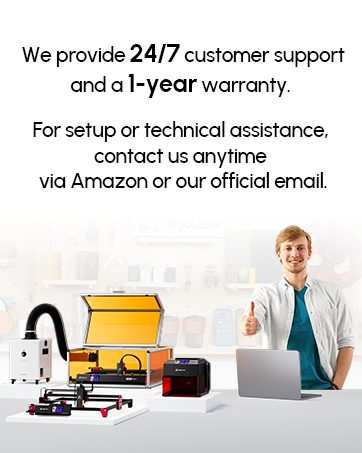
Figure 10: AlgoLaser customer support information, highlighting 24/7 support and a 1-year warranty.


