Introduction
The AZDOME M550 Max is a state-of-the-art 3-channel dash camera system designed to provide comprehensive surveillance for your vehicle. It simultaneously records footage from the front, cabin, and rear, offering 360° full protection. Equipped with advanced features like dual STARVIS sensors, built-in WiFi and GPS, and multiple parking modes, this dash cam ensures high-quality video capture and reliable monitoring day and night.

Figure 1: AZDOME M550 Max Dash Cam components including the main unit, cabin camera, rear camera, and 64GB memory card.
What's in the Box
Verify that all items listed below are included in your package:
- 1 * M550 Max Dash Cam; 1 * in-car Rear Camera, 1 * Cabin Camera
- 1 *Magnet Bracket Built-in GPS; 1 * 64GB Memory Card
- 1 * 12ft Power Supply Cable with Car Charger
- 2 * Electrostatic Sticker, 1 * Installation Tools Kit
- 1 * AZDOME M550 Max User Manual

Figure 2: All components included in the AZDOME M550 Max Dash Cam package.
Features
- 3 Channel Recording Dash Cam: M550 Max's front camera supports up to 4K 3840*2160 resolution in all 1CH/2CH/3CH options, capturing crystal-clear footage on the road. With complete 150° front, cabin and rear views, the triple dashcam simultaneously records in 4K+1080P+2.5K resolution with 360° full-protection, making it an ideal companion for Uber drivers and family road trips.
- Dual STARVIS & WDR & 6 IR Night Vision: Equipped with dual STARVIS sensors IMX335 & IMX307, M550 Max 4K dash cam delivers low-light performance, ensuring clear footage even in challenging conditions. With WDR technology, it balances bright and dark scenes, making details like road signs and license plates easily visible. The IR night vision illuminates the interior, providing clear images in total darkness. Drive confidently, knowing your journey is recorded in stunning detail, day or night!
- Built-in WiFi & GPS: With built-in WiFi, M550 Max dashcam is compatible with AZDOME app, which allows you to access recorded videos and photos instantly on your phone, and share your travel scenery and moments while on the go. Built-in GPS allows you to track your driving route and location via the app or AZDOME GPS Player, offering crucial evidence in case of accidents.
- 3 Parking Modes for 24/7 Protection: The car security camera features 3 parking modes. Motion or collision detection modes allow the dash cam 3 channel to initiate recording when triggered. While time lapse mode, driving recorder front, rear and interior will keep recording continuously and speed up the time to greatly save storage space. Ensure all-day vehicle protection, a hardwire kit (ASIN: B0BM9JL327, sold separately) is required.
- Reliable Features for Accident Recording: The variable sensitivity G-sensor automatically detects sudden shocks or collisions, locking the triple dash cam footage in the event folder upon impact. Loop recording automatically overwrites the oldest files when the memory card is full, and the screen saver feature turns off the car dash cam LCD to minimize distractions.
Setup
Follow these steps to install your AZDOME M550 Max Dash Cam:
- Prepare the Windshield: Clean the area on your windshield where the dash cam will be mounted. Apply the electrostatic sticker to the desired location.
- Mount the Main Dash Cam: Attach the main dash cam unit to the electrostatic sticker on the windshield. Ensure it is securely in place and the front camera has a clear view of the road. The magnetic bracket with built-in GPS simplifies attachment and removal.
- Connect Power: Plug the 12ft power supply cable into the dash cam and route it to your car's cigarette lighter socket.
- Install Cabin Camera: The cabin camera is a simple plug-and-play module that attaches directly to the main dash cam unit. It can be rotated for optimal interior coverage.
- Install Rear Camera: The rear camera is IP68 waterproof and can be installed either inside or outside your vehicle. For optimal rear vision, external installation is recommended. Route the rear camera cable from the main unit to the rear of your vehicle.
- Cable Management: Use the provided installation tools and cable clips to neatly tuck away all cables along the vehicle's interior trim.
Installation Overview Video
Video 1: A comprehensive review of the AZDOME M550 Max Dash Cam, including unboxing and installation steps.
Detailed Installation Steps Video
Video 2: Step-by-step guide on installing the AZDOME M550 Max Dash Cam in a vehicle.

Figure 3: Illustration of easy and hidden installation for the dash cam and its components.
Operating
Recording Modes
The M550 Max supports various recording configurations:
- 3-Channel Recording: Front (4K), Cabin (1080P), Rear (2.5K) simultaneously.
- Dual Channel Recording: Front (4K) + Cabin (1080P) or Front (4K) + Rear (2.5K).

Figure 4: Visual representation of the 3-channel recording capability.
Night Vision and WDR
Equipped with dual STARVIS sensors and 6 IR LEDs, the dash cam provides clear footage in low-light conditions. WDR (Wide Dynamic Range) technology balances exposure for optimal image quality in varying light.
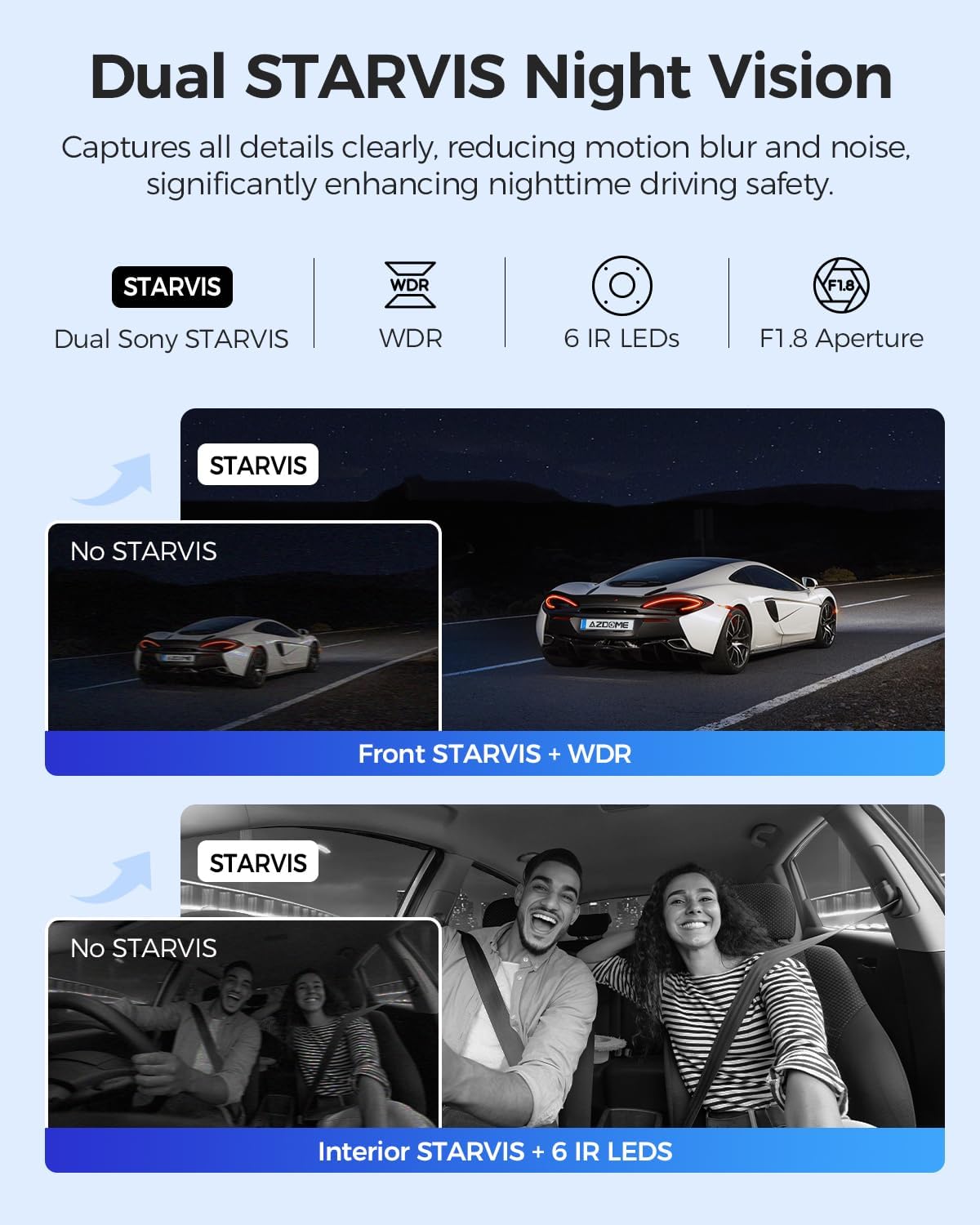
Figure 5: Demonstration of Dual STARVIS and WDR technology for enhanced night vision.
Built-in WiFi & GPS
Connect to the AZDOME app via built-in WiFi to view live footage, download videos, and adjust settings. The integrated GPS module tracks your driving route and speed, viewable through the app or AZDOME GPS Player.

Figure 6: AZDOME app features for managing dash cam footage and settings.
Road Test Footage (Day)
Video 3: Day-time road test footage from the M550 Max 3-channel dash cam, showcasing video quality.
Road Test Footage (Night)
Video 4: Night-time road test footage from the AZDOME 3-channel dash cam, demonstrating low-light performance.
Parking Modes
The dash cam offers three parking modes for 24/7 vehicle protection (requires hardwire kit, sold separately):
- Motion Detection: Records when motion is detected.
- Collision Detection: Records when an impact is detected.
- Time Lapse: Continuously records at 1 frame per second to save storage space.

Figure 7: Overview of the 24/7 parking modes available.
Emergency Lock & Loop Recording
The built-in G-sensor automatically locks footage during sudden shocks or collisions. Loop recording ensures continuous recording by overwriting the oldest files when the memory card is full.
Maintenance
- SD Card Formatting: Regularly format the included 64GB memory card to ensure optimal performance and prevent data corruption. This can be done through the AZDOME app settings.
- Cleaning: Keep the camera lenses clean and free from dust or smudges for clear video quality. Use a soft, lint-free cloth.
- Firmware Updates: Check the AZDOME website or app periodically for firmware updates to ensure your dash cam has the latest features and bug fixes.
Troubleshooting
If you encounter issues, refer to the following common solutions:
- Blurry Rear Camera Footage: If the rear camera footage appears blurry, especially if installed inside, it might be due to window films or the camera focusing on the closest point (e.g., heating strips on the rear window). The rear camera is designed for external installation for optimal clarity.
- No Audio Recording: Audio recording might be off by default. Check the dash cam settings via the device buttons or the AZDOME app to enable audio recording.
- Wi-Fi Connection Issues: Ensure your phone is within 10ft of the dash cam when connecting via Wi-Fi. Turn off cellular data on your phone before attempting to connect to the dash cam's Wi-Fi network.
- Dash Cam Not Turning On: Verify the power cable is securely connected to both the dash cam and the car's power source. Check the car's power outlet for functionality.
- SD Card Errors: If you receive SD card errors, try formatting the card through the dash cam settings. If the issue persists, the card may be faulty and require replacement.
Rear Camera Installation Considerations Video
Video 5: Footage demonstrating the difference in rear camera clarity when installed inside versus outside the vehicle, highlighting potential blurriness due to internal window features.
Specifications
| Feature | Detail |
|---|---|
| Product Dimensions | 1.18 x 5.47 x 1.3 inches |
| Item Weight | 1.63 pounds |
| Item Model Number | AZDOME M550 Max |
| Batteries | 1 Lithium Metal batteries required. |
| Connectivity Technologies | Wi-Fi |
| Special Features | 3 Channel Front and Rear Inside Dash Cam, Built-in WiFi, GPS Tracking, 24 Hours Parking Mode, G-sensor, Loop Recording, Time-lapse, Infrared Night Vision, 64GB Card |
| Video Capture Resolution | 4K Front, 4K+2.5K Front & Rear, 4K+1080P Front & Inside, 4K+1080P+2.5K Front & Inside & Rear |
| Included Components | 1 * AZDOME M550 Max User Manual, 1 * 12ft Power Supply Cable with Car Charger, 1 *Magnet Bracket Built-in GPS; 1 * 64GB Memory Card, 1 * M550 Max Dash Cam; 1 * in-car Rear Camera, 1 * Cabin Camera, 2 * Electrostatic Sticker, 1 * Installation Tools Kit |
| Mounting Type | Magnetic Stand |
| Color | Black |
| Manufacturer | AZDOME |
Warranty and Support
The AZDOME M550 Max dash camera for cars includes a free 64GB memory card. AZDOME offers a 12-month assurance and 24/7 technical support. For additional accessories or any inquiries, kindly reach out to AZDOME's support team for assistance. Our aftersales team is always ready to assist you with any inquiries or concerns.
For support, please contact AZDOME directly.


