Introduction
This manual provides essential information for the safe and efficient use of your Samsung Galaxy A35 5G smartphone. Please read this manual thoroughly before operating the device to ensure proper functionality and to prevent damage. Keep this manual for future reference.
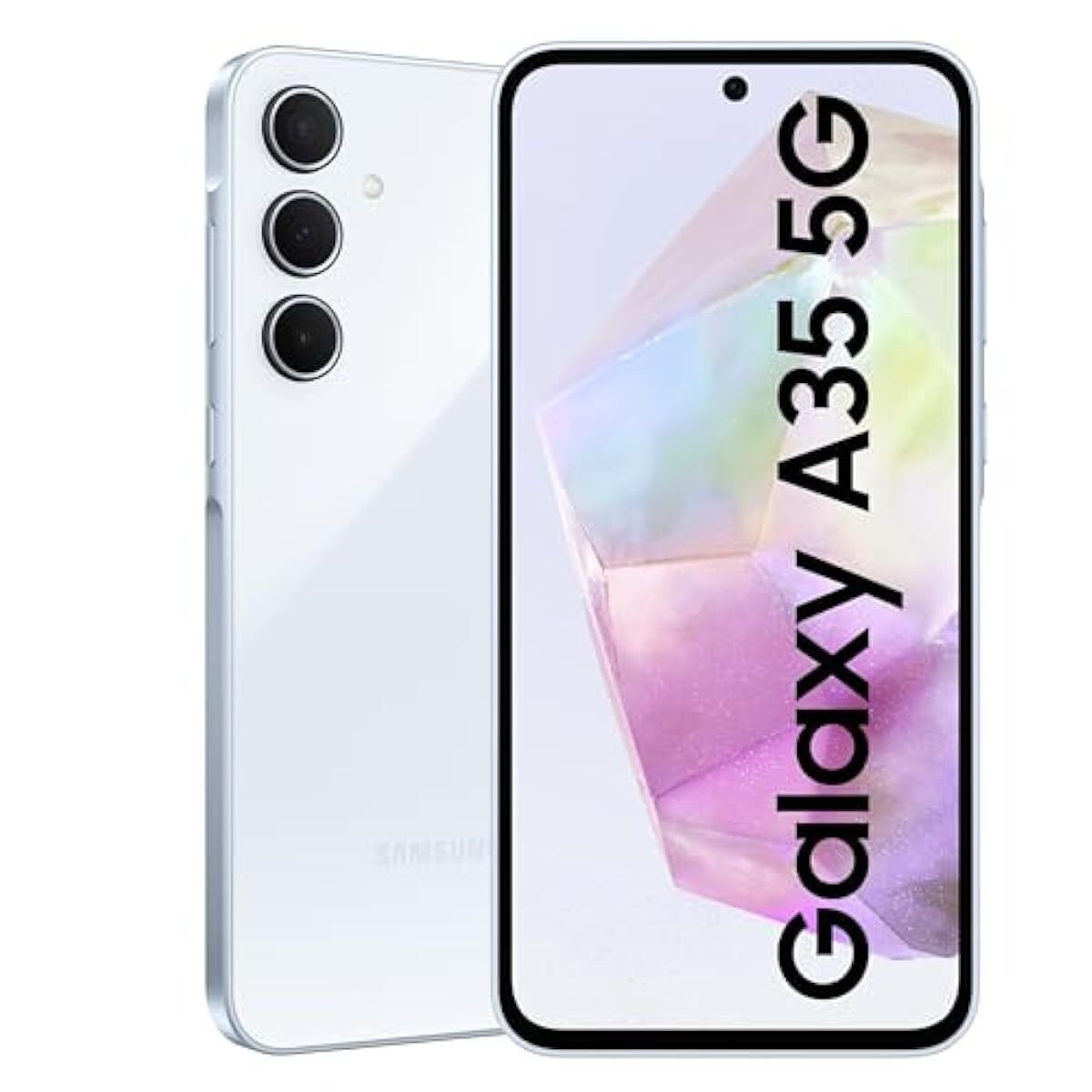
Image: Front view of the Samsung Galaxy A35 5G smartphone, showcasing its display.
Setup
1. Unpacking and Initial Inspection
Carefully remove all items from the packaging. Verify that all components are present: Samsung Galaxy A35 5G smartphone, USB-C cable, and documentation. Inspect the device for any signs of physical damage.
2. SIM Card Installation
- Locate the SIM card tray on the side of your device.
- Insert the provided SIM ejection tool into the small hole on the tray to open it.
- Place your Nano-SIM card(s) into the tray with the gold contacts facing down. The Galaxy A35 5G supports Dual SIM (DS).
- Gently push the tray back into the slot until it clicks into place.
3. Charging the Battery
Before first use, fully charge the device battery. Connect the USB-C cable to the phone's charging port and the other end to the included 25W wall charger. The charging indicator will appear on the screen. A full charge typically takes approximately 80 minutes with the 25W charger.
4. Powering On and Initial Configuration
Press and hold the Power button (located on the right side) until the Samsung logo appears. Follow the on-screen prompts to complete the initial setup, including language selection, Wi-Fi connection, Google account setup, and security settings.
Operating Your Device
1. Basic Navigation
The Galaxy A35 5G features a 6.6-inch FHD+ Super AMOLED Infinity-O display with a 120Hz refresh rate for smooth interaction. Use touch gestures such as tap, swipe, pinch-to-zoom, and long-press to navigate the interface.
2. Camera Functions
Your device is equipped with a 50MP high-resolution Wide-angle camera. To open the camera, tap the Camera icon on the home screen or lock screen. Key features include:
- Nightography: Enhanced sensor and NPU for clear photos in low-light conditions.
- Super HDR: Captures rich colors and clear videos in various lighting.
- OIS (Optical Image Stabilization) & VDIS (Video Digital Image Stabilization): Provides smooth and steady videos while moving.
- Edit Suggestion: Utilize features like Background blur, Remaster, and Erase shadows to enhance your photos.
3. Connectivity
The Galaxy A35 5G supports 5G and 4G LTE networks for high-speed mobile data. It also includes Wi-Fi, Bluetooth, and NFC for wireless connections. To manage these, go to Settings > Connections.
4. Audio Output
For wired audio accessories, connect them via the USB-C port. The device does not feature a traditional 3.5mm audio jack.
Maintenance
1. Cleaning Your Device
To clean the screen and body of your phone, use a soft, lint-free cloth. For stubborn marks, slightly dampen the cloth with distilled water. Avoid using harsh chemicals, abrasive materials, or aerosol sprays, as these can damage the screen coating and finish.
2. Software Updates
Regularly check for and install software updates to ensure your device has the latest features, security patches, and performance improvements. Go to Settings > Software update > Download and install.
3. Battery Care
To prolong battery life, avoid exposing your device to extreme temperatures. It is recommended to keep the battery charge between 20% and 80% for optimal long-term health. The 5000 mAh battery provides up to 24 hours of talk time.
Troubleshooting
1. Device Not Powering On
Ensure the battery is sufficiently charged. Connect the device to the charger and wait a few minutes before attempting to power it on again. If the issue persists, perform a forced restart by pressing and holding the Volume Down button and the Power button simultaneously for more than 7 seconds.
2. Network Connectivity Issues
If you experience problems with calls, messages, or mobile data, check the following:
- Verify that your SIM card is correctly inserted.
- Ensure Airplane mode is disabled (Settings > Connections > Airplane mode).
- Restart your device.
- Check with your network provider for service outages in your area.
3. Display Not Responding
If the screen is unresponsive, try restarting the device using the forced restart method (Volume Down + Power button for 7+ seconds). If the problem continues, contact Samsung support.
4. Device Performance Issues
If your device is slow or apps are crashing, try clearing the cache of problematic apps (Settings > Apps > [App Name] > Storage > Clear cache). Regularly restart your device to clear temporary memory. As a last resort, consider a factory data reset (Settings > General management > Reset > Factory data reset), but be aware this will erase all data on your device. Back up important data before proceeding.
Specifications
| Feature | Specification |
|---|---|
| Model Name | Samsung Galaxy A35 |
| Model Number | SM-A356E/DS |
| Operating System | Android |
| RAM | 8 GB |
| Internal Storage | 128 GB |
| Screen Size | 6.6 inches (168.3 mm) |
| Display Resolution | 1080 x 2340 pixels |
| Refresh Rate | 120 Hz |
| Main Camera | 50 MP (Triple Camera System) |
| Battery Capacity | 5000 mAh |
| Talk Time | Up to 24 Hours |
| Connectivity | 5G, 4G LTE, Wi-Fi, Bluetooth, NFC, USB-C |
| Dimensions (Package) | 7 x 3.7 x 1 inches |
| Item Weight | 11.2 ounces |
Warranty and Support
1. Product Warranty
The Samsung Galaxy A35 5G typically comes with a 1-year limited warranty from the date of purchase, covering manufacturing defects. Please refer to the warranty card included in your product packaging or visit the official Samsung website for detailed terms and conditions specific to your region.
2. Customer Support
For technical assistance, troubleshooting beyond this manual, or warranty claims, please contact Samsung customer support. You can find contact information (phone numbers, chat support, service center locations) on the official Samsung website for your country or region.
Online Resources: Visit www.samsung.com/support for FAQs, software downloads, and additional user guides.


