
Introduction
Thank you for choosing the Gvyugke Captain 500 Wireless Gaming Headset. This headset is designed to provide a versatile and immersive audio experience across multiple gaming platforms and devices. Featuring 2.4GHz wireless, Bluetooth 5.2, and 3.5mm wired connectivity, along with a detachable noise-cancelling microphone and RGB lighting, it offers flexibility and high-quality sound for your gaming and communication needs. Please read this manual carefully to ensure proper setup and operation.

The Gvyugke Captain 500 Wireless Gaming Headset, showcasing its sleek design.
Product Overview
Headset Components

An exploded view illustrating the internal and external components of the headset, including the ear cushion, integrated head beam, game lights, ring transducer, neodymium magnet, and PET shockproof protector.
Key Features
- Triple Connection Modes: 2.4GHz Wireless, Bluetooth 5.2, and 3.5mm Wired for broad compatibility.
- Low Latency 2.4GHz Wireless: Provides a stable connection with less than 20ms delay for gaming.
- High-Performance Bluetooth 5.2: For mobile devices and general wireless use.
- Omni-directional Noise-Cancelling Microphone: Detachable and flexible for clear communication.
- Stunning RGB Lighting: Customizable lighting effects on the earcups.
- Ergonomic Design: Features breathable memory foam ear cushions, a soft protective head beam, and adjustable sliders for comfort.
- 50mm Audio Drivers: Delivers rich stereo sound.
- Long Battery Life: Up to 40 hours of gaming time.
Setup and Connection
Charging the Headset
Before first use, fully charge the headset. Connect the provided USB charging cable to the headset's charging port and a compatible USB power source. A full charge typically takes approximately 3 hours. The headset provides a voice alert when the battery level is below 3%.

An infographic detailing the headset's battery performance: 35-40 hours gaming, less than 3% battery voice alert, 15-20 hours lighting mode times, and 3 hours charging time. Note: Turn off RGB lights to extend usage time.
Connection Modes Overview

A diagram illustrating the three connection channels: 2.4GHz Wireless Mode, Bluetooth Mode, and 3.5mm Aux Cable Mode, along with their respective compatibilities and latency information.
1. 2.4GHz Wireless Connection
This mode offers low-latency wireless audio, ideal for gaming.
- Insert the 2.4GHz USB dongle into an available USB port on your device.
- Power on the headset. The headset should automatically connect to the dongle.
- Ensure the headset is selected as the audio output/input device in your system settings.
Compatible Devices: PC, PlayStation 4/5, Nintendo Switch (microphone may not be supported), Mac (microphone may not be supported). Note: Does not support Xbox All Series in this mode.

The headset connected wirelessly via a 2.4GHz dongle to a PlayStation 5 console, emphasizing a stable and low-latency connection.
2. Bluetooth Connection
Use Bluetooth for connecting to mobile devices and other Bluetooth-enabled systems.
- Power on the headset and switch to Bluetooth mode (refer to operating instructions for mode switching).
- On your device, enable Bluetooth and search for available devices.
- Select "Gvyugke Captain 500" (or similar name) from the list to pair.
Compatible Devices: Phones, Tablets, and other Bluetooth-enabled mobile devices. Note: Does not support Xbox All Series in this mode.
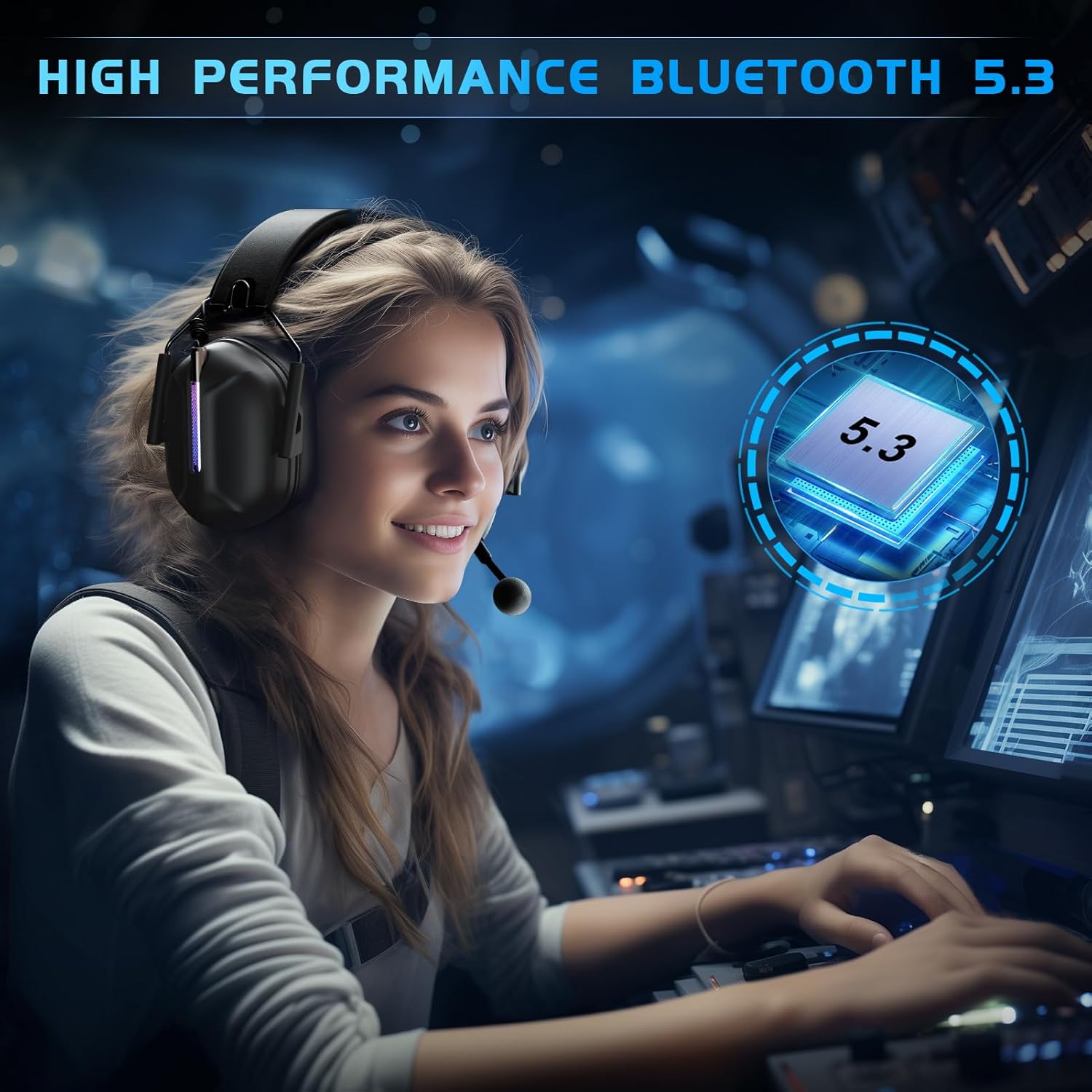
A user wearing the headset, highlighting the high-performance Bluetooth 5.3 connectivity for a seamless audio experience.
3. 3.5mm Wired Connection
For universal compatibility with devices featuring a 3.5mm audio jack.
- Connect the 3.5mm audio cable to the headset's 3.5mm port.
- Connect the other end of the 3.5mm audio cable to your device's audio jack.
Compatible Devices: Any 3.5mm audio devices, Xbox Controller. Note: Older version Xbox controllers may require a headset adapter (not included in the package).

A close-up view of the detachable microphone connecting via a 3.5mm jack, illustrating the Environmental Noise Cancellation (ENC) technology.
Operating Instructions
Power On/Off
- To power on, press and hold the Power button for approximately 3 seconds until the indicator light illuminates.
- To power off, press and hold the Power button for approximately 3 seconds until the indicator light turns off.
Volume Control
Adjust the volume using the dedicated volume roller or buttons located on the earcup. Roll up to increase volume, roll down to decrease.
Microphone Usage
- Attaching/Detaching: The microphone is detachable. Align the microphone jack with the port on the headset and push firmly to attach. Pull gently to detach.
- Mute/Unmute: Use the microphone mute button on the headset to toggle the microphone on or off. An indicator light may show the microphone status.

A user wearing the headset, showcasing the flexible and detachable omni-directional noise-cancelling microphone with 360-degree pickup.
RGB Lighting Control
The headset features RGB lighting effects. Refer to the specific button on your headset (often a dedicated light button or a multi-function button) to cycle through lighting modes or turn the lights off. Turning off the RGB lights can extend battery life.

A user wearing the headset, highlighting the vibrant and stunning RGB lighting effect on the earcups.
Comfort and Ergonomic Design
The Gvyugke Captain 500 is designed for extended wear comfort.

An image detailing the comfort features: breathable memory foam ear cushions for reduced occlusion, a soft protective design for stress-free wear, and adjustable sliders for a customizable fit for both adults and children.
- Breathable Memory Foam: Ear cushions are designed to be highly breathable, reducing ear occlusion and discomfort during long sessions.
- Soft Protective Design: The head beam features soft cushioning to provide a comfortable, pressure-free fit.
- Adjustable Slider: The headband can be adjusted to fit various head sizes, ensuring a secure and comfortable fit for all users.
Maintenance
Cleaning
Wipe the headset with a soft, dry cloth. Do not use harsh chemicals or abrasive materials. For ear cushions, a slightly damp cloth can be used, ensuring they are completely dry before use.
Storage
Store the headset in a cool, dry place away from direct sunlight and extreme temperatures. Avoid placing heavy objects on the headset to prevent damage.
Battery Care
To prolong battery life, avoid fully discharging the headset frequently. Charge the headset regularly, even if not in use for extended periods.
Troubleshooting
Common Issues and Solutions
- No Sound / Low Volume:
- Check headset volume controls and device volume settings.
- Ensure the headset is correctly connected (2.4GHz dongle, Bluetooth paired, or 3.5mm cable fully inserted).
- Verify the correct audio output device is selected in your system settings.
- Microphone Not Working:
- Ensure the microphone is securely attached and not muted.
- Check microphone input settings on your device.
- Note that the microphone may not be supported on Mac or Nintendo Switch in 2.4GHz mode.
- Connection Drops / Cannot Connect:
- For 2.4GHz, ensure the dongle is firmly inserted and within range (up to 49ft).
- For Bluetooth, ensure the headset is in pairing mode and your device's Bluetooth is enabled. Try unpairing and re-pairing.
- Move closer to the device to reduce interference.
- Headset Not Charging:
- Verify the charging cable is properly connected to both the headset and the power source.
- Try a different USB port or charging cable.
- Ensure the power source is functional.
Technical Specifications
| Feature | Detail |
|---|---|
| Brand | Gvyugke |
| Model Name | Captain 500 |
| Connectivity Technology | 2.4GHz Wireless, Bluetooth 5.2, 3.5mm Wired |
| Wireless Range (2.4GHz) | Up to 49 ft (15 meters) |
| Bluetooth Version | 5.2 |
| Bluetooth Range | 10 Meters |
| Audio Driver Size | 50mm Dynamic Driver |
| Impedance | 32 Ohms |
| Frequency Response | 20 KHz (Up to 20,000 Hz) |
| Audio Latency (2.4GHz) | Less than 20 Milliseconds |
| Battery Average Life | Up to 40 hours (gaming), 15-20 hours (with RGB lights) |
| Battery Charge Time | 3 Hours |
| Microphone | Omni-directional, Detachable, Noise Control (ENC) |
| Ear Placement | Over Ear |
| Control Method | Touch |
| Compatible Devices | PS5, PC, PS4, Mac, Nintendo Switch, Gaming Consoles, Desktops, Laptops, Mobile Devices, Xbox Series (wired) |
| Item Weight | 590 g |
Warranty and Support
Warranty Information
For detailed warranty information, please refer to the warranty card included with your product packaging or visit the official Gvyugke website. Keep your purchase receipt as proof of purchase for warranty claims.
Customer Support
If you encounter any issues or have questions not covered in this manual, please contact Gvyugke customer support through the contact information provided on the official website or your retailer's support channels. Provide your product model (Captain 500) and a detailed description of the issue for faster assistance.
