
Ultrbeka UBT001
Ultrbeka Air Locator Tracker Tag User Manual
Model: UBT001
1. Introduction
The Ultrbeka Air Locator Tracker Tag is a compact and efficient device designed to help you locate your valuable items. Compatible exclusively with Apple's Find My network on iOS devices, this tracker allows you to find keys, bags, luggage, wallets, and more. Its robust design features IP67 waterproofing and a long-lasting, replaceable battery, ensuring reliable performance in various conditions.

Image: A set of six Ultrbeka Air Locator Tags, showcasing the variety of colors available.
2. Package Contents
Your Ultrbeka Air Locator Tracker Tag package includes:
- 6 x Ultrbeka Air Locator Tracker Tags
- 6 x CR2032 Batteries (pre-installed or included separately)
- 2 x Keychains (for attaching tags to keys or bags)
3. Specifications
| Feature | Specification |
|---|---|
| Brand | Ultrbeka |
| Model Number | UBT001 |
| Compatibility | Apple Find My network (iOS only) |
| Waterproof Rating | IP67 |
| Battery Type | CR2032 (Replaceable) |
| Battery Life | Up to 19 months |
| Sound Level | 80 dB |
| Dimensions | 38mm (L) x 38mm (W) x 5mm (H) |
| Weight | 9.8 Grams |
| Material | Plastic, Rubber, Metal |

Image: Dimensions and key features of the Ultrbeka Tag, emphasizing its compact size and capabilities.
4. Setup
4.1 Initial Setup and Pairing
- Power On: Ensure the Ultrbeka Tag has a working CR2032 battery installed. If not, please refer to Section 5.1 for battery installation.
- Open Find My App: On your iOS device, open the 'Find My' app.
- Add Item: Tap the 'Items' tab at the bottom of the screen, then tap the '+' icon and select 'Add Other Item'.
- Pairing Mode: Follow the on-screen instructions. You may need to press the button on the Ultrbeka Tag to put it into pairing mode. The tag will emit a sound when ready.
- Name and Icon: Once detected, you can name your Ultrbeka Tag and choose an icon to easily identify it in the app.
- Register: Confirm registration to link the tag to your Apple ID.

Image: The Ultrbeka Tag seamlessly integrates with the Apple Find My network for global positioning and security.
4.2 Apple MFI Certification
The Ultrbeka Tag is officially certified by Apple's MFI program, ensuring full compatibility and reliable performance within the Find My ecosystem. This certification guarantees that the device meets Apple's strict standards for quality and security.
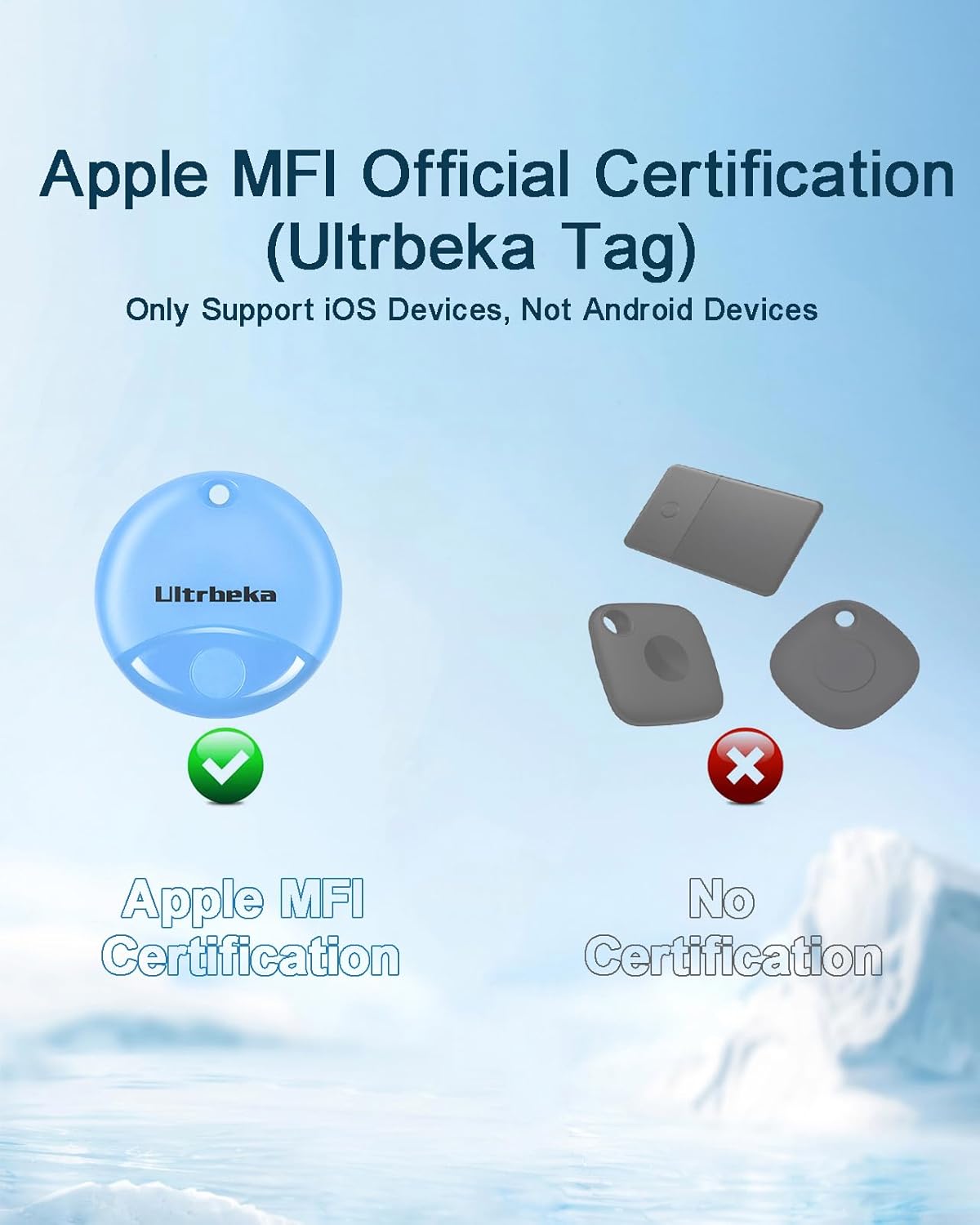
Image: Visual representation of Apple MFI Official Certification for the Ultrbeka Tag.
5. Operating Instructions
5.1 Find Nearby
When your Ultrbeka Tag is within Bluetooth range (approximately 15 meters / 57 feet), you can make it emit a loud sound to help you locate it quickly. The sound level is up to 80 dB, making it easy to hear even if the item is hidden.
- Open the 'Find My' app on your iOS device.
- Select the 'Items' tab.
- Tap on the Ultrbeka Tag you wish to locate.
- Tap 'Play Sound'. The tag will start ringing, guiding you to its location.

Image: Using the 'Find Nearby' feature to locate your Ultrbeka Tag by playing a loud sound.
5.2 Lost Mode
If your Ultrbeka Tag is lost and out of Bluetooth range, you can activate 'Lost Mode' in the Find My app. This leverages the vast Apple Find My network to help you locate your item.
- Open the 'Find My' app.
- Select the 'Items' tab.
- Tap on the Ultrbeka Tag that is lost.
- Scroll down and tap 'Enable' under 'Lost Mode'.
- Follow the prompts to enter a phone number or email address where you can be contacted if someone finds your item.
- You can also choose to be notified when your item is found.
When another Apple device user passes by your lost Ultrbeka Tag, its location will be securely and anonymously updated in the Find My app, allowing you to see its most recent location on a map.

Image: Activating 'Lost Mode' in the Find My app to help recover a lost Ultrbeka Tag.
5.3 Find Far Away
For items located far away, the Find My app provides a map view to show the tag's last known location or its current location if it's detected by another device in the Find My network. You can get directions to the tag's location directly from the app.
- Open the 'Find My' app.
- Select the 'Items' tab.
- Tap on the Ultrbeka Tag you are looking for.
- The map will display its location. Tap 'Directions' to get turn-by-turn navigation to your item.

Image: Using the Find My app to locate your Ultrbeka Tag on a map and get directions to its location.
6. Maintenance
6.1 Battery Replacement
The Ultrbeka Tag uses a standard CR2032 coin cell battery, which can last up to 19 months. You can check the battery status in the Find My app. When the battery is low, replace it promptly to ensure continuous tracking.
- Locate the battery compartment on the Ultrbeka Tag. It typically has a small groove or opening.
- Use a coin or a small flat tool to gently twist open the battery cover counter-clockwise.
- Remove the old CR2032 battery.
- Insert a new CR2032 battery with the positive (+) side facing upwards.
- Align the battery cover and twist it clockwise to securely close the compartment. Ensure it is tightly sealed to maintain water resistance.
6.2 Cleaning
To clean your Ultrbeka Tag, wipe it with a soft, damp cloth. Avoid using harsh chemicals, abrasive cleaners, or solvents, as these may damage the device's surface or internal components.
6.3 Water and Dust Resistance
The Ultrbeka Tag is rated IP67, meaning it is dust-tight and can withstand immersion in water up to 1 meter (3.3 feet) for up to 30 minutes. While it is designed to be durable against splashes and brief submersion, it is not recommended for prolonged underwater use or exposure to high-pressure water jets.

Image: The Ultrbeka Tag's IP67 water and dust resistance, along with its anti-fall durability.
7. Troubleshooting
| Problem | Possible Cause | Solution |
|---|---|---|
| Tag not pairing with Find My app. | Battery low or dead; Tag not in pairing mode; Bluetooth off on iOS device. | Replace battery; Press button on tag to activate pairing mode; Ensure Bluetooth is enabled on your iOS device. |
| No sound when 'Play Sound' is tapped. | Tag is out of Bluetooth range; Battery low or dead; Speaker malfunction. | Move closer to the tag; Replace battery; Contact customer support if issue persists. |
| Location not updating in Find My app. | Tag is out of range of any Apple device; Battery low or dead. | Ensure tag is in an area where other Apple devices might pass by; Replace battery. |
| Battery drains quickly. | Frequent 'Play Sound' usage; Defective battery; Extreme temperatures. | Reduce frequent sound playing; Try a new battery from a reputable brand; Avoid exposing tag to extreme temperatures. |
8. Warranty and Support
Ultrbeka products are manufactured with high-quality standards. For warranty information and customer support, please refer to the purchase platform or contact Ultrbeka customer service directly. Keep your proof of purchase for any warranty claims.
For further assistance or technical inquiries, please visit our official website or contact our support team:
- Website: www.ultrbeka.com (Placeholder)
- Email: support@ultrbeka.com (Placeholder)
Related documentsUBT001


Ask a question about this manual
Ask about setup, troubleshooting, compatibility, parts, safety, or missing instructions. Manuals+ will review the question and use this page’s manual context to help answer it.