
Introduction
The Autel MaxiDiag MD808 Pro is an advanced diagnostic scan tool designed for both DIY enthusiasts and professional mechanics. It offers comprehensive system diagnostics, a wide range of service functions, and full OBD2 capabilities to efficiently identify and resolve vehicle issues.
This manual provides detailed instructions on how to set up, operate, and maintain your MD808 Pro, ensuring you get the most out of its powerful features.

Image: The Autel MaxiDiag MD808 Pro diagnostic tool shown with its protective carrying case and included cables.
Key Features
- All Systems Diagnostic: Scan all available car systems (ABS, EPS, SRS, Engine, Transmission, Powertrain, etc.) to read and clear trouble codes, view live data, and pinpoint issues.
- 7 Reset Services: Perform common service resets including Oil Reset, EPB Reset, SAS Reset, Battery Registration, Throttle Relearn, and Air Fuel Ratio Reset.
- Full OBD2 Functions: Supports all 10 modes of OBD2 tests for emission checks, including reading codes, freezing frame data, live data viewing, I/M readiness status, O2 monitor test, on-board monitor test, and modules present.
- AutoScan Technology: Automatically scans all car systems with one click to retrieve fault codes.
- Wide Vehicle Coverage: Compatible with various carmakers and brands from 1996 to 2015 (Note: Not all features support all vehicles. VIN check recommended for compatibility).
- Lifetime Free Update: Ensures the tool stays current with the latest vehicle models and software.

Image: A visual summary of the Autel MaxiDiag MD808 Pro's main features, including all system diagnostics, 7 reset services, and full OBD2 functions.
Package Contents
Verify that all items are present in your package:
- Autel MaxiDiag MD808 Pro Unit
- Main Cable
- USB Cable
- User Manual (This document)
- Tool Box
Image: The Autel MaxiDiag MD808 Pro and its components neatly organized within the included tool box.
Setup
Follow these steps for the initial setup of your MD808 Pro:
- Power On: Connect the MD808 Pro to your vehicle's OBDII port. The device will power on automatically.
- Language Selection: Follow the on-screen prompts to select your preferred language.
- System Configuration: Adjust date, time, and other system settings as needed.
- Software Update: It is highly recommended to update the software to the latest version before first use. Refer to the "Maintenance" section for detailed update instructions.
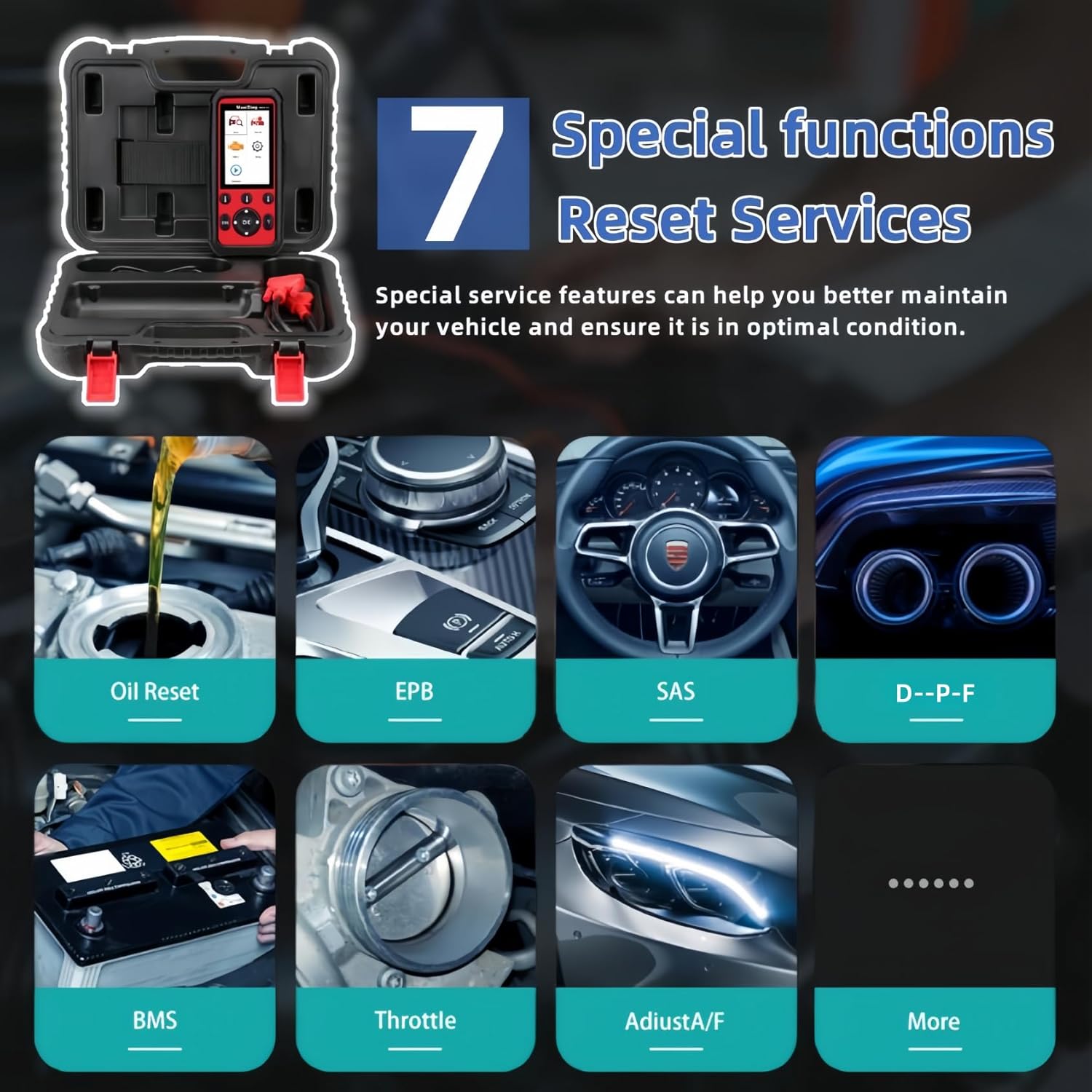
Image: A hand connecting the diagnostic cable from the Autel MaxiDiag MD808 Pro to the vehicle's OBDII port, typically located under the dashboard.
Operating Instructions
This section details the primary functions of the MaxiDiag MD808 Pro.
All Systems Diagnostic
The MD808 Pro can access and diagnose all available electronic control modules in your vehicle.
- From the main menu, select "Scan".
- Choose "Auto Scan" for a comprehensive scan of all systems, or select specific systems for diagnosis.
- The tool will display a list of detected modules and any associated Diagnostic Trouble Codes (DTCs).
- Select a module to view detailed information, including live data streams and freeze frame data.

Image: The Autel MaxiDiag MD808 Pro displaying various diagnostic functions, including reading/erasing DTCs, clearing error lights, graphic live data, auto scan, and freeze data frame, with a car in the background.
Video: This video demonstrates the Autel MaxiDiag MD808 Pro's feature introduction, including its ability to perform all system diagnostics and auto-scan functions. It shows the device being connected to a vehicle and navigating through the diagnostic menus.
7 Reset Services
The MD808 Pro offers several commonly used service functions to assist with vehicle maintenance.
- From the main menu, select "Service".
- Choose the desired service function (e.g., Oil Reset, EPB Reset, SAS Reset, BMS Reset, Throttle Relearn, Air Fuel Ratio Reset).
- Follow the on-screen instructions to complete the service procedure.
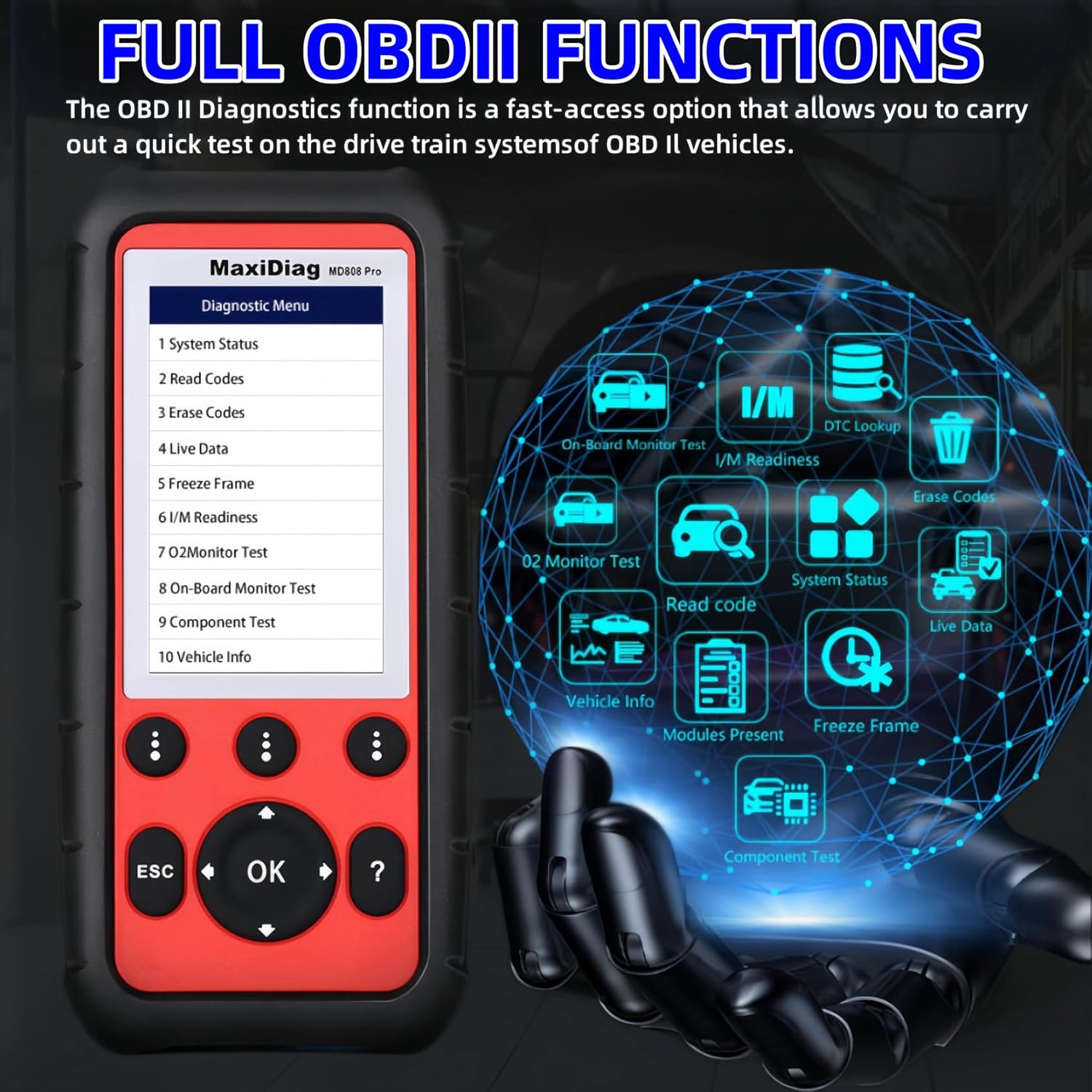
Image: A display of the 7 special functions and reset services available on the Autel MaxiDiag MD808 Pro, including Oil Reset, EPB, SAS, D-P-F, BMS, and Throttle, with corresponding icons.
Full OBD2 Functions
The tool supports all 10 OBD2 test modes for emission-related diagnostics, crucial for vehicle inspection and maintenance.
- From the main menu, select "OBDII".
- Choose from options like "Read Codes", "Erase Codes", "Live Data", "Freeze Frame", "I/M Readiness", "O2 Monitor Test", "On-Board Monitor Test", "Component Test", and "Vehicle Info".
- Follow the prompts to perform the selected test.
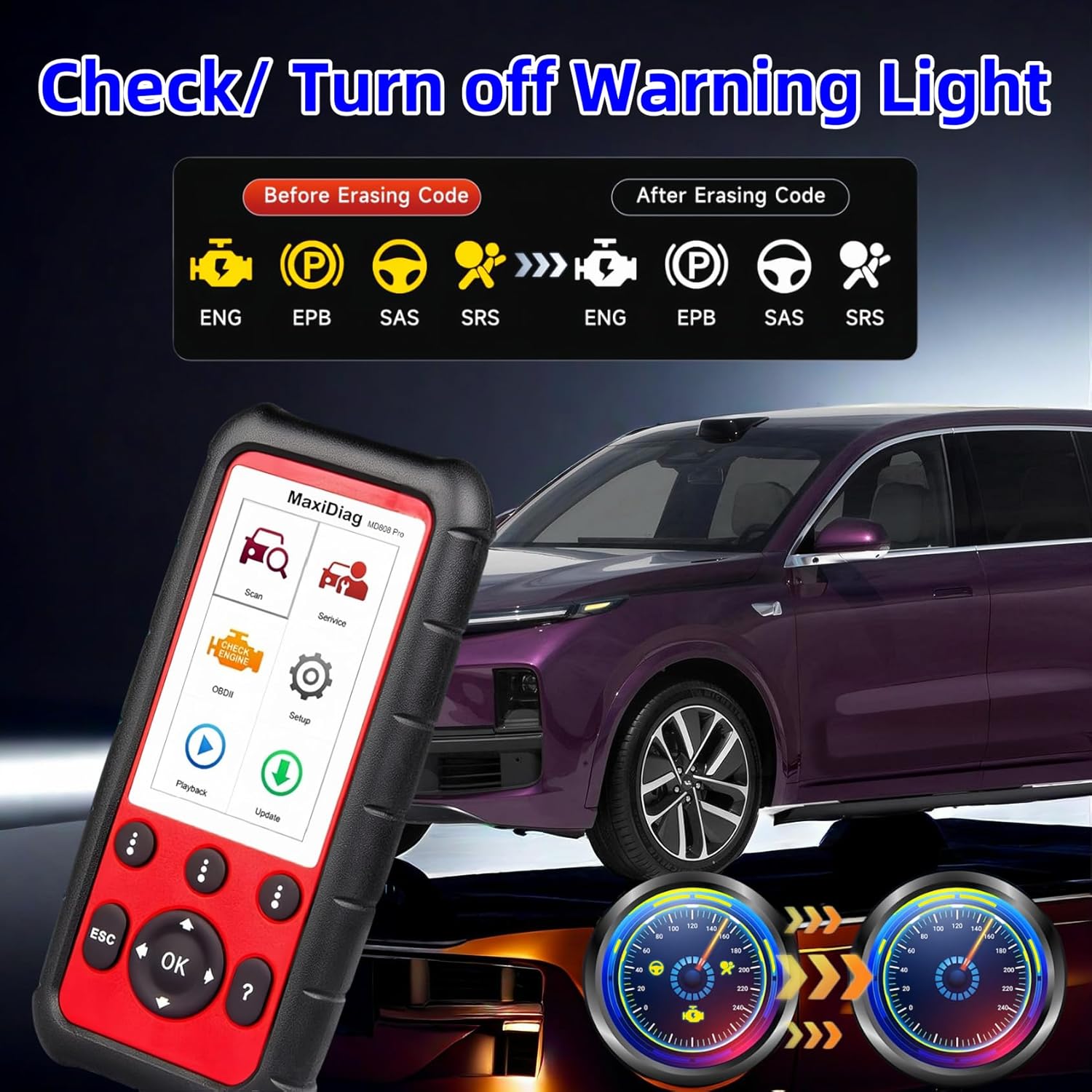
Image: The Autel MaxiDiag MD808 Pro's screen showing the diagnostic menu with various OBDII functions listed, such as System Status, Read Codes, Erase Codes, Live Data, and Freeze Frame.
Maintenance
Software Updates
The Autel MaxiDiag MD808 Pro offers lifetime free software updates to ensure compatibility with new vehicle models and diagnostic protocols. Regular updates are crucial for optimal performance.
- Visit the official Autel website and download the Maxi PC Suite software.
- Install the Maxi PC Suite on your Windows computer.
- Connect your MD808 Pro to the computer using the provided USB cable.
- Launch the Maxi PC Suite and log in with your Autel ID (if you don't have one, register on the website).
- Select "Update" from the software interface. The software will detect your device and display available updates.
- Select the desired updates and click "Update" to begin the download and installation process.
- Once the update is complete, safely disconnect the device from your computer.

Image: The Autel MaxiDiag MD808 Pro connected to a laptop, demonstrating the process of updating the device's software via the Maxi PC Suite.
Troubleshooting
This section provides solutions to common issues you might encounter with your MD808 Pro.
Device Not Powering On
- Ensure the OBDII cable is securely connected to both the vehicle's OBDII port and the MD808 Pro.
- Verify the vehicle's ignition is in the "ON" position (engine off).
- Check the vehicle's fuse for the OBDII port.
Communication Error
- Ensure the vehicle supports the OBDII protocol.
- Verify the vehicle's VIN is correctly entered (if manual input is required).
- Try connecting to a different vehicle to rule out a vehicle-specific issue.
- Update the software to the latest version.
Screen Freezes or Responds Slowly
- Restart the device by disconnecting and reconnecting it.
- Ensure there is sufficient memory on the SD card (if applicable).
- Perform a software update.
Specifications
| Attribute | Detail |
|---|---|
| Model | MD808PRO Autel-1688 |
| Item Weight | 3.4 pounds |
| Product Dimensions | 8.35 x 1.4 x 3.62 inches |
| Country of Origin | China |
| Operating System | All System Diagnostic, Level-up of MD808/ MD802/ MD806/ MD806 Pro, 7 Hottest Services, Full OBD2 Functions, 10+ Languages Support, Live Data Graphic |
| UPC | 792499188535, 706597652850 |

Image: A detailed graphic showing the hardware specifications of the MD808 Pro, including tri-lingual support, 16GB SD memory, TFT color display (840x480), and grease & water resistance, along with physical dimensions and weight.
Warranty and Customer Support
The Autel MaxiDiag MD808 Pro comes with a lifetime free update policy, ensuring your device remains up-to-date with the latest vehicle data and software enhancements.
For technical support, warranty claims, or further inquiries, please contact Autel customer service:
Email: autelac@outlook.com
For more information, visit the official Autel store: Autel Store on Amazon

Image: An image representing Autel's presence in the automotive intelligent diagnosis and testing field, showing a professional workshop environment.