
1. Product Overview
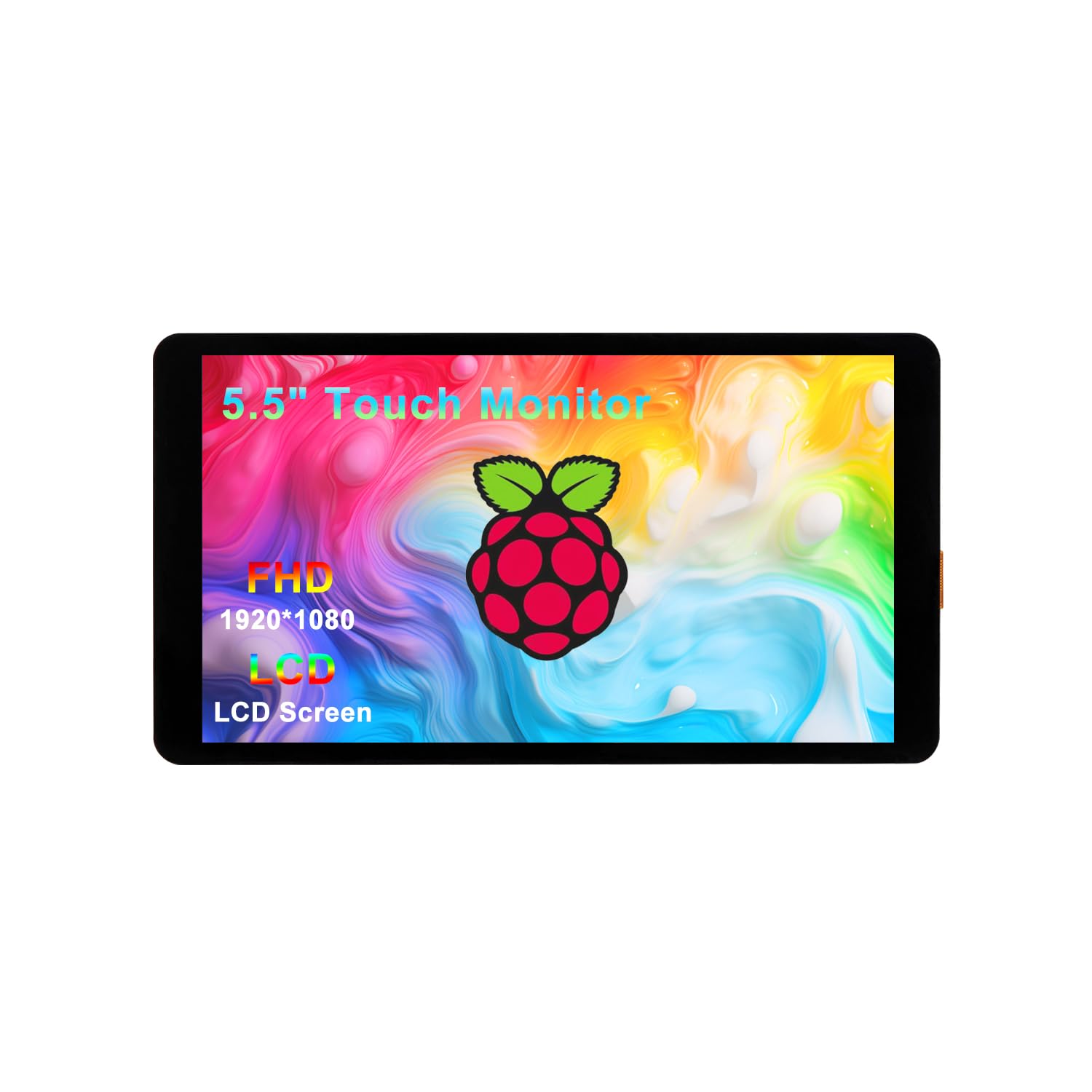
The wisecoco 5.5 Inch Touchscreen Monitor (Model R055HD01T) is a high-performance LCD display designed for various applications, particularly with Raspberry Pi devices. It offers a crisp 1920x1080 resolution and multi-point touch functionality for enhanced user interaction.
Key Features:
- Premium Display Performance: Features a 1920x1080 LCD screen with OCA Bonding technology and 72% NTSC color gamut, providing clear and vibrant visuals.
- Seamless Raspberry Pi Integration: Includes converter connectors for direct, cable-free connection with Raspberry Pi 5, 4B, and 3B. Other models require standard cable connections.
- Upgraded Chip: Incorporates the latest chip technology for stable performance and reduced heat generation, suitable for extended operation.
- Multi-Point Touch & Horizontal Display: Offers intuitive G+G capacitive multi-point touch and defaults to a horizontal orientation, with support for rotation.
- Wide Compatibility: Compatible with single-board computers like Jetson Nano, Orange Pi, Banana Pi, and other HDMI devices such as PCs, laptops, and security cameras.
2. Setup and Installation
This section guides you through connecting your wisecoco 5.5 Inch Touchscreen Monitor to various devices, especially Raspberry Pi models.
Connecting to Raspberry Pi 5/4B/3B:
For Raspberry Pi 5, 4B, and 3B, the monitor supports a seamless, cable-free connection using the provided converter connectors. This ensures a tidy setup.
- Identify the correct converter connector for your Raspberry Pi model (Pi 5, Pi 4B, or Pi 3B).
- Carefully attach the converter connector to the corresponding HDMI and USB ports on your Raspberry Pi.
- Align the monitor with the Raspberry Pi and gently connect the converter to the monitor's ports.
- Ensure all connections are secure before powering on the devices.


Connecting to Other Devices:
For other Raspberry Pi models or devices like Jetson Nano, Orange Pi, Banana Pi, PCs, laptops, or security cameras, use standard HDMI and USB cables for connection.
- Connect the HDMI cable from your device to the monitor's HDMI input.
- Connect a USB cable from your device to the monitor's USB-C port for power and touch functionality.
Video Guide: Connecting to Raspberry Pi
3. Operating Instructions
Touch Functionality:
The monitor features G+G capacitive multi-point touch, allowing for intuitive interaction with your device. Common gestures include:
- Touch: Single tap for selection or activation.
- Enlarge/Narrow: Pinch-to-zoom gestures for scaling content.
- Mobile: Swipe gestures for navigation.
- Two fingers: Multi-finger gestures for specific application controls.

Display Orientation:
The monitor defaults to a horizontal (landscape) display orientation. It supports rotation to portrait mode, which can typically be adjusted through the operating system settings of the connected device (e.g., Raspberry Pi OS, Windows).

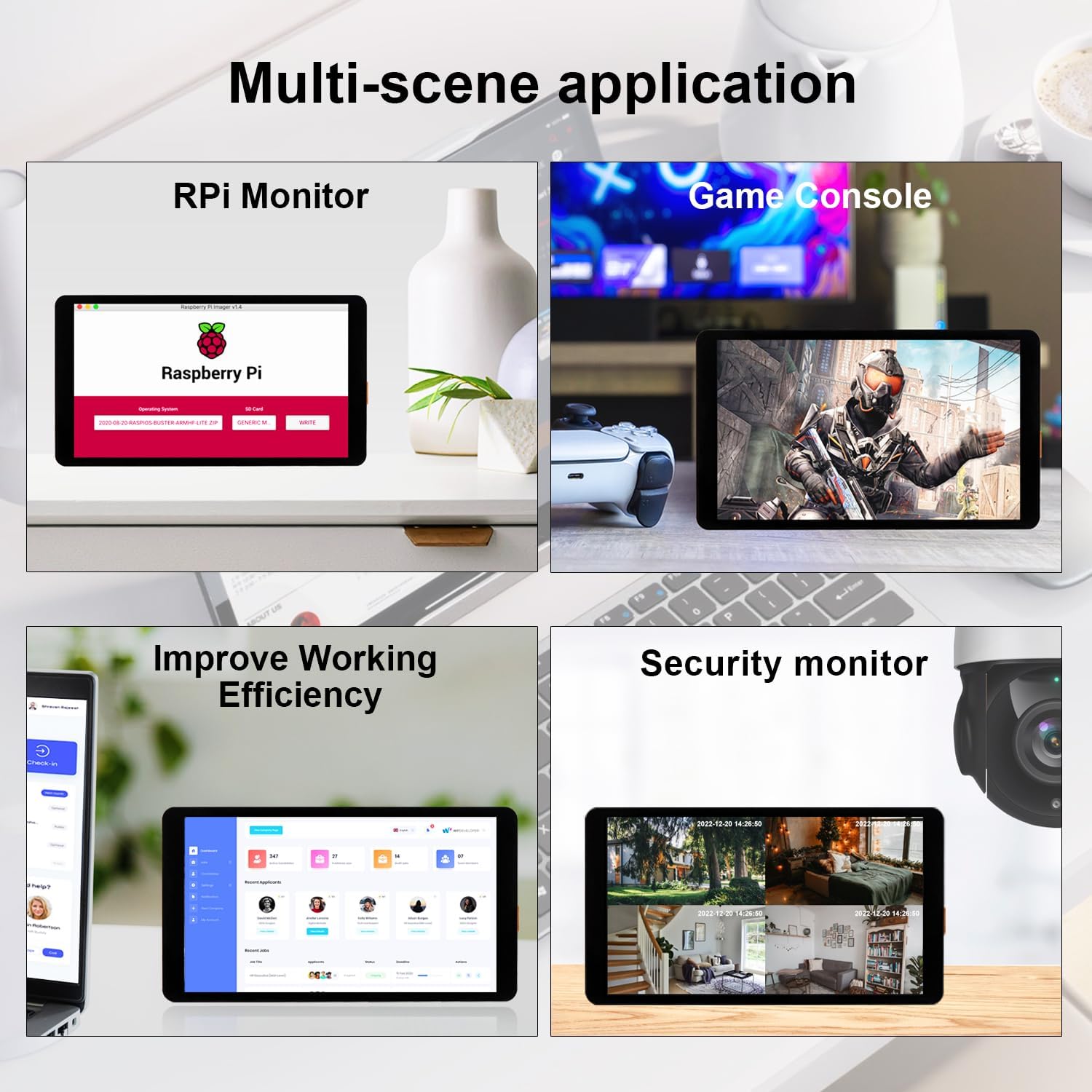
Multi-Scene Application:
The versatility of this monitor allows its use in various scenarios:
- RPi Monitor: Ideal as a compact display for Raspberry Pi projects.
- Game Console: Can be used as a portable screen for gaming.
- Improve Working Efficiency: Functions as a secondary display for laptops or PCs.
- Security Monitor: Suitable for displaying feeds from security cameras.
4. Specifications
Detailed technical specifications for the wisecoco 5.5 Inch Touchscreen Monitor.
| Feature | Detail |
|---|---|
| Product Dimensions | 1.1 x 5.5 x 3 inches |
| Item Weight | 11.7 ounces |
| Manufacturer | Wisecoco |
| ASIN | B0D5QXYZ19 |
| Item Model Number | R055HD01T |
| Standing Screen Display Size | 5.5 Inches |
| Aspect Ratio | 16:9 |
| Resolution | 1920 Pixels (FHD 1080p) |
| Screen Surface Description | Glossy |

5. Troubleshooting
If you encounter issues with your wisecoco 5.5 Inch Touchscreen Monitor, please refer to the following common troubleshooting steps:
- No Display: Ensure all cables (HDMI, USB for power/touch) are securely connected. Verify the power source is adequate. Test with a different HDMI cable or device if possible.
- No Touch Functionality: Confirm the USB cable for touch is properly connected. For Raspberry Pi, ensure the operating system is configured to recognize the touchscreen input. Reinstall or update touch drivers if necessary for PC/Windows.
- Incorrect Resolution/Display Issues: Check your device's display settings to ensure the output resolution is set to 1920x1080. Adjust scaling settings if the display appears too large or small.
- Flickering Screen: Try a different power adapter or USB port. Ensure the HDMI cable is not damaged.
- Overheating: While the upgraded chip reduces heat, ensure adequate ventilation around the monitor and connected Raspberry Pi, especially during prolonged use.
If these steps do not resolve your issue, please contact customer support.
6. Warranty and Support
Your wisecoco 5.5 Inch Touchscreen Monitor comes with comprehensive support and warranty coverage:
- 12-Month Warranty: Enjoy peace of mind with a 12-month warranty covering manufacturing defects.
- 24-Hour Support: Dedicated customer support is available to assist you with any queries or issues.
- 30-Day Money Back Guarantee: If you are not satisfied with your purchase, you may return it within 30 days for a full refund.
For further assistance, please visit the official wisecoco store or contact their customer service directly.


