
1. Overview
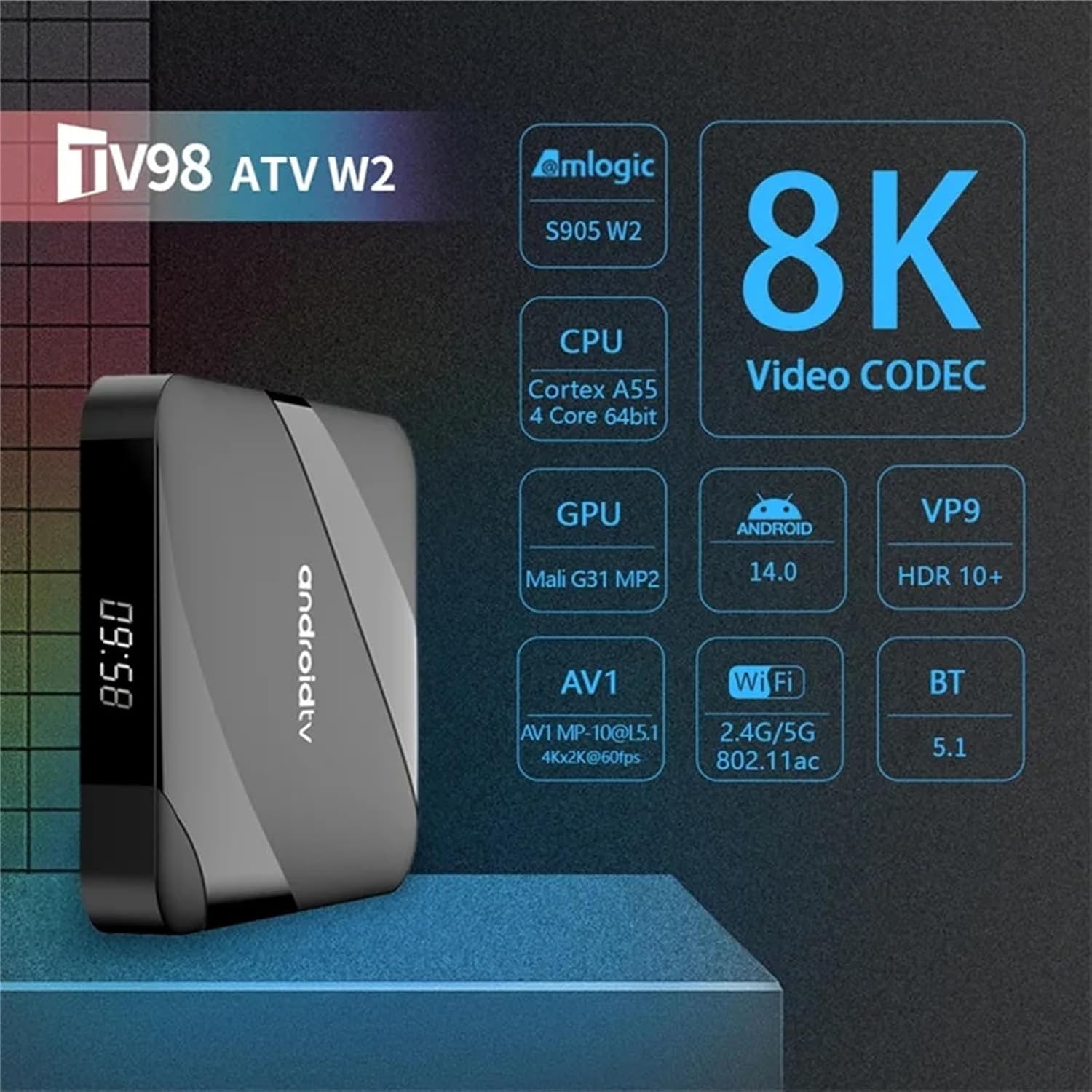
The WUYJTIF TV98 ATV Ultra HD 8K Smart TV Box is a versatile media player designed to enhance your television viewing experience. It features a powerful quad-core processor, supports 8K HDR content, and runs on the Android operating system, providing access to a wide range of applications and streaming services.
Key Features:
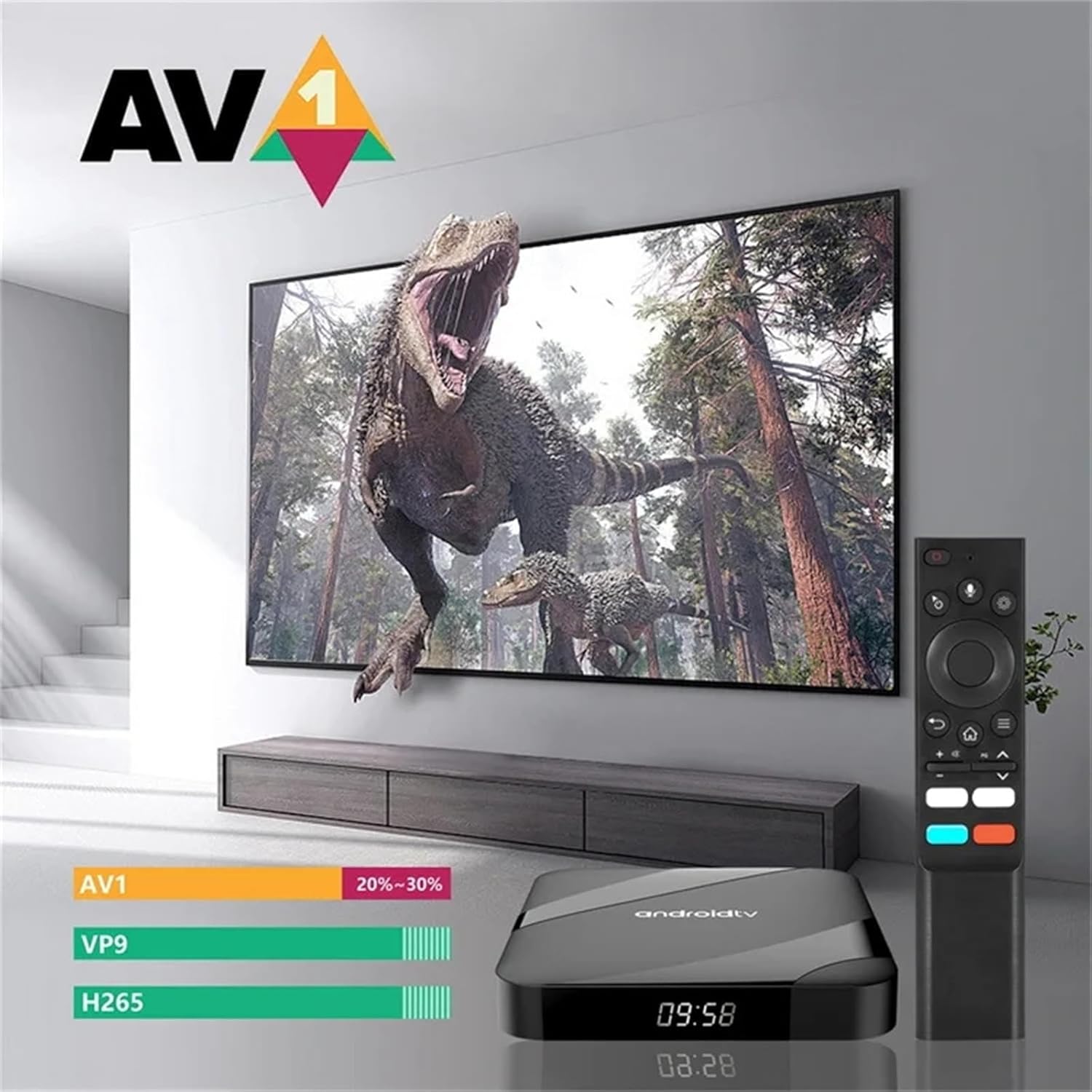
- 8K HDR Support: Compatible with AV1 video codec and HDR 10+ for high-quality content.
- Ample Storage: Equipped with 4GB RAM and 64GB EMMC Flash storage for applications and media.
- Dual-Band WiFi & Bluetooth: Supports 2.4G/5G WiFi (802.11 b/g/n) and Bluetooth 5.1 for stable connectivity.
- Android OS: Runs on Android 10.0 (upgradable to 14), offering a smooth and flexible user experience.
- Broad Compatibility: Features AV and HDMI interfaces, suitable for various LCD and older televisions.
- Multimedia Capabilities: Enables streaming from YouTube, web browsing, social media, music playback, Google Play apps, and digital TV access.
2. What's in the Box
Upon opening your WUYJTIF TV98 ATV Smart TV Box package, you should find the following components:
- TV98 ATV Ultra HD 8K Smart TV Box (Main Device)
- Remote Control
- Power Adapter (DC 5V/2A)
- HDMI Cable
- User Manual (this document)

Unboxing and Components Overview:
For a visual guide to the contents of your package and a closer look at the device, please refer to the unboxing video below.
3. Setup
Follow these steps to set up your WUYJTIF TV98 ATV Smart TV Box:
- Connect the Power Adapter: Plug the DC 5V/2A power adapter into the DC port on the TV Box and then into a power outlet.
- Connect to TV: Use the provided HDMI cable to connect the HDMI port on the TV Box to an available HDMI input on your television. If your TV does not have an HDMI port, use the AV (3-in-1) port with a compatible AV cable (not included).
- Power On: Turn on your television and the TV Box. Select the correct HDMI or AV input source on your TV.
- Remote Control Pairing: Insert two AAA batteries (not included) into the remote control. Follow the on-screen instructions to pair the remote control via Bluetooth. Typically, this involves holding down specific buttons (e.g., Home and Back) near the TV Box for a few seconds until pairing is successful.
- Language Selection: Choose your preferred language from the on-screen menu.
- Network Connection: Connect the TV Box to your home network. You can use either Wi-Fi (2.4G or 5G) or an Ethernet cable via the LAN port for a stable connection. Enter your Wi-Fi password if prompted.
- Google Account Setup: Sign in with your Google account to access the Google Play Store and other Google services.

Installation and Initial Boot-up:
Watch the video below for a step-by-step guide on connecting your TV Box and the initial boot-up process.
4. Operating Instructions
Once set up, your TV Box provides a user-friendly interface for accessing various entertainment options.
Navigation:
- Use the directional pad on your remote control to navigate through menus and select items.
- The Home button returns you to the main Android TV home screen.
- The Back button allows you to go back to the previous screen or menu.
Applications:
The TV Box comes pre-installed with popular applications like YouTube and Prime Video. You can download additional apps from the Google Play Store.
- To access installed apps, navigate to the 'Apps' section on the home screen.
- To install new apps, open the 'Google Play Store' and search for your desired applications.
Voice Control:
The remote control supports voice commands. Press the microphone button on your remote and speak your command to search for content, open apps, or control playback.

5. Maintenance
To ensure optimal performance and longevity of your TV Box, follow these maintenance guidelines:
- Cleaning: Use a soft, dry cloth to clean the exterior of the device. Avoid using liquid cleaners or abrasive materials.
- Ventilation: Ensure the TV Box is placed in a well-ventilated area to prevent overheating. Do not block the ventilation holes.
- Software Updates: Regularly check for system updates in the 'Settings' menu to ensure you have the latest features and security patches.
- Power Cycle: If the device becomes unresponsive, disconnect the power adapter, wait 10 seconds, and then reconnect it to perform a power cycle.
- Storage Management: Periodically clear cache and uninstall unused applications to free up storage space and improve performance.
6. Troubleshooting
Here are solutions to common issues you might encounter:
- No Power:
- Ensure the power adapter is securely connected to the TV Box and a working power outlet.
- Verify the power outlet is functional by plugging in another device.
- No Signal on TV:
- Check that the HDMI or AV cable is securely connected to both the TV Box and the television.
- Confirm that your TV is set to the correct input source (HDMI 1, HDMI 2, AV, etc.).
- Try a different HDMI port or cable if available.
- Remote Control Not Responding:
- Replace the batteries in the remote control.
- Re-pair the remote control by following the instructions in the Setup section.
- Wi-Fi Connection Issues:
- Ensure your Wi-Fi router is on and functioning correctly.
- Check that you have entered the correct Wi-Fi password.
- Try moving the TV Box closer to your Wi-Fi router or using an Ethernet cable.
- Slow Performance:
- Close unused applications running in the background.
- Clear the cache of frequently used apps.
- Ensure sufficient free storage space.
7. Specifications
Detailed technical specifications for the WUYJTIF TV98 ATV Ultra HD 8K Smart TV Box:
| Feature | Specification |
|---|---|
| CPU | Amlogic S905W2, up to 1.2 GHz, Quad-core ARM Cortex-A35 |
| GPU | Penta Core Mali-G31 750MHz |
| SDRAM | 4GB |
| EMMC Flash | 64GB |
| Wi-Fi | 802.11 b/g/n 2.4G+5G |
| Bluetooth | BT5.1 |
| Operating System | Android 10.0 (upgradable to 14) |
| Video Output | HDMI2.0 to support maximum 4Kx2K display (8K HDR compatible) |
| USB Ports | 2 High-speed USB 2.0 (supports U DISK and USB HDD) |
| Card Reader | TF Card reader |
| Audio Output | SPDIF Coaxial (Optical) |
| AV Output | AV (3 in 1) port |
| LAN | RJ45 10M/100M Ethernet |
| Power Supply | DC Jack 5V/2A |
| Product Dimensions | 3.8 x 1.35 x 0.62 inches |
| Color | Black |
Device Properties Overview:
For a quick overview of the device's properties and settings, including memory and storage, please watch the video below.
8. Warranty & Support
Your WUYJTIF TV98 ATV Ultra HD 8K Smart TV Box is covered by a standard manufacturer's warranty. Please refer to the warranty card included in your package for specific terms and conditions.
For technical support, troubleshooting assistance, or warranty claims, please contact the retailer or manufacturer directly. Contact information can typically be found on the product packaging or the official brand website.