
1. Introduction
The DKARDU USB Type-C Multi-Functional Digital Tester is a versatile device designed to monitor and analyze the performance of various USB and Type-C digital devices. It provides real-time data on voltage, current, power, capacity, resistance, and timing, and can identify multiple fast charging protocols. This manual provides instructions for the proper use and maintenance of your tester.
2. Product Features
- Multi-Parameter Display: Quickly identifies and displays current, voltage, power, energy, capacity, resistance, timing, capacity groups, and temperature (Celsius/Fahrenheit) on one screen.
- Real-time Monitoring: Detects the charging status of electrical appliances in real time, monitoring charging voltage and current.
- Screen On/Off Function: Allows turning off the display while charging, useful for night use.
- Wide Compatibility: Tests various Type-C and USB digital devices including chargers, data cables, power banks, notebooks, and mobile phones.
- Fast Charging Protocol Detection: Automatically identifies almost all fast charging protocols, including QC2.0/QC3.0, FCP/SCP/Apple2.4A/2.1A/1A/0.5A, Android DCP/AFC.
- High Definition Display: Features an HD display for clear readability of measurements.

3. Package Contents
Verify that all items are present in your package:
- 1 x USB Type-C Tester (Model: JK-US-738B)
- 1 x Type-C to Type-C Connector
- 1 x Type-C to USB Adapter
- 1 x USB Load
- 1 x USB to USB Connector
4. Product Layout and Dimensions
Familiarize yourself with the physical components and dimensions of the tester.


5. Setup
To begin using the DKARDU USB Type-C Multi-Functional Digital Tester:
- Identify the input and output ports on the tester. The tester features both USB-A and Type-C input/output ports.
- Connect the power source (e.g., charger, power bank) to the appropriate input port (U-INPUT for USB-A, C-INPUT for Type-C) of the tester.
- Connect the device you wish to test (e.g., mobile phone, laptop) to the corresponding output port (U-OUTPUT for USB-A, C-OUTPUT for Type-C) of the tester.
- Ensure all connections are secure. The tester's display will automatically activate and begin showing real-time measurements.

6. Operating Instructions
6.1 Real-time Monitoring
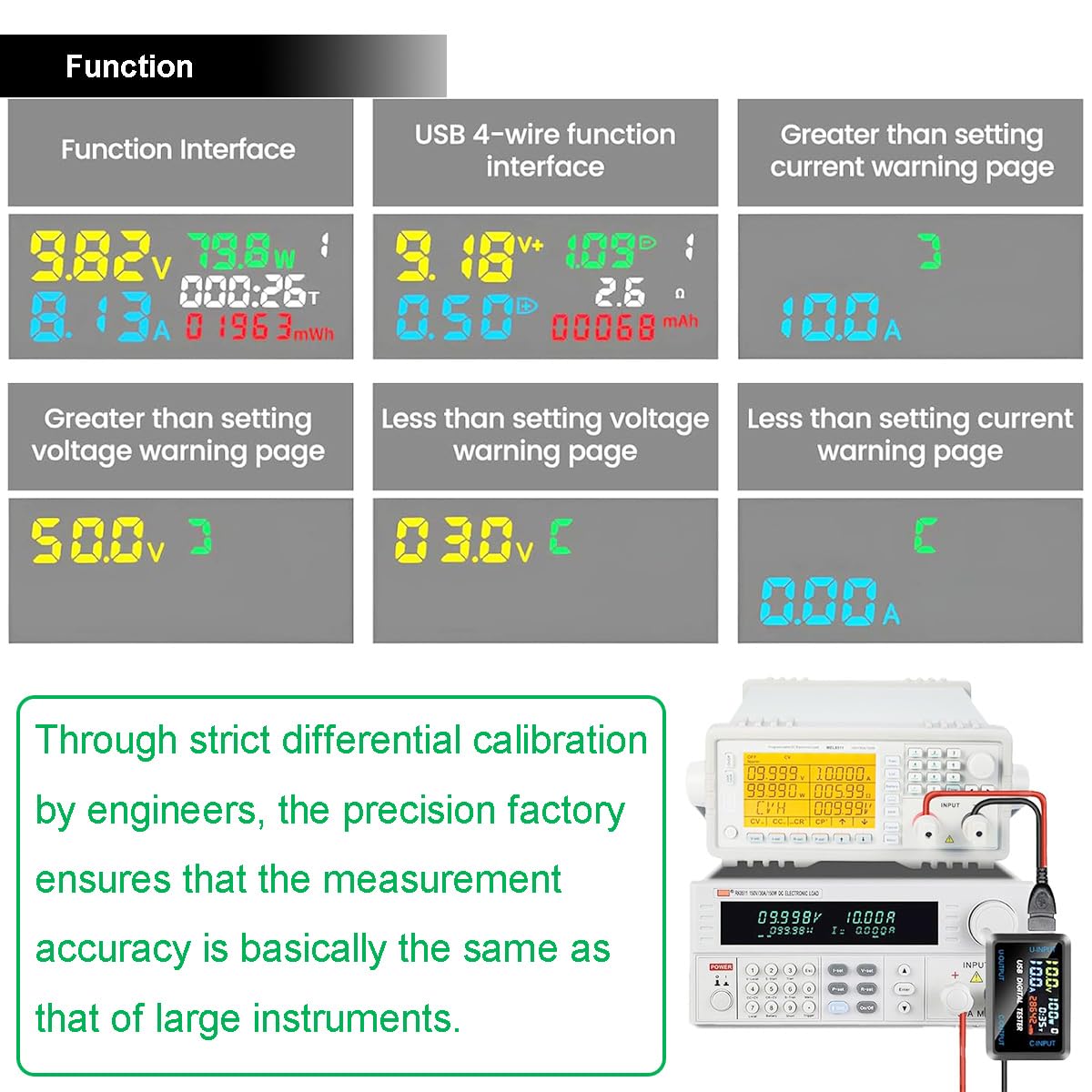
Once connected, the tester automatically displays real-time data for voltage, current, power, and other parameters. The display cycles through various screens showing detailed information.
6.2 Multi-function Button Operations
The tester features a multi-function button for various controls:
- Switching Screens: Short press the multi-function button to cycle through different display interfaces, showing various measurement parameters.
- Resetting Data (Current Group): Quickly triple-click the multi-function button to reset the accumulated energy (mWh) and timing (0.00) for the currently displayed data group.
- Changing Data Storage Group: Long press the multi-function button for 2 seconds to change the accumulated data storage group number (NO.X). The tester supports multiple data groups for tracking different charging sessions.
6.3 Screen On/Off Function
To turn off the display while the tester continues to function (e.g., for charging overnight without light emission):
- Short press the On/Off button (refer to Figure 4.1 for location) to switch the interface to the screen-off display. The device will continue to charge normally.
- Press any button again to reactivate the display.
7. Applications
The DKARDU USB Type-C Multi-Functional Digital Tester is suitable for a wide range of applications involving USB and Type-C devices:
- Mobile Devices: Testing cell phones, tablets, and notebooks for charging performance.
- Charging Accessories: Evaluating the output of various chargers, power banks, and data cables.
- USB Peripherals: Monitoring power consumption of USB lights, fans, mice, keyboards, and other small USB devices.
- Automotive: Checking car chargers and USB ports in vehicles.

8. Specifications
Detailed technical specifications for the DKARDU USB Type-C Multi-Functional Digital Tester:

| Parameter | Value |
|---|---|
| Model Number | JK-US-738B |
| Material | Acrylonitrile Butadiene Styrene (ABS) |
| Product Size | 76.9 x 38 x 11 mm |
| Operating Voltage | DC 4.5 - 36 V |
| Current Rating | 0 - 8 A |
| Power Measurement Range | 0 - 150 W |
| Capacity Accumulation Range | 0 - 99999 mWh |
| Load Resistance Range | 1 - 999.9 Ω |
| Temperature Measurement Range | 0 - 80 °C |
| Timing Time | 0 - 999 hours 59 minutes |
| Input Interface | Type-C, USB-A |
| Output Interface | Type-C, USB-A |
| Display | IPS True Color Digital LCD Screen |
| Operating Temperature | -10 - 60 °C |
| Working Humidity | 10 - 80% RH (non-condensing) |
| Connectivity Protocol | Quick Charge, Power Delivery |
9. Maintenance
To ensure the longevity and accurate performance of your DKARDU USB Type-C Multi-Functional Digital Tester, follow these maintenance guidelines:
- Cleaning: Use a soft, dry cloth to clean the exterior of the tester. Do not use abrasive cleaners, solvents, or immerse the device in water.
- Storage: Store the tester in a cool, dry place away from direct sunlight, extreme temperatures, and high humidity.
- Handling: Avoid dropping the tester or subjecting it to strong impacts, as this can damage internal components or the display.
- Connectivity: Ensure connectors are free from dust and debris before plugging in cables. Avoid forcing connectors into ports.
10. Troubleshooting
If you encounter issues with your USB tester, refer to the following common troubleshooting steps:
- No Display/Power:
- Ensure the power source is active and providing power.
- Check all cable connections to ensure they are secure and correctly inserted into the input and output ports.
- Try a different power source or device to rule out issues with external components.
- Inaccurate Readings:
- Ensure the cables used are in good condition and capable of handling the current/voltage being tested. Faulty cables can affect readings.
- Verify that the device being tested is functioning correctly.
- The tester is factory calibrated; however, extreme environmental conditions might temporarily affect precision.
- Buttons Unresponsive:
- Ensure the device is powered on.
- Gently press the buttons to ensure they are not stuck.
If problems persist after attempting these steps, please contact customer support for further assistance.