
1. Introduction
The Phomemo M832 is a portable, inkless thermal printer designed for convenience and efficiency. This device utilizes advanced thermal technology to print documents, images, and various other content without the need for ink cartridges, toner, or ribbons. Its compact design makes it suitable for travel, business trips, and use in various environments such as small offices, vehicles, and educational settings. This manual provides detailed instructions for setting up, operating, maintaining, and troubleshooting your Phomemo M832 printer.
The Phomemo M832 printer supports multiple paper sizes and types, including 8.5" x 11" US Letter, A4, 2.08" (53mm), 3.15" (80mm), and 4.33" (110mm) thermal paper. It is compatible with thermal roll paper, folded thermal paper, and ordinary thermal paper.

Image: The Phomemo M832 printer demonstrating its ability to print on various paper sizes, including US Letter, A4, 110mm, 80mm, and 53mm, with a smartphone wirelessly connected.
2. Package Contents
Please check the package contents upon unboxing to ensure all items are present:
- Phomemo M832 Portable Thermal Printer
- 3 Rolls of 110mm Thermal Printer Paper
- USB Cable
- User Manual (this document)
3. Product Features
The Phomemo M832 printer offers several key features:
- Portable Design: Weighing approximately 1.5 lbs, the M832 is compact and easily fits into a backpack or briefcase, making it ideal for mobile use.
- Inkless Printing: Utilizes advanced thermal technology, eliminating the need for ink, toner, or ribbons, which reduces operational costs and maintenance.
- Integrated Paper Bin: Features a built-in roll paper bin, allowing for convenient paper storage and transport.
- Versatile Paper Support: Compatible with 8.5" x 11" US Letter, A4, 2.08" (53mm), 3.15" (80mm), and 4.33" (110mm) thermal paper. Supports thermal roll paper, folded thermal paper, and ordinary thermal paper.
- Broad Compatibility: Connects via Bluetooth to iPhone, Android phones, and iPad. Can also connect via USB cable to laptops and computers running Windows, macOS, Chrome OS, and Linux.
- Multi-purpose Printing: Suitable for printing office documents, receipts, contracts, resumes, invoices, drawings, school notes, shopping lists, labels, boarding passes, and DIY projects.

Image: The Phomemo M832 printer's compact dimensions (10.39in x 3.07in x 1.77in) are highlighted, demonstrating its portability for use anytime, anywhere.
4. Setup Guide
4.1. Charging the Printer
Before initial use, fully charge the printer using the provided USB cable. Connect the USB cable to the printer's charging port and a compatible USB power adapter (not included) or computer USB port. The indicator light will show charging status.
4.2. Loading Thermal Paper
The Phomemo M832 supports various thermal paper types and sizes. Follow these steps to load paper:
- Open the paper compartment cover.
- Insert the thermal paper roll or folded paper stack into the compartment, ensuring the printable side faces the print head. For roll paper, ensure the paper feeds smoothly from the bottom of the roll.
- Adjust the paper guides to fit the width of your paper snugly.
- Close the paper compartment cover. Ensure a small portion of paper extends from the output slot.

Image: The Phomemo M832 printer demonstrating its flexibility with various paper types, including thermal roll paper, continuous thermal paper, and ordinary thermal paper, with an adjustable baffle for different widths.
4.3. App Installation (for Mobile Devices)
To use the printer with your smartphone or tablet, download the official "Phomemo" app:
- Search for "Phomemo" in the Apple App Store (for iOS devices) or Google Play Store (for Android devices).
- Download and install the app.
4.4. Driver Installation (for Computers)
For printing from a laptop or desktop computer via USB, you may need to install the appropriate driver:
- Visit the official Phomemo website: M832.phomemo.com
- Download the driver compatible with your operating system (Windows, macOS, Chrome OS, Linux).
- Follow the on-screen instructions to complete the driver installation.
5. Operation
5.1. Connecting via Bluetooth (Mobile Devices)
- Ensure the Phomemo M832 printer is powered on.
- Enable Bluetooth on your mobile device.
- Open the "Phomemo" app.
- Within the app, navigate to the device connection section and select your M832 printer from the list of available devices. The app will guide you through the pairing process.

Image: The Phomemo M832 printer demonstrating both Bluetooth connectivity with a mobile device (iOS, Android, iPad) and USB connectivity with a laptop (Windows, Mac OS, Chrome OS, Linux).
5.2. Connecting via USB (Computers)
- Ensure the Phomemo M832 printer is powered on.
- Connect the printer to your computer using the provided USB cable.
- After driver installation (if required), your computer should recognize the printer.
- You can now print directly from your computer's applications.
5.3. Printing Documents
Once connected, you can print various types of content:
- From Mobile App: Use the Phomemo app to select documents (PDF, Word), images, web pages, or create custom content for printing. The app provides options for editing and previewing before printing.
- From Computer: Open the document or image you wish to print in your preferred application (e.g., Microsoft Word, Adobe Reader, web browser). Select the Phomemo M832 as your printer from the print dialog box and adjust settings as needed before initiating the print job.

Image: Examples of practical applications for the Phomemo M832 printer, including printing photos, creating scrapbook elements, organizing study notes, and generating to-do lists.
6. Maintenance
6.1. Cleaning the Print Head
To ensure optimal print quality, periodically clean the print head:
- Turn off the printer and disconnect it from any power source.
- Open the paper compartment cover.
- Gently wipe the print head with a soft, lint-free cloth lightly dampened with isopropyl alcohol. Do not use water or abrasive cleaners.
- Allow the print head to dry completely before closing the cover and powering on the printer.
6.2. Thermal Paper Storage
Thermal paper is sensitive to heat, light, and certain chemicals. Store thermal paper in a cool, dry place away from direct sunlight and heat sources to preserve its printability and image duration. The included 110mm thermal paper is designed for an image duration of up to 10 years under proper storage conditions.
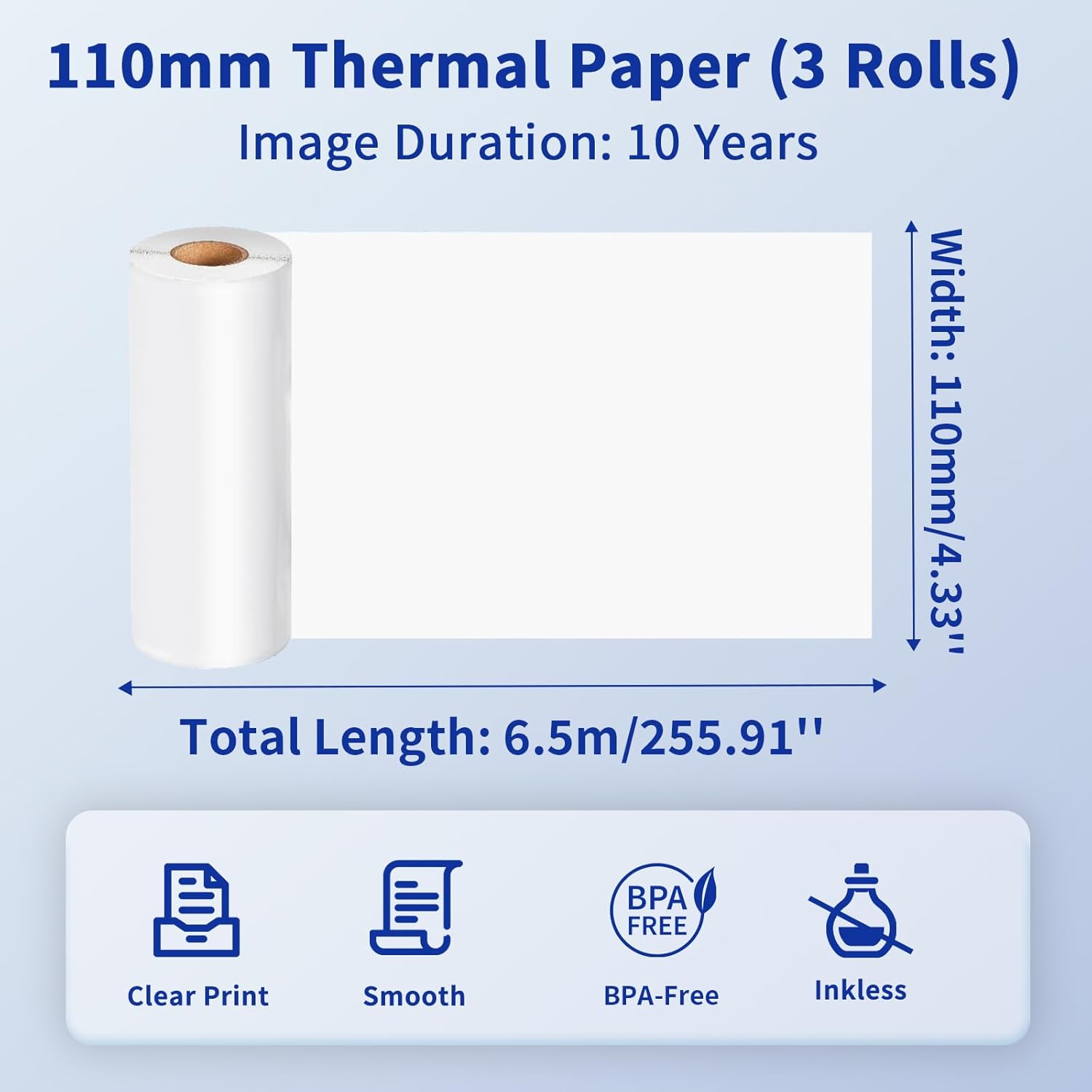
Image: Details of the 110mm thermal paper, including its dimensions (110mm width, 6.5m length) and key attributes such as clear print, smooth texture, BPA-free composition, and inkless operation, with an image duration of 10 years.
7. Troubleshooting
If you encounter issues with your Phomemo M832 printer, refer to the following common problems and solutions:
| Problem | Possible Cause | Solution |
|---|---|---|
| Printer does not power on | Low battery or power issue | Charge the printer fully. Ensure the power button is pressed correctly. |
| Cannot connect via Bluetooth | Bluetooth is off, printer not discoverable, or app issue | Ensure Bluetooth is enabled on your device. Restart the printer and the app. Try re-pairing the device within the Phomemo app. |
| Poor print quality / Blank prints | Incorrect paper loading, dirty print head, or low battery | Ensure thermal paper is loaded correctly with the printable side facing up. Clean the print head as described in Section 6.1. Charge the printer. |
| Paper jam | Improper paper loading or foreign object | Turn off the printer. Carefully open the paper compartment and remove any jammed paper or obstructions. Reload paper correctly. |
| Printer not recognized by computer | Driver not installed or USB cable issue | Install the correct driver from M832.phomemo.com. Try a different USB port or cable. |
8. Specifications
Below are the technical specifications for the Phomemo M832 Portable Thermal Printer:
- Model: M832
- Printing Technology: Thermal
- Connectivity: Bluetooth, USB
- Printer Output: Monochrome
- Control Method: App (Phomemo App)
- Compatible Devices: Laptops, PCs, iPhone, Android Phone, iPad
- Supported Operating Systems: iOS, Android, iPadOS, Windows, macOS, Chrome OS, Linux
- Supported Print Media: Thermal Roll Paper, Folded Thermal Paper, Ordinary Thermal Paper
- Supported Sheet Sizes: 8.5" x 11" (US Letter), A4, 2.08" (53mm), 3.15" (80mm), 4.33" (110mm)
- Special Feature: Portable, Inkless
- Weight: Approximately 1.5 lbs
- First Available: May 31, 2024

Image: The Phomemo M832 printer's broad compatibility across multiple operating systems, including iOS, Android, iPad, Mac OS, Windows, Chrome OS, and Linux.
9. Warranty and Support
Phomemo products are designed for reliability and performance. For warranty information and customer support, please refer to the official Phomemo website or contact their customer service directly. Keep your purchase receipt as proof of purchase for warranty claims.
For additional resources and product information, visit the official Phomemo Store on Amazon: Phomemo Store


