
CHESONA A2902
CHESONA Keyboard Case User Manual
Model: A2902
Introduction
Thank you for choosing the CHESONA Keyboard Case. This manual provides detailed instructions on how to set up, operate, and maintain your new keyboard case, ensuring optimal performance and longevity. This product is designed to enhance your iPad experience, offering a comfortable typing solution and robust protection.
The CHESONA Keyboard Case is ultra-thin and ultra-light, making it highly portable for business, travel, or daily use. It features a strong magnetic design for easy iPad installation and an adjustable stand for versatile viewing angles. Enjoy an efficient and comfortable typing experience with its scissor-structure keys and long-lasting battery.

Image: The CHESONA Keyboard Case with an iPad inserted, showcasing its sleek design and integrated stand.
Product Features
- Ultra-Thin and Ultra-Light Design: Weighs only 414 grams (0.9 lbs) and is 4.4mm thick, comparable to an iPhone, making it highly portable.
- Strong Magnetic Adsorption: Ensures easy and stable installation of your iPad.
- Adjustable Stand: Provides stable support at various angles (115° to 125°) for comfortable viewing and typing.
- Exceptional Battery Life: Powered by a button cell battery, offering up to 868 hours of continuous use.
- Premium PU Leather: Soft, skin-friendly, and highly resistant to dirt and abrasion for a comfortable and durable experience.
- Automatic Sleep/Wake Function: Automatically puts your iPad to sleep when closed and wakes it upon opening, conserving battery.
- Comfortable Typing Experience: Features a scissor-structure keyboard with 1.75mm key spacing and 1.6mm key travel for efficient and smooth typing.
- Broad Compatibility: Specifically designed for iPad Air 11 (M3, 2025), iPad Air 11 2024, iPad Air 5th Gen 10.9", iPad Air 4th Gen 10.9", iPad Pro 11 4th Gen, iPad Pro 11 3rd Gen, iPad Pro 11 2nd Gen, and iPad Pro 11 1st Gen.

Image: Illustration highlighting the ultra-thin (4.4mm) and ultra-light (0.41kg) design of the keyboard case, comparing its thickness to an iPhone.
Setup Guide
Step 1: Install Your iPad
Gently place your iPad into the keyboard case. The strong magnetic back will securely hold the iPad in position. Ensure the iPad's camera aligns with the case's cutout.
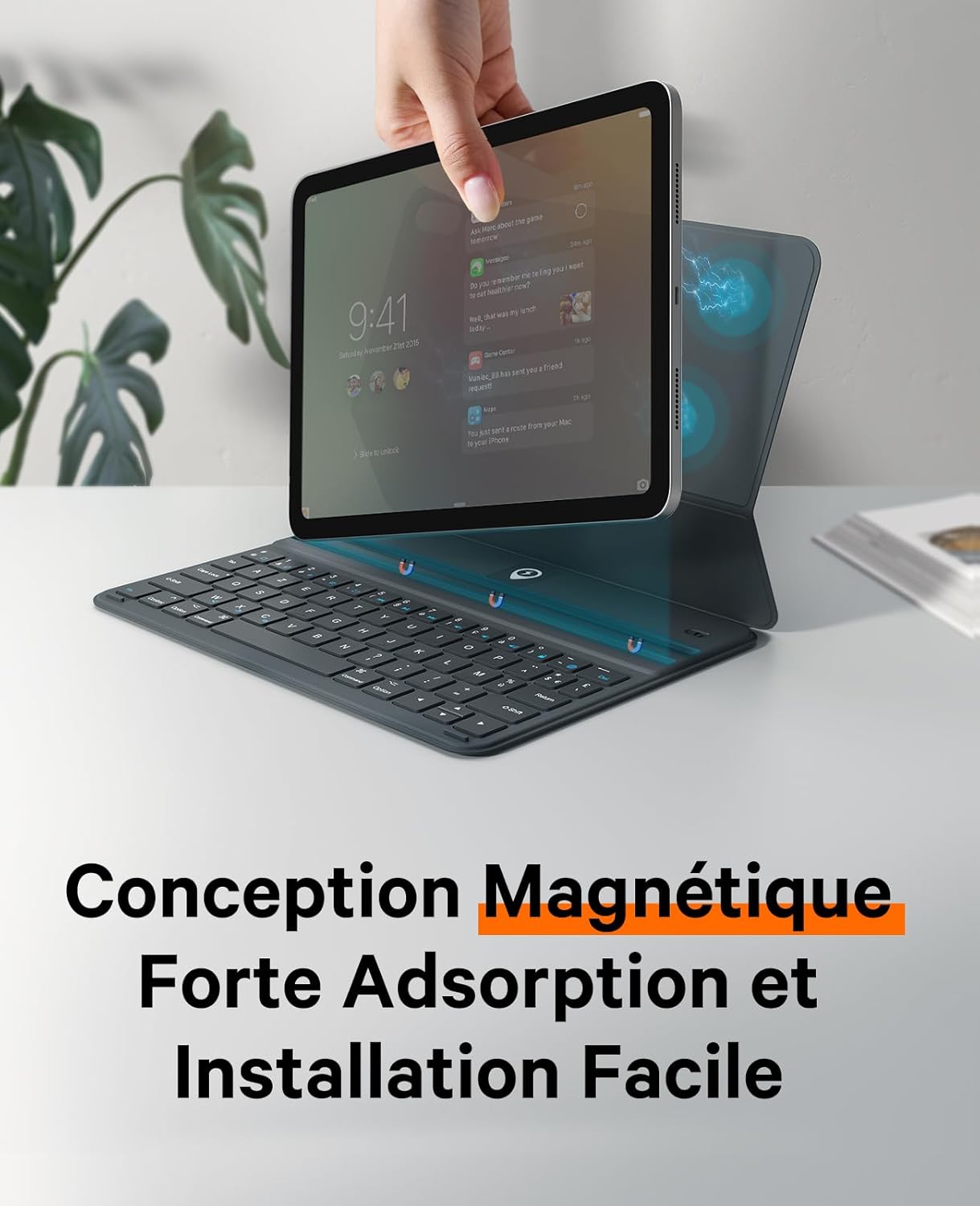
Image: A hand placing an iPad onto the magnetic keyboard case, illustrating the strong magnetic adsorption for easy installation.
Step 2: Power On the Keyboard
Locate the power switch on the keyboard and slide it to the "ON" position. The indicator light will briefly illuminate.
Step 3: Pair via Bluetooth
On your iPad, go to Settings > Bluetooth. Turn on Bluetooth. In the list of available devices, select "Bluetooth Keyboard". The pairing indicator light on the keyboard will stop blinking once successfully connected.

Image: A three-step visual guide showing how to place the iPad, activate Bluetooth on the iPad, and confirm successful connection when the Bluetooth indicator stops blinking.
Operating Instructions
Adjusting the Viewing Angle
The keyboard case features an adjustable stand that allows you to set your iPad at various comfortable viewing and typing angles. Simply adjust the back flap to achieve your desired angle, typically between 115° and 125°.

Image: The keyboard case with an iPad, demonstrating the adjustable stand that allows for viewing angles between 115 and 125 degrees.
Automatic Sleep/Wake Function
To conserve battery life, the keyboard case is equipped with an automatic sleep/wake function. When you close the case, your iPad will automatically go into sleep mode. Opening the case will wake your iPad instantly.

Image: Visual representation of the automatic sleep and wake function, showing the iPad screen turning off when the case is closed and turning on when opened.
Typing Experience
The keyboard features a scissor-structure design, providing a responsive and comfortable typing experience. The keys have a 1.75mm spacing and 1.6mm key travel, designed for efficiency in both learning and work environments.

Image: A person typing on the CHESONA keyboard case with an iPad, demonstrating the ergonomic design for comfortable use.

Image: Diagram illustrating the 1.6mm key travel and 1.75mm key spacing for an optimal typing experience.
Maintenance
Cleaning the Case
The exterior of the keyboard case is made from premium PU leather, which is resistant to dirt. To clean, gently wipe the surface with a soft, damp cloth. Avoid using harsh chemicals or abrasive materials, as these may damage the finish.
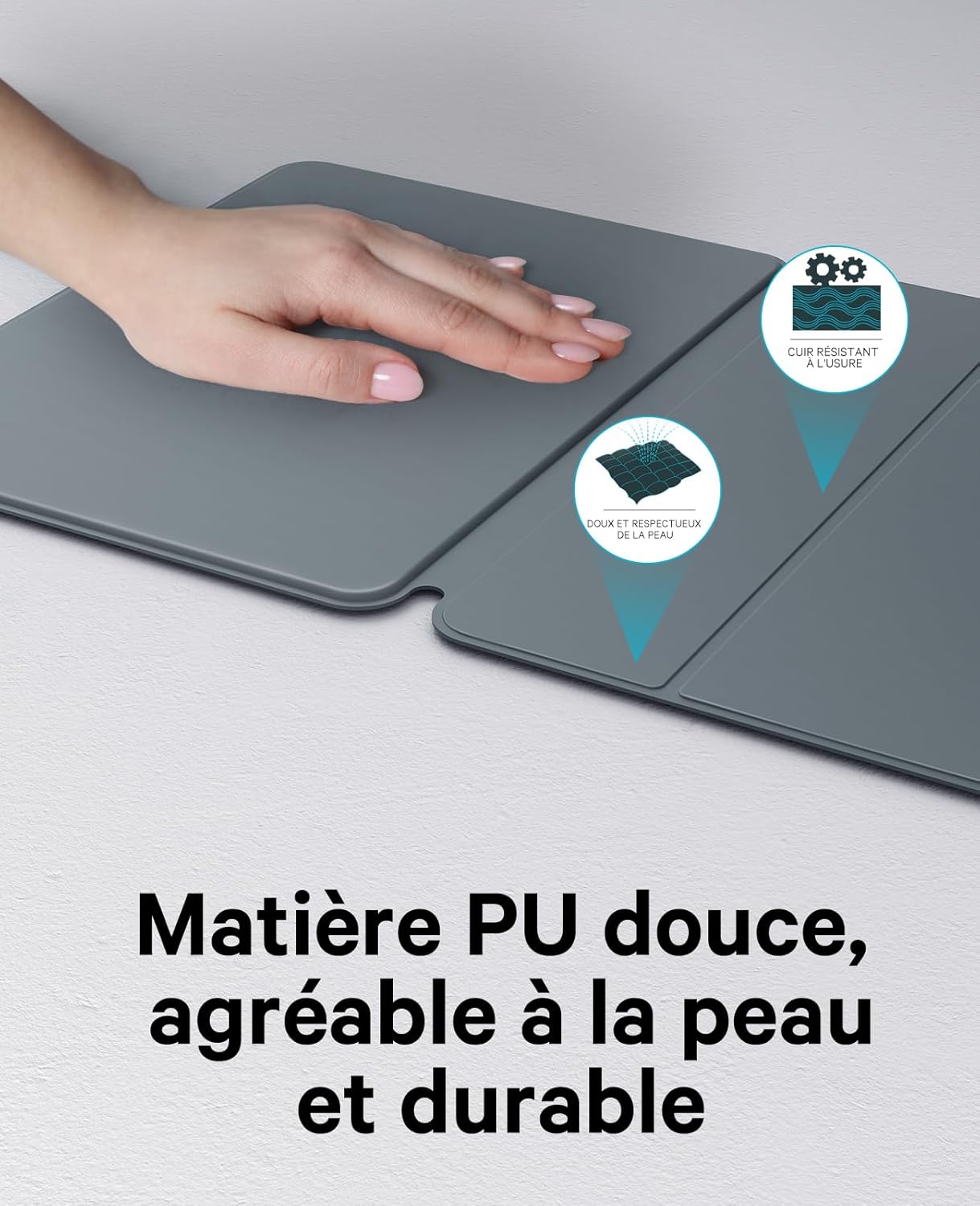
Image: Close-up view of the soft, skin-friendly, and durable PU leather material used for the keyboard case.
Battery Replacement
The keyboard uses a button cell battery, offering extended usage time. When the battery is low (indicated by a blinking red light when remaining battery life is less than 38 hours), replace it with a new button cell battery. Refer to the diagram below for the battery compartment location.

Image: Illustration showing the location of the replaceable button cell battery and highlighting its long life of up to 868 hours.
Troubleshooting
- Keyboard Not Connecting:
Ensure the keyboard is powered on and fully charged (if rechargeable, though this uses button cell). Check that Bluetooth is enabled on your iPad. Forget the device in your iPad's Bluetooth settings and try pairing again. Make sure the keyboard is within range of your iPad.
- Keys Not Responding:
Check the keyboard's battery level and replace the button cell if necessary. Restart both your iPad and the keyboard. Re-pair the Bluetooth connection.
- Automatic Sleep/Wake Not Working:
Ensure your iPad is properly seated in the case and that the case is fully closed. Check your iPad's settings to ensure "Lock/Unlock" is enabled under Display & Brightness (or similar setting depending on iPadOS version).
Specifications
| Brand | CHESONA |
| Model Number | A2902 |
| Compatible Devices | iPad Air 11 (M3, 2025), iPad Air 11 2024, iPad Air 5th Gen 10.9", iPad Air 4th Gen 10.9", iPad Pro 11 4th Gen, iPad Pro 11 3rd Gen, iPad Pro 11 2nd Gen, iPad Pro 11 1st Gen |
| Color | Grey |
| Material | PU Leather |
| Keyboard Type | Multi-functional, Scissor-structure |
| Number of Keys | 105 |
| Power Source | Battery Powered (Button Cell) |
| Battery Life | Up to 868 hours |
| Weight | 414 grams (0.9 lbs) |
| Thickness | 4.4 mm |
| Key Travel | 1.6 mm |
| Key Spacing | 1.75 mm |
| Included Components | iPad Case with Keyboard |
Warranty and Support
Manufacturer's Warranty
This CHESONA Keyboard Case comes with a 1-year manufacturer's warranty from the date of purchase. This warranty covers defects in materials and workmanship under normal use. It does not cover damage caused by accidents, misuse, unauthorized modifications, or normal wear and tear.
Customer Support
For any questions, technical assistance, or warranty claims, please contact CHESONA customer support. Refer to the product packaging or the seller's information on the purchase platform for specific contact details. Our support team is dedicated to providing prompt and helpful assistance.
Ask a question about this manual
Ask about setup, troubleshooting, compatibility, parts, safety, or missing instructions. Manuals+ will review the question and use this page’s manual context to help answer it.