1. Introduction
This manual provides detailed instructions for the installation, operation, and maintenance of your Biorunn 10.1 Inch Android Radio Stereo. Please read this manual thoroughly before using the device to ensure proper functionality and safety.
Important Note:
Before purchase and installation, please verify your car model and year. If you are unsure about compatibility, provide a picture of your vehicle's center console to the seller for confirmation.
2. Product Features
- Android System: 8-Core processor, 4GB RAM, 32GB ROM for smooth performance.
- Display: 10.1-inch IPS Touch Screen with 1280 x 720 resolution.
- Integrated Connectivity: Built-in Bluetooth 5.0, 4G LTE support, and 5Ghz WIFI.
- Smartphone Integration: Supports wireless CarPlay and Android Auto for seamless phone connectivity.
- Audio Processing: Built-in DSP processor for enhanced sound quality.
- Navigation: Integrated global positioning system (GPS) for accurate navigation.
- Radio: FM/AM radio with RDS support and 18 preset stations.
- Multimedia: Supports 1080P full format video and various audio/video formats (MP3, WMA, AAC, MPEG-1/2/4, H264, etc.).
- User Interface: Multi-touch screen, split-screen functionality, and brightness adjustment.
- Vehicle Integration: Supports original steering wheel remote control.
- Language Support: Multiple languages including English, German, French, Spanish, Italian, Portuguese, Russian, Dutch, Polish, Japanese, Chinese, Arabic, etc.
- Expandability: Supports ADAS DVR, OBD II, and TPMS (accessories not included).
3. Setup and Installation
Proper installation is crucial for the optimal performance of your Android Radio Stereo. It is recommended that installation be performed by a qualified professional.
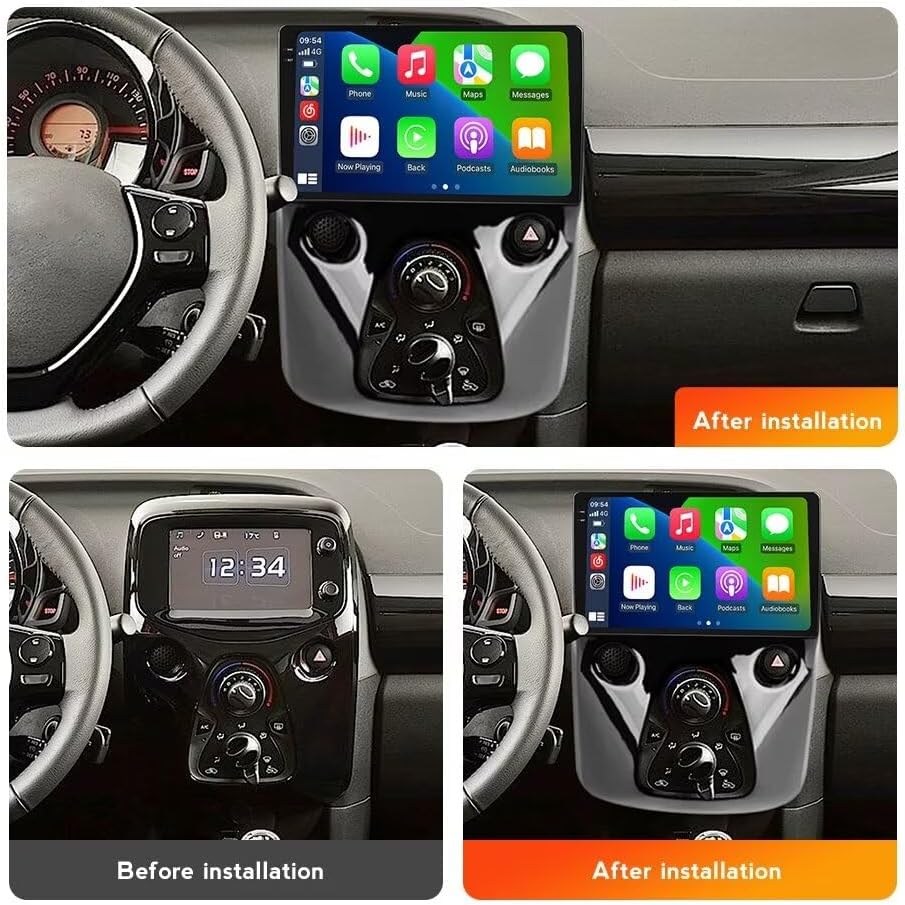
This image shows the car's dashboard before and after the installation of the Biorunn 10.1 Inch Android Radio Stereo. The top image displays the unit fully integrated into the dashboard, showing a modern interface. The bottom left image shows the original car stereo setup, while the bottom right shows the new unit installed, highlighting the seamless fit and enhanced display.
3.1 Wiring Diagram
Refer to the following diagram for correct wiring connections. Ensure all connections are secure before powering on the unit.

This image displays a detailed wiring diagram for the Biorunn Android Radio Stereo. It illustrates connections for GPS, 5G WiFi, Radio antenna, 4G antenna, USB ports, and various power, audio, and control inputs/outputs. Key connections include ACC, Battery +12V, Battery GND, Front (L/R), Rear (L/R), Reverse detecting line, Brake CTL, and Steering Wheel Control (SWC).
- Power Connections: Connect ACC, Battery +12V, and Ground (GND) as indicated.
- Audio Output: Connect Front (L/R) and Rear (L/R) audio outputs to your car's speakers.
- Antennas: Connect the GPS antenna, 5G WiFi antenna, Radio antenna, and 4G antenna to their respective ports.
- USB Ports: Utilize the two USB ports for external devices or media.
- Steering Wheel Control (SWC): Connect SWC wires (KEY1, KEY2) to enable steering wheel button functionality.
- Reverse Camera: Connect the reverse detecting line and video input for a rearview camera (camera not included).
- CANBUS: If your car requires a CANBUS adapter, ensure it is connected correctly to the designated port.
4. Operating Instructions
4.1 CarPlay and Android Auto
The unit supports wireless CarPlay and Android Auto, allowing you to integrate your smartphone for navigation, music, calls, and messages.

This image illustrates the Android Auto and Apple CarPlay interfaces on the Biorunn car stereo. It shows the respective logos and typical application icons for phone, music, and other functions, indicating seamless smartphone integration for a connected driving experience.
- Ensure your phone's Bluetooth and Wi-Fi are enabled.
- On the head unit, select the "CarPlay" or "Android Auto" application.
- Follow the on-screen prompts to pair your smartphone.
- Once connected, you can access compatible apps directly from the stereo's display.
4.2 FM/AM RDS Radio
Tune into your favorite radio stations with the built-in FM/AM tuner and RDS functionality.

This image shows the FM/AM RDS Radio interface on the Biorunn car stereo. It displays the current frequency (108.00 MHz), signal strength, and a list of preset stations (e.g., 87.50 MHz, 98.10 MHz). Users can manually search or use the automatic search function to find and save channels.
- Access the "Radio" application from the main menu.
- Use the on-screen controls to manually tune frequencies or initiate an automatic search for available stations.
- Save your preferred stations to the 18 available presets.
4.3 Navigation (GPS)
Utilize the integrated GPS for real-time navigation and accurate positioning.

This image displays the GPS navigation interface on the Biorunn car stereo. It shows a map with a highlighted route, current vehicle speed (50 km/h), and an estimated arrival time (8:46). The map provides omni-directional display and real-time traffic conditions for rapid and accurate positioning.
- Open the "Navigation" or "Maps" application.
- Enter your destination using the on-screen keyboard.
- Follow the voice prompts and visual directions for your route.
4.4 Bluetooth Function
Connect your mobile phone via Bluetooth for hands-free calling and audio streaming.

This image shows the Bluetooth (BT) function interface on the Biorunn car stereo. It displays a numeric keypad for dialing, along with options for managing calls, accessing the phonebook, and streaming music. The interface supports phonebook search, caller ID display, and A2DP for Bluetooth music streaming.
- Go to the "Bluetooth" settings on the head unit.
- Enable Bluetooth on your phone and search for available devices.
- Select the head unit from your phone's Bluetooth list and pair them.
- Once paired, you can make/receive calls, access your phonebook, and stream music.
4.5 Steering Wheel Control (SWC)
Configure your steering wheel buttons to control the head unit for safe operation while driving.

This image displays the Steering Wheel Control (SWC) learning interface on the Biorunn car stereo. It shows a grid of customizable functions such as volume up/down, track skip, mode, and call controls. The instruction "please hold the button on the steering wheel into the learning state!" guides the user through the process of mapping physical steering wheel buttons to specific functions on the head unit.
- Navigate to the "Steering Wheel Control" settings in the system menu.
- Follow the on-screen instructions to program each button on your steering wheel. This typically involves pressing a button on the steering wheel and then selecting the corresponding function on the head unit's screen.
4.6 Split Screen Function
The split-screen feature allows you to run two applications simultaneously on the display, such as navigation and music.
- To activate, open an application, then long-press the recent apps button or drag an app to one side of the screen (method may vary slightly based on Android version).
- Select a second application to fill the other half of the screen.
5. Specifications
| Feature | Specification |
|---|---|
| System | Android |
| Processor | 8 Core |
| RAM | 4GB |
| ROM | 32GB |
| Display Size | 10.1 Inches |
| Display Resolution | 1280 x 720 (IPS Screen) |
| Bluetooth Version | 5.0 |
| Connectivity | Wireless, 4G LTE, 5Ghz WIFI |
| Special Features | Android Auto, Wireless CarPlay, Built-in DSP, GPS Navigation, Split Screen, FM/AM RDS Radio, Steering Wheel Control |
| Audio Format Support | MP3, WMA, AAC, RM, FALC, etc. |
| Video Format Support | MPEG-1/2/4, H264, H263, VC1, RV, RMVB, DivX, Sorenson SparK, Spark, VP8, AVS Stream |
| Photo Format Support | JPG/BMP/JEPG/GIF/PNG |
| Control Method | Touchscreen, Buttons, Keyboard, Mouse |
| Compatible Devices | Smartphone, Speaker |
| Connector Type | RCA, USB |
6. Maintenance
To ensure the longevity and optimal performance of your Biorunn Android Radio Stereo, follow these maintenance guidelines:
- Cleaning the Screen: Use a soft, lint-free cloth to gently wipe the touchscreen. For stubborn smudges, slightly dampen the cloth with water or a screen-safe cleaner. Avoid harsh chemicals or abrasive materials.
- Software Updates: Periodically check for software updates provided by Biorunn to ensure you have the latest features and bug fixes. Follow the instructions provided with the update.
- Environmental Conditions: Avoid exposing the unit to extreme temperatures, direct sunlight for prolonged periods, or excessive moisture.
- Cable Connections: Periodically check all cable connections to ensure they are secure and free from damage.
7. Troubleshooting
If you encounter issues with your Biorunn Android Radio Stereo, refer to the following common troubleshooting steps:
- No Power:
- Check all power connections (ACC, +12V, GND) as per the wiring diagram.
- Verify the car's fuse for the stereo system.
- No Sound:
- Ensure speaker wires are correctly connected.
- Check volume levels on the unit and any connected devices.
- Verify audio settings in the system menu.
- GPS Not Working:
- Ensure the GPS antenna is properly connected and has a clear view of the sky.
- Check GPS settings in the navigation application.
- Bluetooth Connection Issues:
- Ensure Bluetooth is enabled on both the head unit and your phone.
- Delete previous pairings and attempt to re-pair the devices.
- Restart both the head unit and your phone.
- Touchscreen Unresponsive:
- Restart the unit.
- Ensure the screen is clean and free from debris.
For persistent issues, please contact Biorunn customer support.
8. Warranty and Support
For warranty information, please refer to the documentation provided with your purchase or contact Biorunn customer service directly. If you require technical assistance or have questions not covered in this manual, please reach out to Biorunn support through their official channels.
You can often find support contact information on the manufacturer's website or within your purchase details.


